The era of Googlebooks has arrived (if Google has its way), and that means a lot of time spent learning how to get the most out of a brand-new operating system that aims to combine the best parts of ChromeOS and Android.That also means a new Screen Capture tool for the moments you want to record the action happening on screen, or to take a simple screenshot.Here's what you need to know to master this new tool.
Accessing the Screen Capture tool on your Googlebook Multiple ways to get to the exact same place The Screen Capture tool may be built with taking screenshots as the priority, but Google has still made it unbelievably easy to access the tool and get to the screen recording function.With this tool, you can record whatever is happening on all or part of your screen, and can even capture device and microphone audio if you choose, but you need to access the Screen Capture tool first.Unfortunately, there's no direct keyboard shortcut to instantly begin a screen recording, or even to open the Screen Capture tool in the Record section, but you can still press Google + Ctrl + S to immediately open the Screen Capture tool to the Take screenshot of selected area option, and from there click the Record button in the top-center toolbar.
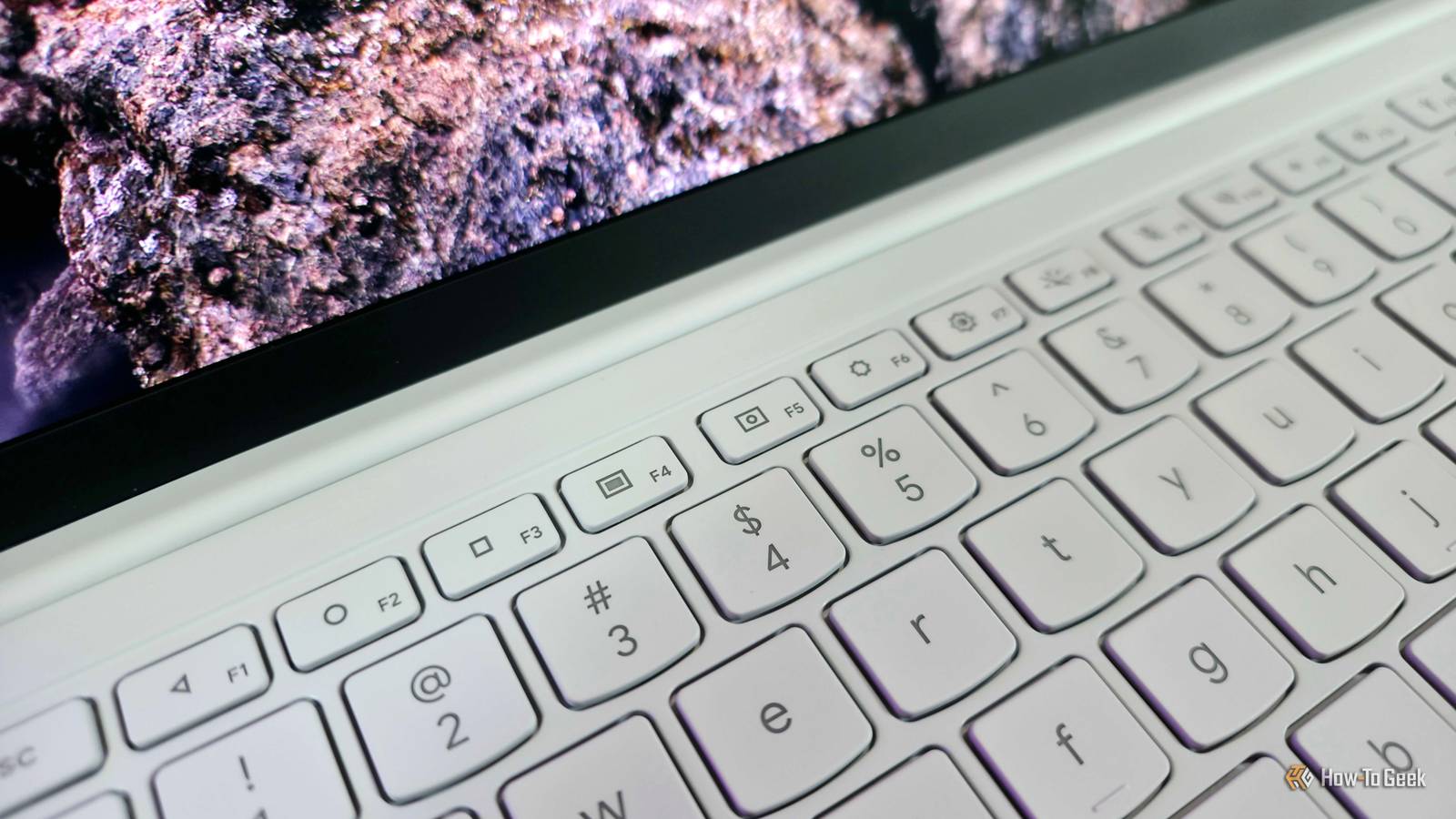
You can also open the Screen Capture tool by pressing Ctrl + F5 on your keyboard, and then clicking the Record button in the top-center toolbar.Depending on your Googlebook model, the F5 key in your function row may be a dedicated Screen Capture tool, like with the Lenovo Googlebook 15 I'm using, letting you skip the need to also press the Ctrl button.Otherwise, you can access the Screen Capture tool through Quick Settings by clicking the indicators in the top-right corner of your screen, swiping down from the top of the screen, or pressing Google + Q on your keyboard.
Once in Quick Settings, simply click the Screen Capture tile; if that tile isn't appearing, you can edit your tiles by clicking the Edit Tiles button in the top-left corner of Quick Settings and adding the Screen Capture tile from there.For the times when you really just need a snapshot of your screen and not a recording, you can press Google + S on your keyboard to instantly take a screenshot without opening the Screen Capture tool.Related Someone got Googlebook OS running on an Apple Silicon Mac This project lets Apple Silicon Mac owners run Googlebook OS in a virtual machine, complete with GPU acceleration and Chrome support.
Posts By Sanket Mungase Tips and tricks for screen recording on your Googlebook The rest you need to truly master the Screen Capture tool Close The consequence of the Screen Capture tool being so quick and convenient is that it's lacking in features and options compared to other screen capture tools, including the Windows 11 Snipping Tool.Changing the file type or download location of screen recordings is out of the question, nor can you enable touch indicators, just to name a few examples.Still, there are a few tips and tricks to help you get the most out of the Screen Capture tool.
When you begin a screen recording with the Screen Capture tool, you will see a green indicator appear in the status bar in the right-hand corner of your screen.The indicator will be a timer counting down 3 seconds before screen recording begins, and then it will track the duration of your screen recording session.To stop your screen recording, simply click the green recording indicator in the top-right status bar, and then click the red Stop button that appears beneath it.
You can also find a screen recording widget in the Notifications Center that similarly tracks recording duration and features a Stop button to halt the recording.At time of writing, there's no way to pause and resume the same screen recording session.Depending on your recording needs, you can select the Record entire screen or Record window options in the top-center toolbar to either capture everything occurring on your entire screen (including system elements) or have recording be constrained to a single active app.
By clicking the Screen Capture settings gear icon in the top-center toolbar, you can also toggle Device audio and Microphone for screen recordings, which respectively control whether screen recordings capture internal device audio or microphone input.The Screen Capture tool, including the screen recording function, works the same way on external displays connected to your Googlebook.Your screen recordings are not saved in the same place as screenshots in the Files app.
Instead of the Screenshots folder, you'll need to navigate to your local device folder (it should match your device model, such as Lenovo Googlebook 15) in the left-hand navigation menu of Files, and then navigate to the Movies folder to find all your saved recordings.At time of writing, you're not able to change where screen recordings are saved.Open a screen recording in the Files app will open the simple Viewer app, which will give you playback controls, file information, and the option to share your screen recording.
Click the Edit in Photos button in the top-right corner, and you'll gain access to the considerably more powerful editing tools and AI features in the Google Photos app.If you'd like to back up your screen recordings to Google Photos, that feature is enabled automatically.To back up your screen recordings, open Google Photos, navigate to Settings, then Backup, then Default Backup under Backup options, and finally Device folders under Other options.
Select the local folders you wish to back up to Google Photos (in this case, you would want to ensure the Movies folder is being synced to Google Photos).Related How to install and use Linux apps on Googlebook OS Googlebook OS features a built-in Linux environment, and getting Linux apps up and running is simple.Posts 2 By Zachary Boddy Record your Googlebook's screen to your heart's content There are absolutely more powerful and versatile screen capture tools out there, but the Googlebook solution is at least easy to use, easy to access, and still has no problem handling screen shots recordings.
It'll be interesting to see how this feature evolves over time, since Googlebook OS is in its infancy as an operating system, but for now...this guide contains everything you need to know about recording your Googlebook with the Screen Capture tool.
Read More