I have a number of Windows computers around my home.Some are media centers, others handle my outdoor cameras and smart home, and some are just for basic office work.I’m also the person in my circle of friends and family who gets the call when there is a technology problem.
Basically, this means I’m working on other people’s PCs pretty frequently.I don’t particularly enjoy having to install the same group of apps on every machine I’m working on, especially when the PC isn’t mine.Having portable apps on my thumb drive means I don’t have to.
In most cases, a Windows application needs to be installed, which can mean writing files, creating registry entries, and storing settings on the local machine.Portable applications, on the other hand, are designed to run directly from a folder or removable drive without the hassle of the installation process on each PC.Many of them allow you to keep your settings and configuration files inside the application's folder on the drive, meaning those preferences travel with you wherever you go.
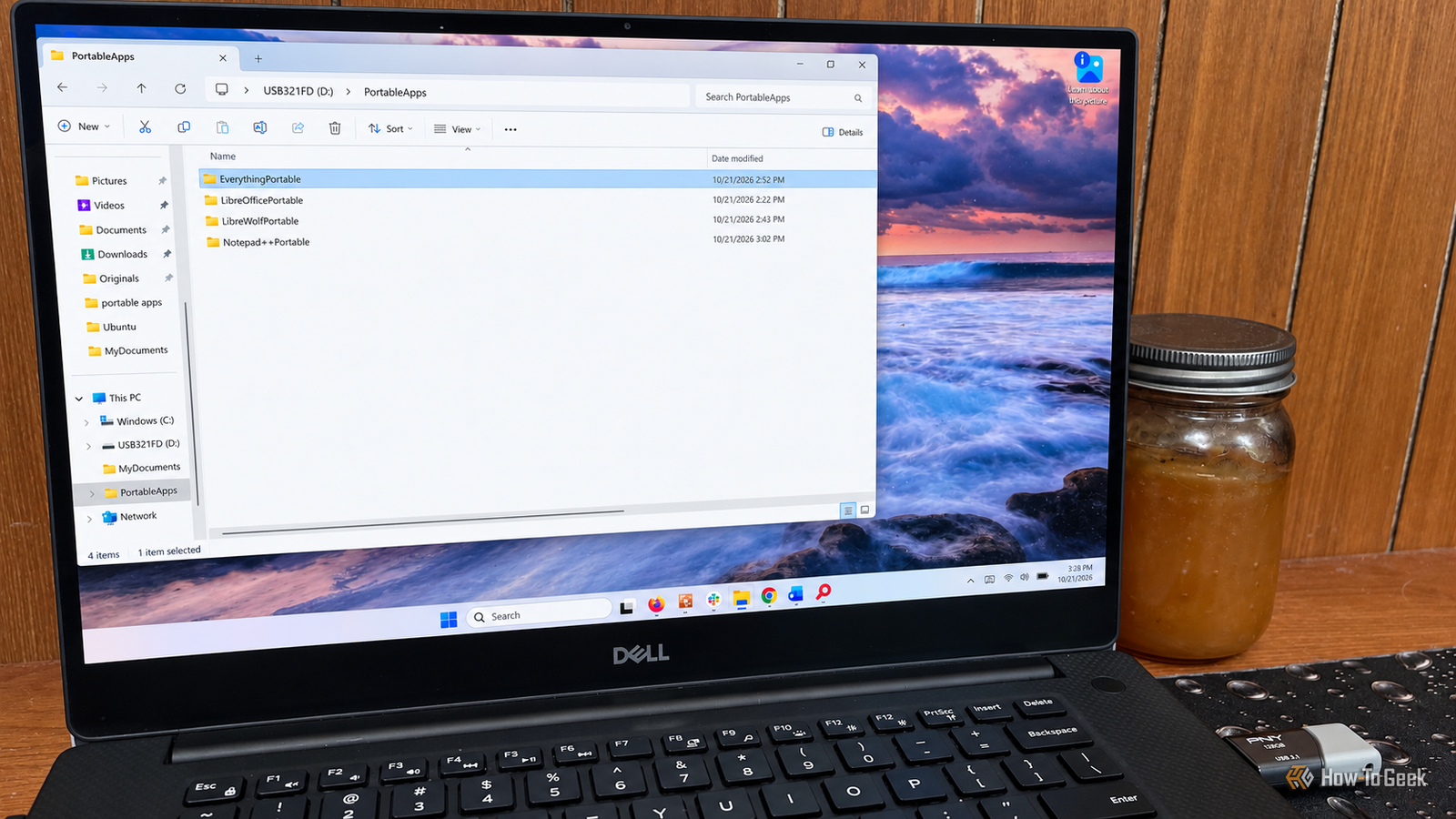
I created a drive containing three of the apps I use regularly and a separate folder to hold my documents.Now I can plug the thumb drive into any Windows computer and run these files right from the USB without installing anything.Some company-managed or shared Windows PCs may restrict USB drives, block unauthorized applications, or require administrator permissions.
Portable apps may not work on computers with these restrictions.How I set up my USB drive with portable apps A little organization makes everything easier Close I began with a blank thumb drive.I didn’t need to do anything special except set up a folder structure that made sense.
I started by creating two folders on the drive: PortableApps is where I store my apps, and MyDocuments is where I save documents and other files.Keeping all of it organized makes it easy to navigate.This structure also helps me keep everything on my drive rather than the host machine.
Portable apps are designed to run without being installed on the host PC, but that doesn't mean they leave no traces behind.Some applications may still create temporary files, cache data, or write information to Windows while running.Next, I downloaded the portable versions of LibreOffice, LibreWolf, and Notepad++.
Not all portable apps come packaged the same way.LibreWolf was a ZIP file, so all I had to do was extract it into its own folder inside the PortableApps folder I created on my USB drive.It was pretty straightforward, and it didn’t require an installer.
LibreOffice and Notepad++ were a little different.Both came as .paf.exe files that use the PortableApps.com installer.I ran each one and selected my USB drive as the destination.
Although you're running an installer, it doesn't install the software on your Windows PC.It simply places the portable application on the USB drive.Once everything was set up, I could open each application's folder and launch it directly from there.
LibreOffice Portable I can keep working even if my regular PC isn't available LibreOffice is one of those applications I like having available no matter which computer I'm using.It includes Writer, Calc, and Impress, which handle most of the documents, spreadsheets, and presentations I work with.I can also open and edit Microsoft Office files without needing Office installed on the computer.
Since I spend a fair amount of time writing and editing, having a complete office suite on my USB drive is pretty useful.The real benefit for me is being able to switch computers when something goes wrong.If my regular work PC is having problems, I can plug the USB drive into another Windows machine, launch LibreOffice, and get back to work.
I can save my documents directly to the drive, so they're available when I move to another computer.I don't have to install an office suite or copy files back and forth just to keep working.LibreWolf Portable My bookmarks and browser settings go wherever I go If you have multiple PCs, you've probably run into this problem: You're looking for a bookmark that you're sure you've saved, only to find it wasn't saved on this PC.
LibreWolf Portable puts that problem to bed.I've become a big fan of LibreWolf, mainly because of its focus on privacy.In fact, I've started using it on Windows PCs where I handle things like banking and paying bills.
It's based on Firefox, so the interface is familiar, but it comes with additional privacy protections and fewer of the features I don't particularly need.The portable version gives me another reason to use it.I can keep my bookmarks, preferences, and browser settings on my USB drive and take them to another Windows PC without having to set everything up again.
Notepad++ Portable A better text editor for troubleshooting other PCs More often than not, when I'm troubleshooting a computer, I find myself digging through scripts, configuration files, or logs trying to figure out what's going wrong.Windows has Notepad, which is fine for basic text editing, but I prefer something with a little more functionality.Notepad++ gives me features like syntax highlighting, line numbers, and the ability to work with multiple files in tabs.
Having the portable version on my USB drive means I always have a capable editor available when someone asks me to look at their PC.I can open the files I need, make changes, and save them without having to install another application on their computer.Your favorite applications are worth keeping close Having these applications on a USB drive has become a practical part of how I work with different computers.
I don't need to think about what's installed on a particular machine before I use it.Whether I'm editing a document, browsing the web, or troubleshooting a problem, I already have the software I need.There are plenty of other portable applications out there, and I'll probably add a few more to the drive over time.
Read More