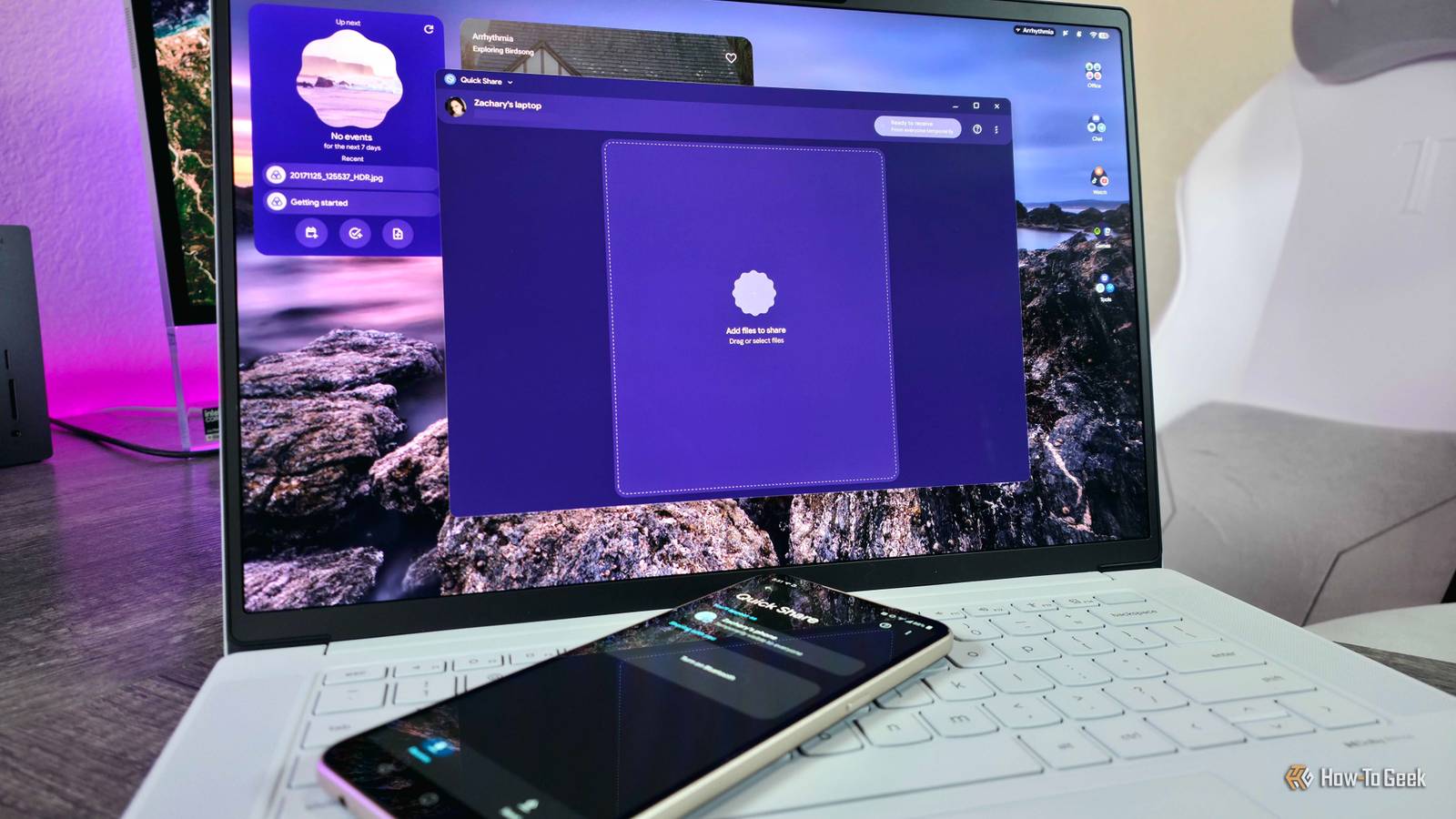
One of the greatest selling points of Google's new Android-powered, AI-focused Googlebook laptops is the tight integration with your Android smartphone.There are plenty of new ways to connect your laptop and smartphone, but the tried-and-true feature for sharing images, documents, and other files still reigns supreme.Here's what you need to know about using Quick Share on your Googlebook.
Accessing Quick Share on your Googlebook Three ways to quickly share your files Close The first step to using Quick Share on your Googlebook is to find it in the first place.Unfortunately there's no simple keyboard shortcut to open Quick Share, but there are three separate methods you can use.Via Quick Settings: Open Quick Settings by clicking the indicators in the top-right corner of your screen, swiping down from the top of the screen, or by pressing Google + Q on your keyboard.
Find and click the Quick Share tile to immediately open Quick Share and set your device to "Ready to receive from everyone for 10 minutes".If the Quick Share tile isn't visible, you may need to edit your Quick Settings tiles by clicking the Edit tiles button in the top-left corner of Quick Settings.Via Share: Right-click any shareable image, document, or other files, and click the Share button.
Nearby Quick Share devices (such as your phone) may appear in the Share menu, but you can also open Quick Share directly from this list and have the file ready to send immediately to other devices or contacts.Via Settings: Open Settings from the Quick Settings menu, app drawer, or by pressing Google + I on your keyboard.Navigate to the Google services menu from the top of the left-hand navigation menu, and click on Quick Share to open Quick Share without setting your device to "Ready to receive from everyone for 10 minutes" and to gain quick access to your Quick Share settings.
Using Quick Share on your Googlebook and Android phone Send and receive any files from anywhere Close Enjoying the convenience of Quick Share is easy once you know how to access it on your Googlebook, but there are some things to keep in mind before I go through the process of sharing and receiving files through Quick Share with GoogleBook OS.For one, there are generally no limitations to the general type or size of files you can send through Quick Share, so everything from simple links and light documents to large videos and even entire folders are fair game.Quick Share now also works with a greater number of devices, including Windows PCs with the installable Quick Share app; a growing list of Android devices even support Quick Share for AirDrop, letting you share with Apple devices.
However, you may encounter some limitations with abnormal file types, extreme file sizes, or multi-file sending depending on the devices involved.Using Quick Share itself is incredibly easy, though.If you're sending files, you can either open Quick Share on your device and manually add the files you want to share (this is best if you plan to share a variety of files from multiple locations on your device), or you can select the files you want to share from an app (like Photos or Files) and select Quick Share in the Share menu.
Once your files are selected, you can select a nearby device or contact to immediately send the files.If the intended recipient doesn't appear, you can click the QR Code button to generate a unique QR code that the receiving device can scan to receive the files immediately.If you're receiving files from someone else, you can open Quick Share on your device and navigate to the Receive menu to be ready to receive any files from nearby devices (with Googlebooks, your device is automatically set to "Ready to receive from everyone for 10 minutes" when you open Quick Share through Quick Settings), or you can scan the QR code the sending device can generate to connect directly.
This general process works the same for all devices that support Quick Share, but your interface and options may look different or be in slightly different places depending on your device.Related Googlebook's Android integration has two limitations that you won't see coming Sold as your phone's ideal laptop partner, but the fine print decides how well the features work.Posts By Viraj Gawde Comparing Quick Share to Googlebook's Cross-Device Services A (sort of) alternative to Quick Share with Googlebook OS I can't discuss Quick Share on Googlebooks without mentioning Cross-Device Services, one of the headlining new features for Google's latest laptops.
Cross-Device Services integrates your Android smartphone with your Googlebook at an OS level, allowing you to pass ongoing tasks from your Android phone to your Googlebook, stream your Android apps to your Googlebook, and even transfer files back and forth directly through the Googlebook Files app, where your Android phone will appear as mounted storage.This feature may be even more convenient than Quick Share, but it has a few limitations.It only works with devices signed into your Google Account, and you have to manually add them to your Cross-Device Services group.
You can also only transfer files up to 200MB in size.Most importantly, though, is that Cross-Device Services doesn't work consistently (if at all) at the time of writing this guide, an experience shared by multiple How-To Geek writers, while Quick Share is a mature feature that works flawlessly more often than not.Quick Share is just as easy to use as you'd expect with Googlebooks Quick Share has become one of the easiest ways to swiftly move images, documents, and other files from device to device, and the lines between different operating systems are blurring more and more.
As expected from Google's flagship computing platform, Googlebooks fully support Quick Share, making it simple to send and receive any files you need.
Read More