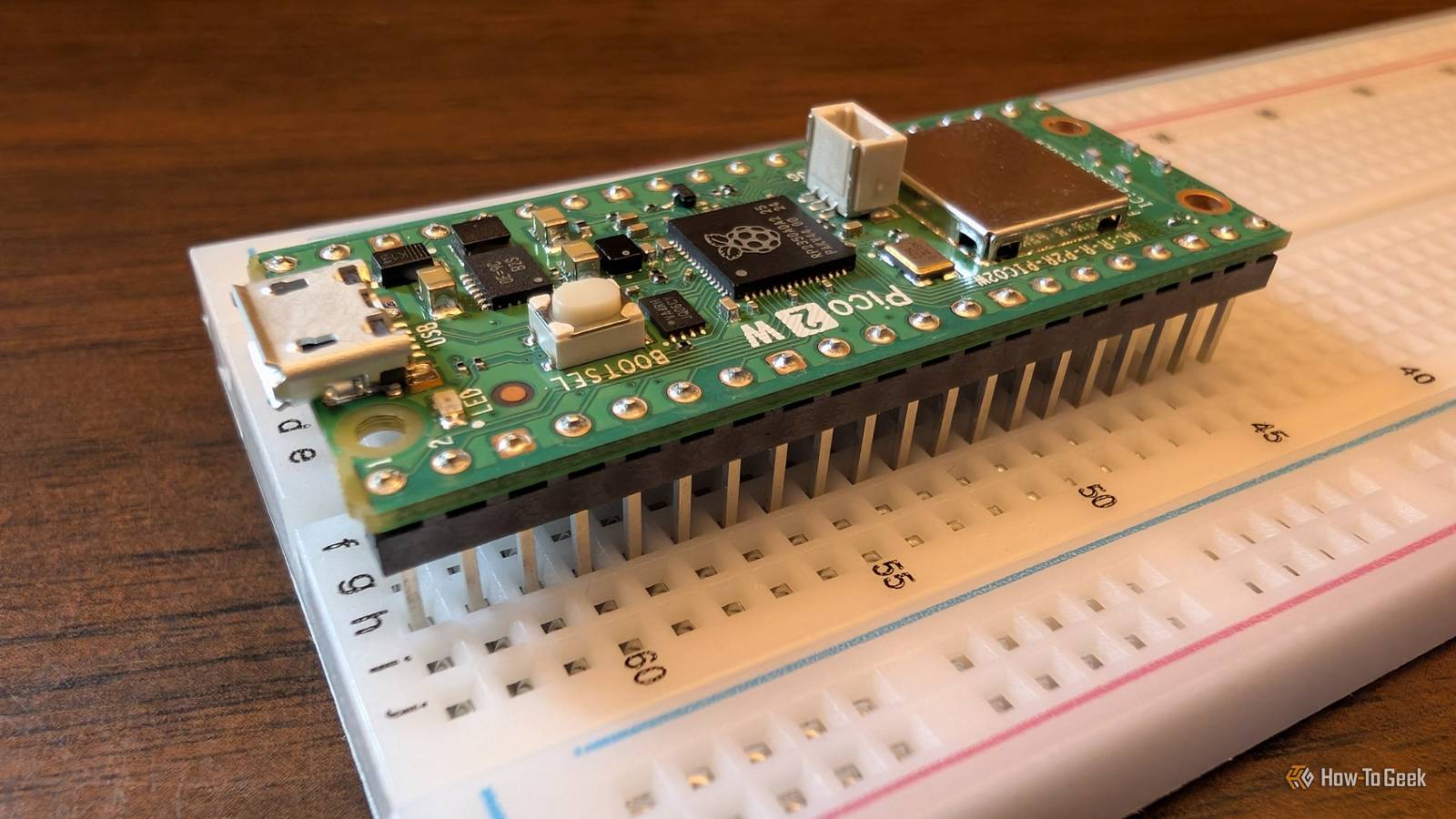
The Raspberry Pi Pico, and its newer sibling, the Pico 2, isn't designed to be a tiny mini PC like most of the Raspberry Pi family.Instead, it is designed for hardware projects and embedded applications.This is how to get started with one.
Your first Pico project should be as simple as possible Learn the process first Starting with the Pico can be daunting.It is quite different from the rest of the Raspberry Pi family.I'd always recommend starting with the basics.
Instead of wiring up several components at once and chasing a million different problems, focus on one thing that touches every part of the system: make an LED blink.That simple task takes you through the entire setup process and equips you to start adding additional hardware and more complex software, and it guarantees that troubleshooting will be pretty straightforward.The basic Pico Process If you’ve spent time with a Raspberry Pi, your first instinct is going to be to install some operating system.
The Pico doesn’t work that way.It’s a minimalist microcontroller.It doesn't have an "operating system" at all.
Here are the basic steps you take instead: Flash firmware — write the RP2040 or RP2350 with a tiny bit of software that tells it how to interpret code Upload scripts directly — copy your MicroPython code directly to the Pico via USB.Run code in real time — the Pico executes your instructions.The first thing you should set up isn’t software on the Pico itself, but the software on your PC.
Getting the Pico ready Connected the Pico to your PC The first thing you need to do is get your Pico into a state where it can exchange information with your PC.To begin, hold the BOOTSEL button on the board and plug the Pico into your PC using a USB cable letting go of the button.If you do it correctly, the Pico will show up as removable storage on your PC, just like a flash drive or external SSD.
Tip: If the Pico doesn't appear, make sure your cable supports data.A charge-only cable will let power through but won’t transfer data, so nothing will happen.Once it is visible, you're ready to set up an IDE and flash the firmware.
Install an easy IDE There are a of IDEs that you can use to program a Pico, but I'd recommend starting with Thonny.It is simple, easy to use, and a ton of the content aimed at beginner Pico projects uses it.Unlike Visual Studio Code or other advanced editors that require a more setup, Thonny comes pre-configured with MicroPython support.
That means you can upload code to the Pico with one click and see it run immediately.Flash MicroPython onto the Pico You can program the Pico with multiple languages, but MicroPython is a good place to start, since it is a trimmed-down version of Python 3.The language is easy to read and well-documented.
To flash your Pico, start by downloading the UF2 (firmware) file from the Raspberry Pi website.Once it is downloaded, copy and paste the file to the Pico using File Explorer.I have a Pi Pico 2 W, so I downloaded the firmware for that instead.
If the Pico disappears, just unplug it, hold the BOOTSEL button again, and plug it back in.It'll reappear.The Pico will automatically reboot and disconnect once the copy finishes, and that's it—you’re running MicroPython.
Once the firmware is installed, you can start writing code.Writing your first code Tell your IDE to talk to the Pi By default, Thonny should pick up your Pico.However, if it doesn't, go to Tools > Options > Interpreter, and then select MicroPython (Raspberry Pi Pico) from the drop-down menu.
Once the interpreter is set correctly, the IDE will talk straight to the Pico, and you’ll see a live Python console (REPL) that lets you type commands.Make an LED blink using a simple script The simplest test on any microcontroller is to make the built-in LED flash.Paste this into Thonny: from picozero import pico_led pico_led.blink() Press Run (the green arrow) at the top.
If you’ve set Thonny to MicroPython (Raspberry Pi Pico) and the board is powered on, the Pico’s built-in LED will start blinking.Once that is done, I'd recommend connecting the Pico to a breadboard and wiring up an external LED.The code for that will also be quite simple.
from picozero import LED led = LED(15) led.blink() The external LED should start blinking.If it doesn't, double-check all of your connections to be sure everything is connected properly.Simple is the best beginning It might seem like a waste of time to start with something so simple, but when you're working with a Pico, the basic process is as important as the detailed code and elaborate hardware.
Once you know how to get everything running reliably, it is easier to draw from other designs you find on the internet to implement your own version.Raspberry Pi Pico W The Raspberry Pi Foundation's affordable and powerful microcontroller just gained Wi-Fi support.Get the Pico W now for just $6.
See at Amazon See at The Pi Hut Expand Collapse
Read More