It’s easy to dismiss USB drives as little more than inexpensive portable storage devices that you can plug into practically anything.Although that’s hard to argue against, a USB drive can actually have many different roles depending on how you use it.But if you’ve only got one drive to carry around, those roles can quickly start to overlap and turn into a disorganized mess.
Luckily, there’s a simple trick: partitioning the drive into multiple partitions.Stop treating your USB drive like it's one giant folder Give your files some room Close Most people treat a USB thumb drive as a single do-all storage device.You copy whatever you need at the moment onto it, use it on a different device, back up some important work files or photos, delete a few large files when there's no space left, and rinse and repeat until the drive turns into a mess of random app installers, OS images, photos, presentations, documents, random downloads, music, and various other files you forgot existed.
To be completely honest, that's totally fine if we're talking about an old 16GB drive you've had since high school.However, modern USB drives now come in surprisingly massive storage capacities.You can get a 128GB USB drive for less than $15, with capacities of 256GB and even 512GB readily available for reasonable prices.
If you own a large USB drive like that, there's a good chance you're not just using it for a single purpose, like cold storage or large file transfers.It's likely your USB equivalent of a Swiss Army knife, and keeping such a large drive organized can be surprisingly difficult if you're running it as a single partition.Partitioning your USB drive gives it structure One drive can handle many jobs If you were around in the '90s and early 2000s, you likely remember how common partitioning hard drives was.
People would use one partition for one operating system, another for dual-booting, a third for apps and data, a fourth for games, and so on.The partitions helped preserve data during system reinstalls, which was practically a semi-annual habit for some of us.It even provided a modest performance benefit on spinning hard drives (a trick known as short-stroking).
While you certainly won't get any performance or data-preserving benefits by partitioning a USB flash drive (corruption and malware can easily spread between partitions), you do get the benefit of greatly improved organization.Having multiple partitions on one USB drive allows you to treat that single physical device as if it were multiple smaller flash drives.For example, I split my tiny 64GB flash drive into a 23.5GB Ventoy PC rescue kit and OS bootable drive, while keeping the leftover 34.9GB as music storage for my car.
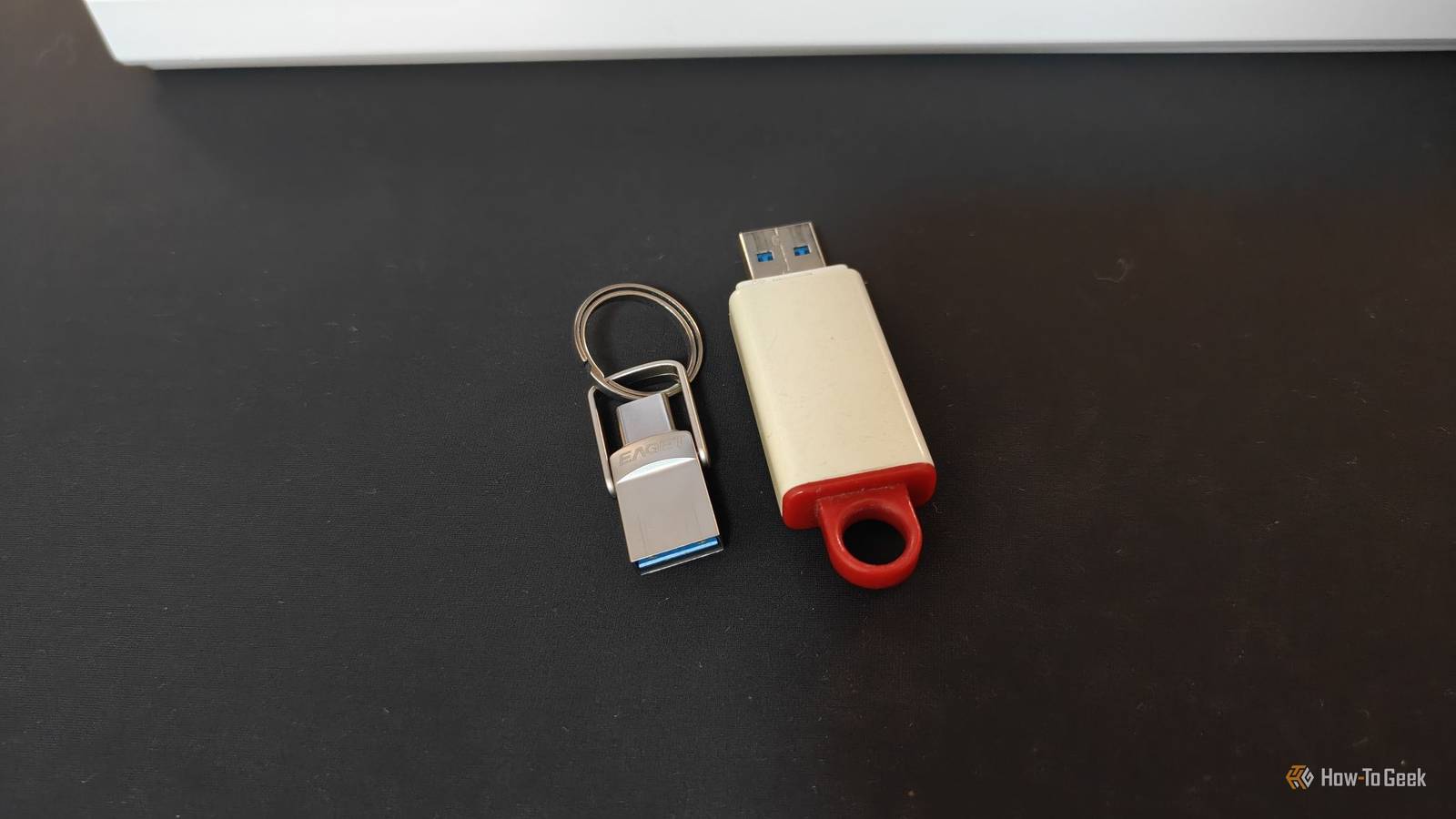
EAGET 64GB Flash Drive, Dual USB 3.2 Gen 1 USB-A & USB-C Capacity 64GB Speed 150MB/s The EAGET 64GB USB flash drive has dual USB-A and USB-C connectors in a compact 360-degree swivel design, making it easy to use across older and newer devices.It supports USB 3.2 Gen 1 and advertises read speeds of up to 150MB/s, while its tiny metal body makes it particularly convenient for carrying on a keychain.Connection USB-A & USB-C $19 at Amazon Expand Collapse If you've got a larger drive, you could reserve an encrypted partition for photo backups, one for music, another for random file transfers, and a tiny 1GB partition just for work files and presentations.
This helps you keep things professional and ensures you don't accidentally end up showcasing your cool music collection to the entire workplace.The point is, there's almost no limit to all the cool things you could do with partitions.The device you plug the drive into will treat each partition as an independent drive.
Let your imagination run wild—create a USB that serves as a rescue drive, live Linux and retro-gaming rig, and temporary file-transfer drive all in one.Use different file systems for different jobs Pick the right format for each partition One of the biggest benefits of partitioning your USB drive that I haven't even touched on yet is that you can use different file systems on a single physical device.FAT32 is the old-school file system with the broadest compatibility.
It's common, reliable, and works really well with various legacy devices and non-PC hardware, such as your car's infotainment system.However, a major drawback is its maximum 4GB file size limit, which is a massive blow to large file transfers, media storage, backups, and so on.exFAT solves that issue because it doesn't have the same 4GB file size limit, while retaining strong compatibility.
NTFS is even more feature-rich, with features such as journaling.It keeps a log of certain filesystem changes while you're writing to the drive, so in the event of an interrupted write or other error, the filesystem's structure can be recovered more reliably.However, NTFS is primarily designed around Windows and has limited compatibility elsewhere, so it's not the best choice for transferring files between different operating systems.
The beauty of a partitioned USB drive is that you can reap the benefits of all three by formatting different partitions with different file systems.Quiz8 Questions · Test Your KnowledgeQuirky USB drives and weird use casesTrivia challengeFrom recovery sticks to sushi-shaped flash drives — how much do you really know about the wild world of USB drives?RecoveryDesignSecurityStorageFun FactsBegin01 / 8RecoveryWhat is the primary purpose of a Windows recovery USB drive?ATo increase USB transfer speeds on older PCsBTo store personal files as an automatic backupCTo repair, reset, or reinstall Windows when the system won't bootDTo run antivirus scans without installing softwareCorrect! A Windows recovery USB lets you access repair tools, reset the OS, or perform a clean reinstall even when your PC refuses to boot normally.It's one of the most practical things you can create with a spare flash drive.Not quite.
A recovery USB is specifically designed to help you fix or reinstall Windows when your system is in trouble.Microsoft's built-in Recovery Drive tool makes creating one surprisingly straightforward.Continue02 / 8DesignWhich company became famous in the late 2000s for producing USB drives shaped like sushi, animals, and other novelty objects?AKingston TechnologyBMimocoCSanDiskDTranscendCorrect! Mimoco made a splash with its MIMOBOT line of designer USB drives, featuring characters, pop culture figures, and quirky shapes.They turned a mundane storage device into a collectible art piece.Not quite.
Mimoco was the brand behind the beloved MIMOBOT designer USB drives.While Kingston and SanDisk dominated performance storage, Mimoco carved out a niche in novelty and collectible flash drives.Continue03 / 8SecurityWhat dangerous capability made the BadUSB exploit, revealed in 2014, so alarming to cybersecurity experts?AIt could physically overheat and destroy a USB portBIt reprogrammed a USB drive's controller firmware to impersonate other device types like keyboardsCIt automatically encrypted all files on a connected PCDIt wiped the host computer's BIOS firmware silentlyCorrect! BadUSB exploited the fact that USB firmware can be reprogrammed to make a drive pretend to be a keyboard or network adapter, letting it silently execute malicious commands.This was terrifying because standard antivirus tools couldn't detect it.Not quite.
BadUSB worked by reprogramming the USB controller firmware itself, allowing the drive to masquerade as a trusted device like a keyboard and inject malicious commands.It exposed a deep vulnerability in how operating systems trust USB devices.Continue04 / 8Fun FactsWhat is a "Dead drop" in the context of USB drives used as an art and communication project?AA USB drive encrypted so tightly it self-destructs if the password is wrongBA USB drive permanently cemented into a wall or public surface for anonymous file sharingCA disposable USB drive mailed anonymously through the postal serviceDA USB drive hidden inside a hollowed-out book in a libraryCorrect! Dead Drops is an art project started by Aram Bartholl in 2010, where USB drives are cemented into walls, curbs, and buildings in public spaces.Anyone can plug in a laptop and anonymously share or download files from strangers.Not quite.
Dead Drops are USB drives physically embedded into public surfaces like walls and curbs.The project, launched by artist Aram Bartholl in New York City, reimagines file sharing as a tactile, offline, and anonymous urban experience.Continue05 / 8StorageWhat was the approximate storage capacity of the very first commercially available USB flash drive, the Trek ThumbDrive, released in 2000?A8 MBB256 MBC1 GBD64 MBCorrect! The Trek ThumbDrive launched with just 8 MB of storage, which was still enough to replace several floppy disks at the time.It seems laughably small today, but it kicked off a revolution in portable storage.Not quite.
The original Trek ThumbDrive held just 8 MB — modest even by early 2000s standards, but it was a massive leap over carrying a stack of floppy disks.Flash drive capacity has since grown by a factor of over 250,000.Continue06 / 8RecoveryWhich popular bootable USB tool is widely used by IT professionals to run live Linux environments and rescue unbootable systems?ARufusBWinRARCVentoyDbalenaEtcherCorrect! Ventoy is beloved by IT pros because it lets you copy multiple ISO files onto a single USB drive and boot any of them from a menu — no reformatting needed each time.It's incredibly efficient for carrying a rescue toolkit.Not quite.
While Rufus and balenaEtcher are great for flashing a single ISO, Ventoy is the standout tool for running multiple bootable environments from one drive.It's a staple in any serious IT technician's toolkit.Continue07 / 8SecurityWhat is a "USB Rubber Ducky" primarily used for in cybersecurity?APhysically stress-testing USB ports for hardware durabilityBEncrypting files on a drive using a rubber-keyed hardware interfaceCEmulating a keyboard to automatically type pre-programmed attack payloadsDStoring penetration testing software in a waterproof casingCorrect! The USB Rubber Ducky by Hak5 looks like an ordinary flash drive but registers as a keyboard the moment it's plugged in, then fires off scripted keystrokes in seconds.Penetration testers use it to demonstrate just how fast a physical attack can compromise a system.Not quite.
The USB Rubber Ducky impersonates a keyboard and executes pre-written scripts at superhuman typing speeds.It's a favorite tool among ethical hackers to show clients how quickly an unattended machine can be compromised.Continue08 / 8DesignWhat was unusual about the DataTraveler Locker+ G3, a USB drive made by Kingston?AIt used solar panels embedded in the casing to charge itselfBIt automatically encrypted data and erased itself after 10 failed password attemptsCIt had a built-in fingerprint scanner on the drive bodyDIt connected wirelessly via Bluetooth instead of a USB portCorrect! Kingston's DataTraveler Locker+ G3 used hardware-based AES 256-bit encryption and would automatically wipe all data after 10 consecutive wrong password entries.It's the kind of brutal security feature that's perfect for sensitive corporate data — and terrifying if you forget your password.Not quite.
The DataTraveler Locker+ G3 featured automatic data destruction after 10 failed login attempts, backed by hardware AES 256-bit encryption.It's a stark reminder that some USB drives are engineered to be more secure than most people's bank accounts.See My ScoreChallenge CompleteYour Score/ 8Thanks for playing!Try Again How to partition your USB drive There are many ways to slice a drive Partitioning a USB drive in Windows 11 is much more straightforward than you might think.There are various tools you can use for this, and Ventoy is absolutely essential if you want one partition to be reserved as a multi-boot drive.
But whether you're using Ventoy and reserving space through the tool or just want to create separate partitions, one of the easiest ways to make partitions is through Windows' own Disk Management tool.Let's go through the steps.First, plug in your USB drive.
Press Windows + X and click Disk Management.Right-click your USB drive and select Delete Volume, then accept when prompted.This deletes all data on your USB drive and removes the existing partition.
Unplug your USB drive and plug it back in, then close and reopen Disk Management to avoid potential issues (that's what I had to do to make the next step work).You'll now see a removable disk with unallocated storage—this is your USB drive.Right-click it and select New Simple Volume.
Go through the Simple Volume Wizard, type in your desired size for the partition (in MB; for GB, multiply the number of desired GB by 1024 and add 1 extra megabyte to get a nice round partition), assign the drive letter, select the file system, allocation size, label, etc.When you're done, you'll have your new partition, and you can rinse and repeat for the next one.And just like that, you've effectively turned a single USB drive into multiple drives when it comes to organization.
One USB drive can be many USB drives Partitioning a USB flash drive won't save you from a corrupted drive or drive failure, and it definitely won't add extra storage space—but when you see how much more usable your drive becomes with some proper organization, you'll swear that it feels like it.If you have a larger drive that you use for more than a single task, you should absolutely consider partitioning it, ideally using different file systems, so you can make the most of each.Related Stop using Rufus to make bootable USBs—this free, open-source alternative makes them far more useful Your USB drive should be able to store and boot as many operating systems as its storage capacity allows.
Posts 43 By Dibakar Ghosh
Read More