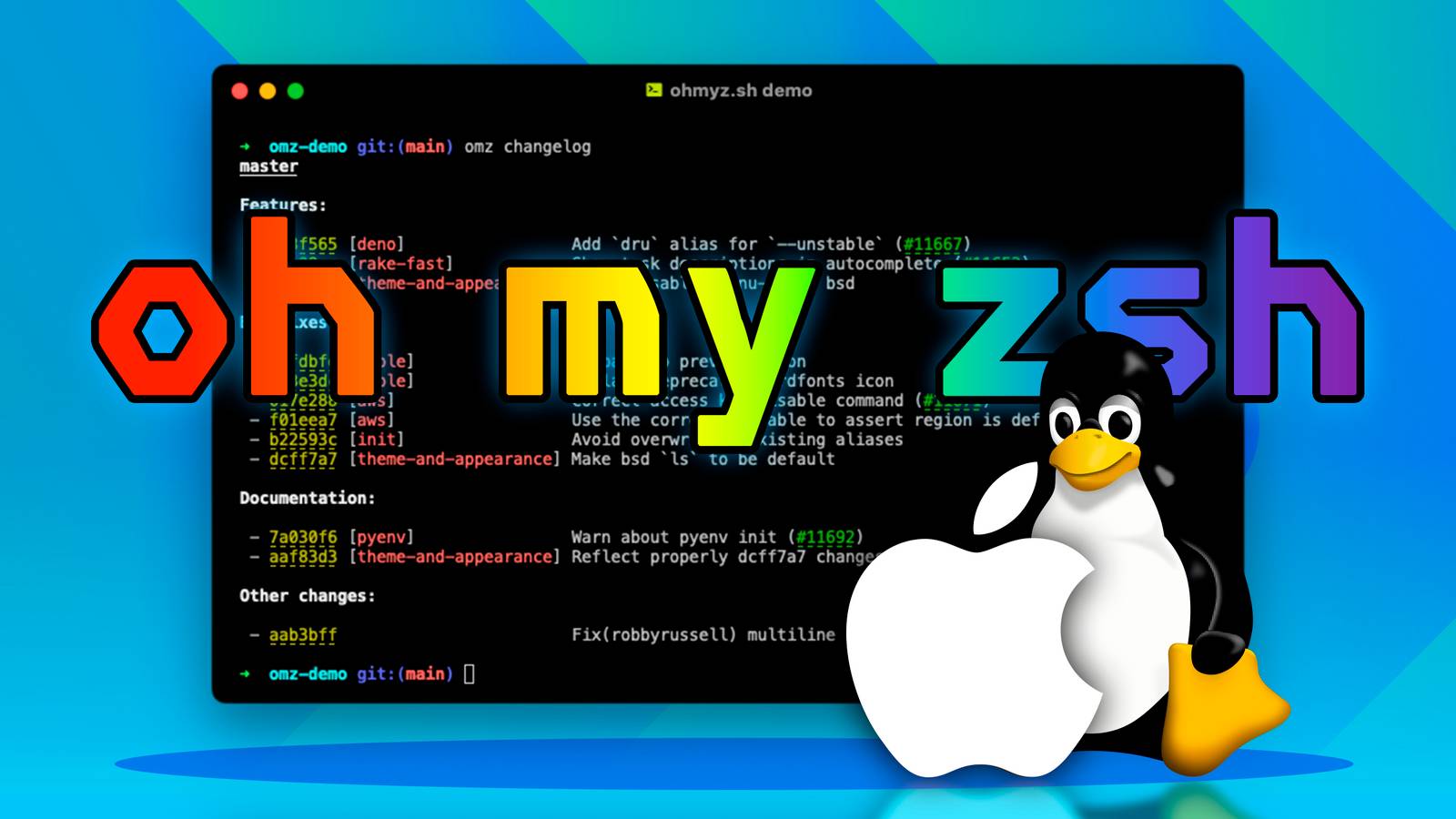
Nobody wants a boring terminal, and the more you use it, the more you want it to work according to your specific needs.From custom prompts to aliases and shell functions, there are many ways you can improve your command-line experience.Oh My Zsh is a convenient tool to power up your terminal, which is easy to install and set up.
With some help from AI, it can be easy to customize too.What is Oh My Zsh? Zsh, but even better Oh My Zsh is a popular upgrade for Zsh, which is an alternative to the Bash shell.Zsh already upgrades your shell experience, with advanced command-line completion, global command history, and themeable prompts.
But Oh My Zsh makes it even better by simplifying configuration and providing a rich ecosystem of plugins.How to Install Oh My Zsh A quick and simple process with a single shell script Oh My Zsh is easy to install, provided you are already using zsh.You can do so by downloading and running the installation script using this command: sh -c "$(curl -fsSL https://raw.githubusercontent.com/ohmyzsh/ohmyzsh/master/tools/install.sh)" Once it’s finished, the installer will automatically refresh your Zsh session, so you’ll see the effects immediately.
Oh My Zsh will replace your existing ~/.zshrc file, which may already be customized.However, it will create a backup at .zshrc.pre-oh-my-zsh, so you can always roll back if Oh My Zsh doesn’t work out for you.Setting up Oh My Zsh Out-of-the-box improvements, with themes and plugins on top By default, you’ll get a very minimalist look, with a brief prompt that includes features like: An abbreviated CWD showing just the current directory name.
A color-coded arrow that tells you if the previous command failed, according to its exit status.Git information, if the current directory is a repository, via Oh My Zsh’s git plugin.You can control Oh My Zsh’s look by setting the overall theme using the ZSH_THEME variable.
A theme can display various information, like your username, a full path to your working directory, or the current time.The themes gallery shows example screenshots to help you pick a good one; options include the default (robbyrussell), agnoster—a bold, detailed prompt—and jonathan, a highly stylized prompt that shows the time of day.Themes control the text that appears in your prompt, not the font or color, which are controlled by your terminal emulator.
The full power of Oh My Zsh really becomes apparent when you explore its collection of plugins.This will take some time, since there are over 300 included, and many more third-party plugins created by users.Many plugins target a specific command, providing useful aliases and additional functions.
For example, the git plugin—which is enabled by default—provides a grt alias which changes directory to the root of the current repository.It also provides a function, gbda, which deletes all merged branches.There are plugins for many other commands, including eza, history, and man.
Some plugins provide functionality outside existing commands, like emoji-clock, which includes a function that outputs an emoji representing the current time, accurate to within a half hour.There’s also command-not-found, which uses your package manager to suggest candidates for missing commands, and copyfile to quickly copy the contents of a file.Laptop With Linux Intel NUC13 Choose from three different Intel processors when you configure this mini PC, along with your choice of dozens of Linux distribution options.
Configure Now Expand Collapse Vibe-coding a config change and a plugin Antigravity makes customization even easier Oh My Zsh configuration is fairly straightforward, mostly involving edits to ~/.zshrc.You can pick a theme or add plugins to enable specific functionality, but I wanted to see how easily I could make some changes using Antigravity CLI, my current AI tool of choice.First off, I tried the simplest change I could think of: tweaking the prompt to show two levels of my current path rather than just one: > change the path in my prompt to show the current directory and its parent Knowing about the basics of the Oh My Zsh architecture, I expected this to be a theme-based change.
Antigravity began by checking my config file, recognizing that I’m using Oh My Zsh, and searching the web for the syntax to use to alter the PROMPT variable: It then carried out some sanity checks before editing the theme.It even managed to copy the existing theme file into the ~/.oh-my-zsh/custom/themes directory, which is the recommended approach for future-proofing against upstream changes.Unsurprisingly, the changes resulted in exactly the behavior I required: I then set about testing Antigravity with a more challenging task: creating a plugin.
I wanted this to be a combination of a specific request and a more general one, to give the model a chance to wow me with its creativity.So I asked the following: > Create an oh my zsh plugin for curl.It should provide aliases for common curl usage and a simple function to download a URL to a named file.
I’m not sure if it was because of the existing context, but Antigravity built this plugin even faster than it made the prompt tweak.The resulting plugin had some useful aliases and a function that did exactly what I asked for: Again, it abided by best practices and created the plugin under the custom directory.It also updated my ~/.zshrc file to enable the plugin, which worked immediately: Oh My Zsh and Antigravity: a perfect partnership Oh My Zsh is a really useful upgrade to Zsh.
It formalizes much of what I was already doing with my own bespoke approach, so I can benefit from other developers’ tweaks and, maybe, even contribute my own.Antigravity CLI is the cherry on top: a capable AI that perfectly understands the Oh My Zsh architecture, ensuring that any changes I need to make are quick and straightforward.
Read More