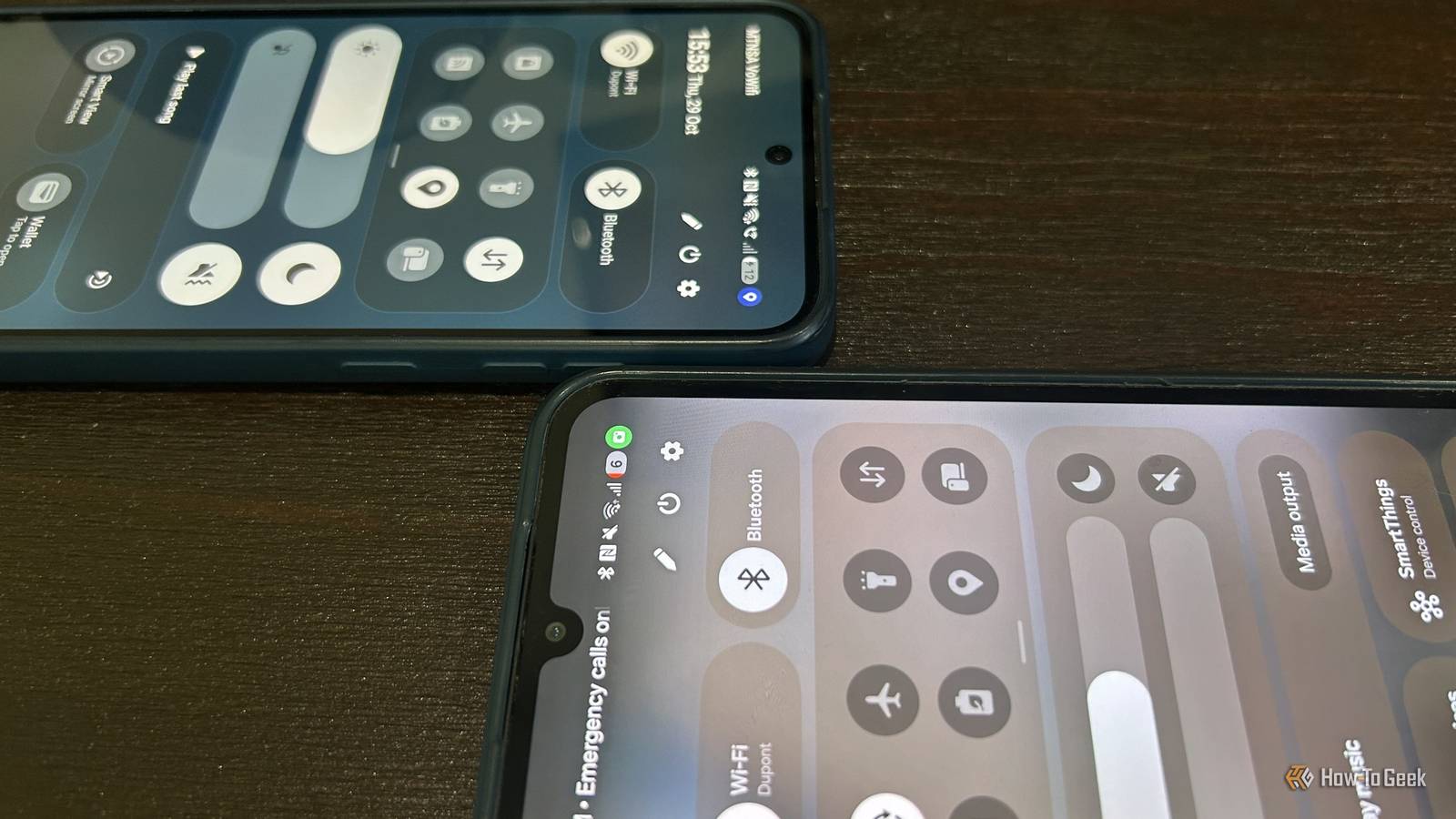
Icons in the status bar of your Samsung Galaxy device aren't always intuitive, and seeing a dot flash in the corner of your screen can be worrying if you don't know what it means.While a lot of us have gotten used to the green dot and what it signals, those who have recently upgraded to One UI 9 may have started to notice a blue dot as well.Add How-To Geek on Google Add as Preferred Source Follow on Google Discover These icons have distinct meanings, and they're designed to help keep your device more secure and private.
Understanding what they mean, and how you can use that information to your advantage, is really important.The apps on our devices constantly collect information, and being able to see what they collect and limit their access is vital to preserving your privacy.The green dot means an app is using your camera Making sure you aren't being spied on A green dot popping up in your status bar is common, and it's been around on Samsung Galaxy devices for years.
What it means is pretty simple.It means that an app, usually the one that you currently have open, is accessing your camera, your microphone, or both.This can happen in pretty obvious scenarios, like when you have your camera app ready to go or you're recording a voice memo, but some apps can be a little sneakier.
Samsung introduced the green dot as a privacy measure, and a pretty solid one at that.When COVID hit, everyone became acutely aware that malicious third parties could remotely access the cameras on your devices, which is why people started sticking tape over their laptop cameras.In 2021, when Samsung pushed out One UI 4, the little green dot in your status bar let you know when your camera or microphone was in use, giving you an easy way to tell when an app was accessing hardware it shouldn't be.
The blue dot in your status bar is a new addition to Galaxy devices It serves a very similar purpose, though If you've recently updated your Samsung device to One UI 9, you might have noticed a blue dot popping up in your status bar.If you're unsure what software version your device is running, you can check pretty easily by going into your settings menu and tapping on 'Software update'.Like the green dot, the blue dot is a privacy measure, but instead of telling you when your camera is being accessed, it tells you when an app is sharing your location.
As we move into the future, digital privacy is becoming a major concern.The more connected our lives become, the more of our information is being collected and shared.Your location is being used in a ton of different ways to build an online profile for advertisers, and you and your information are becoming a commodity that is being sold.
I didn't realize how many apps were accessing my location until I received the One UI 9 update, and honestly, I am a little shocked by how often the blue dot has started appearing in my status bar.Use this information to make your device more secure You have control over what permissions you give an app Close A green or a blue dot in your status bar on its own isn't an immediate cause for concern.If you're using something like Google Maps, obviously you're going to be sharing your location.
In the same sense, if you're taking a photo or recording a voice memo, then you're going to see the green dot that indicates your camera or microphone is in use.However, if you're using an app that really doesn't need that information, you have a right to be concerned and protective of your data.With a Samsung Galaxy device, it is pretty easy to identify what apps are accessing these services.
If you navigate to 'Security and privacy' from your settings menu, you should see 'Permissions used in the last 24 hours' underneath the privacy tab.Tap it, and you'll see a menu listing permissions such as your location and camera, and which apps have accessed them.At the top of this menu, you can also switch to a view that shows all your apps and lists the permissions they have accessed.
When you check this list, if you find that any app is overstepping by accessing hardware or gathering information, you can revoke those permissions.To filter by permissions, tap the app and change how you want it to handle those permissions.If you filter by app, tap the app you want to restrict, hit the three dots in the top right corner, and then select 'manage permissions for this app' or 'deny all permissions for this app'.
Don't let apps do whatever they want with your device I really like that Samsung makes it immediately obvious when an application accesses your camera, microphone, or location.It makes it harder for big applications to hide their malicious data collection.While you can manage and limit each app's permissions, the best way to deal with an app that constantly overreaches is to uninstall it and find a more private alternative.
Read More