My home internet is stable now, but that wasn't true just a couple of years ago.I've gone through several terrible ISPs before finding one that actually delivered.But before that happened, I grasped at straws trying to stabilize my connection, and using my phone as a crutch became a true lifesaver in situations when my ISP let me down.
I gave my old phone one permanent job A spare phone is ideal for internet outages, among other things Close When you work from home, it's not like you can just tell your boss or your client that your internet has died for the fifth time that day.Having a backup connection helps, and I actually use a USB-to-Ethernet adapter for just that now, but before that, I used my old phone to save the day.Going from bad ISP to bad ISP taught me to be resourceful, hence the idea to put my old phone to work.
But you don't need an old phone for any of this; your current phone can provide a hotspot, connect to a compatible router over USB, or act as a wireless WAN source just as well.In an emergency, using the phone you already have in your pocket is probably the fastest way to get online.I used an old phone because it was far more convenient.
I could leave it plugged in beside my router or move it near a window without giving up access to calls, messages, banking apps, or 2FA on my main phone.It also meant I wasn't draining or heating up the battery in the device I rely on every day.As long as your old phone still supports tethering and has access to a cellular data plan, it can stay with the rest of your networking gear and be ready whenever your primary connection fails.
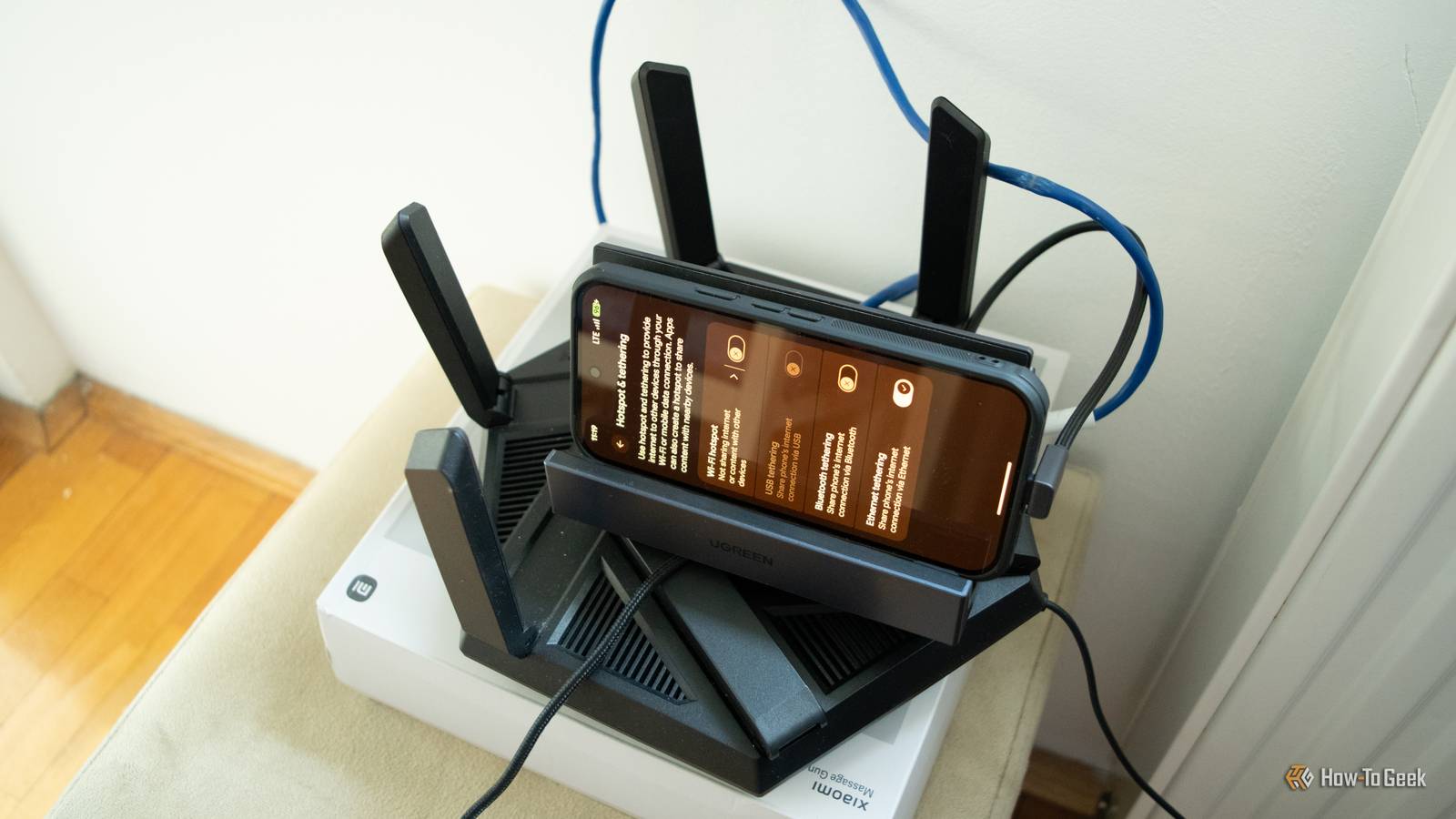
The basic hotspot got me working again immediately Start with the setup that requires almost no preparation With the phone charged and ready, the simplest option was also the fastest: I turned on its mobile hotspot and connected it to my PC like any other Wi-Fi network.On Android, you'll usually find this under Settings > Network & internet > Hotspot & tethering; iPhone users should dig under Settings > Personal Hotspot.The exact wording varies by phone, but the process is the same, and I'm sure that most people have tried it at least once.
Enable the hotspot, check the network name and password, then select it from your PC's Wi-Fi menu.That was usually enough for me to get some kind of internet connection going in a pinch, but it was far from ideal.The lag was real, disconnects were frequent, and doing anything more major like a large download or gaming was out of the question.
The phone also had to be plugged into a charger, since broadcasting a hotspot while maintaining a cellular connection drains the battery quickly and can make the phone noticeably warm.Related I upgraded to fiber and my Wi-Fi still lagged: How to find the hidden bottlenecks in your home network Your fiber internet is fast, but your home network probably isn't Posts By Monica J.White USB tethering let my router share the connection The phone temporarily replaced my router's normal WAN connection A regular hotspot was enough for one PC, but USB tethering made the setup much more useful.
Instead of connecting each device directly to the phone, I plugged the phone into a compatible router and enabled USB tethering in its settings.The router then treated the phone's cellular connection as its internet source and shared it across everything in my network.The catch is that not every router supports USB tethering, even if it has a USB port, so you'll need to dive into the router settings and look for things like USB WAN, smartphone tethering, or mobile tethering.
Wireless WAN let me put the phone beside a window My router connected to the hotspot instead of using a cable USB tethering worked, but there's another step you can take to make this even better.When I used to do this, the cable limited where I could leave the phone.Wireless WAN solved that problem by letting the router connect to the phone's hotspot over Wi-Fi instead.
Depending on the router, this feature may be called Wi-Fi as WAN, WISP mode, hotspot mode, or wireless bridge mode.Once enabled, select the phone's hotspot inside the router settings and enter the password.Doing this gave me lots more freedom to place the phone where the cellular connection was the strongest instead of being tied to the router.
Moving the phone improved the connection more than I expected The most convenient location rarely has the best cellular signal Let's take it to the next level yet again.Once the phone was no longer tethered to the router with the cable, I started experimenting with placement.Router placement is major, and in this case, phone placement is major, too.
Moving closer to a window made an immediate difference, but I also tried different windows, higher shelves, and both sides of the room.Cellular signal can change a lot over just a few feet, especially indoors, so the spot that looks the most convenient isn't necessarily the one that delivers the best connection.Don't rely on the phone's signal bars alone, either.
Run a few speed tests in each location and compare upload speed, latency, and stability.An old phone still has its limits as backup internet It saved my workday, but it's not a permanent replacement Even with the router doing the heavy lifting, this was still a cellular connection with all the usual downsides.Speeds and latency were pretty awful at times, downloads burned through mobile data, and the phone could get uncomfortably warm.
This wasn't an issue for me, but your carrier may also limit hotspot data or slow it down after a certain point, so check your plan before making this anything more than temporary backup internet.Old phone, new phone, it's more useful than it seems I'm a little extra, so these days I have a whole backup internet connection (that costs me something like $7, but I don't live in the U.S.).But I do still have an old phone on hand for situations such as this.
You can build this setup with whichever phone you have available, but an older model is just more convenient - provided you don't have to sacrifice any features.TP-Link USB to Ethernet Adapter $12 $13 Save $1 This can come in handy if you frequently have internet issues.$12 at Amazon Expand Collapse
Read More