Excel has changed dramatically since I first started using it.Microsoft has added features like AI tools, dynamic arrays, Power Query improvements, Python integration, and many new functions—but one of the first "advanced" features I learned is still one of the tools I use most.Setting up Custom Lists only takes a few minutes, yet it quietly saves me time every time I enter or sort recurring data.
I only had to set Custom Lists up once—and Excel has done the rest Excel remembers your lists, so you don't have to Close Most people know Excel's fill handle.Type "Monday," drag the small square in the corner of the cell, and Excel automatically continues the rest of the week.The same works for months, because Excel already understands those built-in sequences.
The Custom Lists tool lets you teach Excel your own sequences.Instead of recognizing only weekdays and months, it can learn practically any recurring list you use regularly.Once you've created a list, Excel remembers it in your local settings, so new workbooks on the same Excel installation can take advantage of it without any additional setup.
That's exactly why it has remained part of my workflow for years—I set it up once, and Excel simply keeps using it.One detail worth knowing is that custom lists aren't stored inside individual workbooks.However, if you sort a table using one of your custom lists and then share that workbook, the resulting order is preserved—even if the recipient doesn't have the same custom list saved.
I originally started using Custom Lists simply to speed up repetitive typing, but over time I found myself relying on them just as much for sorting data.In fact, that's now the reason I use them most often.Filling repetitive data is where it all began Teach Excel the sequences you use most If you've never used Custom Lists before, Microsoft doesn't exactly make them easy to find.
They're tucked away in Excel's advanced options rather than anywhere on the ribbon.To create one, open File > Options > Advanced, scroll to the General section, and click Edit Custom Lists.From there, select NEW LIST, type each item on its own line, click Add, and then OK.
Close For example, you might create a simple workflow like: Draft Editing Published Now, whenever you type "Draft" into a cell and drag the fill handle downward, Excel automatically continues with the rest of your sequence instead of repeating the same word over and over.Custom Lists work horizontally too, so you can drag the fill handle across a row to create column headers.If you already have a long list in a worksheet—perhaps dozens of employee names, product categories, or sports teams—you don't have to type everything again.
In the Edit Custom Lists dialog, click the collapse button beside the Import list from cells box, select your range, and click Import.Excel will then remember that sequence for future workbooks.Close Microsoft 365 Personal OS Windows, macOS, iPhone, iPad, Android Free trial 1 month Microsoft 365 includes access to Office apps like Word, Excel, and PowerPoint on up to five devices, 1 TB of OneDrive storage, and more.
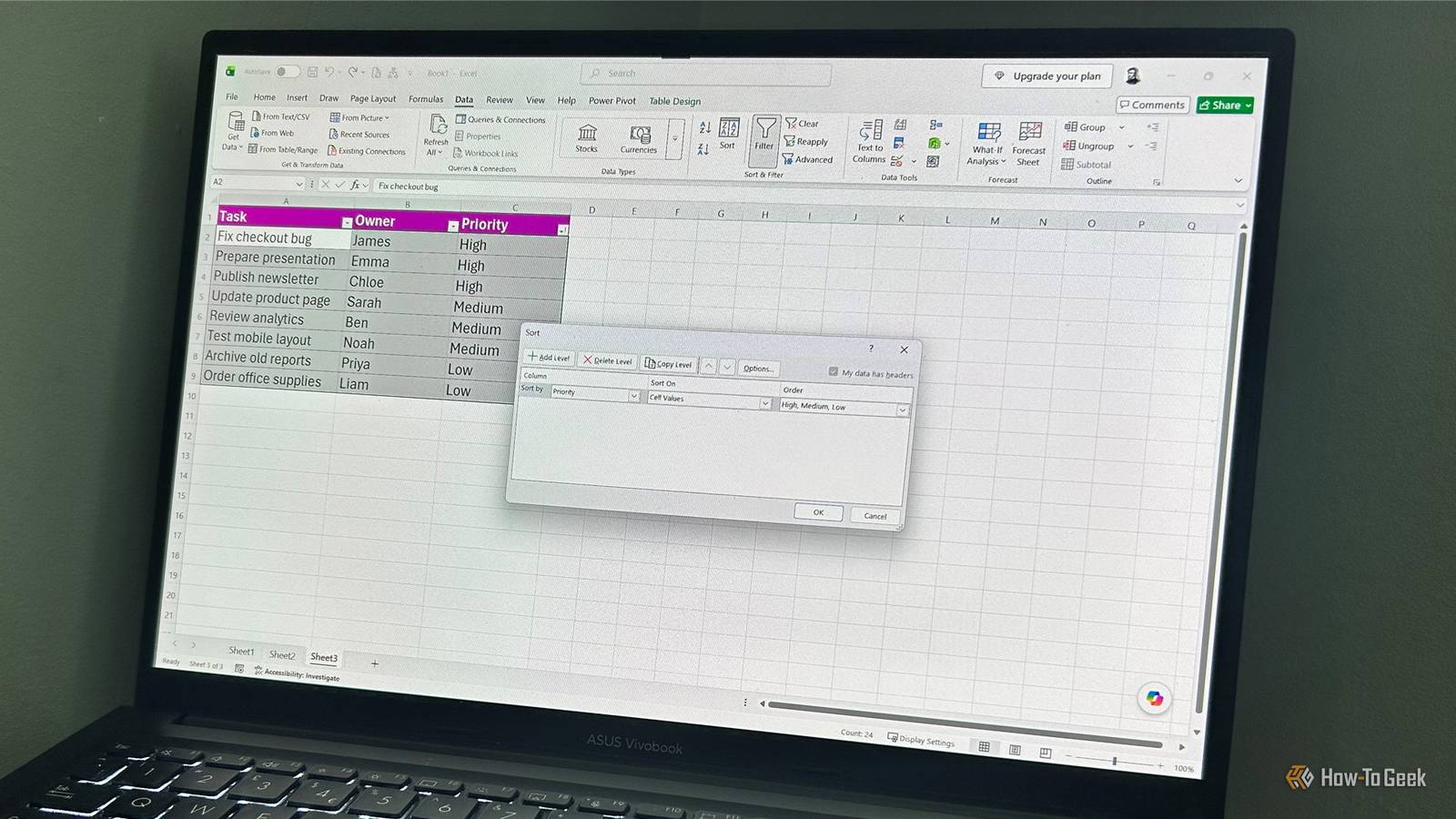
$100 at Microsoft Expand Collapse The feature I rely on most isn't AutoFill—it's sorting Stop forcing logical data into alphabetical order Although most people associate Custom Lists with faster data entry, the feature I use most often is actually custom sorting.Excel naturally sorts text alphabetically, but that isn't always the order you want.Imagine a project tracker containing the priorities: High Medium Low A standard alphabetical sort puts High at the top, but then places Low before Medium, which isn't particularly helpful if you're trying to review work in priority order.
Instead, if you've already created a custom list for those priorities, Excel can sort the data using that custom order.After selecting your table, choose Data > Sort, pick the appropriate column, and select the custom list you created earlier in the Order option.Excel then rearranges the rows according to your chosen hierarchy rather than alphabetical order.
Close It's a small feature, but it solves a surprisingly common problem that Excel's standard sorting options can't.The Custom Lists I keep coming back to Small automations that save time every week Once I started using Excel's Custom Lists regularly, I found myself creating them for all sorts of repetitive data.These are the lists I find myself using most often: A, B, C, D...
(No, Excel doesn't autofill the alphabet by default!) XS, S, M, L, XL Pending, In Progress, Completed N, NE, E, SE, S, SW, W, NW The time savings from any individual list are fairly small.You might only save a few seconds each time you use it.But because these are the kinds of repetitive tasks that crop up throughout the week, those seconds quickly add up.
Sometimes the oldest tools are still the best ones Some Excel features are exciting because they let you do things that were previously impossible.Others survive because they quietly remove small pieces of friction from work you already do every day.The Custom Lists feature falls firmly into the second category.
Every time I drag the fill handle or sort a table into a logical order instead of an alphabetical one, I'm reminded why it's one of the first features I always configure whenever I install Excel on a new computer.
Read More