Home Assistant allows you to assign your own custom labels to areas, devices, entities, automations, and more.While they're a useful organizational tool, there are plenty of clever ways that you can use Home Assistant labels to do much more.Leave important devices powered on Save electricity without breaking your home Even on standby, devices can use a lot of energy.
It's a sensible option to use smart plugs or other methods to completely power off devices when they're not in use.However, there may be some devices that you need to leave powered on.For example, I don't want my smart TV to remain on standby all night, as I'm not going to use it.
My DVR, however, may record shows and movies at any time, so I don't want to power it off completely when I go to bed.Labels are a simple way to define which devices are critical and which aren't.You can give devices that you want to leave powered on a label such as "critical," and use this label in your automations.
You can then power down all devices except those with the critical label, so that your important devices keep running.The beauty of this method is that you can easily add and remove critical devices just by changing the label, without having to mess with the automation itself.You can also do the inverse and create labels for power-hungry devices that you do want to turn off when solar generation is low, or your variable electricity prices cross a certain threshold.
Related 4 Home Assistant blueprints that saved me hours of effort You don't need to reinvent the wheel.Posts By Adam Davidson Know which batteries you need Never run out again This is a neat trick that can reduce the pain of having to replace batteries across your battery-powered smart home devices and sensors.You use labels to add the type of battery to each device.
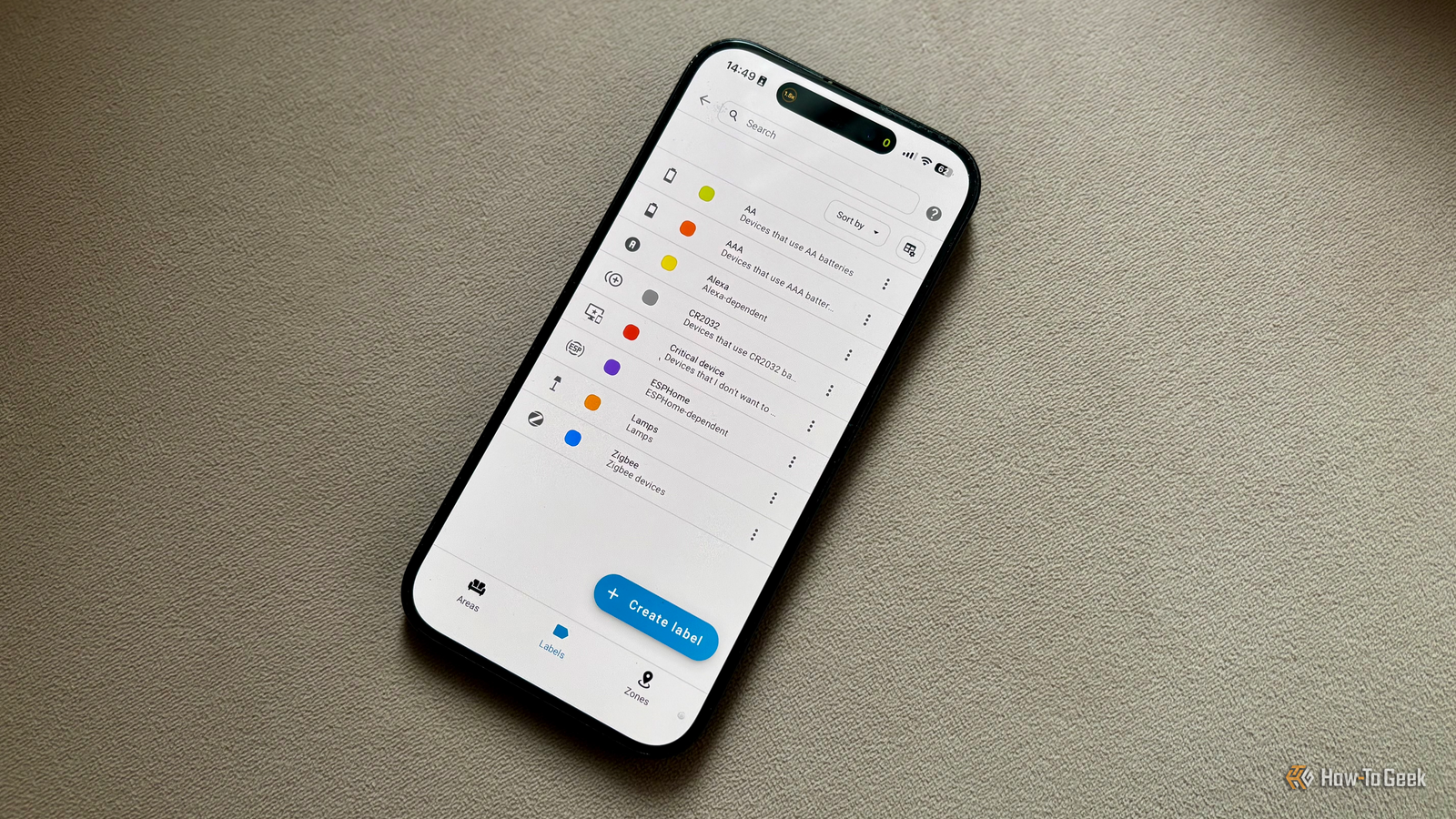
For example, you can have labels such as "AA," "AAA," "CR2032", and "Rechargeable." These labels can be useful in multiple ways.You can use them to quickly filter devices based on battery type, to see how many batteries of each type you need when you're stocking up.You can also use the labels to quickly see what type of battery you're going to need to replace when the battery levels for a specific device get low.
You can even create dedicated dashboards for each type of battery that can show you all your AA battery devices, for example, and the current battery level for each device.As with all things Home Assistant, if you don't want to set this all up yourself, the very useful Battery Notes custom component can do the hard work for you, automatically generating the battery type and number of batteries for many devices.Enable seasonal automations Quickly add your Christmas lights Another useful way to make use of labels is to quickly add and remove seasonal automations.
For example, if you have an automation that turns on your lights at sunset, you might want it to turn your exterior Christmas lights on, too, but only during the holiday season.You can give all of the devices that you want to turn on at sunset a label, such as "evening." Your automation can then turn on any lights with this label at sunset.All you need to do then is add the "evening" label to your Christmas lights when the holiday season comes around, and they will automatically turn on at sunset along with your usual lights.
When the season is over, you just need to remove the label again.Your devices will stay off until the next holiday season arrives and you add the "evening" label back in.This isn't the only way you can add seasonal lights to your automations; you can use conditions based on dates, or even create a dedicated holiday helper switch that you turn on when you want to include holiday lighting in your automations.
Using labels does allow you to decide each year when you want the lights to turn on, which may not be the same date from year to year.Group devices by purpose Create groups across different rooms Home Assistant allows you to assign devices to specific rooms.This can be very useful if you want to turn on all the lights in a room, for example.
You don't need to turn on each individual light; you target the entire area with an action, and all the lights will turn on.Grouping devices by room isn't always the best option, however.For example, you might want an automation that turns off all the lamps in your house but leaves the main lights still on.
If your lamps are in different rooms, a room group isn't going to be any use.Subscribe to the newsletter for smarter Home Assistant labels Get more from Home Assistant: subscribe to the newsletter for practical labeling ideas that make it easy to preserve critical devices, track battery needs, add seasonal automations, group devices by purpose, and simplify debugging.Subscribe By subscribing, you agree to receive newsletter and marketing emails, and accept our Terms of Use and Privacy Policy.
You can unsubscribe anytime.You can create a label called "lamp" and apply it to all the lamps in your home.You can then use this label in an automation and turn off all your lamps with a single action.
Adding and removing lamps from the automation is as simple as adding or removing the "lamp" label.Make debugging easier Label by dependency Using labels can also be helpful when things go wrong in Home Assistant.You can apply labels such as "Zigbee," "ESPHome," "Cloud," and "Alexa" to devices and entities to make it clear what the devices and entities rely on.
You can apply the same labels to automations and scripts that use those dependencies, too.When something goes wrong, you can use the labels to filter based on a dependency.For example, if you move your Zigbee coordinator, you can use your label to filter all your Zigbee devices and check that they're still connected.
Labels in Home Assistant can be surprisingly useful.If you've never used them, it's definitely worth seeing what clever uses you can come up with for them.
Read More