Do you find that devices keep dropping off your Zigbee network or are slow to respond? The problem may not be your Zigbee network at all; it may be your Wi-Fi network.Both Zigbee and 2.4 GHz Wi-Fi share the same frequency band, and they can get in each other’s way.Wi-Fi may be hurting your Zigbee network 2.4 GHz is a crowded band Both Zigbee and 2.4 GHz Wi-Fi use the same 2.4 GHz band.
Wi-Fi is split into 11 channels in the US (or 13 channels in Europe), and each 2.4 GHz Wi-Fi channel is wide enough to overlap with other channels.In comparison, Zigbee channels, numbered 11 through 26, are spaced 5 MHz apart and use much narrower channels, so a single Wi-Fi channel can interfere with multiple Zigbee channels at the same time.When this happens, your Zigbee network can start to get flaky.
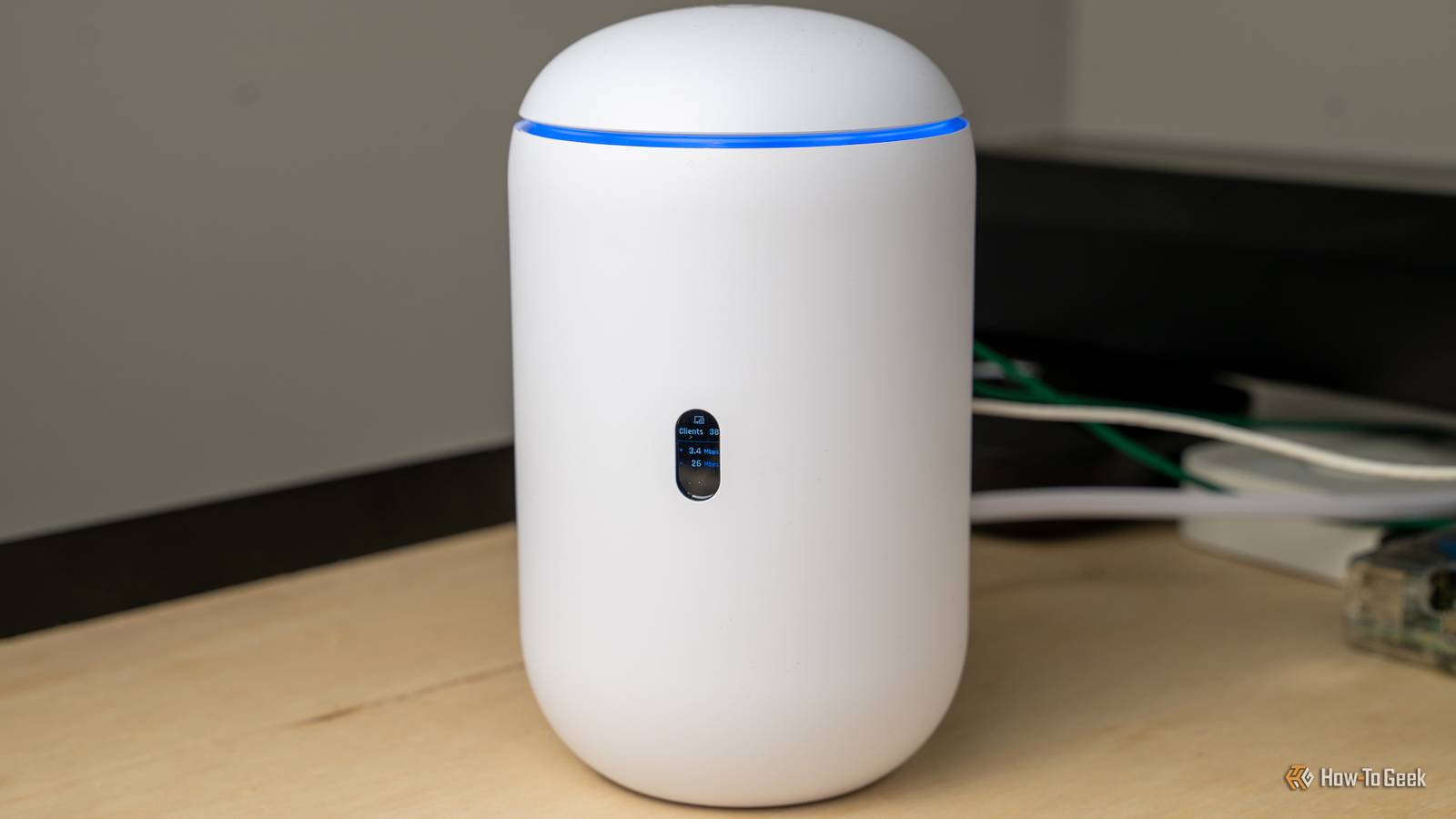
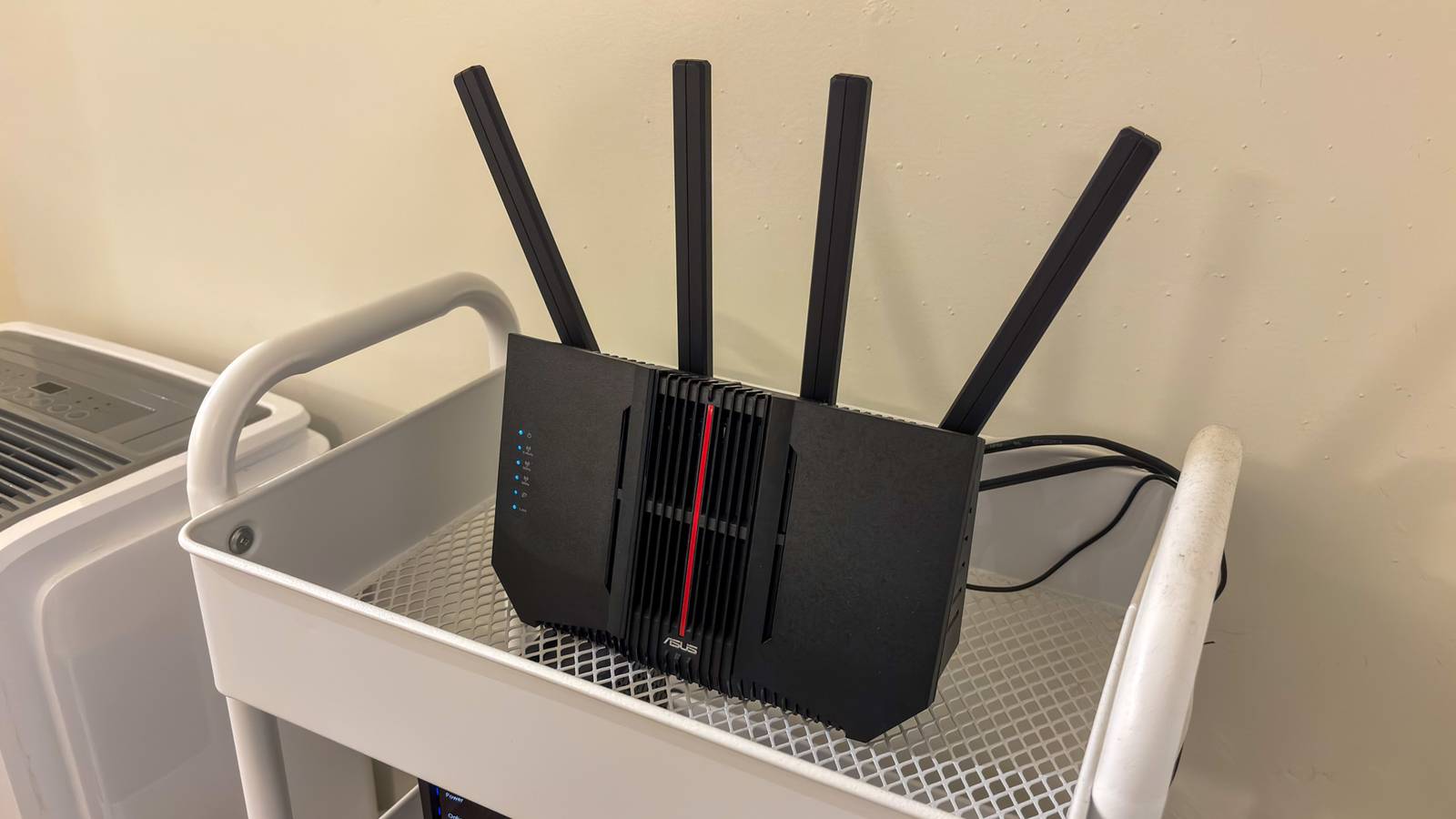
Devices can stop responding, automations can start firing late or not firing at all, and devices may completely drop off the mesh network and need to be paired again.The more traffic you have on your 2.4 GHz Wi-Fi network, the worse the problem can get, as more and more devices fight over the crowded 2.4 GHz band.roue UniFi Dream Router 7 Brand Unifi Range 1,750 square feet The Unifi Dream Router 7 is a full-fledged network appliance offering NVR capabilities, fully managed switching,a built-in firewall, VLANs, and more.
With four 2.5G Ethernet ports (one with PoE+) and a 10G SFP+ port, the Unifi Dream Router 7 also features dual WAN capabilities should you have two ISP connections.It includes a 64GB microSD card for IP camera storage, but can be upgraded for more storage if needed.With Wi-Fi 7, you'll be able to reach up to a theoretical 5.7 Gbps network speed when using the 10G SFP+ port, or 2.5 Gbps when using Ethernet. $279 at B&H Photo Video $279 at Unifi Expand Collapse How to check what channel your router is using "Auto" may be the problem If you're experiencing problems with your Zigbee devices, it's worth taking a look at which channels both your Wi-Fi and Zigbee networks are using.
Unfortunately, this is often harder than it sounds.Trying to find which channel your router is using can be quite a challenge.Each manufacturer hides its settings under different menus in the admin panel, and it's not always obvious where to look.
Even accessing the admin panel isn't the same from router to router, although you'll typically need to visit 192.168.1.1 or 192.168.0.1 in a browser and enter your admin password.You may be able to find this on the back of your router if you haven't changed it, and if you haven't changed it, you really should.Related 4 reasons why Zigbee is more popular than Z-Wave in the smart home This might help you choose between the two.
Posts 8 By Adam Davidson When you finally find the right settings screen, you may find that your Wi-Fi channel is set to "Auto." This chooses the channel for you, and will often default to channel 1, 6, or 11, which are the standard non-overlapping 2.4 GHz Wi-Fi channels in the US.The problem is that with some routers, the "Auto" setting will sometimes change the channel, so you're better off setting one manually so that you can be sure of what it is.Your Wi-Fi may not be the only problem; your neighbor's Wi-Fi may also be to blame.
You can use a Wi-Fi analyzer app to scan for the least-congested channels and adjust your settings accordingly.Choosing the right Zigbee channel It depends on what your Wi-Fi is using Once you know what channel your Wi-Fi is using, you can choose a Zigbee channel so that they're not both fighting over the same bandwidth.There's no single default option to use, because the wide Wi-Fi channels cover large chunks of the spectrum.
You need to choose a Zigbee channel that fits around the channel your Wi-Fi is using.If your Wi-Fi is set to channel 1, Zigbee channels 20 or 25 may be good options.If your Wi-Fi is set to channel 6, Zigbee channels 15 or 25 should fall outside of the main area of interference, and if Wi-Fi is set to channel 11, Zigbee channels 15 or 20 are good options.
As with Wi-Fi channels, finding and changing your Zigbee channel will depend on the hardware and software that you're using.You can refer to the documentation for your hardware or your smart home software if you can't figure it out.Try choosing a Zigbee channel that is likely to play nicely with your Wi-Fi channel and see if it improves your Zigbee performance.
You may find that the issue was your Wi-Fi all along.Other free fixes can make a big difference A USB cable could be a game-changer Changing your Wi-Fi or Zigbee channels isn't the only thing you can do to improve your Zigbee network's performance.There are some other things you can do that will cost, at most, the price of a USB cable.
Subscribe for smart-home coverage: Zigbee and Wi-Fi tips Get practical tips by subscribing to the newsletter for in-depth coverage of Zigbee and 2.4 GHz Wi-Fi interference, channel selection strategies, USB dongle placement, and related smart-home networking topics.Get Updates By subscribing, you agree to receive newsletter and marketing emails, and accept our Terms of Use and Privacy Policy.You can unsubscribe anytime.
Often, interference doesn't just come from your Wi-Fi; it also comes from the device that your Zigbee dongle is plugged into.If it's connected directly to the USB 3.0 port of a computer, for example, the port itself can cause interference.You can easily fix this by plugging a USB extension cable in between the USB port and the Zigbee dongle to keep them as far apart as possible.
Another thing you can try is putting Wi-Fi devices onto 5 GHz wherever possible; the less traffic on the 2.4 GHz band, the less interference there will be.Zigbee and Wi-Fi don't have to fight While Wi-Fi and Zigbee can share the same space, there’s still room for them both to play happily.By choosing the right channels, you should be able to stop your Wi-Fi from drowning out your Zigbee network, and get your Zigbee devices working more smoothly.
Read More