No doubt, Linux gives you plenty of control over your system and trusts you with every action you perform.It rarely asks, "Are you sure?" You simply type a command, press Enter, and it assumes you meant it.That trust is a big part of Linux's power, but it's also why a stable installation can slowly turn into a mess.
Your Linux system rarely breaks overnight.It usually dies from small, repeated habits you never question.Let's discuss some of these mistakes, understand how and why they can break your system, and explore what you should do instead.
Related 4 innocent-looking Linux commands that can ruin your day The terminal will do exactly what you tell it to — to the point of malicious compliance.Posts 1 By Dibakar Ghosh Running everything with sudo Root access is a powerful tool, not a default setting The sudo command lets you run commands with elevated privileges, which are essential for many administrative tasks.However, using it whenever a command fails, or a tutorial recommends it, without understanding why, can turn a minor mistake into a crashed system.
Over time, whenever something fails, we can develop a reflex of adding sudo before the command.It works, so the habit sticks.The problem is that root-owned files can start appearing in your home folder.
Apps that run with sudo can create configuration files and caches that your regular user account can't edit later, leading to confusing permission errors.Moreover, a command with elevated privileges can modify protected configuration files, remove system components, or change ownership and permissions.A typo in a command run as your regular user might affect a few personal files.
The same mistake with sudo can have much wider consequences.Make a habit of running commands as your regular user unless administrative access is genuinely necessary.When a command fails, read the error before adding sudo.
Sometimes, the problem isn't a permissions issue at all, and elevating privileges won't fix it.Avoid commands such as sudo pip install and sudo npm -g to prevent system-wide package conflicts.Changing permissions without knowing why Making everything writable or executable isn't a universal fix When a file refuses to open, or a script won't run, changing its permissions might seem like the easiest solution.
The problem starts when you don't know which permission is missing and simply grant everyone full access.Do you run chmod 777 whenever you see a Permission denied message? Suddenly, everything works.It feels like a solution, but all you've done is remove the lock from the door.
Setting permissions to 777 lets every user and process on the system read, write, and execute the file.Apply it recursively with -R to the wrong directory, and you can break SSH, sudo, and services that refuse to run when their files have overly permissive settings.Permissions exist for a reason.
The better habit is to read the error first, then check who owns the file and what its current permissions are with ls -l.Change only what's needed.If a script just needs to run, use the chmod u+x command to grant execute permission to your user account only.
If the file belongs to the wrong user, chown is the correct tool.Ignoring error messages Your terminal is telling you what went wrong, so read it I'm sure most of you have scrolled past an error message because it looked intimidating.Many people even retry the same failing command, add a force flag, or just move on.
But the error doesn't go away just because you ignore it.It waits.Broken dependencies, held packages, full disks, and failed services tend to pile up quietly.
Then a routine update arrives, and everything collapses, leaving you with an error you can't trace to its cause.Get into the habit of reading the last few lines first, since that's usually where you'll find the real reason.Check systemctl status for a service or journalctl -p err -b for errors from the current boot.
Search for the exact error text, and fix dependency or disk problems before continuing.Most errors tell you precisely what's wrong.You just need to pay attention.
Manually deleting files from the system folders That mysterious file might be doing an important job When disk space runs low, it's tempting to open a root file manager or run rm on something that looks large and unnecessary.Directories like /usr, /etc, /var/lib, and /lib might look like clutter to you, but they're not.Your package manager keeps track of the files it installs.
If you delete them manually, you can end up with broken packages, missing libraries, or, in the worst case, a system that won't boot.Let the package manager handle removals with apt remove, dnf remove, or pacman -Rns.To free up space, run apt autoremove, trim logs with journalctl --vacuum-size, and use ncdu to find what's actually eating up your disk space.
And never run rm -rf on a path you haven't checked twice.Running every command and script you find online Blind copy-pasting can put your system at risk Linux tutorials often include terminal commands and scripts that promise to install software, fix configuration issues, or clean up unnecessary files.Many are legitimate, but copying them from unfamiliar websites without understanding what they do is risky.
Pay attention to commands like curl | sudo bash.They download a script and run it immediately, skipping the step where you inspect what you're about to execute.A script can change system settings, delete files, install unwanted software, or access information available to the account running it.
Always inspect commands and scripts before running them.Look up unfamiliar flags with man or --help, check the source, and prefer official documentation or the Arch Wiki.Download scripts and review them in less or nano before executing them.
If you're still unsure, test them in a virtual machine or container first.Making system changes without a backup Backup is better than a fresh install Even when you understand a command and use it correctly, system changes don't always go as planned.A configuration edit might stop an application from starting, a driver update might cause problems, or a package upgrade might introduce an unexpected conflict.
Without a backup, one mistake can cost you data or leave your system unusable, and fixing it can take much longer than the change itself.You don't need to back up your entire system before every minor adjustment.However, creating a copy of an important configuration file before editing it is a simple precaution.
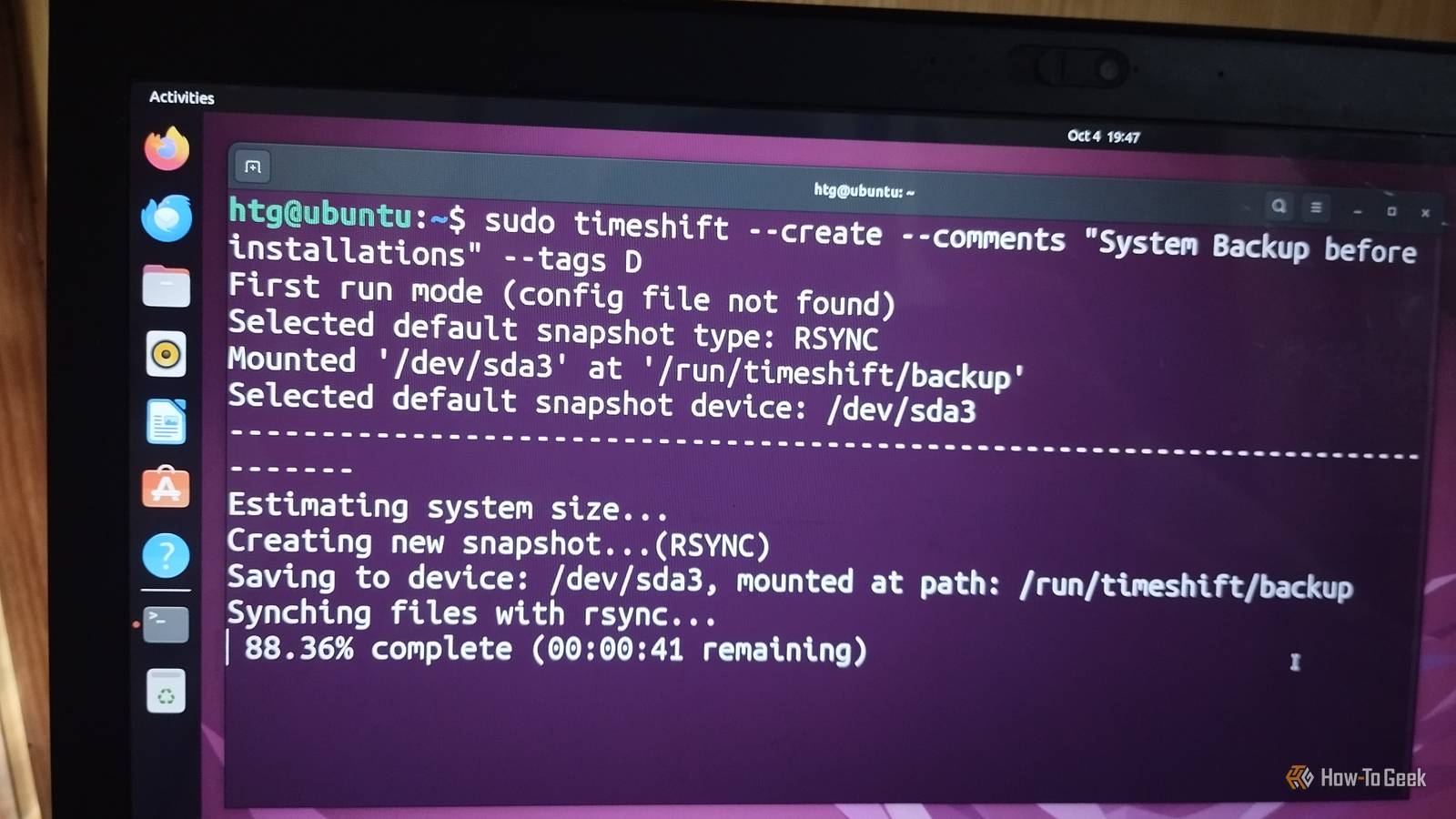
Use cp file file.bak to make a backup.For your system as a whole, use Timeshift to take snapshots before major changes, or Btrfs or ZFS snapshots if your filesystem supports them.For personal files, tools like Deja Dup, Borg, and rsync work well.
Good habits make Linux fun and sustainable Linux isn't fragile.It does exactly what you tell it to, which is why your habits matter.Read before you run, limit your privileges, and back up before making major changes.
These simple habits can keep a small mistake from becoming a system-wide problem.
Read More