Google Maps is an easy part of our routines, and over time, it builds a collection of our favorite places and travel plans.Saving locations is one of its most useful features, but this also means the app may reveal more about you than you realize when someone else uses your phone.Fortunately, a few small tweaks can make your favorite locations much more private without sacrificing the convenience that makes the navigation app so incredibly useful.
Here's what you need to know.Saved places on Google Maps A feature that makes daily navigation feel like a cakewalk Google Maps has a string of features that make your daily commute convenient, from Layers for custom navigation to trip notifications to ensure you're always on time.But one feature that is a staple for many loyal Maps users is the ability to save your frequently visited or favorite places, so you don't spend time searching for them every time.
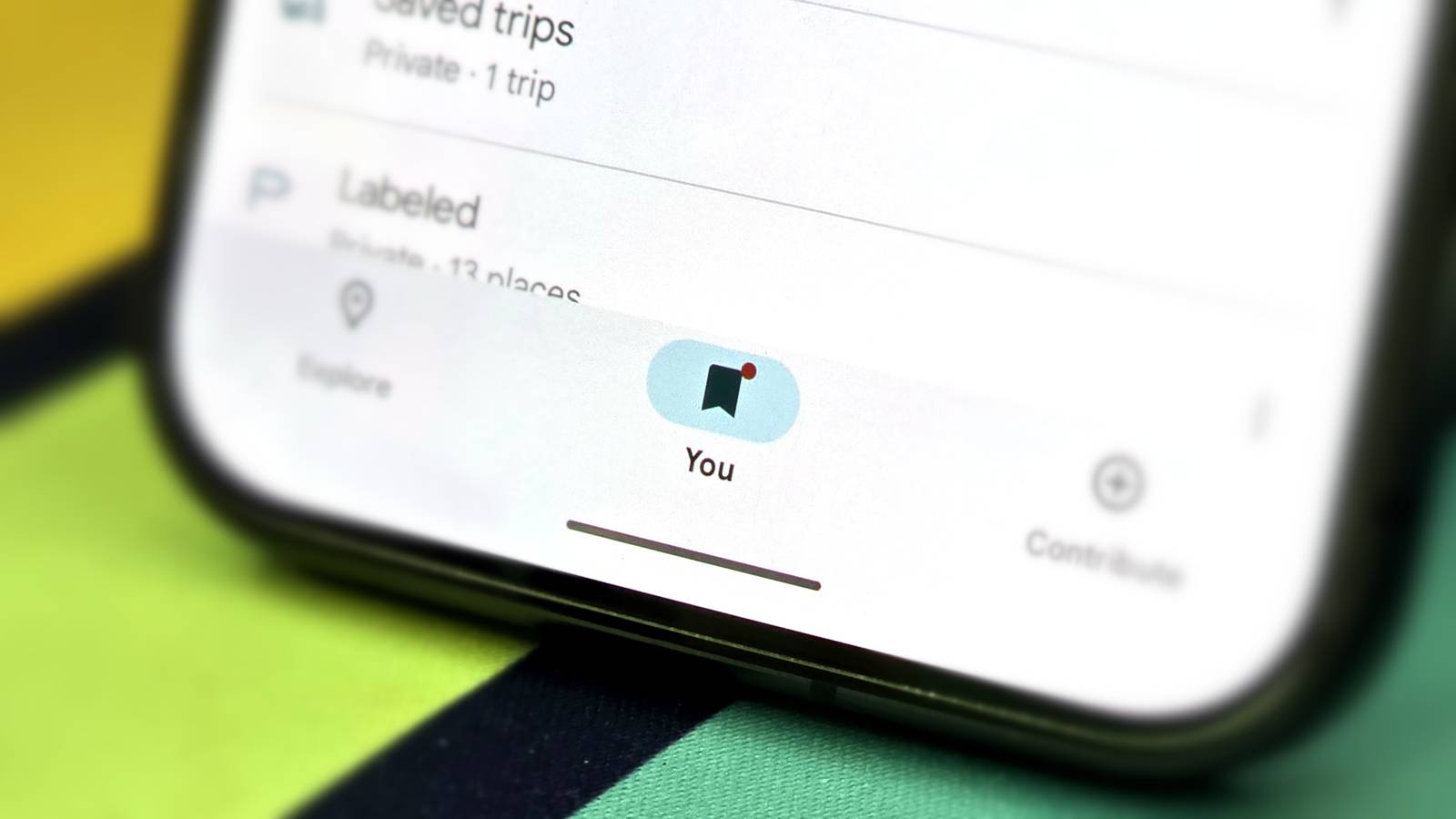
Saving a location on Google Maps is a simple process: search for any location on your Google Maps app, then tap the "Save" button (with the bookmark icon), then tap "Done" to save it for later.You can then tap the "You" button on the main navigation bar to find the entire list of your saved places.Close Apart from saving places, you can also create custom lists for a specific purpose (mine include "Travel", "Cafés", and "Want to Go"), which come in handy for vacations, work, and exploring your locality.
To create a list, go to You > Your Lists > New List and set up a list from scratch.Add new places to your list the same way you would normally save a location, but just add it to your list of choice instead.Close The privacy problem with your saved places Visibility can be a boon and a bane Your saved places and lists on Google Maps are very convenient, but there is a catch.
These features come with a tiny privacy trade-off that many users do not realize until much later.By default, Google Maps can display your saved locations directly on the map as labels while you're on the app.That means if someone borrows your unlocked phone to look up an address or check for directions, they may be able to immediately spot places you've saved without opening the "You" tab.
There's also the matter of your Home and Work addresses, which you may have labeled or saved without even remembering.While this may be handy for easy navigation, this is also something to be cautious of when handing your device with Google Maps open to another person, since they will be able to view it very quickly with a few taps.Thankfully, there are fixes to these minor privacy issues that may have slipped your mind.
How to ensure privacy on Google Maps Quick fixes that address privacy concerns Google Maps includes a simple setting that hides your saved lists from the map while keeping them safely stored in your account.On the Google Maps mobile app, go to You > Your Lists, then find a list you want to protect from a third party.Tap the three dots next to it, then tap "Hide on your Map." Close Currently, there is no way to fully hide your saved places as such, but you can delete their history if they are really privacy-sensitive, without removing them completely.
To do so, go to the "You" tab, tap the three dots next to a saved location, then select "Delete Maps history here," then "Delete." While this won't hide the saved place from your account, it does remove its associated Maps history, reducing the amount of information Google Maps retains about your interactions with that location.Close You can, however, delete your saved trips (directions that you save for easy access).To do so, tap your profile icon in the top right corner, go to Settings > Location & Privacy > Delete Saved Trips, and confirm.
This will delete it across all your devices, so exercise caution before pressing "Delete." Close To ensure maximum privacy from people accessing your Maps app, I recommend creating a separate list of saved locations that are important to you, then hiding them so they do not turn up on your map automatically.You can also remove your Home and Work (as well as other labeled, important places) addresses to ensure others do not access them when they are using your Maps app.To do this, go to Settings > Location & Privacy > Other account settings > Home and Work addresses, tap the three dots next to them, and select "Remove home/work." These are quick to add back whenever you want to.
Close These settings can be particularly useful when you travel in a group and use your Maps app for navigation, lend your phone to others, or simply prefer to keep certain locations private.They don't fully lock your saved places behind an extra layer of security, but they do make them much less visible at a glance while still keeping them easily accessible whenever you need them.Ensuring maximum privacy on Maps Visibility aside, there are some privacy settings on Google Maps that you may be overlooking completely, such as Timeline, location permissions, Location Sharing, and more.
It's always a good idea to set up the app according to your privacy comfort levels to prevent any mishaps.
Read More