Information wants to be free.But to get the most out of it, you need some sort of organization.Having an Obsidian database full of notes, kanban boards, outlines, and information from unconventional sources is fantastic.
But it kind of useless if you can't find anything.I considered creating a Table of Contents or organizing my tabs better than I already do, but that's kind of a pain.So I built a Dashboard instead, using a few different plugins.
Setting up the Dashboard Defining what I want from my Obsidian Dashboard Because I use Obsidian every single day (often in conjunction with handwritten notes and collecting information), I want to create a central hub for all of my knowledge.I'm also setting up a dashboard to help manage tasks.Both of them seem like a good idea for my workflow.
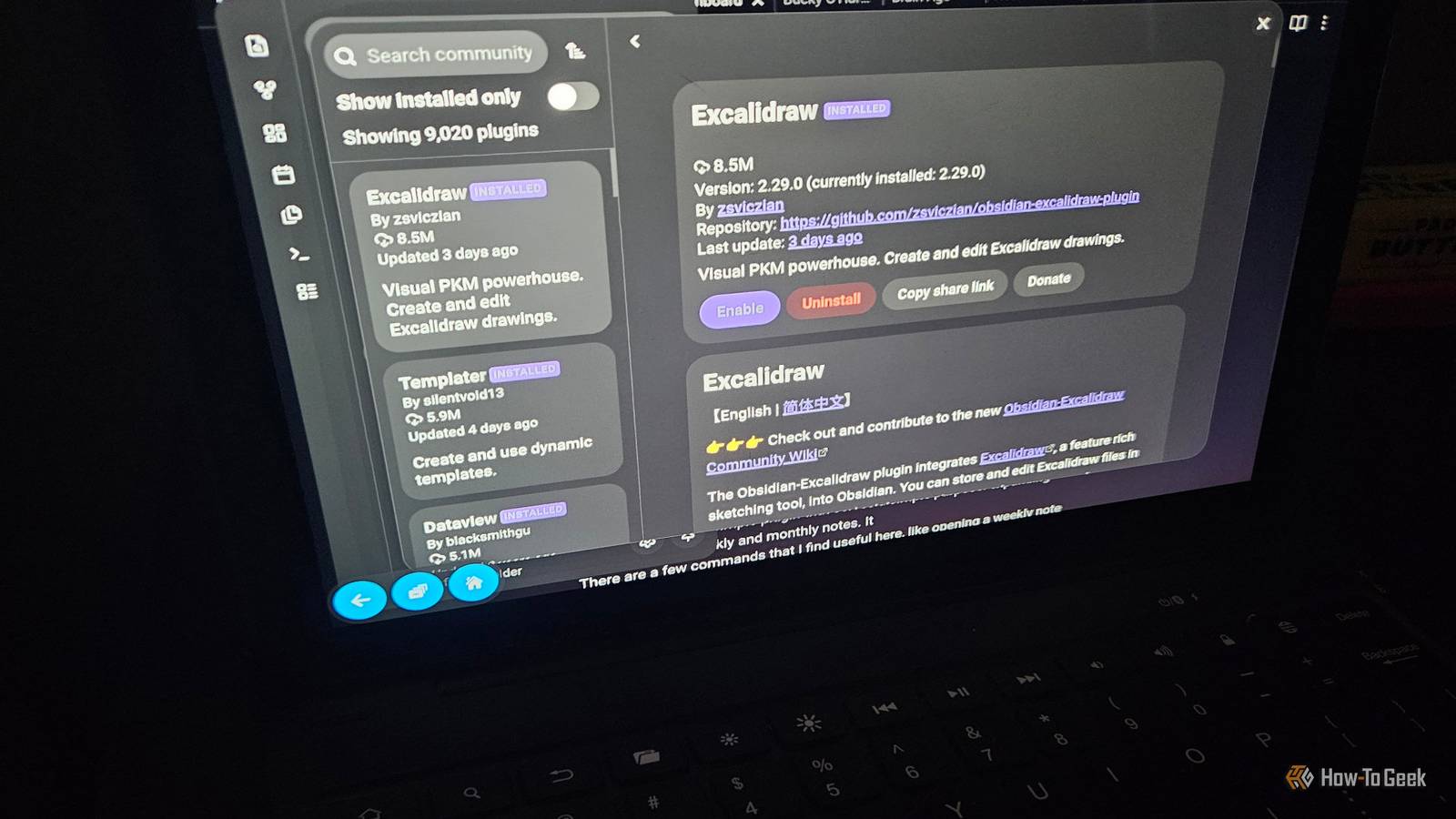
I have Obsidian running on every device I use regularly, so I need something that I can easily set up across devices.Plugins make that part pretty easy.I checked out the Community Plugins to see what would work best for me and landed on 5 options that will work for what I want to do.
Dataview and Tasks Two essential Dashboard plugins Close The very first, and perhaps most vital, plugin is Dataview.Dataview turns your Obsidian Vault into a full database that you can query.The queries are advanced, so they'll reveal detailed information based on what you're asking for.
The plugin uses a Dataview Query Language to filter, group, and display results.It's a bit more complex than that, but that's the basic gist.Then there's the Tasks plugin.
It's a completely separate plugin from Dataview (and made by a different developer), but, wow, does it work great.I've been using this one for a while, but what it does is define the data, like tasks, notes, due dates, and so on.The two plugins are essentially two sides of the same coin and work toward a similar goal of helping me manage data.
So, here's where we create the actual "dashboard" side of things.First, I made a folder named "Dashboard" to keep the setup materials in a single place.Then I made daily and weekly notes using the Tasks plugin to manage my to-dos.
I'm not big on due dates and I wanted to stay organized with a bit of a loose feel.After that, I made it query-able by creating a code block my Daily Tasks note.All the info you need for setup and syntax with Dataview is available from the developer.
It is deceptively easy to use.Don't forget to use three back ticks (these things: ```) to frame your code.The cool thing about the dashboard is that if I assign a task , the setting I created will pull up those tasks as well, not just the ones in my dedicated Daily/Weekly notes.
I added some tentative due dates to a personal project as well as my work tasks to test it out.Now, I can add a task literally anywhere in my Vault, and it'll pull all the info related to that task into my Dashboard.Neat.
Periodic Notes and Calendar Automating daily notes and adding some visuals Periodic Notes is a simple plugin that serves a simple purpose: expanding daily notes into weekly and monthly notes.It means I don't have to rebuild my notes page from scratch every day.So I end up saving a lot of time.
I set up a Daily Note in my “Current Work” folder.You can set a weekly or yearly note as well.I find it very handy.
Once that was set up, it automatically integrated with the Calendar plugin.Calendar adds some visuals to my dash.It's also one of those very simple plugins that does a ton of work.
Days that have notes on them will appear as links in the Calendar tab.Once they're connected, it'll generate a new note every day, using the style and name that I set up.When I click on the little calendar icon in my right-side toolbar, it'll take me straight to that day's daily notes.
I can assign due dates with Tasks and then see from my Vault in my actual dashboard.Both of these are community plugins, created by the same individual, so they're designed to work together.For purposes of building my dashboard, I need both anyway, so that just worked in my favor.
Templater Bringing dynamic due dates into the mix Templater is one of those underdog plugins that you don't realize you need until you set up a project like this.I grabbed the plugin and set it up in my "Dashboard" folder.I enabled it and set it up to automatically start a template when I create new notes.
I set up the folders so that it generates a new note from a template every time.By setting up Periodic Notes and Templater to a single template, it'll automatically load my to-do lists (as long as they have due dates) from throughout my Vault.Now, it's a self-updating dashboard, which is pretty cool to have.
Instead of manually putting in commands and hunting down specific notes or tasks, I can now find anything I've marked easily.I can also generate a new task dashboard every day, so I won't lose track.That's pretty good for someone with extremely chaotic organizational skills (something my wife gets on my case about often).
Productivity is better with plugins Obsidian is great on its own, but it just gets better with plugins.You can have as many plugins in Obsidian as you like.This isn't .
I spent some time configuring this the way I wanted, and I'm pretty happy with the result.But, as always, you'll want to customize it to your needs.Related 3 unusual data sources you can use to build a "second brain" in Obsidian I used Encarta, e-books, and Wikipedia to fill my Obsidian Knowledge Base and build a second brain Posts By David J.
Buck
Read More