Rita El Khoury / Android AuthorityWith Android QPR2, which started rolling out a few days ago in early December, Google is bringing a slew of cool new features to Android — specifically its Pixel phones.One of these is a feature I’m sure many of you have been praying for: a forced dark mode that applies to most apps, even if they don’t support a dark mode out of the box.The new feature is called Expanded dark mode, and here’s how you can enable it on your Pixel phone as well as a few examples of how it works.Do you wish you could force a dark mode on all of your apps?0 votesYes.Hello darkness, my old friend.NaN%No.
Developers should choose if their app can switch to dark mode.NaN%I don't use dark mode at all.NaN%How to enable Expanded dark mode on Android Step 1: Make sure your Pixel is compatible Before we get started, you need to make sure you have a compatible phone.All Pixels that have received the Android QPR2 update should have the new Expanded dark mode out of the box.This includes every Google phone since the Pixel 6 series.
I haven’t personally tested all of these out, but it’s available on my Pixel 10 Pro XL, Pixel 9a, Pixel 9 Pro, and my husband’s Pixel 7 Pro.Here’s the complete list: Pixel 6 Pixel 6 Pro Pixel 6a Pixel 7 Pixel 7 Pro Pixel 7a Pixel Tablet Pixel Fold Pixel 8 Pixel 8 Pro Pixel 8a Pixel 9 Pixel 9 Pro/9 Pro XL Pixel 9 Pro Fold Pixel 9a Pixel 10 Pixel 10 Pro/10 Pro XL Pixel 10 Pro Fold Step 2: Install the December update If you want to force your light-mode-only apps to switch to a darker theme, first, you have to make sure your Pixel phone is running the December update.Under Settings > About Phone > Build number, you should see a number that starts with BP4A.251205.006.
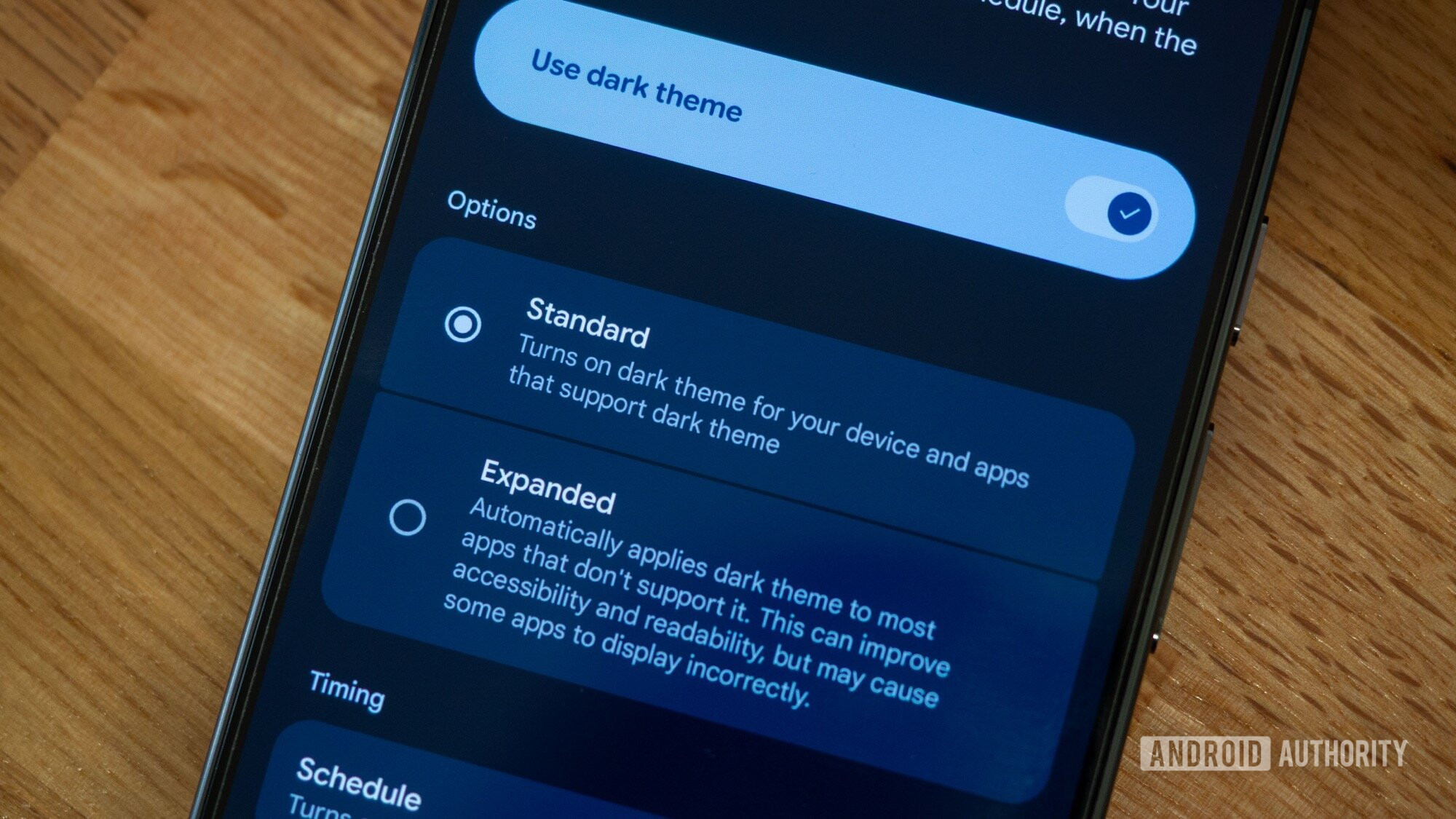
If not, go to Settings > System > Software updates > System update and Check for update then wait for it to download and install.Step 3: Toggle Expanded dark mode Standard themeExpanded dark themeExpanded dark theme applied on IDF Mobilités app This is the easiest one.Go to Settings > Display & touch > Dark theme and switch from the Standard to the Expanded dark mode.
Make sure Use dark theme is turned on or that there’s a Schedule to turn it on and off automatically.It darkens most apps, but not all of themRita El Khoury / Android AuthorityGoogle is marketing this feature as an accessibility and readability improvement, not a solution to lazy developers.This should tell you what you need to know about it: It’s not foolproof, and app developers should still make the effort to implement a native dark theme in their apps.
That will always be a better solution than a forced dark look with unoptimized contrast, graphics, and iconography.But when developers are lazy or stubborn — hello, Amazon! — this should be a good stop-gap solution to avoid getting blinded by a super bright app when you’re reading in the dark (or at any time of day, for you forever-dark-moders).In my tests, I found it was quite hit-and-miss and worked best with apps that don’t have a ton of graphics or embedded web pages.Transavia app, Standard dark modeTransavia app, Expanded dark mode The toggle does diddly squat for the Amazon app or my local banking app, because I suspect these two were built using web wrappers.It did, however, work well for Transavia, converting the entire UI and keeping everything readable and usable.Most apps with a map, though, like Citymapper and the French IDF Mobilités, didn’t benefit a lot from the toggle since the map itself is an image and it was left alone.
The rest of the interface flipped, but the map remained white, which created a bit of an ugly contrast.Citymapper, Standard dark modeCitymapper, Expanded dark modeCitymapper, Standard dark modeCitymapper, Expanded dark mode However, this is still in general better than the color inversion toggle in Accessibility since that one doesn’t differentiate between images and UI elements and inverts everything, often creating an ugly and impossible to decipher interface.It’s also a bit more reliable than the Override force-dark toggle under Developer options because it works on more apps.After a couple of days with it, I think this is an excellent idea if the apps you use benefit from it.
For me, though, most of the big light app culprits include graphics or icons that look like a confused chimera of light and dark under Expanded dark mode.I’m returning to the Standard dark mode, but you should give it a try to see whether it works for your selection of apps or not.Don’t want to miss the best from Android Authority? Set us as a favorite source in Google Discover to never miss our latest exclusive reports, expert analysis, and much more.
You can also set us as a preferred source in Google Search by clicking the button below.FeaturesAndroid 16Android appsGoogleGoogle PixelSoftware UpdateFollowThank you for being part of our community.Read our Comment Policy before posting.