I've spent years pushing back against the way Microsoft wants me to use Windows.I usually change the default browser, clean up the Start menu, keep OneDrive from taking over my files, work around Windows Search, and generally try to make Windows feel like my computer instead of another doorway into Microsoft's services.On my main work machine, I even run MSEdgeRedirect because I'm tired of Windows sending certain system links to Edge after I've already chosen a different browser.
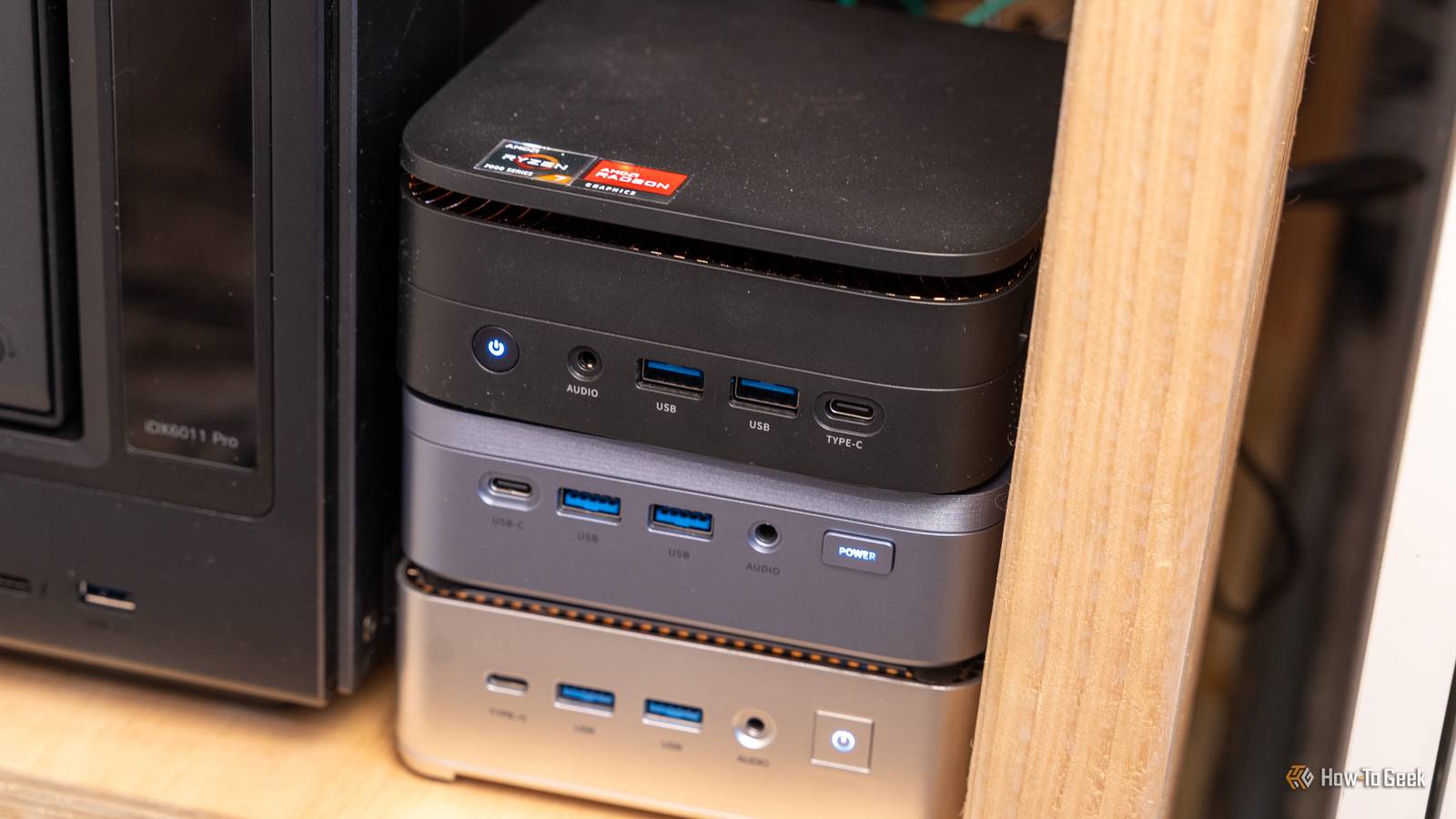
So when I recently bought a new mini PC to run a local LLM, I decided to treat it like a clean slate and give Microsoft the benefit of the doubt.Instead of immediately tearing through Settings and undoing everything, I used Windows 11 the way Microsoft seemed to want me to use it.I left the defaults alone.
I let OneDrive handle my files.I used Windows Search instead of reaching for my usual workarounds.I gave the built-in experience a fair shot.
It didn't take long before I remembered why I usually change these things first.I let OneDrive take over my files My Desktop stopped feeling local The first real problem showed up while I was still setting up the new PC.Windows nudged me toward OneDrive backup like it was just part of the normal setup process, so I went along with it.
At first, that seemed fine.Having my Desktop, Documents, and Pictures backed up sounds useful, especially on a new machine where I hadn't settled into a workflow yet.Then I started saving files, images, downloads, and random setup notes, and I realized I wasn't always sure where things actually were.
A file I thought I'd saved locally was sitting in a folder with OneDrive sync icons next to it.My Desktop didn't feel like a local workspace anymore.It felt like a cloud folder that happened to be displayed on the desktop.
That's fine when you deliberately want that behavior, but it's frustrating when Windows makes it feel like the obvious default before you've had a chance to decide how you want to use the computer.I also think for many Windows users, OneDrive is easy to mistake for a traditional backup tool, when it’s really more of a sync service with some backup-like features.That distinction matters.
A backup feels like a safety net.Sync feels like a live connection between devices, which is great until a change follows you somewhere you didn’t expect.I’ve seen enough threads from people who thought they were cleaning up files on one PC, only to realize those changes had synced to all of their devices.
That hasn’t happened to me yet, but it’s exactly the kind of thing that makes me nervous when Windows turns OneDrive on before I’ve even broken in the new machine.I relied on Windows Search instead of working around it Choosing a search provider didn't mean Windows Search used it This was the part of the experiment that irritated me the most.I can live with a default app I don't prefer, and I can work around OneDrive if I'm paying attention.
But Windows Search feels like one of those places where Microsoft gives you just enough control to make you think you're in charge, then ignores the spirit of that choice when it matters.I could choose a different primary search provider, but Windows Search still pushed me back toward Microsoft's version of the web.Quiz 8 Questions · Test Your KnowledgeWindowsTrivia ChallengeFrom everyday shortcuts to hidden power features — find out how well you really know Microsoft's iconic operating system.ShortcutsSettingsHistoryPower UserFeaturesBegin 01 / 8ShortcutsWhich keyboard shortcut opens the Windows Snipping Tool (or Snip & Sketch) for taking a screenshot on Windows 10 and 11?ACtrl + Shift + SBWin + Shift + SCAlt + Print ScreenDWin + SCorrect! Win + Shift + S opens the Snip & Sketch overlay, letting you drag to capture any area of your screen.
The snip is copied to your clipboard and also appears as a notification you can click to annotate.Not quite — the answer is Win + Shift + S.Ctrl + Shift + S saves files in many apps, Alt + Print Screen captures just the active window, and Win + S opens Search.Win + Shift + S is your go-to for flexible screen grabs.Continue 02 / 8FeaturesWhat does the Windows 'God Mode' folder trick actually give you access to?AA hidden administrator account with no passwordBA secret game built into WindowsCA single folder with all Control Panel settings and tasks in one placeDDirect access to the Windows registry editorCorrect! 'God Mode' is created by making a new folder and naming it with a special GUID string.
It compiles hundreds of Control Panel tasks and settings into one convenient folder, making it a power user favorite for quick access.Not quite — God Mode is actually a special folder that consolidates all Control Panel settings and administrative tasks in one place.You create it by naming a folder with a specific GUID code.There's no hidden game or secret admin account involved!Continue 03 / 8HistoryWhich version of Windows was the first to introduce the Start Menu?AWindows 3.1BWindows NT 4.0CWindows 98DWindows 95Correct! Windows 95 introduced the Start Menu in August 1995, and it became one of the most iconic UI elements in computing history.
Microsoft even licensed the Rolling Stones' 'Start Me Up' for the launch campaign.Not quite — it was Windows 95 that introduced the Start Menu.Before Windows 95, users navigated through Program Manager.The Start Menu was such a revolution that Microsoft paid the Rolling Stones a reported $3 million to use 'Start Me Up' in its ads.Continue 04 / 8SettingsIn Windows 11, where would you go to change which apps open by default for file types like PDFs or photos?ASettings > System > StorageBSettings > Apps > Default AppsCControl Panel > Programs > StartupDSettings > Personalization > App ThemesCorrect! Settings > Apps > Default Apps is where you can assign which application handles specific file types and link protocols.
In Windows 11, Microsoft made this more granular — you set defaults per file extension rather than per app category.Not quite — the right path is Settings > Apps > Default Apps.From there you can search for a file type or app and assign which program should open it.Windows 11 made this process more detailed than previous versions, giving you per-extension control.Continue 05 / 8ShortcutsWhat does pressing Win + D do in Windows?AOpens the Downloads folderBMinimizes all windows and shows the desktopCOpens the Device ManagerDDuplicates the current windowCorrect! Win + D instantly minimizes all open windows to reveal your desktop, and pressing it again restores them all.
It's a quick way to access desktop icons or shortcuts without closing anything you're working on.Not quite — Win + D minimizes all open windows to show your desktop.Press it again and all your windows come right back! If you want Device Manager, you can right-click the Start button and choose it from the Power User menu.Continue 06 / 8FeaturesWhat is Windows Virtual Desktop (Task View) primarily used for?ARunning Android apps inside WindowsBOrganizing open apps across multiple separate desktop workspacesCDisplaying two browser windows side by side automaticallyDStreaming your Windows screen to another deviceCorrect! Virtual Desktops let you create multiple separate desktop workspaces — for example, one for work apps and one for personal browsing — and switch between them with Win + Ctrl + Left/Right arrows.It's a great productivity tool that many users overlook.Not quite — Task View's Virtual Desktops let you run multiple independent desktop workspaces on one PC.
You can keep work on Desktop 1 and personal stuff on Desktop 2.Switch between them with Win + Ctrl + Arrow keys for a seamless multitasking workflow.Continue 07 / 8Power UserWhich command-line tool in Windows allows you to repair corrupted system files by scanning and restoring them from a protected cache?Achkdsk /fBnetsh resetCsfc /scannowDdism /cleanup-imageCorrect! The System File Checker command 'sfc /scannow' scans all protected Windows system files and replaces corrupted ones with cached copies.It's often the first repair tool techs reach for when Windows starts acting strangely.
Run it in an elevated Command Prompt.Not quite — the answer is 'sfc /scannow', which stands for System File Checker.While chkdsk checks disk integrity and DISM can repair the Windows image itself, sfc is specifically designed to find and restore corrupted protected system files from a local cache.Continue 08 / 8Power UserIn the Windows Registry, what is the correct full path to the 'Run' key that automatically launches programs at startup for the current user?AHKEY_LOCAL_MACHINE\SOFTWARE\Microsoft\Windows\RunBHKEY_CURRENT_USER\SOFTWARE\Microsoft\Windows\CurrentVersion\RunCHKEY_CURRENT_USER\SYSTEM\CurrentControlSet\Services\StartupDHKEY_LOCAL_MACHINE\SOFTWARE\Windows\Startup\CurrentUserCorrect! The HKCU Run key at HKEY_CURRENT_USER\SOFTWARE\Microsoft\Windows\CurrentVersion\Run loads programs at login for the currently signed-in user only.There's a parallel key under HKEY_LOCAL_MACHINE that applies to all users on the machine — a common distinction that trips up even experienced admins.Not quite — the correct path is HKEY_CURRENT_USER\SOFTWARE\Microsoft\Windows\CurrentVersion\Run.
This key runs programs at startup for the current user.The HKLM equivalent does the same for all users.Malware often hides itself in these Run keys, making them important to know when troubleshooting.See My Score Challenge CompleteYour Score/ 8Thanks for playing!Try Again That would be annoying enough on its own, but the clutter makes it worse.
I'd open Search looking for an app, a setting, or a file, and instead of feeling like a clean way to search my PC, it felt like a mixed feed of local results, web suggestions, recommended items, and Microsoft-flavored extras.Sometimes the thing I wanted was there, but it was surrounded by so much noise that Search felt less like a tool and more like another surface Microsoft could use to steer me somewhere else.That's exactly why I usually work around it instead of trusting it.
I stopped changing Microsoft's recommended defaults The defaults were less about apps and more about the whole experience The point here wasn't just that I left Edge as the browser or let Windows open PDFs the way it wanted.It was that I stopped doing all the little cleanup steps I normally do after setting up a Windows PC.I didn't immediately change file associations, strip out recommendations, remove Microsoft's preferred apps from the center of the experience, or turn off the features that keep nudging me back toward Microsoft services.
That changed the feel of the PC almost immediately.A link, a PDF, a Start menu suggestion, or a widget didn't always feel like a neutral Windows feature.It felt like another small push toward Edge, Bing, OneDrive, Microsoft 365, or whatever else Microsoft wanted me to use.
None of those things are automatically bad, and many are useful.Taken together, the defaults made Windows feel less like it was set up for how I work and more like it was set up for how Microsoft wanted me to work.Windows 11 Home What's included? Device encryption, find my device, firewall and network protection, internet protection, and more Brand Microsoft Upgrading the operating system for your PC can be simple with Windows 11 Home; it offers a simple, fast, and intuitive interface for ease of use.
$139 at Microsoft Expand Collapse Windows 11 feels better once you take back control I lasted about three days before I started doing the same things I do to every Windows machine.I changed the defaults that bothered me, cleaned up the extra clutter, and put the tools I actually use back at the center of the experience.For some people, Microsoft's defaults probably work fine.
If you live in Edge, OneDrive, Bing, and Microsoft 365, the whole setup may feel convenient.For me, the extra prompts, mixed search results, cloud-first file behavior, and small bits of friction add up fast.That matters when you're on your PC all day.
Windows 11 is a lot easier to like once I stop letting it steer the way I work and start making sure it works for me.
Read More