Android gives several ways to customize your phone.Most users use the Quick Settings panel for the same handful of things — Wi-Fi, brightness slider, flashlight, location, and mobile data.These barely scratch the surface.
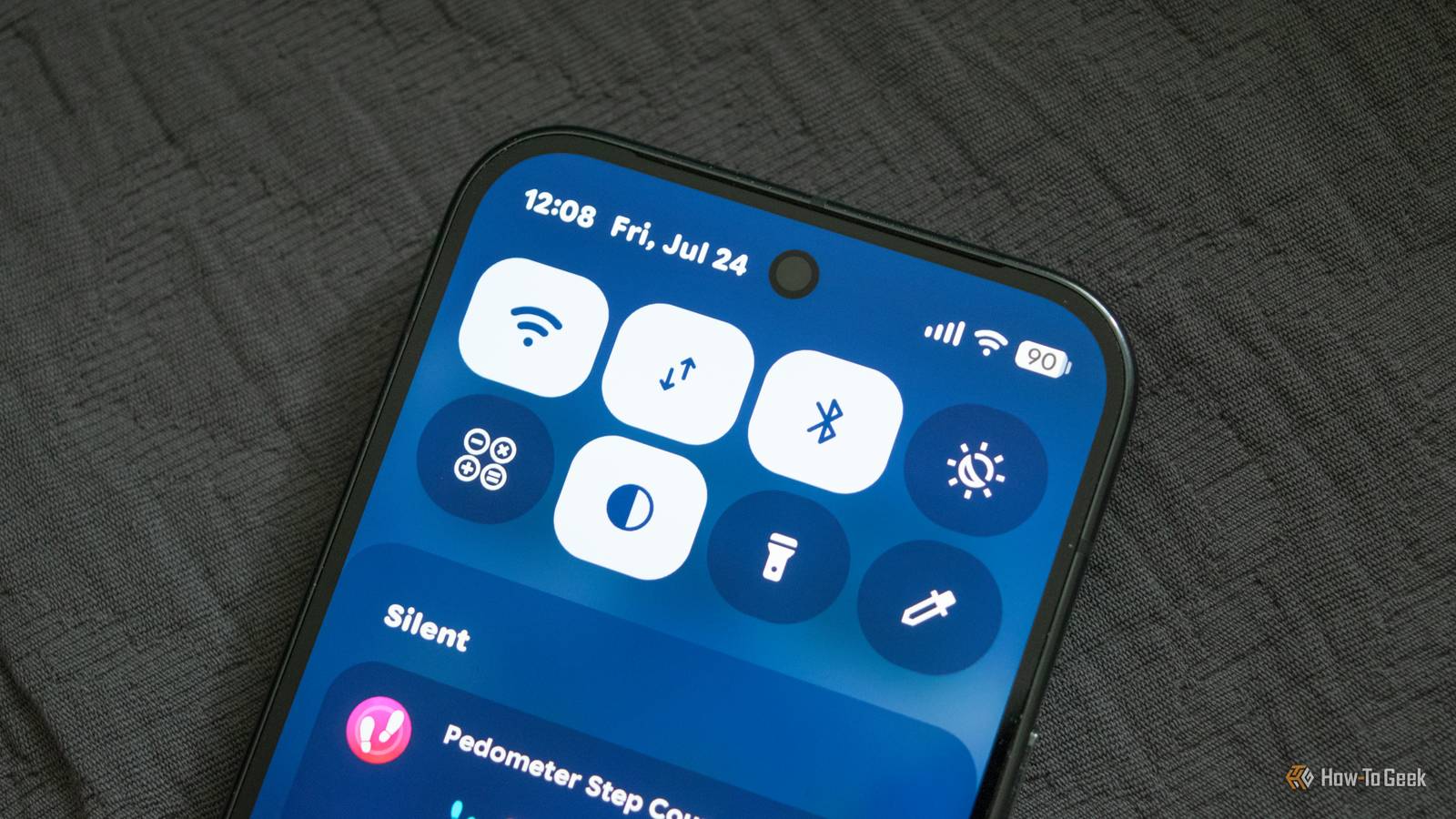
Tucked inside the Quick Settings edit menu are tiles that save you several taps and put useful controls one swipe away.To add tiles, swipe down from the top of the screen, tap the pencil icon, and add the one you want into the panel.The exact steps vary by phone and Android version.
Here are five Quick Settings tiles that are worth the space.QR Scanner Scan codes without opening the camera Pointing the stock camera or a scanner at a QR code works as expected.But scanning something shouldn’t require extra steps.
A dedicated QR Scanner tile in the Quick Settings panel fixes that.One tap and from there, you can directly open a link, join a WiFi network, or save a contact.You don’t have to wait for the camera app to recognize the code first or switch between modes either.
It’s the kind of shortcut you forget about until you’re checking a digital menu or paying at a shop with groceries in one hand.Focus Mode Stop distractions by pausing apps that eat your time Close If you often get distracted by social media, news, or that one game, Android’s Digital Wellbeing features offer a way to limit those interruptions.Called Focus Mode, the feature allows you to pause apps that swallow your time.
Their notifications are also restricted.You first need to set up Focus Mode under Digital Wellbeing in Settings.Then, if your phone supports a Focus Mode tile, add it through the Quick Settings editor.
You can then activate it when you need to concentrate on work, read a book, finish a task, or just spend time away from the screen.Focus Mode can also be scheduled to run during specific hours so you don’t have to tap anything.It’s a useful middle ground between leaving every app available and putting the entire phone on Do Not Disturb.
Camera and Microphone access Cut off access in one tap Android’s per-app permissions are great, but they’re a slog when you want everything off and then back on later.Thankfully, camera access and microphone access tiles work as a system-wide kill switch.Turn them off, and apps cannot access the corresponding sensor until you switch them back on.
If camera and microphone access tiles aren’t visible, tap the pencil or the edit button and add them in the Quick Settings panel, provided your phone supports them.This is the fastest way to keep privacy in control.Do note that these are broader device-level toggles, so they can affect apps that rely on your camera and microphone, like video calls, voice messages, and camera apps.
Live Caption Subtitles for things that never had any Live Captions are helpful in situations where you want to watch a video or follow a conversation without turning up your phone’s volume.The functionality works by automatically generating captions for speech playing on your device.Once you enable it from the quick settings, live captions appear on the screen in real time for supported audio.
Keep in mind that language support and compatibility vary by device and app, so it won't replace proper subtitles in every situation.Having the Live Caption tile makes it easier to turn on captions when you need them and off when you don't.Device Controls Your smart home, one tap away If you use any smart home devices, you don't always need to reach for the companion app to control them.
Android’s Device Controls feature can make managing everything, like lights, plugs, thermostats, and locks, more convenient.Tapping the tile opens a panel of controls for your connected devices.Do note that the devices are pulled from apps that support the feature, such as Google Home.
You need to set up your smart home devices in a compatible app first and choose which controls you want to access.Once everything is set up, you can perform tasks like switching off a light or adjusting its brightness without opening the companion app and navigating through its menus.This makes the Device Controls tile useful for everyday tasks or when you're in a hurry.
Related 9 Tasks You Can Automate on Your Android Phone So you don't have to remember to do them.Posts 7 By Mahesh Makvana Make the Android Quick Settings panel work for you You don’t need to fill your Quick Settings panel with every available control.You can prioritize shortcuts that solve problems you encounter regularly.
If you find yourself reaching for a tile without thinking, it’s earned its spot.If not, you can always swap them out, and it takes only a few seconds.
Read More