Mobile web browsers have come a way.Chrome for Android started with simple tabs and sync, but now it has many of the features you'll find in the desktop version.In fact, if you know where to look, there's an extra feature that not many people take advantage of.
Everyone knows there are essentially two ways to organize open webpages in a browser: tabs and windows.On a desktop, you have a big screen, which is great for juggling multiple windows.Android browsers, however, usually only utilize tabs.
That is, unless you use Chrome on your Android phone.Windows...in a mobile browser? It's more useful than you might think You may be surprised to learn that Chrome for Android does indeed support windows, not just tabs.Once you learn how to use the feature, you'll understand why — it's easy to overlook.
We simply don't think about "windows" on a phone in the same way that we do on a computer.When you think about it, Android multitasking works in a very similar way to a desktop OS.It only feels different because apps are always open in "full-screen mode." Even on the desktop, most apps are not used with multiple windows open at a time — browsers are really the main exception.
Windows in Chrome for Android work exactly like they do on the desktop.Each window has its own tabs, but bookmarks and everything else are the same.As far as I can tell, the number of windows you can have open is as unlimited as tabs.
The windows also appear separately in Android's Recents screen, as if you've cloned the Chrome app.How to use windows in Chrome for Android Choose your own adventure Let's get down to business.There are a couple of different ways to use and manage Chrome for Android's window functionality.
It just depends on whether you want to open a new blank window or move an open tab to a new or existing window.While writing this article, I noticed this feature works slightly differently depending on the type of device.There's a method for regular slab-style phones and a method for foldable phones.
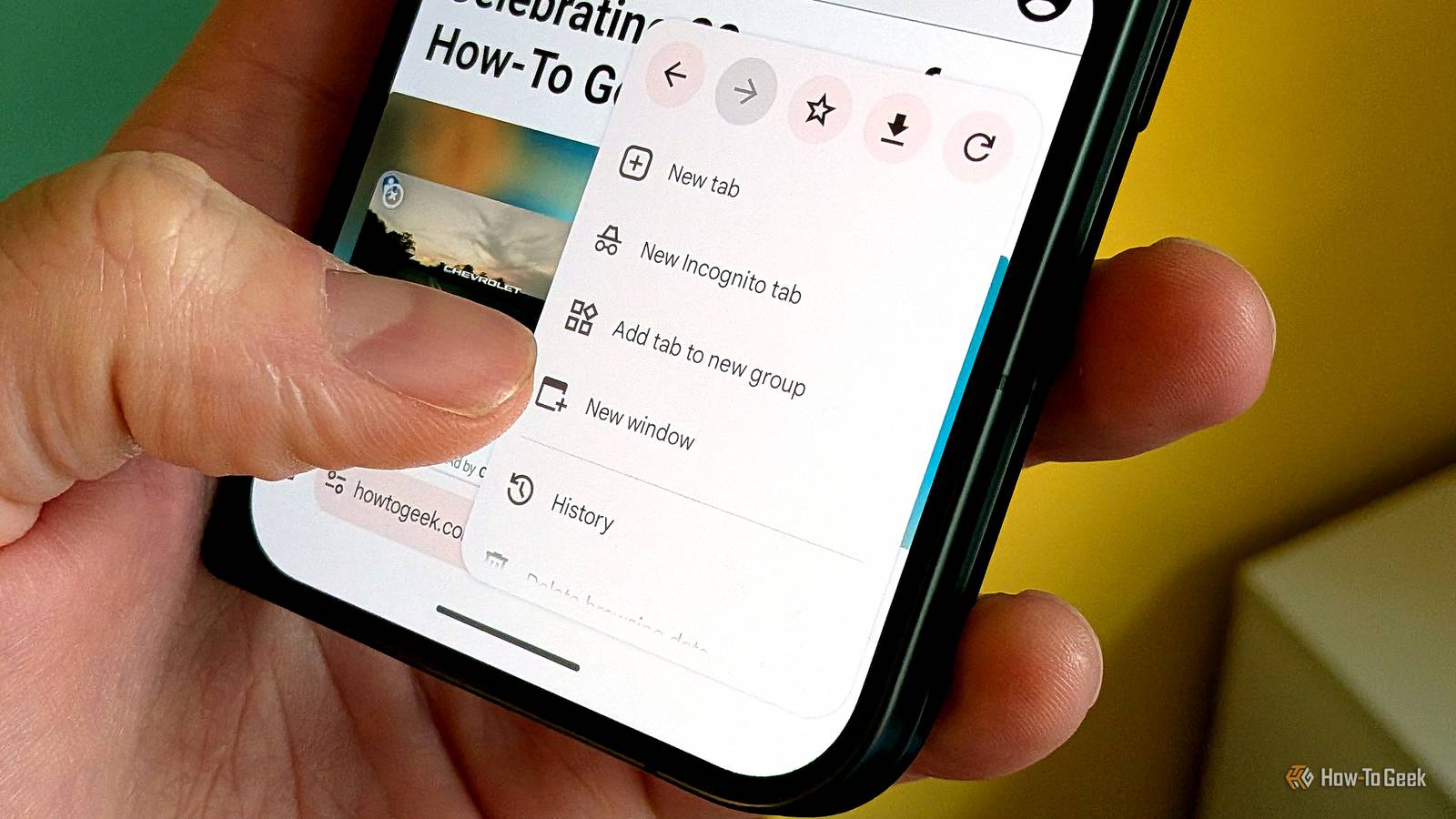
I'll explain both.First, to open a new window on a slab-style phone (or a closed foldable): Open Chrome on your Android device and put it into split-screen mode.Tap the three-dot menu icon in the address bar.
Select "New window." Foldable phones can skip the split-screen step when the device is in its unfolded state.Close Once you have multiple windows open, you can move tabs to other windows: Open Chrome on your Android device.Navigate to the tab, then tap the three-dot menu icon in the address bar.
Select "Move to other window." Choose the window from the list.Tap "Move." Close Foldable owners have one extra feature: Instantly send tabs to their own new window.Open Chrome on your Android device in its state.
With multiple tabs open, press and hold a tab to bring up the menu.Select Move tab to new window (this also works for moving tabs to existing windows).As I mentioned, all the windows appear in the Recents multitasking screen.
However, when they inevitably get all mixed up with other apps, you can see them all by going to the three-dot menu icon > Manage windows.From here, you can jump to windows, give them a name, or close them.A handy trick for organization Take your tab hoarding to the next level Windows are sneakily a great way to organize tabs in a mobile browser.
Chrome for Android also supports tab groups, just like the desktop version, but windows have the advantage of showing up on the Recents screen.To access a tab group, you need to open Chrome, tap the tabs button, then select the group.Windows are essentially tab groups that can be directly opened from the Recents screen, which is great for multitasking.
It also further elevates Chrome to feel more like a desktop-class experience.Long-time Android fans will recall that this isn't Google's first time splitting Chrome up in the Android Recents screen.Way back in 2014, Android 5.0 Lollipop enabled a feature that put every single Chrome tab in with the recent apps on what was then called the "Overview" screen.
It was a mess.Thankfully, Google abandoned that idea, and windows is a much better implementation.Samsung Internet and Microsoft Edge for Android also support windows — Firefox does not.
It's a feature you may have never thought about wanting, but can quickly become indispensable once you start using it.Related Listen, You Don't Need That Many Browser Tabs Open User Display Picture I'm not here to tell you how to live your life.If you want to be constantly buried underneath a mountain of browser tabs, that's your choice.
But I think you can do better, and I'll try to explain why.Browser tabs are a blessing and a curse.It's handy to have multiple pages open at once, but it can easily get out of hand.
You probably have this very page open among a dozen other tabs right now.Are they all really necessary, or are you hoarding? Posts By Joe Fedewa
Read More