Neovim is already quite powerful out of the box, but getting the most out of it is less about piling on plugins and more about choosing the right ones.The plugins below are not popular because they are fashionable, but because they solve specific annoyances that show up after you have spent enough time inside the editor (usually longer than you planned).None of the plugins is required to properly use Neovim.
They earn their place by unlocking parts of the editor that only matter once you are trying to get the most out of it.The installation steps in the sections below assume the use of Lazy (often confused with LazyVim), a widely used plugin manager for Neovim.Atone Close The first is an unexpected discovery because I didn't think something like this could exist in such a clean and usable form (and still feel so coherent).
Atone presents your undo history as a tree that you can actually explore, rather than the usual undo, undo, and undo until you reach the target.I’m sure you have been there, when you make a series of edits, continue working for a while, and then realize that a specific earlier change was better or at least less wrong.Undoing since then is not an option.
Atone solves this exact problem by visualizing every branch your edits have created, and you can move through alternate histories of the same file and restore it to exactly the state you want.Using it is straightforward, just run and a side window opens with an undo tree.You navigate between nodes with the arrow key and restore a state using the provided keybinding.
Installation is as simple as this: return { "XXiaoA/atone.nvim", cmd = "Atone", opts = {}, } Related Why Neovim Is My Text Editor of Choice, and What Makes It So Powerful Neovim is my tool of choice for nearly anything to do with text.Posts By Kris Wouk Conform Perhaps Go is responsible for this obsession, but I need formatted code.Proper formatting removes all the clutter (not all if your code is bad) and keeps diffs readable.
Conform defines itself as a lightweight but powerful formatter, and that description holds up in practice.Instead of replacing entire buffers, it calculates minimal diffs and applies only what needs to be changed.This preserves marks, folds, and cursor position, which may sound small until you experience the alternative.
It also fixes badly behaved LSP formatters by intercepting their output and converting it into proper incremental edits.Also, it can format ranges even if the underlying formatter doesn't support it.To install and configure, run this: return { 'stevearc/conform.nvim', opts = { lua = { "stylua" }, -- Conform will run multiple formatters sequentially python = { "isort", "black" }, -- Use a sub-list to run only the first available formatter javascript = { { "prettierd", "prettier" } }, markdown = { { "prettierd", "prettier" } }, typescript = { "eslint_d" }, sh = { "shfmt" }, bash = { "shfmt" }, }, config = function() vim.api.nvim_create_user_command("Reformat", function(args) local range = nil if args.count ~= -1 then local end_line = vim.api.nvim_buf_get_lines(0, args.line2 - 1, args.line2, true)[1] range = { start = { args.line1, 0 }, ["end"] = { args.line2, end_line:len() }, } end require("conform").format({ async = true, lsp_fallback = true, range = range }) end, { range = true }) Flash Not all of your time in Neovim is spent writing code; a lot of it is spent moving through it (unfortunately), and Flash focuses on that.
At a basic level, it improves the built-in f, F, t, T motions by making jump targets clearer and more precise, but it also goes further than character navigation.It allows you to jump to words, lines, syntax nodes, or patterns defined by regular expressions.What makes it fascinating is how well it integrates with operator pending mode.
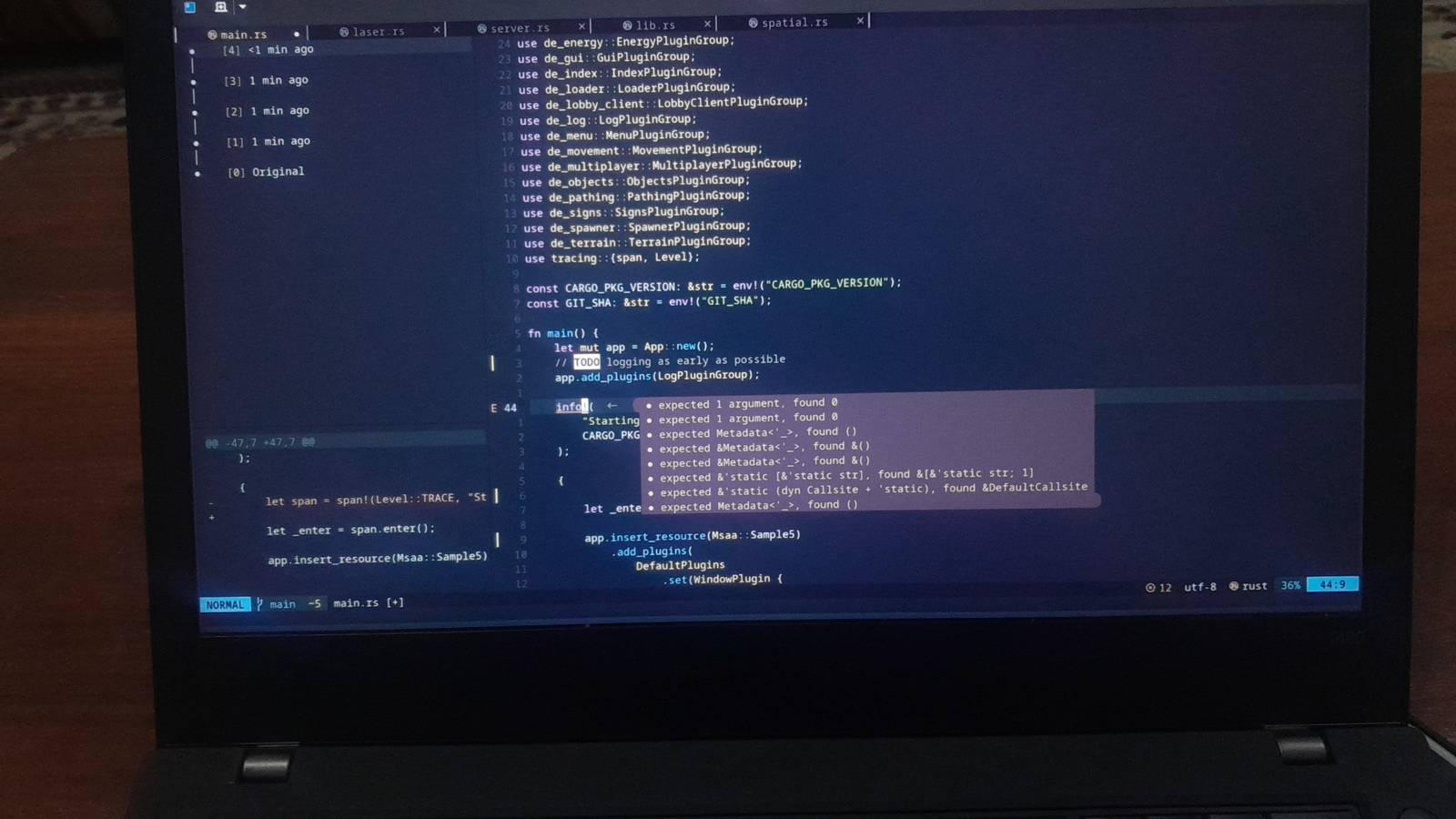
You start an operator, invoke Flash, and then apply that operator exactly where you want without any awkward intermediate steps.It also makes search contextual, letting you jump between functions and variables depending on the buffer.To install Flash: return { "folke/flash.nvim", event = "verylazy", ---@type flash.config opts = {}, keys = { { "s", mode = { "n", "x", "o" }, function() require("flash").jump() end, desc = "flash" }, { "S", mode = { "n", "x", "o" }, function() require("flash").treesitter() end, desc = "flash treesitter" }, { "r", mode = "o", function() require("flash").remote() end, desc = "remote flash" }, { "R", mode = { "o", "x" }, function() require("flash").treesitter_search() end, desc = "treesitter search" }, { "<c-s>", mode = { "c" }, function() require("flash").toggle() end, desc = "toggle flash search" }, }, } Tiny Inline Diagnostics Inline diagnostics in Neovim are really useful, but often when they are long, really long, they get cut off, and you only see part of them.
Things get worse if it is a very verbose language.This plugin fixes that problem.It makes diagnostic messages expand properly, supports multiple lines, and remains readable without any extra interaction.
You can see the entire message live where you are working, which significantly simplifies debugging.To install TiD, use the following code: return { "rachartier/tiny-inline-diagnostic.nvim", event = "VeryLazy", priority = 1000, opts = { add_messages = { display_count = true, }, multilines = { enabled = true, always_show = true, }, show_source = { enabled = true, } }, } Neogit I had Neogit installed for a long time without really using it.Mostly because habits are hard to change.
That changed once I added a keybinding and committed to using it as my primary Git interface.Subscribe to the newsletter for smarter Neovim tool picks Turn common Neovim frustrations into smoother workflows; subscribe to the newsletter for curated plugin picks, practical configuration examples, and concise explanations that help you decide which tools will actually improve your editing.Subscribe By subscribing, you agree to receive newsletter and marketing emails, and accept Valnet’s Terms of Use and Privacy Policy.
You can unsubscribe anytime.Neogit provides a focused Git UI inside Neovim.It allows you to inspect repository status, stage hunks, write commits, manage branches, and resolve conflicts without context switching.
Running it in a floating window keeps it visually contained and avoids taking over the screen.To install Neogit: return { "NeogitOrg/neogit", dependencies = { "nvim-lua/plenary.nvim", -- required "sindrets/diffview.nvim", -- optional - Diff integration "nvim-telescope/telescope.nvim", -- optional }, opts = { kind = "floating", }, config = true } Related 11 Vim Tips That Will Save You Hours of Editing Time Be a Vim pro.Posts 5 By Zunaid Ali Barbar Most of us are multitaskers and usually don't have just one file open.
Quite the opposite, in fact, as a rule we have several files open.This is almost the same as with the tabs in your browser.Barbar acknowledges that reality and gives you a proper buffer bar.
It provides reorderable tabs, icons, Git status indicator, and a buffer picking mode that turns buffer switching into muscle memory.In BufferPick mode, each tab is assigned a letter that remains stable for the life of that buffer.After a while, you stop thinking about file names and just jump directly (your hands remember before your brain does).
To install Barbar, use this code: return{ { 'romgrk/barbar.nvim', dependencies = { 'lewis6991/gitsigns.nvim', 'nvim-tree/nvim-web-devicons', }, init = function() vim.g.barbar_auto_setup = false end, opts = { sidebar_filetypes = { ['neo-tree'] = { event = 'BufWipeout' } }, }, }, } Seen in isolation, these plugins may not seem that remarkable, and that is precisely why they matter.Each one of these plugins removes a small but persistent limitation in day-to-day Neovim use, from undo history and formatting to navigation and buffer management.Taken together, they help move beyond simply using Neovim and towards getting the most out of it.
Read More