I wanted to use my Ugreen NAS as a central hub for my homelab—but that required mounting external storage servers to it.For some reason, Ugreen doesn’t let you do this within the operating system, but I found a way around it with just one command.Why would I want to mount a storage server to my storage server? I’m complicated, okay? While a NAS is the main place most people will store files, there’s also many reasons to mount other file storage to a NAS remotely.
In my case, I have multiple NAS servers that each serve a different purpose.When my new Ugreen NAS arrived, I knew right away I would make it my Plex server—but not for storage.You see, I have a 12-bay rack-mount storage server that acts as my bulk storage system where the majority of my large hard drives live.
It has 80TB of usable storage in it (95TB if you count the parity drive and SSD cache drives).My Ugreen NAS, however, only has six drive bays, not 12, so I wouldn’t be moving my actual Plex to the Ugreen.What I would be moving is the Plex container itself, because the Ugreen NAS has a Core Ultra 7 processor and 64GB of LPDDR5x RAM, making it a behemoth when it comes to transcoding and general media server tasks.
I’ve used this system for years though, running my Plex server separate from my storage.It’s normally easy to do, just mount the storage server on the Plex server through either NFS or SMB, and you’re ready to go.Sadly, with a Ugreen NAS, it’s not quite that simple.
Ugreen doesn’t let you natively mount SMB or NFS shares to their NAS system You can NFS or SMB, but not mount…for some reason I spent a good hour or two trying to figure out how to mount a SMB or NFS share on my Ugreen NAS with UGOS Pro installed on it.Sure, I could have replaced the operating system, but I wanted to use the NAS as it ships.Within UGOS Pro, there are settings for both NFS and SMB in the settings area as well as the files app.
Normally, one of those two locations is where you mount a remote NFS or SMB share—but UGOS makes it so you can only share via SMB or NFS, not mount.This is pretty frustrating, and something that I’ve seen others complain about online for quite a while, but Ugreen simply hasn’t fixed it yet.Maybe they never will.
So, since I couldn’t mount my NFS share natively within UGOS, I had to resort to another method—SSH.It’s easier then you think to mount a NFS share on Ugreen—you just need a terminal The great problem solver Within the terminal, you can easily mount a NFS or SMB share to the Ugreen NAS through the fstab.Before I went too far, I tested mounting my server with just a command, instead of editing the fstab.
sudo mkdir -p /mnt/server sudo mount -t nfs <nfs-ip>:/path/to/share /mnt/server What this does is makes a directory in /mnt for the server, and then mounts your NFS share to that folder.Once this worked, I went on to actually edit the fstab file in /etc/fstab, adding the following line: <nfs-ip>:/path/to/share /mnt/server nfs defaults,_netdev 0 0 The key here is the _netdev flag, which tells fstab to wait until the network is up before trying to mount the NFS share.If fstab tried to mount the share before it was properly networked, then it would just error out and it might not actually mount it.
Subscribe for Practical NAS & Homelab Terminal Tips Get the newsletter to unlock hands-on NAS and homelab guidance—practical terminal commands, NFS/SMB mounting workarounds, and step-by-step tips that make advanced storage and media-server setups approachable.Get Updates By subscribing, you agree to receive newsletter and marketing emails, and accept our Terms of Use and Privacy Policy.You can unsubscribe anytime.
Once I made that edit, I ran sudo systemctl daemon-reload which reloads the fstab file, and then I could run sudo mount /mnt/server as I had previously unmounted the NFS share before editing the fstab.Now, whenever my Ugreen server reboots, it automatically mounts that NFS share so it can read my Plex media from the other server.I also have my other NAS remotely mounted over NFS as it has Docker backups on it, and using a remote NFS mount allowed me to access the files directly.
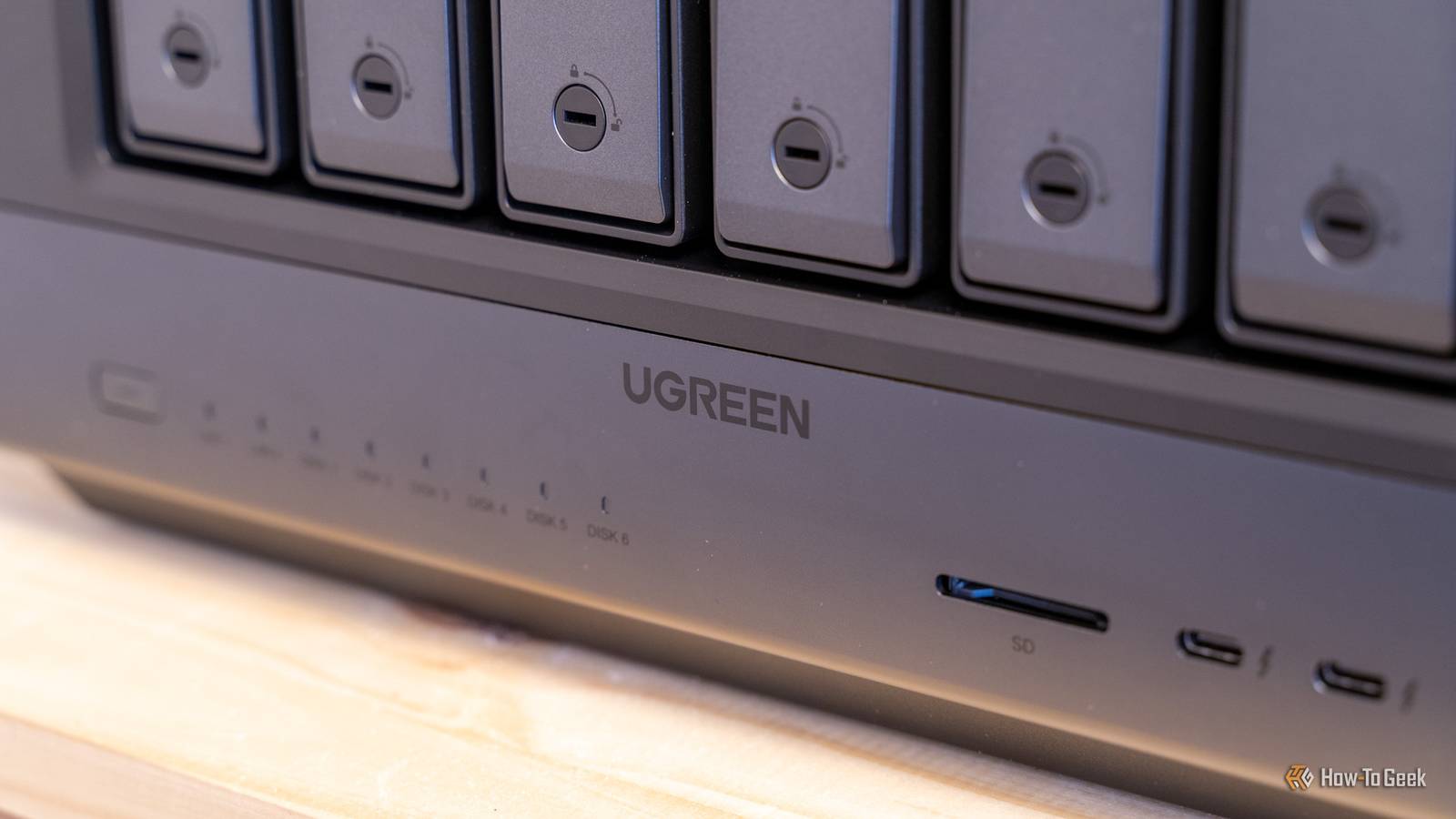
Ugreen iDX 6011 Pro AI NAS Brand UGREEN CPU Intel Core Ultra 7 255H The Ugreen iDX 6011 Pro AI NAS is one of the most powerful NAS servers in the Ugreen lineup.With Intel's Core Ultra 7 255H 16-core processor and 64GB of LPDDR5/x RAM onboard, there's more than enough power to handle anything you can throw at this system.Add to that dual Thunderbolt 4 ports, dual 10GbE LAN ports, an OCuLink expansion port, and more, and you have a very solid network attached storage system.
$2599 at Ugreen Expand Collapse Sometimes, a terminal is all you need While I would have liked a way to mount the NFS share in the UGOS UI, doing it through the terminal is just as easy once you know the commands to use.The terminal doesn’t have to be scary, it’s actually an extremely useful tool.If there are things you want to do on your NAS, but the operating system doesn’t have a UI element for it, definitely check out the terminal and try to do it there—you’d be surprised what all is available when you SSH into your NAS that the UI doesn’t allow you to do.
Read More