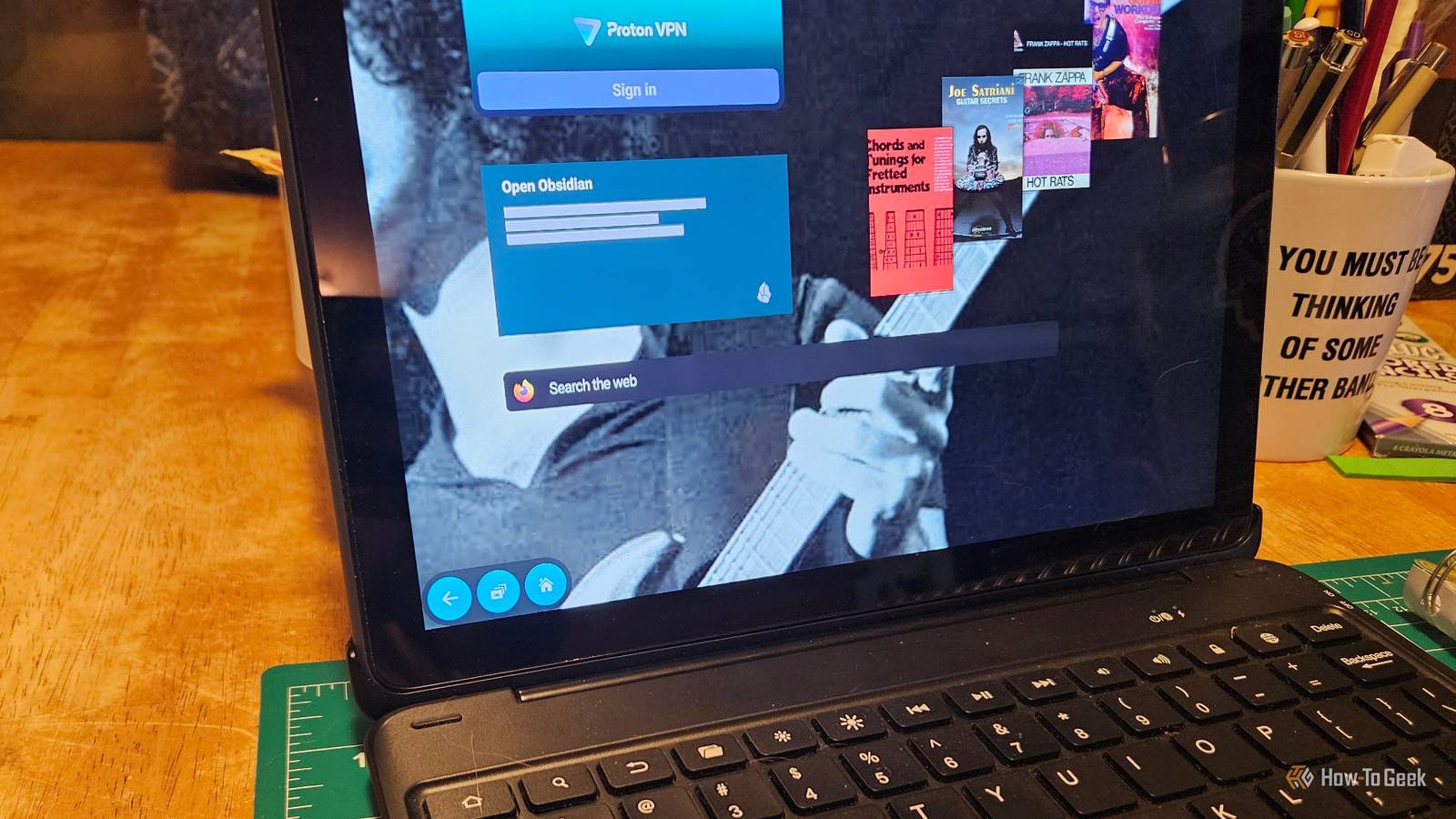
I love a good modded tablet.Whether it's a regular Android tablet or a modded Amazon Fire tablet, I usually like to tinker with the things that I own.The Fire tablet in particular is one I can't seem to stop messing with.
I've used Fire Toolbox and other methods to improve its performance and functionality.But Fire OS has built-in system settings you can use to speed up your tablet.Here are a few that work for me.
Start with three easy steps Think of it as a bit of housekeeping Close I've been rocking the same Amazon Fire Tablet (11th generation) for a few years now.I've side-loaded Google Play and F-Droid.I've turned it into a makeshift laptop.
I've also experimented with running Truman and using it as a daily driver for a few weeks, to varying degrees of success.While tinkering, modding, and customizing, it's easy to forget you can change a few basic settings to speed things up.With some of these settings, you might not see an immediate improvement.
But you might notice things load a little faster or run more smoothly.It's going to depend largely on your device.With that out of the way, the very first setting I always do is enable Developer Options.
To do this on a Fire Tablet, go to Settings -> Device Options.Find “serial number” and tap it until it says you're a developer (it takes about seven taps).After that, I'll restart the tablet and then clear the cache for individual apps if I use them a lot.
I also recommend uninstalling apps you don't actively use (or know you're never going to use) and adding supplemental side storage (microSD card or USB stick with an adapter).I turn off auto-archiving so the tablet doesn't randomly archive my side-loaded apps.Go to Settings -> Storage -> Auto Archive to shut it off.
I noticed an immediate improvement the first time I did this and revisit it monthly depending on my usage.Finally, I turn on all the options for downloading things to your SD card, like movies, books, and magazines.That will also help conserve space if you use Amazon services on the tablet.
Restrict those background processes A Fire Tablet’s gotta know its limits The first thing I do after enabling those Developer Options is start putting a restriction on background processes.Background processes can be anything running in the background, like apps that sync data, push notifications, or apps that are open (but you aren't actively using).Background processes in general can eat RAM as Pac-Man goes after stale white dots and ghosts.
So you kill existing ones and limit how many can run in the background.Fire OS is really bad about having a ton of bloatware.And the Canta/Shizuku debloat method doesn't work for it very well.
That's one reason Fire Toolbox is so popular.Worse, most Fire Tablets only have about 2 to 3GB of RAM available in the first place, so you want to conserve it whenever possible.Under Developer Options, find Background process limit.
You have a couple of restrictions you can make here.I would choose At most 4 processes.When you're done, go back and clean your app cache again, then reboot the tablet.
On my tablet, I noticed a much faster speed for browsing the internet as well as for loading my writing and productivity apps.Kill OS animation Get rid of those pesky animations I have never been a fan of animated menus or transitions in my software.No, Kindle, I don't need a fancy page animation to show when I turn the page.
No, Windows, I don't need Clippy to pop up when I open Microsoft Works.I suppose they're cool if you're into that sort of thing.But I very much .
So I got rid of them.Under Developer Options, find Window animation scale and turn it off.Do the same with Transition animation and Animator duration scale.
The first time I used a Fire Tablet, I noticed how slow it was when it had to transition between different things.So getting rid of these animations, in my opinion, is much better than just scaling them down.It definitely makes it feel more responsive.
And you know what? I'll take it.Shut down lock screen offers And don't forget about disabling telemetry If you bought your Fire tablet at a discount, the odds are you have special offers turned on by default.Sometimes you have to pay to get them removed.
There are also other ways to do it that I won't go into here.To speed things up, you can turn off telemetry features and toggle special features off.It goes right back to our background processes thing, but these are a little more specialized and will usually just run on their own, unless disabled.
It should help keep the lock screen from having issues locking you in or stuttering.And It'll also help reduce your idle CPU usage, which can go a long way towards speeding up your device.To do it, head over to Settings -> Security & Privacy -> Toggle off Device Usage Data and Advertising ID and turn it off.
Amazon occasionally reorganizes and changes this around, depending on the device and settings.This is accurate for my particular tablet.Customization is the best way to get the most out of your Fire Tablet It's kind of a sad reality we live in when you have to customize a device just to get it to work properly.
While tweaking settings without modification is always a good thing, there are options to speed things up even more (like de-bloating tools).I am also a firm believer that switching out the fire launcher for something else is definitely a better option.But if you choose not to go that route, at least these settings will help you reclaim some of the speed from your tablet right out of the box.
Related These 4 apps and a quick setup turned my Amazon Fire tablet into a true laptop replacement A Fire Tablet modding hobbyist decided to turn his tablet into a true laptop replacement.Here are the apps that made it work.Posts By David J.
Buck
Read More