We've all spent too long tweaking spreadsheet numbers by hand, trying to hit a budget target or find the best outcome.Instead of relying on trial and error, use Excel's hidden Solver tool—it finds the best possible outcome based on the rules you define.Despite its reputation as a business analysis tool, Solver works just as well for everyday projects, whether you're planning meals, budgeting for renovations, or trying to make the most of a limited space.
You don't have to guess your way to the best scenario anymore When Goal Seek isn't enough Most Excel users are familiar with Goal Seek, which is great when you need to adjust a variable to reach a specific target.Solver, on the other hand, is what you use when variables need to change at once while still obeying restrictions you've set—one of the Excel features that sets it apart from its competitors.It easily handles complex tasks like planning a weekly meal-prep budget, designing a home gym equipment list, organizing a renovation budget, or mapping out a multiphase landscaping project.
You tell Excel what goal you want to achieve, which numbers it's allowed to change, and what rules it must follow.From there, Excel evaluates countless possible combinations to find the best solution.Unlock the hidden engine on your ribbon Activating the Solver add-in Solver ships with Excel, but you won't find it on your standard menu tabs until you tell Excel to surface it: Open the File tab and select Options.
Click the Add-ins category on the left.Ensure the Manage drop-down menu at the bottom is set to Excel Add-ins, then click Go.Check the box next to Solver Add-in in the pop-up list.
Click OK.Now, open the Data tab, and you'll see a Solver button in the Analyze group.Setting up your spreadsheet so the tool can do its job The three pieces every Solver model needs Before firing up Solver, your spreadsheet needs a clear structure.
The calculation engine depends on formulas—not static numbers—to understand how each input affects the final result.To follow along as you read this guide, download a copy of the workbook used in the example.When you click the link, you'll find the download button in the top-right corner of your screen.
Let's assume you're planning a small home room refresh with a $300 budget.You want to decide how much to spend on paint, lighting, and storage to achieve the best overall improvement.To make Solver work properly, your sheet needs three components: Objective: The single formula cell Solver will optimize—in this case, a "total improvement" score.
This isn't a real-world measurement—it's a value calculated using weights I defined based on judgment.I assigned each category an "improvement per dollar" value (paint = 1.2, lighting = 1.0, storage = 0.9), and the total score is calculated from those values.Solver then adjusts spending to maximize this score within the constraints.
Variables: The input cells that Solver is allowed to change.Here, those are the dollar amounts assigned to each category.These start as simple placeholder values (I've used $100 for each), but Solver will overwrite them during optimization.
Constraints: The rules Solver must obey.These define the boundaries of the solution.I've listed these at the bottom of the sheet for reference: Total spend must not exceed $300.
This means Solver can decide how to allocate the budget efficiently rather than being forced to spend the full $300.Each category must be at least $80 and no more than $120.These constraints prevent extreme allocations and keep the result within realistic spending ranges.
Microsoft 365 Personal OS Windows, macOS, iPhone, iPad, Android Free trial 1 month Microsoft 365 includes access to Office apps like Word, Excel, and PowerPoint on up to five devices, 1 TB of OneDrive storage, and more.$100 at Microsoft Expand Collapse Have Excel calculate the best possible outcome Letting Solver do the work With your spreadsheet set up, click the Solver button in the Data tab to open the configuration window.This is where you define the goal and tell Excel which cells it's allowed to adjust.
In this example, Solver will help you find the best way to distribute a $300 home improvement budget across paint, lighting, and storage.Use these steps to set up the model: Click into Set Objective, then select the cell that calculates the total improvement score ($B$7).Choose Max to maximize the overall result.
Click inside By Changing Variable Cells and select the spend cells for paint, lighting, and storage ($B$2:$B$4).Next, click Add to open the Add Constraint window, then enter the following rules.Click Add after each one: Cell Reference Operator Constraint $B$6 (calculated total spend) <= 300 $B$2:$B$4 (individual item spend) >= 80 $B$2:$B$4 (individual item spend) <= 120 After entering the final constraint, click OK to return to the main Solver window, then click Solve to run the optimization.
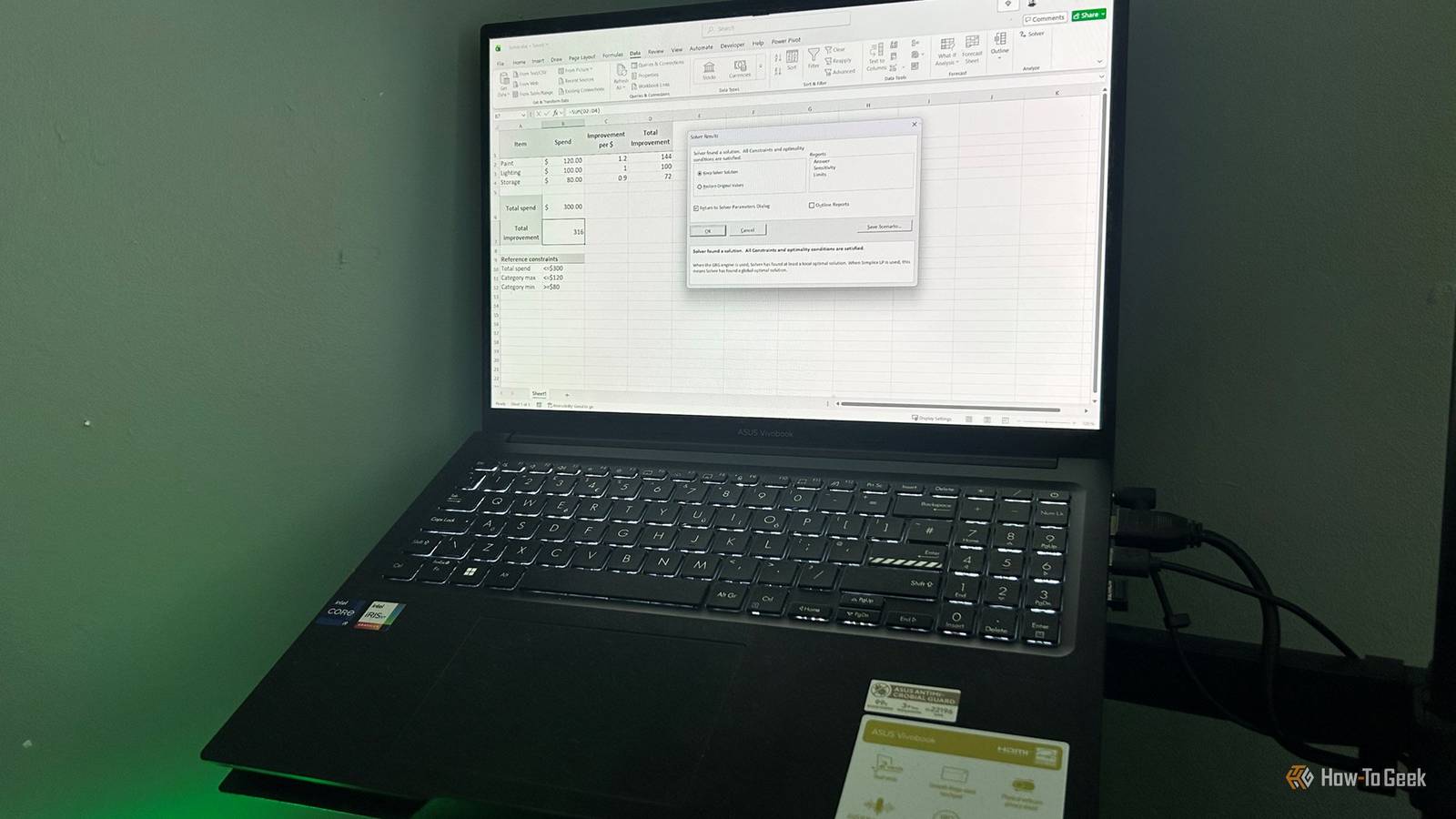
Understanding Solver's results What Solver is actually doing Before Solver shows the answer, it tests different combinations of spending across paint, lighting, and storage while staying within your budget and the limits you defined.Once it runs, Excel returns a balanced allocation.In this case, you'll typically get a result similar to the following allocation: Paint: $120 Lighting: $100 Storage: $80 Solver is not trying to split the money evenly or fairly.
It is trying to maximize the improvement score you defined in your spreadsheet.That is why it shifts more budget toward categories that contribute more to your assumed improvement model, while still respecting the minimum and maximum limits.Deals Deals on Spreadsheet & Productivity Software: Save on Tools Find savings and discounts on productivity software, subscriptions, and add-ons—everything from spreadsheet toolkits and workflow templates to cloud storage and analytics plugins.
Browse offers to cut costs on tools that speed reporting, budgeting, and planning.Deals Explore Software, AI & Subscriptions Deals If Solver finds a valid solution, Excel displays the optimized values directly in your sheet and gives you the option to Keep Solver Solution or Restore Original Values.If no solution is found, it usually means one of the constraints is too restrictive, or the budget cannot satisfy all minimum requirements at once—so you may need to go back and tweak your inputs or constraints.
Choosing the right calculation method for your data Most people can leave this alone The configuration dashboard includes a drop-down menu with three distinct solving methods.While it looks technical, most of the time, you can leave this setting on its default mode.The standard choice is GRG Nonlinear, which works well for most spreadsheets where changing one value doesn't produce a perfectly proportional result—like situations where spending twice as much on a home project doesn't automatically deliver twice the benefit due to diminishing returns.
If your relationships are strictly proportional and linear, switch to Simplex LP for instant answers to straightforward allocation problems.For models that rely heavily on IF statements, lookup functions, or other nonlinear logic, the Evolutionary engine handles the heavy lifting.Beyond the optimization engine Solver changes how you approach complex spreadsheets by replacing trial and error with automated decision-making.
Once you've mastered it, explore other powerful Excel tools that are disabled by default to unlock even more useful features hidden throughout Excel.
Read More