When you're clearing out unwanted apps from your Windows PC, uninstalling one or two is easy enough.But if you have a dozen programs you no longer use, removing them one at a time can take a while, since Windows 11's Settings app doesn't let you select multiple apps and uninstall them together.You can use WinGet commands to uninstall multiple packages, but that means working in the terminal and identifying the right package names or IDs.
Alternatively, you can use third-party apps like Revo Uninstaller, but you need its Pro tier to uninstall multiple programs in one go.That's why I prefer Bulk Crap Uninstaller (BCU).It's free, open source, and makes selecting and removing multiple programs straightforward.
Get BCU ready for bulk uninstallation One small setting makes a big difference Start by downloading BCU from its official GitHub repository or SourceForge page.During setup, you'll see several options for configuring how the program displays installed software and handles uninstalls.For bulk uninstalls, the most useful option is Select using checkboxes, which you'll find on the Uninstaller list view page during BCU's first-run setup.
If you've already completed setup, you can enable it later under Settings > General > Select using checkboxes.BCU also offers options for grouping programs and highlighting certain types of uninstallers, but you don't need to change these to uninstall apps in bulk.Likewise, there's no need to display system components or protected items when removing ordinary desktop apps.
Leaving these hidden helps you avoid accidentally selecting something important.Finding and selecting apps is easy in BCU Don't let the name or interface put you off Close BCU might sound like a kamikaze cleanup tool that wipes out everything in its path, but it gives you control over what gets removed.Although its interface can look a little overwhelming at first, you don't need to learn all its features to uninstall multiple programs.
The main list displays your installed apps alongside details such as their publishers, versions, installation dates, and sizes.Windows Settings lets you sort installed apps by name, date, or size, but BCU offers more flexibility, letting you sort by any of its column headers.You can also use filters to narrow down the list and, as in Windows Settings, search for programs by name.
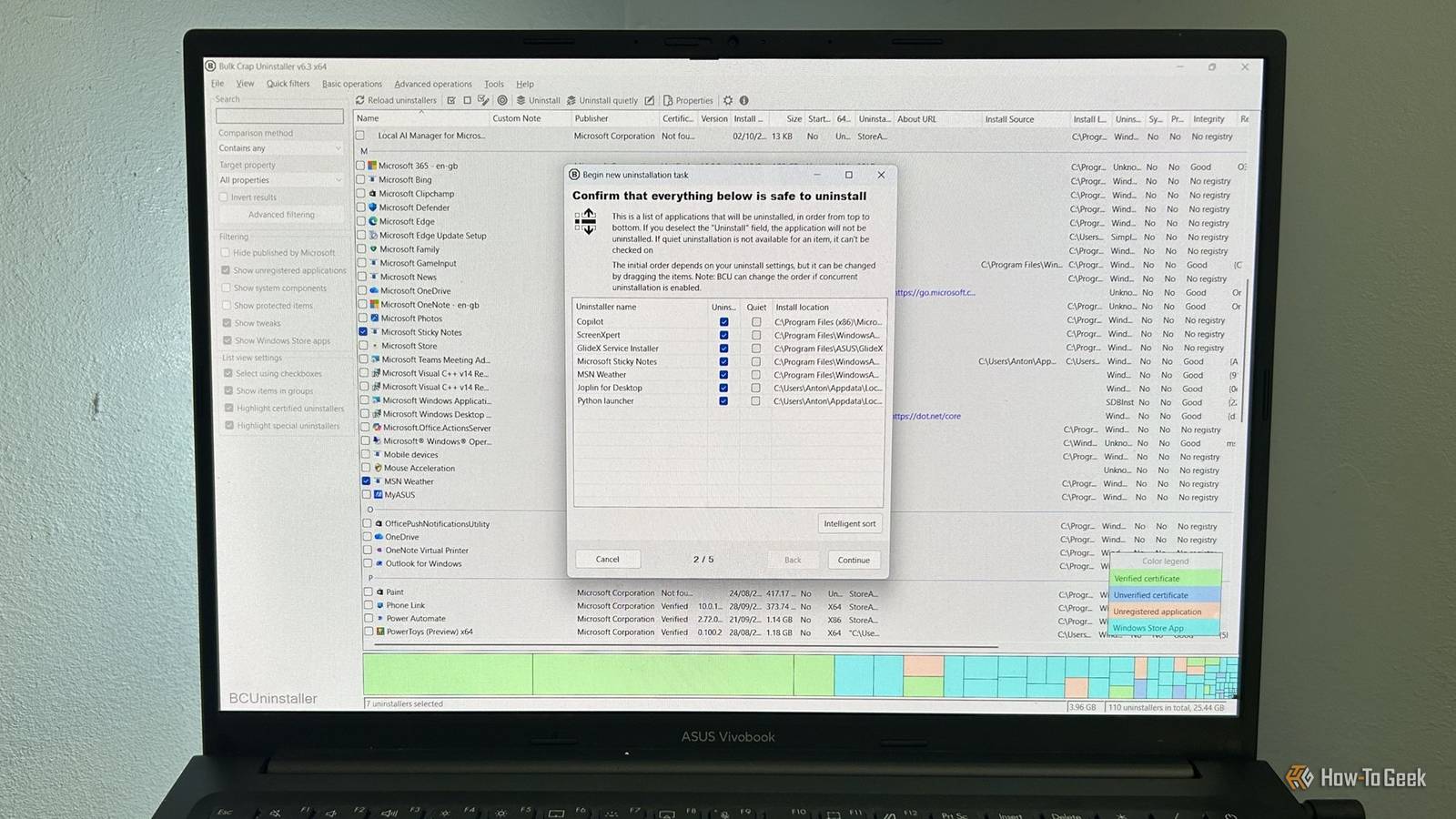
When you've found the apps you want to remove, tick their checkboxes to select them for review.Review and uninstall multiple programs One workflow, with a few useful safeguards Close Once you've selected the programs you want to remove, click Uninstall.BCU opens a review screen showing the selected apps, their versions, and installation locations, so you can confirm your choices before proceeding.
It also checks whether any selected programs are running and offers to create a system restore point before uninstalling them, giving you the option to roll back system changes if something goes wrong.For many apps, BCU launches the program's own uninstaller, meaning you may still need to work through its prompts.When I removed LibreOffice, for example, I had to follow the steps in the app-specific uninstaller.
But there's another, quicker option.For apps that support it, BCU also offers Uninstall quietly, which can reduce the number of prompts you need to handle.However, quiet uninstalls can bypass the usual prompts, so double-check your selection first.
Check what remains after uninstalling Don't delete files you might need After uninstalling your selected programs, BCU can offer to scan for leftover files and registry entries.When I uninstalled Visual Studio Code, for example, BCU identified several Windows Prefetch entries and a registry entry associated with the app.Its results screen warns that detecting leftovers can be error-prone, so review the suggested items before deleting anything.
BCU also cautions that its leftover scanner is intended for power users and that these remnants generally won't affect your PC's performance in any meaningful way.You can skip the scan if you're unsure what to remove.There's another kind of leftover to consider: the original installer you downloaded.
After uninstalling Visual Studio Code, I noticed that its 233MB setup file was still sitting in my Downloads folder.BCU's leftover scan doesn't remove downloaded installers because they're separate from the installed app.You can delete the setup file manually if you no longer need it.
Before deleting anything BCU identifies as a leftover, check what it is and whether you still need it.If you're unsure, leave it alone.A little caution goes a long way Removing unwanted software can make PC maintenance less of a chore, but it's worth being careful about what you delete.
BCU lets you choose which programs to remove and review potential leftovers, so take advantage of those safeguards rather than rushing through the process.And if you're planning a more thorough Windows cleanup, remember that debloating Windows can cause problems if you remove the wrong things.
Read More