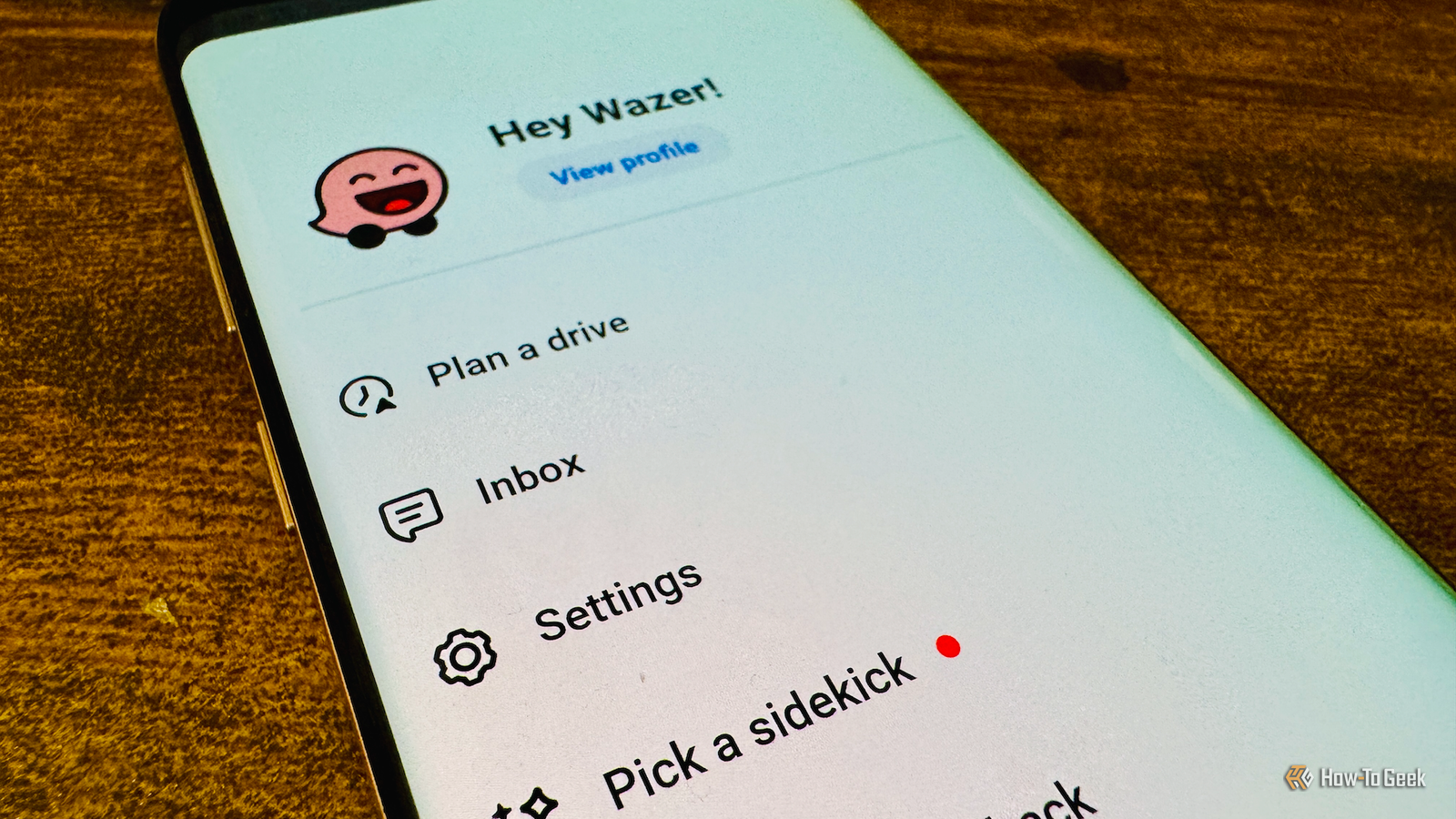
Waze is one of the most popular navigation apps, thanks to its excellent live road alerts, traffic avoidance, and crowdsourced hazards and map corrections.If you use Waze for navigation, a few key settings are worth changing for the best experience.Set your speeding threshold You don't need to get alerted every time you nudge past the speed limit Close Waze can alert you when you're speeding with a visual indication on the screen and an audible alert.
You may find that these alerts are appearing too aggressively.For example, in a 35-mph zone, you'll get alerted as soon as you hit 36 mph.This can quickly get annoying if you're only creeping slightly over the limit rather than exceeding it by a significant margin.
You can set your own speeding threshold in the Waze settings, either with a fixed amount above the limit or a set percentage above the limit.Go to Settings -> Map display -> Speedometer, and tap Speeding threshold.Choose from one of the available thresholds to change when you get alerted about exceeding the speed limit.
Related I raced Waze against Google Maps, and there was a clear winner Slow and not crazy wins the race.Posts 81 By Adam Davidson Choose which alerts are allowed to interrupt you Not every road issue needs a spoken alert Close Speeding alerts are far from the only alerts that Waze can provide.The list includes everything from vehicles on the shoulder and bad weather to speed bumps and school zones.
You might not want every possible alert, since Waze could interrupt you far more than you'd like.It's easy to disable alerts that you don't require.Go to Settings -> Alerts and reports -> Reports, select a report, and choose whether to disable Show on map, which stops alerts appearing on the map, and Alert while driving, which stops voice alerts and alert pop-ups.
Add your tolls and HOV passes Let Waze know which roads you're entitled to use Close Waze can suggest routes that use high-occupancy vehicle (HOV) lanes, fast lanes, and toll roads.For toll roads or HOV lanes that require a pass, you need to have the relevant pass added to Waze.To add passes, go to Settings -> Toll and HOV passes, and tap the + (plus) icon to add the relevant pass.
For HOV lanes, when you're planning your journey, tap View routes and select a route with 2+ (or a higher number if shown) to enable HOV lane routing.Change how Waze finds gas Make Waze find the cheapest rather than the nearest gas Close Waze can help you find gas stations when you need to fill up.The closest gas station isn't always the cheapest, so you could end up paying more at a time when fuel prices are already high.
You can choose to sort the gas stations by price, so that you can find the cheapest fuel rather than the nearest.There's also an option to sort by brand, if you get rewards or discounts with a particular gas station.Go to Settings -> Gas Stations -> Sort stations by and choose your sorting option.
Choose whether to avoid difficult intersections Enabling the setting can cause Waze to choose strange routes Close Sometimes, Waze will give you a route that may be fast and direct but is no fun to drive.You may have to navigate a lot of unprotected left turns across heavy traffic, which can make your journey less pleasant.If you'd prefer to avoid these, you can enable the Avoid difficult intersections feature.
This will adjust your route to avoid these types of intersections.Some users have found that if an intersection is marked incorrectly, Waze will then take a very roundabout and unnecessary route, so there may be times that you want to disable it again.Go to Settings -> Navigation -> Avoid difficult intersections.
Select Always or Never as required.Stop your map from zooming in and out Disabling Auto Zoom leaves the map scale alone Close By default, Waze can zoom in and out of the map while you're driving.If you're driving slowly through busy streets, then the map may zoom in to help you see where your next turn is, but if you're driving at speed along a long, straight freeway, the map may zoom out to show more of the road ahead.
If this constant zooming in and out becomes annoying, you can disable it in the settings.Go to Settings -> Map display, and toggle Auto Zoom off.Turn on the child reminder (even if you don't have kids) Get a custom alert when you reach your destination Close Waze has a feature that you can use to remind you to get your kids out of the car when you reach your destination.
It's more necessary than you might think; even world leaders can forget their kids.If you don't have kids, you might think that this feature isn't worth learning about, but you'd be wrong.Waze allows you to customize the alert, so you can make it say anything you want.
If you want a reminder to check the trunk, turn off your headlights, grab your phone, or anything else, you can set it up by going to Settings -> Reminders -> Child reminder, and turning on Show reminder.You can then tap Custom message to add your own reminder.It's worth taking the time to change Waze's settings Waze does a lot under the hood, and wading through all the settings can take time.
It can be worth the effort, however, as you can make Waze even more useful and far less annoying.
Read More