Linux has thousands of commands, and most of us lean on the same few dozen.Many of you might not even use more than 10 unless it's absolutely needed.But it turns out, tucked away in the rest, are small utilities that quietly do the heavy lifting.
Here are four that even seasoned users forget exist, along with the situations where they shine.Add How-To Geek on Google Add as Preferred Source Follow on Google Discover xargs Build and run commands from whatever you pipe in Close Most people meet xargs the first time a command refuses to accept a long list of files.The tool reads whatever arrives on standard input and turns it into arguments for another command, splitting the list into batches so the system’s argument limit is never exceeded.
That simple idea makes a pipeline far more capable than a plain pipe, which only passes text along and doesn’t build commands from it.The classic example pairs it with find.Running find .
-name "*.log" -print0 | xargs -0 rm deletes every matching log file, and the null-separated option keeps filenames containing spaces or odd characters from breaking the command.Without it, a file called “old report.log” would be treated as two separate names, which is how accidents happen.Where xargs really earns its reputation is control.
The -n flag limits how many arguments go to each invocation, so -n 1 runs the command once per item.The -I flag lets you choose a placeholder, which is handy when the item has to land somewhere other than the end of the command, such as in cp {} /backup/.If you’d like a safety net, -p asks for confirmation before each run, a good habit before anything destructive.
The feature experts forget most often is parallelism.Adding -P 4 tells xargs to run four processes at once, which can cut the time of a large batch job dramatically.Compressing a folder full of images or running a conversion across hundreds of files becomes far quicker on a multi-core machine, without writing a loop or installing a dedicated tool.
Because xargs works with any command that accepts arguments, it slots into scripts, one-liners, and cleanup jobs alike.Once it becomes second nature, many of the for loops people write out by hand start to feel unnecessary, and the resulting commands are shorter, faster, and easier to read later.tee Write to files without interrupting your pipeline The tee command is named after the T-shaped plumbing fitting, and the comparison is accurate.
It reads from standard input and writes the data to both standard output and one or more files at the same time.That means you can capture what’s happening in the middle of a pipeline without stopping the data from continuing to its destination.This is useful more often than it sounds.
When you run a long build or an installation script, piping the output through tee build.log lets you watch the progress on screen while keeping a complete record to review later.If something fails at step forty, you no longer have to rerun the whole thing just to see the error, because the log is already sitting there.Adding the -a flag appends to an existing file instead of overwriting it, which suits running logs that grow over time.
The trick that rescues people most frequently involves permissions.Running sudo echo “setting” > /etc/some.conf fails with a permission error, because the redirection is handled by your own shell before sudo ever gets involved.Piping the text into sudo tee /etc/some.conf solves the problem, since tee itself runs with elevated privileges and does the writing.
Add -a to append a line rather than replace the whole file, and redirect the output to /dev/null if you don’t want the text echoed back to the terminal.Tee can also write to several files in one go, which helps when you want to keep a raw copy of data alongside a filtered one.Combined with process substitution, it can even feed the same stream into multiple commands.
watch Repeat any command and see what changes Plenty of administrators have typed the same command over and over, waiting for something to change.The watch command exists to end that habit.It runs a program at a regular interval, which is two seconds by default, and displays the output full-screen so that each refresh replaces the last.
Instead of repeatedly pressing the up arrow and Enter, you simply watch the result update by itself.Running watch df -h shows disk space shrinking while a large download or backup is in progress.Watching a directory listing reveals when a file finally appears or reaches its expected size.
Keeping an eye on a service with watch systemctl status, or on network connections with watch ss -tn, makes it easy to confirm that a fix actually worked rather than guessing from a single snapshot.Two options make the tool far more useful than the basic version.The -n flag changes the refresh interval, so watch -n 1 updates every second, while a larger value suits slower tasks that would be wasteful to poll constantly.
The -d flag highlights the parts of the output that differ from the previous run, which makes subtle changes jump out immediately, such as a single counter ticking upward in a long table of statistics.There’s also -g, which exits as soon as the output changes, useful in scripts that need to wait for a result.One small caveat catches people out: commands containing pipes or special characters should be wrapped in quotes, otherwise your shell interprets them before watch ever sees them.
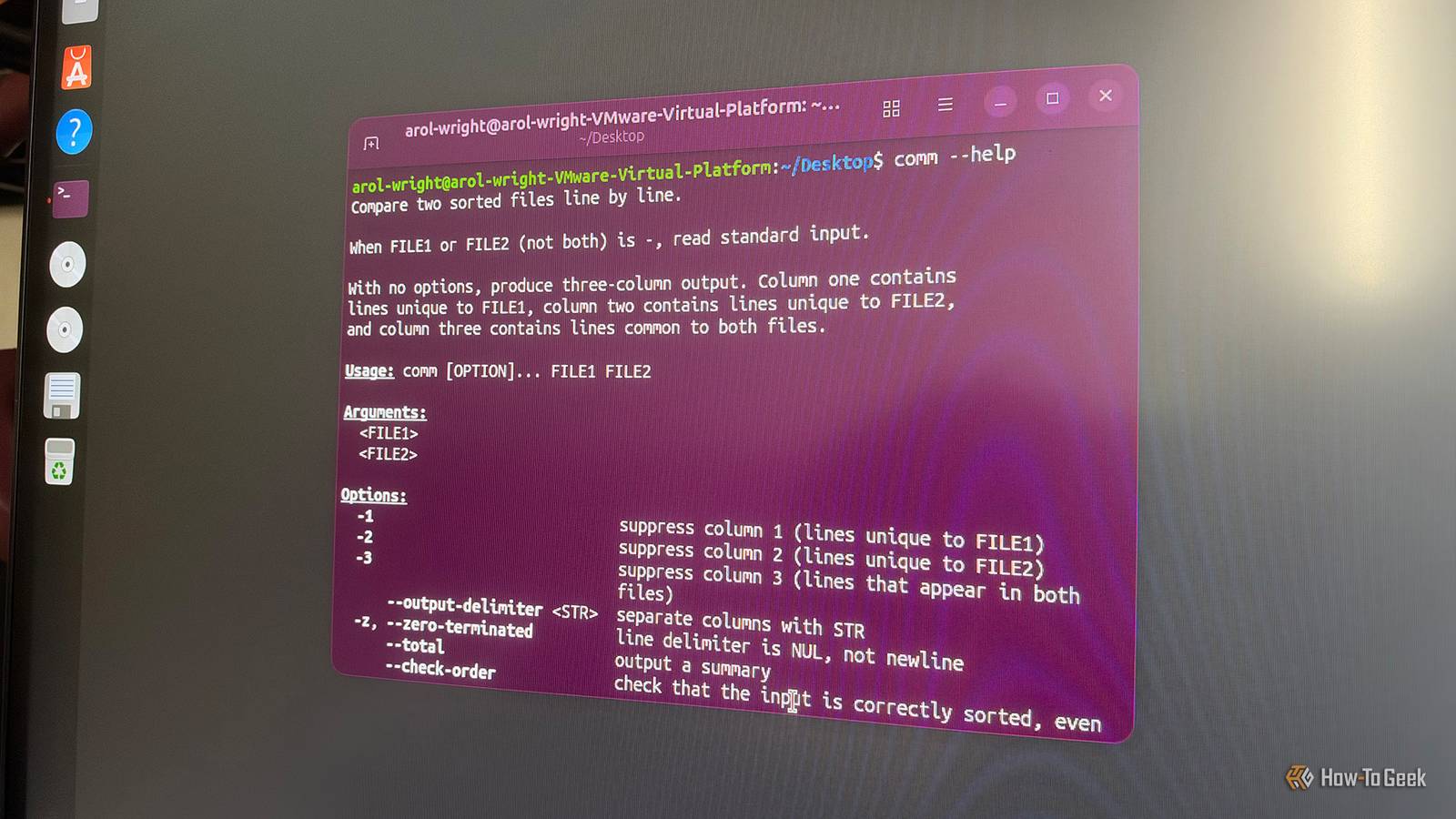
comm Find what two files share and where they differ The diff command gets most of the attention when people need to compare files, but it’s built for spotting changes in text, line by line, in the order they appear.When the real question is which items appear in one list, the other, or both, comm is often the better fit.It compares two sorted files and prints the results in three columns: lines found only in the first file, lines found only in the second, and lines common to both.
The real power comes from suppressing columns.Passing -12 hides the first two columns and leaves only the lines the files share, effectively giving you an intersection.Using -23 shows only what’s unique to the first file, while -13 does the same for the second.
This makes tasks like comparing two lists of installed packages, usernames, email addresses, or domain names almost effortless, with no spreadsheet or script required.The one rule to remember is that both inputs must be sorted, otherwise comm produces confusing or incomplete output and may warn you about it.The easy fix is process substitution, which lets you sort on the fly without creating temporary files.
A command like comm -23 lists everything that disappeared between two versions of a list in a single command.To perform a case-insensitive comparison when capitalization differs between sources, convert the text to a uniform case using tools like tr before passing it to comm.Because it only deals with whole lines, comm is fast even on very large files, and its output is easy to feed into other tools such as xargs or wc.
Four small commands that save big time Xargs, tee, watch, and comm each solve a common problem with remarkably little effort.None of them are new or complicated, which is exactly why they get overlooked.Keep them in mind, and you’ll replace a lot of clumsy loops, repeated typing, and temporary files.
Read More