For years, freezing panes was one of my first moves whenever I opened a large spreadsheet.It kept headers visible, stopped me from losing my place, and made scrolling through thousands of rows much easier.But over time, I realized I was using one feature to solve several different problems—and modern Excel already has better tools for many of them.
A wide worksheet might need reorganizing, not freezing Grouping clears the clutter without hiding the detail Close When we think about Freeze Panes, we usually think about keeping the top row visible.But freezing columns is just as common, especially in large spreadsheets where names, IDs, or categories need to remain in sight while scrolling sideways.Over time, though, I realized that some of those frozen columns were just hiding a bigger problem: the worksheet had become too wide.
In many of my larger workbooks, the dataset contained supporting details and information I only needed every now and then.Grouping those columns (Data > Group) made more sense than permanently locking them in place.I could collapse sections when I was focusing on the main data and expand them again when I needed the detail.
Eventually, I learned that removing distractions was often a better way to keep the columns I actually needed in sight.Tables solve more than one spreadsheet problem at the same time They turn data into something easier to work with Close One of the biggest reasons I used to freeze the top row was simply to remember what each column meant.But after using Excel tables more often, I realized I was solving a small visibility problem with a feature that only addressed that one issue.
In supported versions of Excel, tables (Ctrl+T or Insert > Table) can keep column headings visible as I scroll through long lists.Provided the dataset extends beyond the visible worksheet area, and a cell within the table is selected, Excel replaces the usual column letters at the top of the worksheet with the table headers, saving space and giving me the context I would otherwise get from a frozen row.But that's only one of the benefits of using tables.
They also add automatic filtering, easier formatting, structured references, and automatic expansion when new data is added.So while Freeze Panes solves a single context problem, a table changes how I interact with the data itself.Keeping key cells visible shouldn't cost worksheet space Watch Window keeps important numbers close Close I've seen plenty of worksheets where the first few rows are frozen because they contain totals, targets, or other important figures.
The reasoning is understandable: those numbers matter, so keeping them visible while scrolling through the rest of the worksheet feels useful.The downside is that this means sacrificing screen real estate just to monitor a handful of values.Also, Freeze Panes is tied to a specific worksheet, so if I move to another sheet or workbook, those figures are no longer available to me.
The Watch Window (Formulas > Watch Window) approaches the problem in a different way.Instead of keeping a physical part of the worksheet pinned in place, it keeps a list of important cells and their current values visible wherever I'm working.I can add more cells without taking up additional worksheet space, resize the window to suit my needs, or dock it around the edge of the Excel interface.
This has become particularly useful for larger workbooks where a few key figures need constant attention.Even when I'm entering data or reviewing different parts of a workbook, those values remain available without sacrificing rows at the top of my sheet.Rather than freezing part of the worksheet just to watch a number, I can give that number its own dedicated view.
Before adding cells to the Watch Window, give them descriptive names using Formulas > Create from Selection or the Name Box.Seeing names like "Total_Revenue" and "Gross_Profit" is much more useful than trying to remember what cells B2 and B4 contain.Freeze Panes isn't built for comparing distant parts of a worksheet Split View gives me two places to work Close Another reason I used to reach for Freeze Panes was when I needed to compare different areas of the same worksheet.
For example, I might want to compare my latest month's bank transactions with those from the beginning of the year to see how my spending had changed, without constantly scrolling back and forth between the two.The problem is that frozen sections are fixed.Once I lock rows or columns, I'm committed to that arrangement until I change it.
If I need to compare the top of a worksheet with something hundreds of rows below, I often end up creating a much smaller working area just to keep one reference point visible.The Watch Window I mentioned earlier solves a similar problem when I only need to keep an eye on a few important cells, but it doesn't show me the surrounding data.Split View (View > Split) is for when I need the worksheet itself in two places at once.
It creates separate areas of the same worksheet, each with its own scrolling position, so I can compare records, formulas, or sections of a report without jumping around.Unlike Freeze Panes, which keeps part of the grid locked until I change the setting, Split View gives me a temporary working arrangement that I can adjust as my task changes.For analyzing a large worksheet, that flexibility often makes more sense.
Freeze Panes is better when it improves the interface Keeping interactive elements within reach Close I'm not saying Excel's Freeze Panes tool is bad—I just think it can be put to better use to solve problems that other Excel tools can't.I rarely use it to keep data visible anymore.Instead, I think of it more like the fixed areas I see on websites: a part of the interface that stays available while the main content moves around.
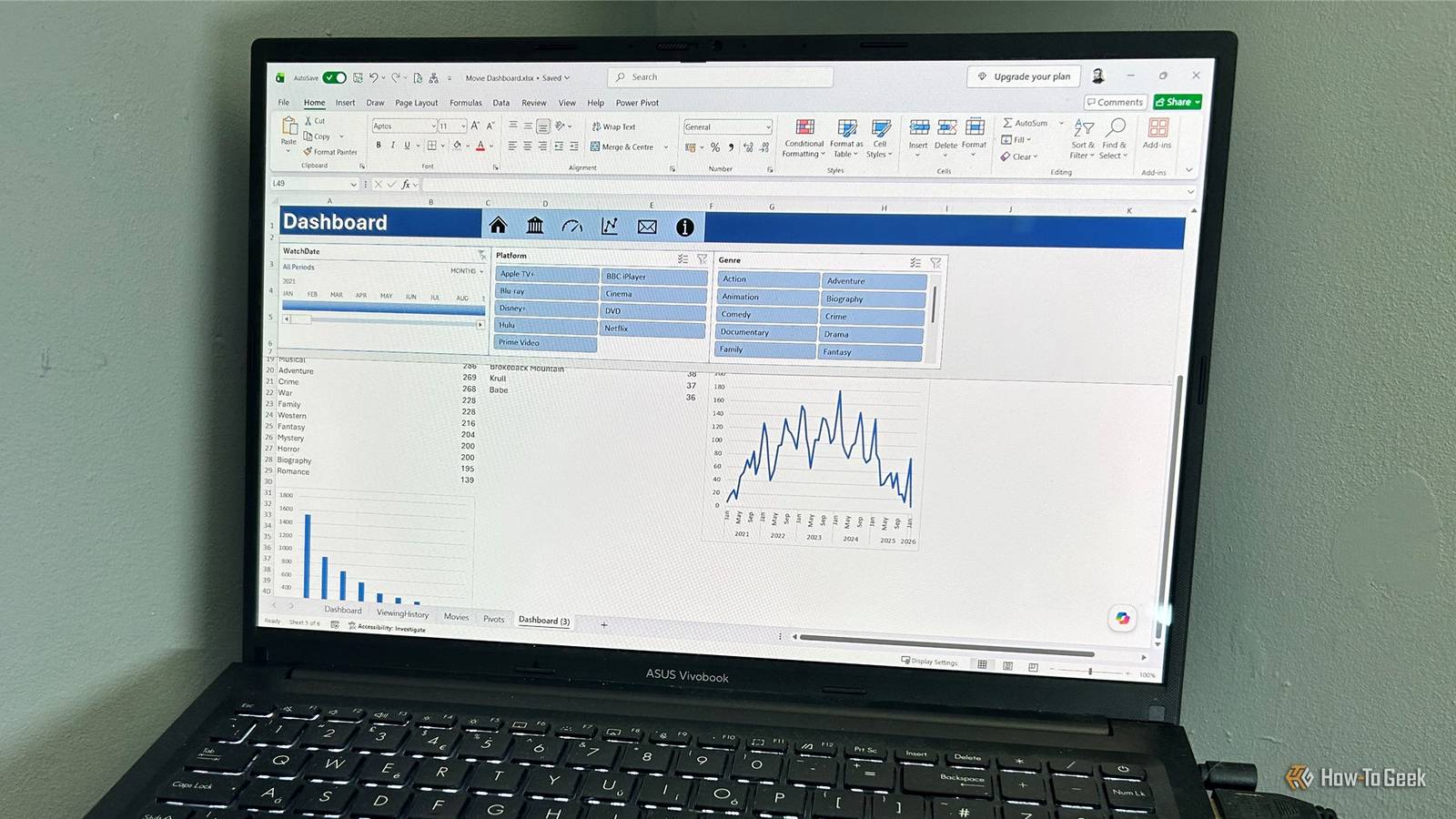
For example, keeping things like navigation icons or Slicers in a frozen area of a dashboard means I can move between sections or filter data without repeatedly scrolling back to the top.Used this way, Freeze Panes becomes less of a workaround and more of a layout tool.The best workflows come from combining features that each solve a specific problem: keeping important information accessible while using frozen areas for the controls I need throughout my work.
The best Excel workflows don't stay the same forever The biggest change I made was questioning the habits I had built around the Excel features I used most.Freeze Panes had become my default solution for too many problems, and it took a closer look at my workflow to realize there were better options.It also highlighted a broader issue: while Excel keeps changing, our habits often don't.
Sticking with familiar workflows can mean missing some of the newer tools and approaches Microsoft has quietly added to Excel over the last few years.
Read More