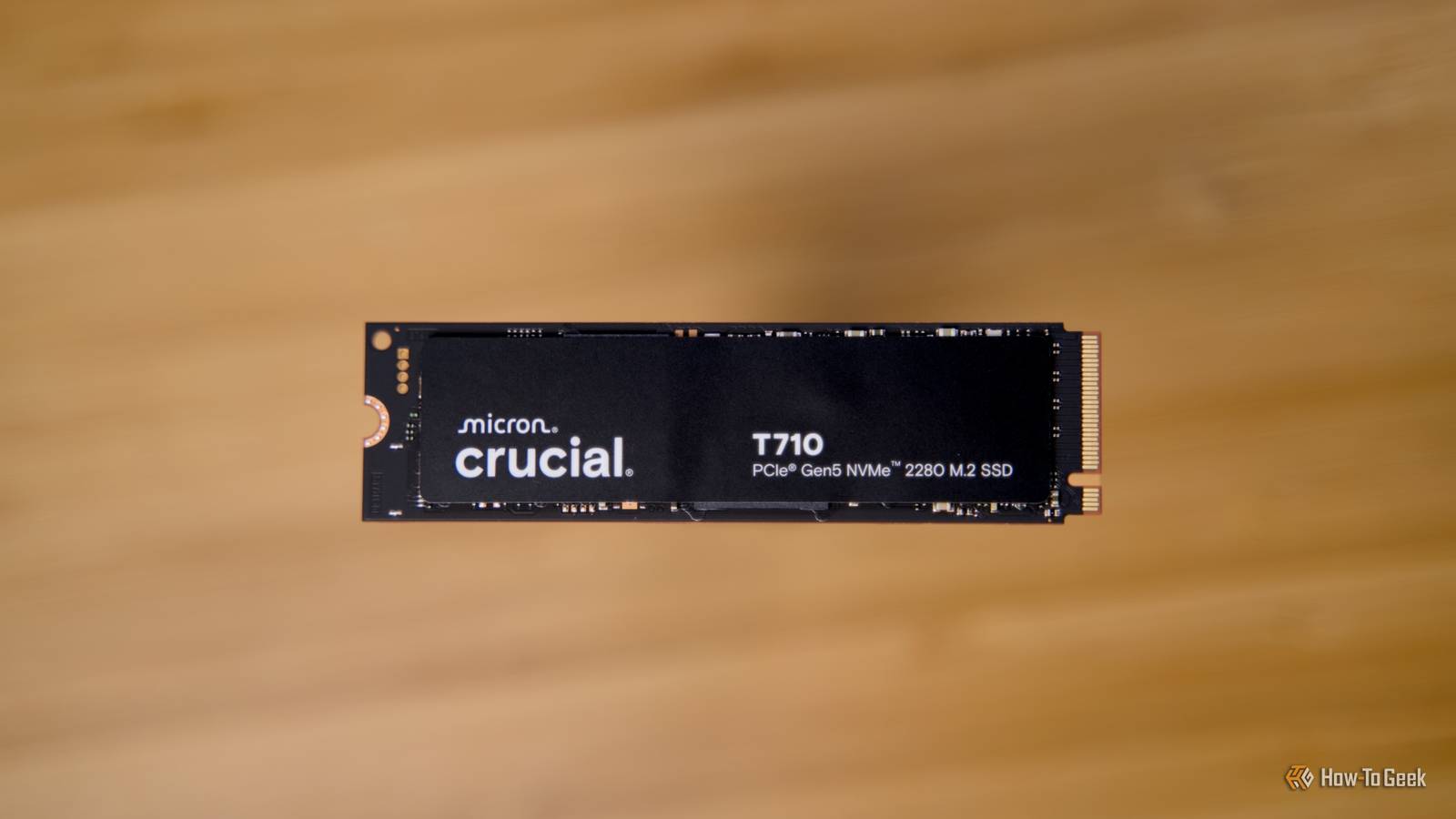
Reinstalling Windows is a clean slate for your PC.Most of us only do it when we have to, but some friends of mine just treat it as regular PC maintenance.One way or another, it is one of the most common steps in troubleshooting a PC that doesn't seem to be doing so well.
But reinstalling Windows, whether you're doing it for a reason or just because, is a good opportunity to check in on your SSD.That clean slate is actually the best time to do some SSD maintenance tasks, too.TRIM is the maintenance Windows expects your SSD to get It's neglected, but it shouldn't be Before we get into this, let's talk about TRIM, which is an ATA command that operating systems use when communicating with SSDs.
When you delete a file, any file, Windows doesn't just immediately get rid of that data.(Good thing, too.) TRIM is the mechanism that tells your SSD which blocks are no longer in use, so the drive can clean them up in the background and avoid doing that extra work later.TRIM is so foundational to the OS that Windows will pretty much assume that it's there, and that it works fine.
But if there's something wrong with it, your SSD can still function, at least for a while.Your PC will boot, apps will run, and reads/writes will work.But at some point, you'll likely encounter write performance degrading little by little until it becomes quite inconsistent.
Background maintenance could get messy, and heavy file churn could become taxing on the drive.It doesn't happen all at once, but little by little, the SSD will start showing signs of struggle.The annoying part is that simply reinstalling Windows can change the conditions that make TRIM work properly.
A simple misconfiguration can leave you with TRIM disabled or not communicating with the drive the way that it should.So, the first maintenance task after reinstalling Windows is really more of a checklist.You need to find out whether Windows is still sending TRIM (also called delete notifications) the way it should.
Your storage drivers decide what your SSD can actually do The actual SSD is only half the story The way storage works can be deceptively simple, but there's a whole driver stack sitting between your operating system and the NAND flash that powers your SSD.And after you reinstall Windows, that stack can change, for better or (more often) worse, and you're unlikely to notice right away.Your SSD will most likely show up with the same model name and capacity, but if the controller path is different, weirdness can ensue.
The controller path being different actually matters, and that's because the storage controller dictates how Windows talks to the drive in the first place.It can mean the difference between your SSD running optimally and underperforming.Reinstalling doesn't always mess around with the drivers or the controller, but it can.
The wrong controller driver or the lack of a vendor-specific utility can both introduce chaos to your file transfers.That's why, once you're done, you have the unique opportunity to not just check in on your SSD, but also make sure you've rebuilt the entire storage software stack the right way.Just one setting can sneakily raise data corruption risk Fast writes and safe writes can be two separate things A reinstall will also reset various drive policies back to defaults, and that can actually be a good thing.
The problem is that Windows also exposes a couple of toggles that sound like harmless performance tweaks, but they can increase the odds of corrupted data.The major thing to pay attention to here is caching behavior, especially anything that messes with how aggressively Windows forces cached writes to be committed to the drive.You may have tweaked some settings in the past that were good for performance but not so much for data integrity; this clean slate can help set things right.
The main place to check is the drive’s Policies tab in Device Manager.This is where Windows exposes write caching options, including the toggle for "Enable write caching on the device" and, more importantly, "Turn off Windows write-cache buffer flushing on the device." That second one can be an issue.It can improve write performance on paper, but it also makes it easier for an unexpected shutdown, crash, or forced restart during a big transfer to turn into corrupted files.
Both of those settings should be tweaked before you start sorting everything out after a reinstall.That's because formatting Windows often means doing a lot of drive-heavy work, from restoring backups to reinstalling games and putting your files back in order.You need your SSD to be in top shape for all of that.
Maintenance for your SSD equals relief Do it once, then forget about it The good thing is that this is a one-time thing that you need to do after reinstalling Windows.Once it's done, you're off the hook, and you just need to follow the best practices to avoid killing your SSD, plus follow the 3-2-1 backup rule to keep your files safe.Open Device Manager, then go to Disk drives, pick your SSD, and right-click, then enter Properties > Policies.
Next, leave Enable write caching on the device alone unless you have some specific reason to change it, but make sure that "Turn off Windows write-cache buffer flushing on the device" is not enabled, as that setting can often cause more harm than good.It can turn a power loss or forced restart during heavy writes into corrupted files.Next, do a fast TRIM check so you're not rebuilding your system on a drive that isn't getting basic maintenance.
Open Command Prompt as admin and run: fsutil behavior query DisableDeleteNotify You want it to report 0 (meaning delete notifications are enabled).If it reports 1, fix that before you do anything write-heavy, because you're setting yourself up for long-term performance weirdness.It's better to be proactive with SSD maintenance Get all the drivers you could possibly need before starting to reinstall everything else.
Once you're sure your SSD is doing fine, you can stick to regular health checks and backups, but don't neglect the occasional post-reinstall maintenance.SAMSUNG 990 PRO 2TB NVMe M.2 SSD Storage capacity 2TB Hardware Interface M.2 The Samsung 990 Pro is one SSD you can trust.It's not the cheapest option you can find, but it's widely praised for its reliability and performance.
$390 at Amazon Expand Collapse
Read More