I used to use Google Calendar almost passively, mainly to keep track of bookings and recurring bills.Even though it's not a particularly clunky app, I didn't manage to make it work for anything else.Add How-To Geek on Google Add as Preferred Source Follow on Google Discover That's because my ideal system has to be a mix of a full overview and the ability to filter things out and focus on one area at a time.
Having everything displayed at once, without a clear way to separate responsibilities, can get overwhelming.A setup that involves Events and syncs with Google Tasks never really clicked for me because of this.Eventually, I had a lightbulb moment and decided to adapt the app to my needs instead of the other way around.
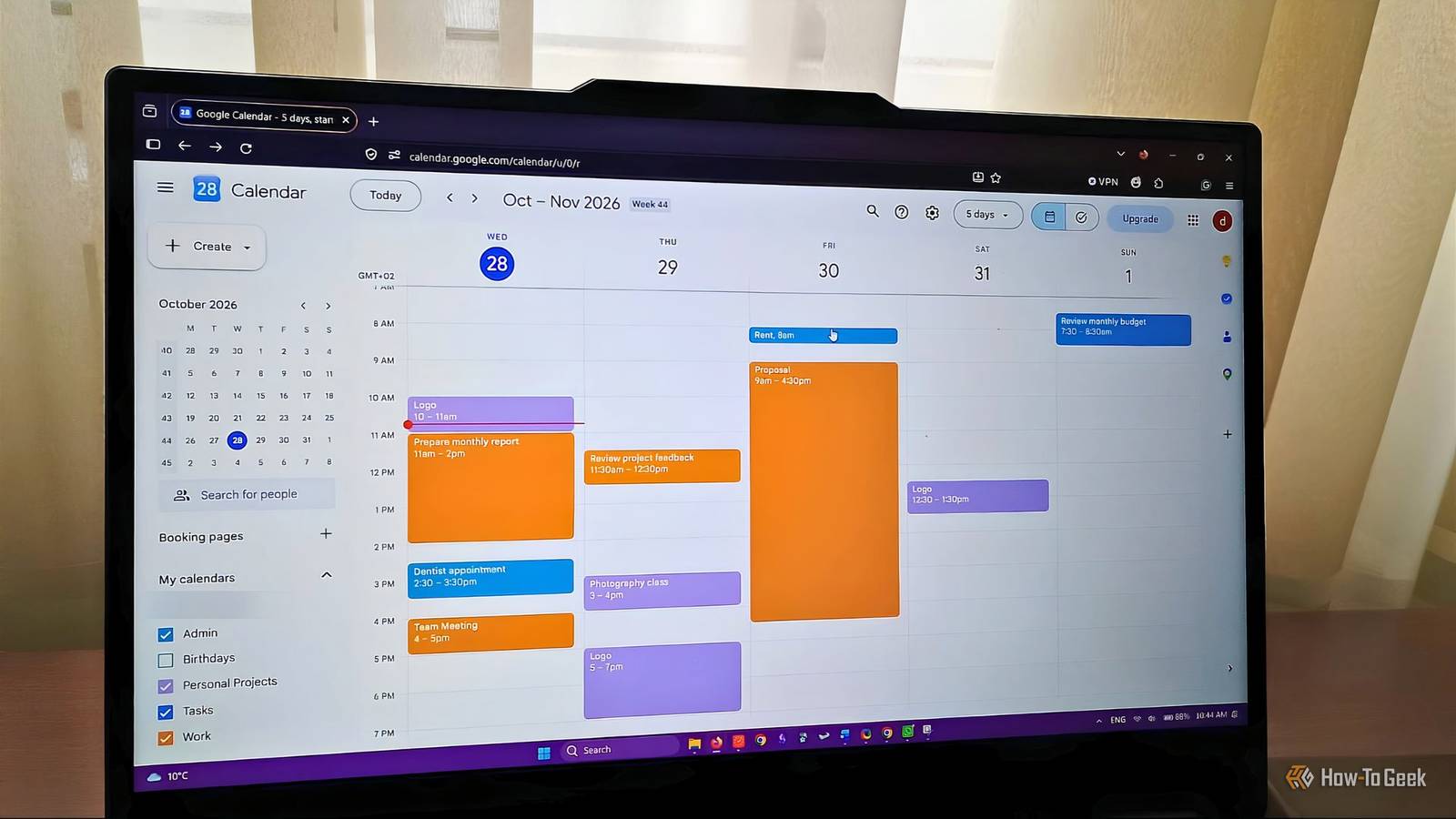
So I ended up with a system that doesn't necessarily integrate all Google Calendar features and that uses some of them differently from their intended purpose.Create separate calendars for separate areas of your life See everything together or focus on a specific area Close First, I'll create separate calendars for specific areas of my life.Google Calendar gives you the option to combine multiple calendars in the same view as well as filter them out.
This prevents me from getting stressed out by too many commitments appearing equally important without losing sight of the bigger picture.To do this: Open Google Calendar on a computer.Find the Other Calendars option in the left sidebar.
There you'll have a plus (+) button.Click it and select Create a new calendar.Now you can give it a name and add additional details.
Repeat the process for each category of tasks you want to create.My particular setup calls for three separate calendars, but you can use this method to create as many as you need.I'll make one for work, one for personal projects, and one for life admin tasks like paying bills and doctor's appointments.
Once created, you'll find them under the "My calendars" section.To get an overview of all of your events, just check the boxes for all of the calendars.To isolate a category, uncheck everything else.
Now I can start adding Events as I go.To keep things simple and uncluttered, I'll organize everything using the Events option.I'll avoid Tasks because it's not as customizable and it automatically integrates all items into the calendar, which can get messy.
Sync Events from Gmail to Google Calendar Import bookings and turn emails into calendar events Inevitably, some tasks will come from other places too, so it's important to reduce the amount of information you have to enter manually.I use my Gmail address for bookings, and there's a Workspace smart feature that will integrate them into the calendar automatically.It will work for confirmation emails for hotel reservations, event tickets, flights, and even restaurant reservations.
To enable this, open Google Calendar, click the gear icon and select Settings, then under General, click Google Workspace smart features and check 'Show events from Gmail.' You can also create events manually from Gmail: open the email, click the three-dot menu, and select Create event.This opens Google Calendar, where you can add details, choose the appropriate calendar, and save the Event.Split larger projects into smaller sections Schedule work sessions and keep track of relevant project resources Calendar isn't necessarily a task management app, but you can adjust your workflow to have it work like one.
Larger projects used to be particularly tricky for me in Google Calendar because adding lots of individual Tasks created too many items, and those Tasks couldn't be organized into specific sections in the same way as Events.So I will use Events to organize larger projects instead of syncing Google Tasks with Google Calendar.The process is pretty simple: just break down your main task into separate slots and create Events for each.
Let's say one of my personal projects is to design a logo for a local charity.This will take more than one sitting, so I have to split it.First, I'll check the available time in my schedule, then I will use a generic "Logo design" name for all sessions and integrate further details and steps for each of them in the project's description.
I will use each Event's description to note what I want to accomplish during that session and include links to relevant resources, such as the project brief, relevant notes, or the project file itself.To attach a file: Open the Event > Select the Edit icon > Choose Add a Google Drive attachment.For resources outside Google Drive, you can just paste the links into the Event's description.
This splits your work across multiple sessions without adding lots of separate Tasks.Automate recurring events Set up repeated tasks once This is a simple and small step, but it makes a big difference in keeping things organized and cutting down on extra work.There are tasks that will repeat regularly, either daily, weekly, or monthly.
You can set these as recurring when you create the Event or use the edit option if you created it already.When you do this, Google Calendar will automatically add it at the same time slot at the frequency you choose, so you don't have to waste time re-creating it each time.To do this, open the Event > Click the dropdown menu that says "Does not repeat" > Select how often you want to repeat the task.
This is pretty much the core workflow.It's pretty basic, but it makes things easier to manage without adding too much information into the calendar.Adjust your workflow even further Make collaboration easier without the back and forth Beyond the core workflow, there are a few other Google Calendar features that I want to mention, even though they're not an integral part of my system.
One useful feature alongside Events is Appointment schedules.If you regularly need to schedule meetings with others, this can save you endless back-and-forth.You can allocate slots in your calendar to signal your availability, and the other person can choose a time that's convenient for them as well.
This option is available in the free plan, but if you need multiple booking pages, you'll need a subscription.Related Why I use Samsung Calendar instead of Google Calendar There's still something to be said for excellent design.Posts 14 By Bertel King And to make the schedule easier to manage day by day, you can use the Custom notifications and availability options.
Custom notifications let you set reminders for specific Events.The Busy and Free availability option in events helps with collaboration.You decide if an Event will block your availability or not, which makes collaboration easier.
Keeping things simple makes the system easy to maintain You don't need a complicated system to stay organized.In fact, I would argue that the simpler your setup and workflow, the more likely you are to stick to it.This can be hard to achieve when you have a lot of responsibilities, which is why I choose to separate different areas of my life while also having them all in the same place.
Read More