One of the easiest ways to make an Excel report unreliable is to forget one tiny step: refreshing the PivotTables behind it.Microsoft recognized the problem and announced Auto Refresh a year ago, but the feature still hasn't reached my version of Excel.I got tired of waiting, so I built my own version.
A VBA macro stored in my Personal Macro Workbook now gives me a Quick Access Toolbar (QAT) button that automatically refreshes PivotTables on a schedule in any workbook and lets me disable the behavior whenever I want.While building it, I also took the opportunity to add a few touches that fit the way I actually work in Excel.The complete VBA code is available at the end of the article.
To use it, paste it into a module in your personal macro workbook (PERSONAL.XLSB), assign ToggleLivePivotTables to a QAT button, and click it while the workbook you want to monitor is active.My VBA macro adds automatic PivotTable refreshing to Excel A one-click toggle keeps reports up to date Close Microsoft's proposed Auto Refresh feature takes a data-source approach.It's designed to be enabled by default for new PivotTables, with a single setting controlling all PivotTables connected to the same source.
For my workflow, I wanted something slightly different: a switch I could turn on for a specific workbook, so that every PivotTable in that workbook would refresh automatically.The finished tool works in a simple way: Clicking a button on the QAT turns Live PivotTables on.The active workbook's PivotTables refresh immediately when the feature is enabled.
They refresh again at the chosen interval.Clicking the button again disables the feature.I called it "Live PivotTables" because it works like a switch: enable it when you want automatic updates, then disable it when you no longer need them.
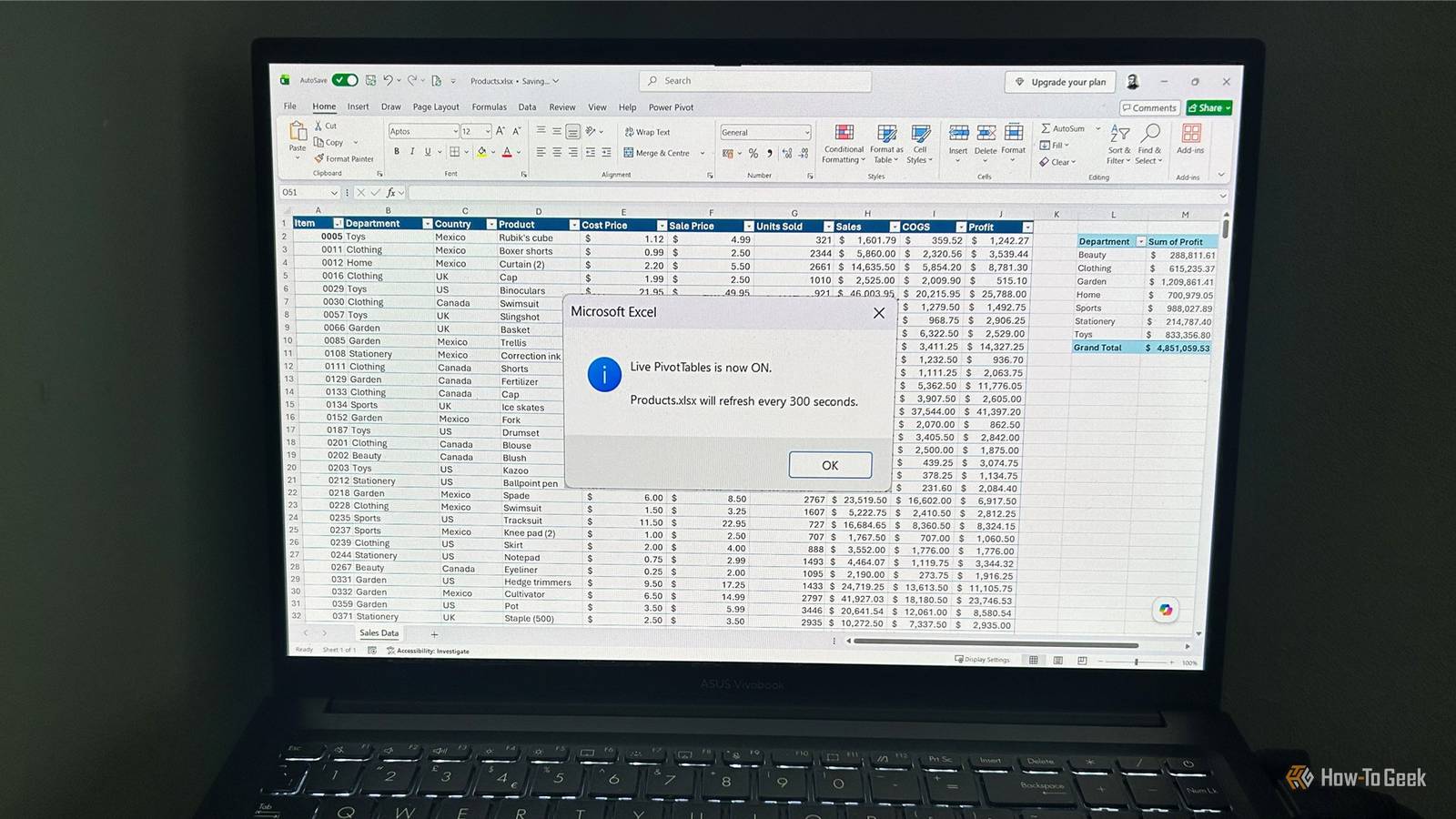
When I enable it, a confirmation message displays the workbook being monitored and the refresh interval.This is useful if I have several Excel files open at the same time and want to confirm which workbook is being monitored.I deliberately kept the scope narrow.
This macro refreshes PivotTables only—it doesn't replace Excel's "Refresh All" command, so it doesn't affect Power Query refreshes, external connections, or other workbook refresh operations.I made the macro remember which workbook to refresh Keeping automatic updates under my control Close One of the first design decisions was what should happen if I have multiple workbooks open.I wanted the refresh to be deliberate: when I click the button, I choose exactly which workbook should be monitored.
To do that, the macro stores the name of the active workbook: Public mWorkbookName As String When I enable Live PivotTables, it records the current workbook: mWorkbookName = wb.Name From that point onward, scheduled refreshes are directed at that workbook only.The same workbook name is used when Live PivotTables is turned off, so the confirmation message always tells me which workbook has been affected.I added another safeguard as well.
If the monitored workbook is closed, the macro automatically disables itself rather than continuing to reference a workbook that no longer exists.A timer makes Excel refresh PivotTables automatically Turning a manual action into a scheduled task Close The next step was making the refresh happen repeatedly without me clicking anything.To make this happen automatically, I used Excel's built-in VBA scheduler, Application.OnTime.
First, I created a setting that controls how frequently the macro refreshes: Public Const REFRESH_INTERVAL_SECONDS As Long = 300 I set the default to five minutes (300 seconds), but this can be changed easily.During testing, I reduced it to 15 seconds so I could quickly confirm that the automatic refresh was working.The macro then schedules the next refresh: Application.OnTime _ EarliestTime:=mNextRun, _ Procedure:="RunScheduledRefresh" When the scheduled time arrives, Excel runs the refresh procedure again.
The important detail is that the next timer is not scheduled until the previous refresh finishes.When I tested the macro on a workbook using the Data Model and several PivotTables, the refresh took considerably longer than my simple test workbook, but the macro waited for it to finish rather than creating multiple overlapping refreshes or scheduled tasks.This keeps the behavior predictable, even in workbooks where refreshes take longer than expected.
The macro tells me when it is running Adding feedback without changing Excel's workflow An automated task needs some way of telling you what's happening.Live PivotTables uses two simple forms of feedback: a confirmation message when the feature is enabled and a temporary status bar update while Excel is refreshing.When I enable Live PivotTables, the macro confirms which workbook is being monitored and how often it will refresh: MsgBox "Live PivotTables is now ON." & vbCrLf & vbCrLf & _ mWorkbookName & " will refresh every " & _ REFRESH_INTERVAL_SECONDS & " seconds.", _ vbInformation When a refresh begins, the status bar changes: Application.StatusBar = "Live PivotTables: Refreshing..." The message remains visible while Excel updates the PivotTables and stays on screen briefly after the refresh completes, so even fast refreshes don't make it disappear before you can see it.
After two seconds, the macro clears the status bar and returns Excel to its normal display.Testing the macro revealed how Excel handles automatic refreshes What I learned from testing it in real workbooks Building this was a useful reminder that automatic Excel refreshes are not completely invisible background processes.Here are a few things I discovered while testing: Refresh time depends on the workbook: Data Model workbooks, large datasets, and files with many PivotTables can take longer to update.
In testing, every PivotTable refreshed correctly once the process finished.Refreshing temporarily limits what you can do: Excel may become briefly unresponsive and show the spinning cursor while it updates PivotTables.Refreshing cancels copy mode: If you're copying cells when an automatic refresh occurs, Excel cancels the copy selection.
Editing a cell delays the refresh: If you're typing when the scheduled refresh is due, Excel waits until you finish editing before running it.Undo does not reverse source data changes: After a refresh, Ctrl+Z does not undo edits made to the source data because the refresh is a separate operation.Building Excel around the way you actually work Building Live PivotTables reminded me that Excel's best improvements are often the ones you create for yourself.
Once you have a personal macro workbook set up, you can build a custom Excel toolbar with VBA, adding everything from simple commands like inserting a static timestamp and applying custom formatting to more advanced VBA tools like generating a clickable sheet index and deleting only completely blank rows.A little VBA can turn Excel into a more personalized tool that works the way you do.Full VBA macro Option Explicit Public Const REFRESH_INTERVAL_SECONDS As Long = 300 Public mIsEnabled As Boolean Public mNextRun As Date Public mWorkbookName As String Public Sub ToggleLivePivotTables() If mIsEnabled Then If Not WorkbookExists(mWorkbookName) Then DisableLivePivotTablesSilently EnableLivePivotTables Else DisableLivePivotTables End If Else EnableLivePivotTables End If End Sub Public Sub EnableLivePivotTables() Dim wb As Workbook Set wb = ActiveWorkbook If wb Is Nothing Then MsgBox "No workbook is open.", vbExclamation Exit Sub End If If mIsEnabled Then MsgBox "Live PivotTables is already enabled for " & _ mWorkbookName & ".", _ vbInformation Exit Sub End If mWorkbookName = wb.Name mIsEnabled = True If Not RefreshPivotTables Then DisableLivePivotTables MsgBox "Live PivotTables failed.
The feature has been turned off.", _ vbCritical Exit Sub End If ScheduleNextRefresh MsgBox "Live PivotTables is now ON." & vbCrLf & vbCrLf & _ mWorkbookName & " will refresh every " & _ REFRESH_INTERVAL_SECONDS & " seconds.", _ vbInformation End Sub Public Sub DisableLivePivotTables() CancelNextRefresh mIsEnabled = False If mWorkbookName <> "" Then MsgBox "Live PivotTables has been disabled for " & _ mWorkbookName & ".", _ vbInformation End If mWorkbookName = "" Application.StatusBar = False End Sub Public Sub DisableLivePivotTablesSilently() CancelNextRefresh mIsEnabled = False mWorkbookName = "" Application.StatusBar = False End Sub Public Sub RunScheduledRefresh() If Not mIsEnabled Then Exit Sub If Not WorkbookExists(mWorkbookName) Then DisableLivePivotTablesSilently Exit Sub End If If Not RefreshPivotTables Then CancelNextRefresh mIsEnabled = False MsgBox "Live PivotTables failed.The feature has been turned off.", _ vbCritical mWorkbookName = "" Exit Sub End If ScheduleNextRefresh End Sub Private Function RefreshPivotTables() As Boolean Dim wb As Workbook Dim ws As Worksheet Dim pt As PivotTable Dim previousScreenUpdating As Boolean Dim waitUntil As Date On Error GoTo Failed Set wb = Workbooks(mWorkbookName) previousScreenUpdating = Application.ScreenUpdating Application.StatusBar = "Live PivotTables: Refreshing..." DoEvents Application.ScreenUpdating = False For Each ws In wb.Worksheets For Each pt In ws.PivotTables pt.RefreshTable Next pt Next ws Application.ScreenUpdating = previousScreenUpdating waitUntil = Now + TimeValue("00:00:02") Do While Now < waitUntil DoEvents Loop Application.StatusBar = False RefreshPivotTables = True Exit Function Failed: Application.ScreenUpdating = previousScreenUpdating Application.StatusBar = False RefreshPivotTables = False End Function Private Sub ScheduleNextRefresh() CancelNextRefresh mNextRun = Now + TimeSerial(0, 0, REFRESH_INTERVAL_SECONDS) Application.OnTime _ EarliestTime:=mNextRun, _ Procedure:="RunScheduledRefresh" End Sub Private Sub CancelNextRefresh() On Error Resume Next If mNextRun <> 0 Then Application.OnTime _ EarliestTime:=mNextRun, _ Procedure:="RunScheduledRefresh", _ Schedule:=False End If On Error GoTo 0 mNextRun = 0 End Sub Private Function WorkbookExists(ByVal workbookName As String) As Boolean Dim wb As Workbook On Error Resume Next Set wb = Workbooks(workbookName) WorkbookExists = Not wb Is Nothing On Error GoTo 0 End Function read more
Read More