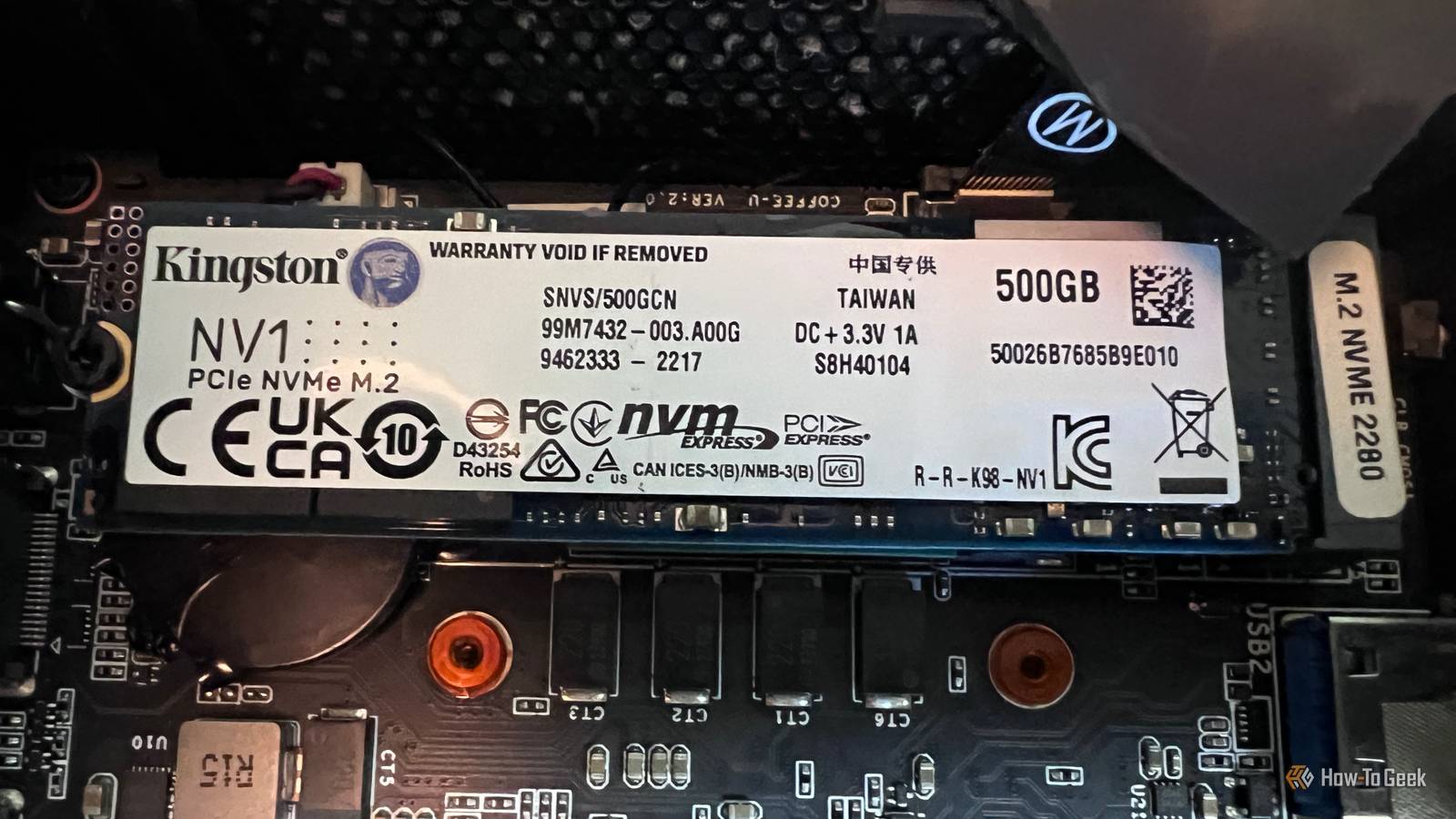
Everyone is a PC newbie at some point, and there are so many mistakes to be made.One of the most annoying I've come across is installing your NVMe SSD in the wrong M.2 slot.Any beginner could do it, and if you don't know what kind of performance to expect from your machine, you might not even notice something's wrong.
Meanwhile, your desktop's speed is being capped significantly at the hardware level.No Windows setting can fix it, because the problem existed before you even got Windows installed.Here's what's going wrong.
Your motherboard has slots that look identical but definitely are not "M.2" describes the shape, not the speed Close SSDs get installed into M.2 slots, and the good news is that most modern motherboards will have a few of these.The name describes the physical shape and the connector, but it doesn't mean each one is identical to the others.The important part is actually where each slot gets its PCIe lanes from.
One of them connects straight to your CPU, giving it direct lanes.This means your SSD gets the lowest latency, full bandwidth, and doesn't have to share with anything else.If you hadn't guessed already, this is the slot your boot drive should be living in.
If you use the wrong one, it will kill your speed, and nothing but putting it in the right place can fix it.That's a good thing, though, because it means it's such an easy fix ...if the stars align, that is.
The rest of the slots typically route through your motherboard's chipset instead, and this makes things a lot slower.Related My PC took 30 minutes to boot until I fixed this one SSD problem SSD problems can make your PC entirely unusable Posts 11 By Monica J.White What happens when the drive lands in the wrong slot One skinny little link, shared by everything So, we have the #1 M.2 slot that gets full access to your CPU.
That's the best one.But what about the rest of them? Unfortunately, the other M.2 slots on your computer cannot talk to the CPU directly.They have to take a detour via your chipset, and talk to the CPU over a shared connection with a lot of traffic.
That connection is usually about four PCIe lanes wide, and goes by various names depending on your hardware (Intel calls it DMI, AMD uses its Infinity Fabric link).When your main SSD is using this connection, it'll be competing with your extra SSDs, your SATA drives, your Wi-Fi, and even your USB ports.Unsurprisingly, those are not the ideal conditions to put an extra-expensive NVMe drive in.
While the longer route does add a small latency penalty, that's not the real problem.A lot of secondary slots run at a slower PCIe generation than the top slot, or negotiate down to two lanes instead of using the full four.A Gen5 drive stuck in a Gen4-limited slot just becomes a Gen4 drive, and you won't get even close to its full potential.
Older boards were even rougher: testing on a chipset slot capped at PCIe 2.0 showed sequential speeds roughly cut in half, sliding from around 2,700 MB/s down to about 1,300 MB/s.Same drive, same everything, just the wrong slot.The wrong slot can nerf your graphics card too Populate one slot, lose something else If your PC has four M.2 slots, you might assume you're free to use them all.
The reality is a little more complicated than that, though.On many consumer mobos, your extra slots don't have their own dedicated lanes at all; they just borrow from something else the moment you install a drive.Sometimes some of your GPU lanes get stolen, a SATA port gets disabled, or an expansion slot gets killed.
Fun stuff.Curiously, there are even some AMD boards that won't light up certain slots depending on which CPU you've got installed.It's kind of like a game of musical chairs, and filling all of your M.2 slots can absolutely throttle your GPU if you're not watching for it.
Nobody plugs in a second SSD expecting their graphics card to lose bandwidth, but here we are.It happens more often than you'd think.Okay, so how much does this actually cost you? Honestly, it depends on what you do There are situations when the wrong slot isn't that big of a deal.
Game load times and Windows boot times can be almost identical on a good CPU slot and a good chipset slot.Even loading games off a slower drive is pretty quick these days.The real danger is if your extra slots are also a slower generation or drop you to fewer lanes.
Handling big files can also be problematic.Video editors, anyone using a scratch disk, folks copying massive folders, or running a database ...you going to feel it.
And as more games lean on DirectStorage to stream assets straight to the GPU, that fast storage path is only going to matter more.The frustrating thing is that it's all baked in from the first boot.If your OS lives on the wrong slot, your drive might actually be running at half speed every single day, and you'd never know.
The fix costs you ten minutes and a glance at the manual That's it Luckily, this is one of the easiest fixes in all of PC building, but there's one downside: I can't give you a full-on walkthrough right here in this article.Every motherboard has its own layout and its own requirements, so your best bet is to look up what it is that yours needs, and adapt accordingly.So, all you need to do is crack open your motherboard manual and find the storage section.
It'll tell you exactly which slot is CPU-connected, which ones share lanes, and what disables what.Don't trust the labels printed on the board alone; read the fine print.Then just move your boot drive over to the correct CPU-connected slot.
Windows will almost always boot right back up as if nothing happened.If you want to see the results, run CrystalDiskMark and compare against your drive's rated speed, then check CrystalDiskInfo to see whether it's actually negotiating the full PCIe generation and all four lanes.You can also run before and after tests to see your exact gains.
Your drive is only as fast as the slot you gave it That's really the whole lesson—you can buy the fastest NVMe on the shelf, but if it's sitting in an (admittedly identical) extra slot running the wrong generation at half the lanes, you paid flagship money for midrange performance.Five minutes with the manual and a screwdriver, and you claw back the speed that was yours all along.Related I spent 10 minutes testing the USB ports on my PC to finally find out which one is actually the fastest USB ports don't tell you much by themselves, but you can learn a lot by running a few simple tests Posts 1 By Monica J.
White
Read More