I've spent decades using Excel, so I'm wary of add-ins that promise to revolutionize my spreadsheets but demand my email address or charge for features Microsoft already provides through tools like Power Query.But a handful of free add-ins genuinely earn their spot on the ribbon.I'll start with a couple of handy Office add-ins I use regularly, then move on to the heavier hitters that do real work in my spreadsheets.
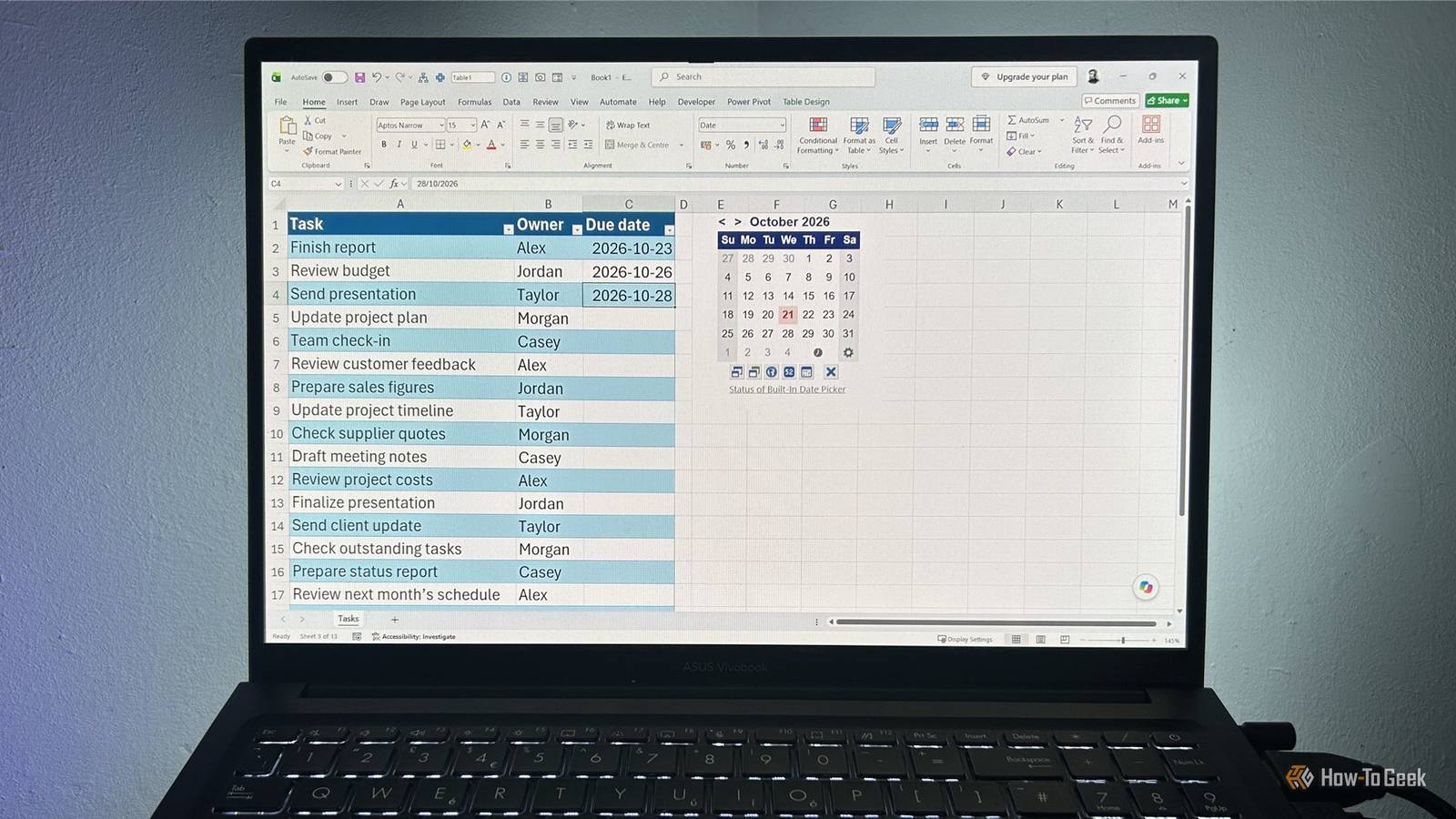
Mini Calendar and Date Picker Stop typing dates one cell at a time In Excel for the web, double-clicking a date-formatted cell opens a calendar, making date entry more convenient.At the time of writing, desktop Excel has no such feature, so the Mini Calendar and Date Picker add-in from Vertex42 lets you point and click instead of typing dates one by one.To install Mini Calendar and Date Picker in Excel for Windows, Mac, or the web, open the Add-ins store from the Home tab, search for the add-in, and click Add.
The exact menu labels may vary by version.Once it's installed, you can use the calendar to pick dates for deadlines, appointments, and to-do lists.The add-in also applies a date number format to the selected cell automatically, saving you from having to format it separately.
You can also display week numbers in the calendar or click a button to insert the current time.If your spreadsheets are full of dates, this add-in will quietly save you a lot of typing.People Graph Turn ordinary data into an infographic Standard Excel charts do the job, but sometimes you want something with more flair for a report or presentation.
The Microsoft Office add-in People Graph turns simple data into an infographic, with rows of little icons standing in for your numbers.To install People Graph, follow the instructions in the Mini Calendar and Date Picker section above.The add-in works with two columns of data: category labels and their corresponding numerical values.
From there, you can swap the icons, colors, and layout to taste.For example, you could use box icons to compare product sales, or money bags to illustrate revenue across different categories.The graphic updates when your data changes, though you'll need to extend the range yourself if you add new rows.
Analysis ToolPak Get more out of your data Close Microsoft's Analysis ToolPak sounds intimidating, especially if statistics isn't your idea of a good time.But you don't need to be a statistician to get something useful from it.Pick an analysis, point Excel at your data, and let it do the number-crunching.
To install the Analysis ToolPak add-in in Excel for Windows, click File > Options, open the Add-ins tab, select Excel Add-ins in the Manage drop-down menu, and click Go.Then, check the Analysis ToolPak option and click OK.In Excel for Mac, go to Tools > Excel Add-ins, check the Analysis ToolPak box, and click OK.
Once added, you'll find it in the Data tab on the ribbon.One particularly useful option is Descriptive Statistics.Instead of writing a separate formula for the mean, median, standard deviation, minimum, and maximum, you can generate a summary table in one go.
Correlation helps you measure how closely two variables move together, while Moving Average smooths out short-term fluctuations to reveal longer-term trends.If you want to go further, the Regression tool helps you investigate how one variable relates to one or more others.The ToolPak does the math, so you can focus on what your data is telling you.
Just keep in mind that the results are static, so you'll need to rerun the analysis if your data changes.Solver Let Excel find the best solution Close The Analysis ToolPak helps you make sense of the data you've collected.Solver by Frontline Systems helps you decide what values to use in the first place.
You might know about Excel's built-in Goal Seek tool, which adjusts one input cell to reach a target.Solver goes further, tweaking several values at once while staying within limits you set.To install the Solver add-in, follow the steps above for the Analysis ToolPak, but check Solver instead.
Imagine you have $300 to spend on home improvements and want to divide it between paint, lighting, and storage.You can tell Solver what you're trying to maximize, which cells it can change, and the limits it must respect.For example, you could require each category to receive between $80 and $120 while keeping total spending within your $300 budget.
You can assign each category a different improvement score per dollar, so Solver squeezes the most benefit out of your budget instead of just splitting the money evenly.Solver's answers are only as good as the objective and limits you give it, so it won't make your decisions for you.But it can spare you from testing combinations by hand until something sticks.
Power Pivot Build reports across related tables Close If you've ever wrestled tables together with lookup formulas just to build a PivotTable, Microsoft's Power Pivot could save you a lot of grief.It gives you a dedicated window for managing relationships between separate tables in the Data Model, so you can analyze them together without mashing everything into one giant table.If you don't already see a Power Pivot tab, click File > Options, open the Add-ins tab, select COM Add-ins in the Manage drop-down menu, and click Go.
Then, check the Power Pivot option and click OK.Once enabled, you'll see a dedicated Power Pivot tab on the ribbon.For example, you might keep sales transactions in one table and product details in another.
You can then link them through a shared ProductID field and build a PivotTable that summarizes sales by product category.The Data Model also gets you Distinct Count, which counts unique customers rather than every transaction they make.There's a learning curve, especially once you dip into DAX, but it's worth it when your reports pull from several related tables.
And while Power Query helps you clean and prepare data, Power Pivot helps you model and analyze it.A good add-in should earn its keep If you want to get more out of Excel, these five add-ins are a good place to start.Just be aware that if you share a workbook that relies on an add-in, anyone without it might not get the same functionality, especially with People Graph and Power Pivot.
And just because these five work well doesn't mean you should go hunting for more.Before installing anything else, check the price, look into the developer, and see whether Power Query already does the job.
Read More