Docker makes running software feel lightweight, but that convenience hides a costly default.Containers start with no cap on memory or CPU, so a single forgotten service can quietly consume your machine’s resources around the clock.Here’s why it happens and what you can do about it.
The problem: no resource limits by default Containers take what they want, whenever they want it Close When you run a container with a plain docker run command, Docker applies no memory or CPU restrictions at all.The container can use as much of the host’s resources as the kernel allows.That’s a sensible default for getting started, but a poor one for anything that stays up for weeks.
Because containers feel disposable, many people launch a database, a test API, or a self-hosted app, close the terminal, and forget it exists.It keeps running in the background, holding onto memory and waking the CPU for every scheduled task, health check, or polling loop.The danger is subtle because idle containers rarely look dramatic.
A forgotten service might only use a few hundred megabytes, but several of them add up, and a single memory leak can grow until it starves everything else.On Linux, once the host runs out of memory, the kernel’s out-of-memory killer starts terminating processes, and it doesn’t always pick the misbehaving container.It can just as easily take down your database, your SSH session, or the Docker daemon itself.
The situation is even more noticeable on Windows and macOS.Docker Desktop runs containers inside a virtual machine, and that VM reserves a chunk of your RAM whether or not your containers need it.On Windows with WSL2, the vmmem process can hold gigabytes of memory long after the workloads that requested it have stopped, which is why laptops start to feel sluggish and fans spin up for no obvious reason.
And Docker doesn’t warn you about any of this.There’s no prompt asking how much memory a container should get, and no notification when something has been running for three months.Unless you deliberately check with docker stats or open the Docker Desktop dashboard, the only symptom is a machine that feels slower than it should, with no clear culprit pointing back to the containers running quietly in the background.
How to fix it Set limits, clean up, and monitor what’s running Don't overthink it: set limits when you're setting up a container.The --memory flag caps how much RAM it can use, and the --cpus flag limits how much processor time it receives.A command that sets memory to 512 megabytes and cpus to 1.5 keeps a runaway process contained.
If the container exceeds its memory ceiling, Docker stops it instead of letting it drag down the host.You can also set a memory reservation, which acts as a soft limit enforced only when memory gets tight, and a pids limit to stop a process from spawning endless child processes.If you use Docker Compose, the same controls live in the configuration file.
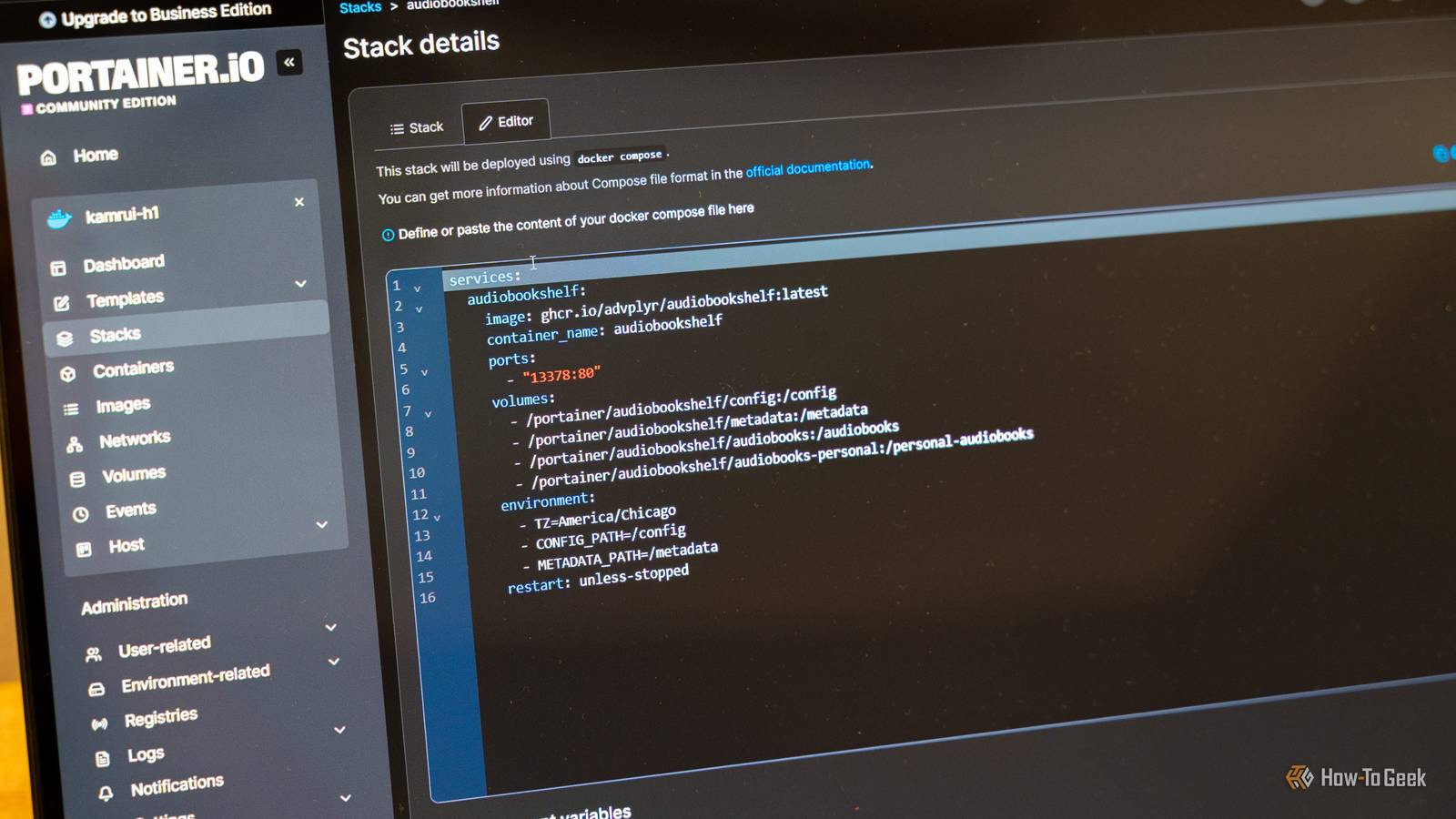
Under the deploy section of a service, the resources block accepts limits for both CPU and memory, and current versions of Compose respect those values without requiring Swarm.Defining them once means every teammate and every deployment gets the same boundaries, rather than relying on someone remembering a flag.Limits only help if you know what a sensible number looks like, so monitor first.
Running docker stats shows live CPU and memory usage for every container, and a few days of observation will tell you how much each service actually needs.Set limits somewhat above the observed peak so normal spikes don’t trigger restarts.Finally, clean up what you no longer use.
The docker ps command lists what’s running, and docker stop shuts down anything you don’t need.Running docker system prune clears stopped containers, unused networks, dangling images, and build cache, while adding the volumes option removes orphaned volumes as well.Treat it as a habit rather than a one-time fix, and review it every few weeks so your machine doesn’t slowly fill up.
Other minor issues Logs, restart policies, and desktop settings add up Resource limits aren’t the only default worth changing.Docker’s standard json-file logging driver doesn’t rotate logs, which means a chatty container can write to a single log file until it consumes gigabytes of disk space.You can fix this by setting max-size and max-file options, either per container or globally in the daemon configuration file.
A limit of 10 megabytes across three files is usually plenty for home setups and small servers.Restart policies can cause quieter problems.Setting a container to always restart means it comes back after every reboot and after every crash, even when you’ve deliberately stopped it.
A broken container can also loop endlessly, burning CPU as it fails and starts again.The unless-stopped policy respects your manual shutdowns, while on-failure with a maximum retry count prevents infinite crash loops.Health checks deserve a look too.
A check that runs every few seconds, especially one that launches a script or queries a database, creates constant background activity.Stretching the interval to 30 seconds or more is enough for most services and cuts the overhead considerably.On Docker Desktop, the settings menu lets you cap how much memory, CPU, and disk the virtual machine can claim, and those values are often set far higher than necessary.
Windows users running WSL2 can create a .wslconfig file in their user folder to limit memory and processors for the entire subsystem, then restart it with wsl --shutdown.Even small adjustments make a visible difference on laptops.Lastly, image size matters over time.
Slim or Alpine-based images use less disk space, download faster, and often ship with fewer background processes, which keeps everything lighter.Set limits now to stop silent resource drain Docker’s defaults favor convenience over efficiency, leaving containers free to consume resources indefinitely.By setting memory and CPU limits, rotating logs, choosing sensible restart policies, and pruning regularly, you can keep your machine responsive and avoid the slow, hard-to-trace slowdowns that unmanaged containers cause.
Read More