The traditional Linux tools like nano, man, cat, cd, ls etc.are almost four decades old now.They come from a time when computers had black-and-white screens and less computing power than your phone.
micro a better way to edit text inside the terminal This is probably the one tool I use the most on all my Linux machines.By default, Linux machines use the classic nano editor for editing text files inside the command-line terminal.But if you've never used it before, it's incredibly counter-intuitive.
For one, it does not have cursor support enabled by default.Second, it uses weird retro shortcuts for everything.For example, you have to press Ctrl+O to save the file, instead of Ctrl+S.
None of the other shortcuts make any sense either, if you're used to modern defaults.It really messes with muscle memory.That's why instead of nano, I use micro.
It has cursor support, so you can highlight and select text with the mouse.You can copy, cut, and paste text with the standard keyboard shortcuts, so you don't have to fight the editor for basic tasks.You can undo with Ctrl+Z, find text with Ctrl+F, and save your files with Ctrl+S.
Basically all the sane defaults that you'd expect from a modern text editor.fd Instantly search the file system fd or fdfind is a modern replacement for the classic find command.It's used for finding files on the system.
The standard find command uses verbose syntax like this.find .-name "*your search term here*" But with fd-find, you get much more sensible syntax.
fdfind search_term The fdfind output is colored, so it's easier to read when there are a lot of matches.By default, find will also pull up hidden files, but fdfind intelligently ignores hidden files unless you specifically query them.It's also a lot faster.
You can query specific file extensions, specific directories, or just search the directories themselves, and so on.tldr Look up commands on the fly The man command on Linux lets you pull up documentation for any command right within the terminal.However, it is dense, and you have to dig through the documentation pages to figure out how to use it.
Say I'm SSH-ed into a Linux machine and I want to shut it down immediately.Running this command would not shut it down right away.sudo shutdown Rather, it schedules the shutdown for a later time.
If I look up the manual pages for the shutdown command, the description says I can use the "now" option to trigger an immediate shutdown.However, it does not explain it further or show examples of how to do it.Just gives you a list of available options.
man shutdown Now compare that to this command.tldr shutdown This is tldr or "too long, didn't read." It shows me helpful examples and format of commands I will probably need the most in a neat, color-coded list.From the first line, I know that the command I need to run is this.
shutdown -h now The example I chose is deliberately simple, but tldr is incredibly useful when you're trying to use a more complicated tool, and you're not sure where to start.Strictly speaking, tldr is not a one-to-one replacement for man pages because you will need to read the manual when you need technical explanations or advanced details.However, when you're in a rush, or you forgot some syntax for a tool, tldr will be your best friend.
Zoxide Easy navigation inside the terminal Having to type the exact paths to navigate to directories is probably the most annoying thing about using the command-line.Zoxide saves you from that tedium.Once you've installed it, you can keep using the cd command to navigate like you usually do.
However, Zoxide will learn those paths in the background and let you jump to them like this.z downloadsz home You can manually add paths into Zoxide too.eza A better version of ls The eza tool is meant to replace the ls command which lets you list file contents in a directory.
Running this command inside a directory or targeting a directory by typing out its path gives you the file contents.ezaeza /home/Downloads Compared to the standard ls, the eza output is color-coded, so it's easy to tell file types apart.It also shows icons next to file names if you have nerd fonts installed.
eza --icons It even has a nice "tree" view that shows the structure of the directory.eza --tree If your terminal emulator supports it, you can even click and open listed files directly using the hyperlinks option.eza --hyperlink You'll have to add the eza path to your shell configuration file before you can use it.
bat Nicer-looking version of cat The standard cat command prints the contents of a file on the console.However, it's just plain text with no syntax highlighting or line numbers.You can get both those things with its modern alternative bat.
batcat notes.md For plain text files, it'll show a neatly formatted output with line numbers.For everything else, the output will have syntax highlighting to make it more human-readable, including Markdown files.Press q to exit.
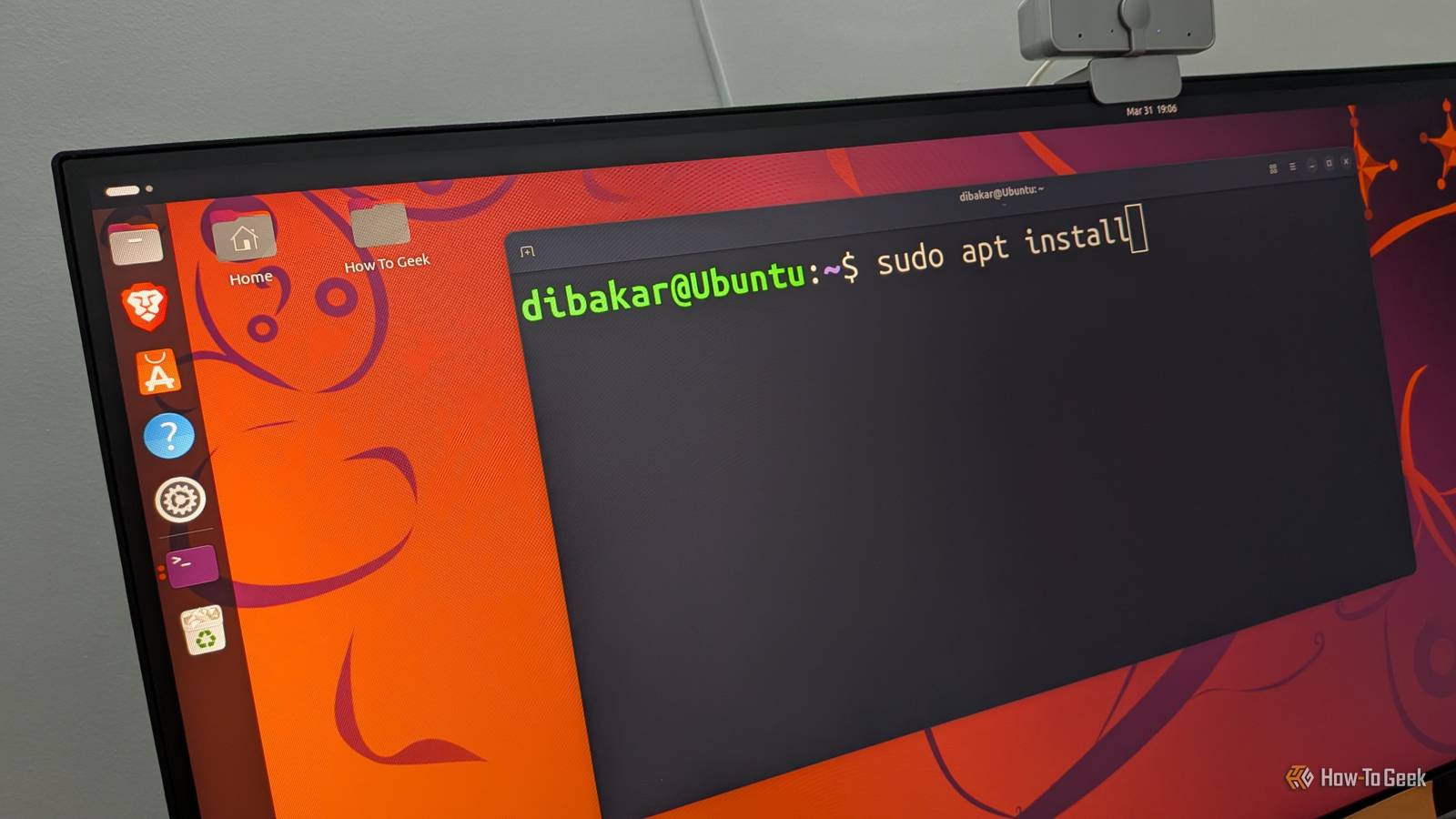
GLORIOUS Gaming GMMK PRO Gaming Keyboard $150 $160 Save $10 Brand Glorious Gaming Glorious Gaming's small keyboard comes bundled with a coiled cable and a comfortable wrist $150 at Amazon Expand Collapse Make them drop-in replacements for the retro tools You can install these tools on Debian and Debian-based systems like this.apt update && apt install eza micro bat tealdeer fd-find zoxide Other than Zoxide, all these tools will run right out of the box.Also, if you're already used to the classic tools, you can just create shell aliases that become shortcuts pointing to these modern alternatives instead.
Read More