I built my first PC over 20 years ago, and since that first one, I've basically never stopped.But of course, in that time, I've probably made just about every PC building mistake imaginable, too.It's entirely possible to build your PC, have it work (in theory), and then still keep paying the price for a mistake you made during the building stage for months after.
If you skip one of these important, often overlooked steps, you may end up paying for it later.You put your RAM in the wrong two slots Four DIMM slots don't mean any two are interchangeable Close This is perhaps one of the most common mistakes I see builders make, and it's not strictly new PC builders.Putting RAM in the wrong slot is surprisingly common.
Your PC probably has four DIMM slots, and it's easy to convince yourself that it doesn't matter which two you pick out of those four.That's not true, unfortunately.You need to be mindful about which slots you pick, and the reason has everything to do with how motherboards work.
When you use two RAM sticks, the mobo will typically expect you to populate two specific slots first, usually A2 and B2.That "usually" does a lot of heavy lifting here, though.You definitely need to check your motherboard manual before you actually build your PC.
Putting the RAM sticks in the wrong combination of slots won't kill your PC stone dead, which is why it's easy to wonder why your RAM is so slow a few months later.This matters even more once you dig into your BIOS settings and enable XMP or EXPO, because the motherboard's preferred slots are usually the ones its memory topology is optimized around.Related These 10 things are terrible for my PC, but I still do them anyway I’m grateful my PC hasn’t failed me yet, considering how much I neglect it.
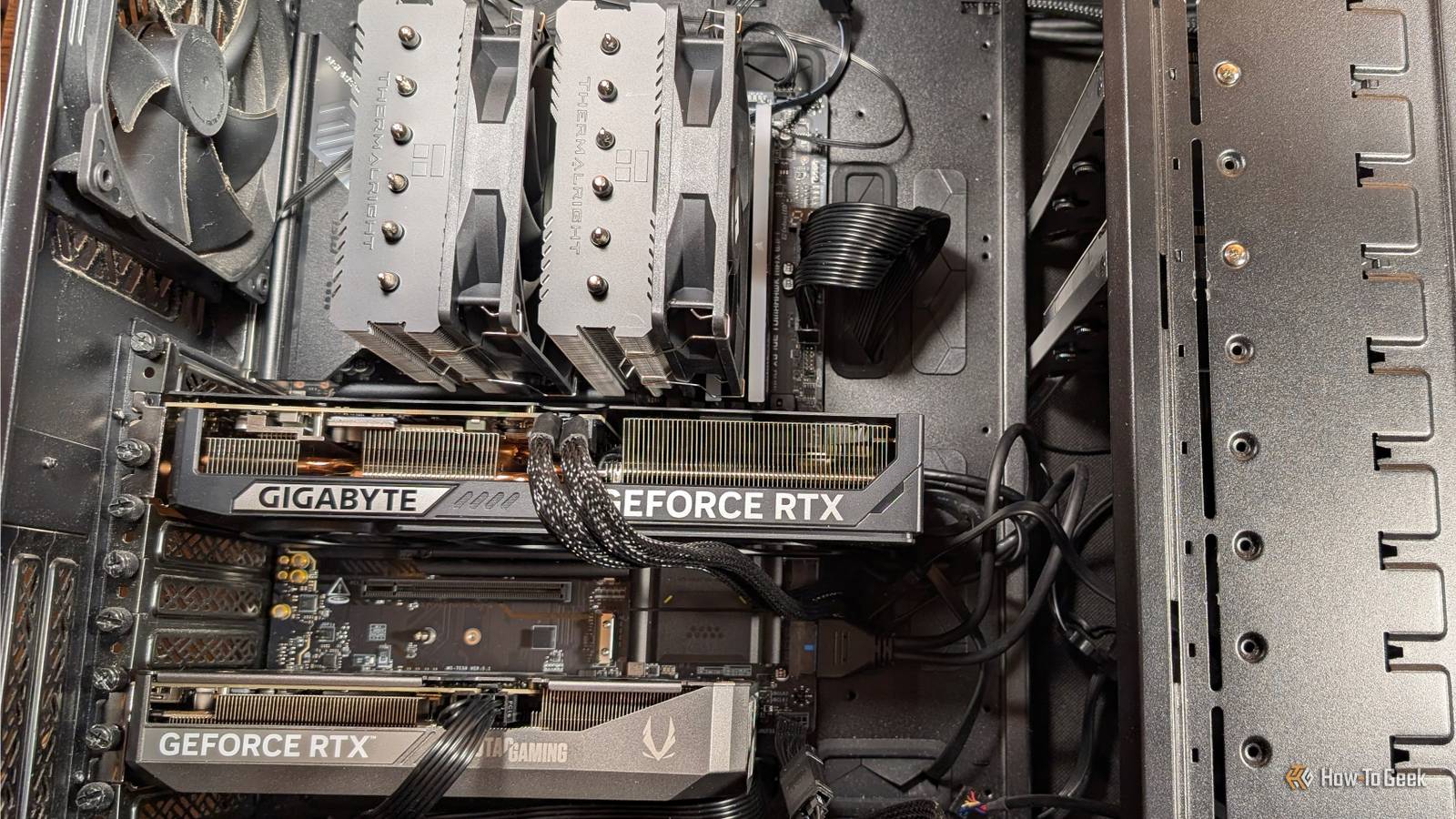
Posts 1 By Ismar Hrnjicevic Your graphics card isn't in the fastest PCIe slot Full-length slots can look identical while being wired completely differently Just like you can stick your RAM in the wrong place, you can do the same with your GPU, and it's easier than you might think.Plenty of motherboards have more than one full-length PCIe slot, and at a glance, you won't be able to tell which is which.Under the hood, they can be very different, though.
The top slot is usually connected directly to the CPU, so it gets the full lane allocation for your graphics card, which is exactly what you want.Lower slots may run at x84 or x4, or even through the chipset.Your GPU should still work if you connect it down there, but why would you have an expensive GPU live in such conditions? The performance cut this causes isn't a one-size-fits-all kind of thing.
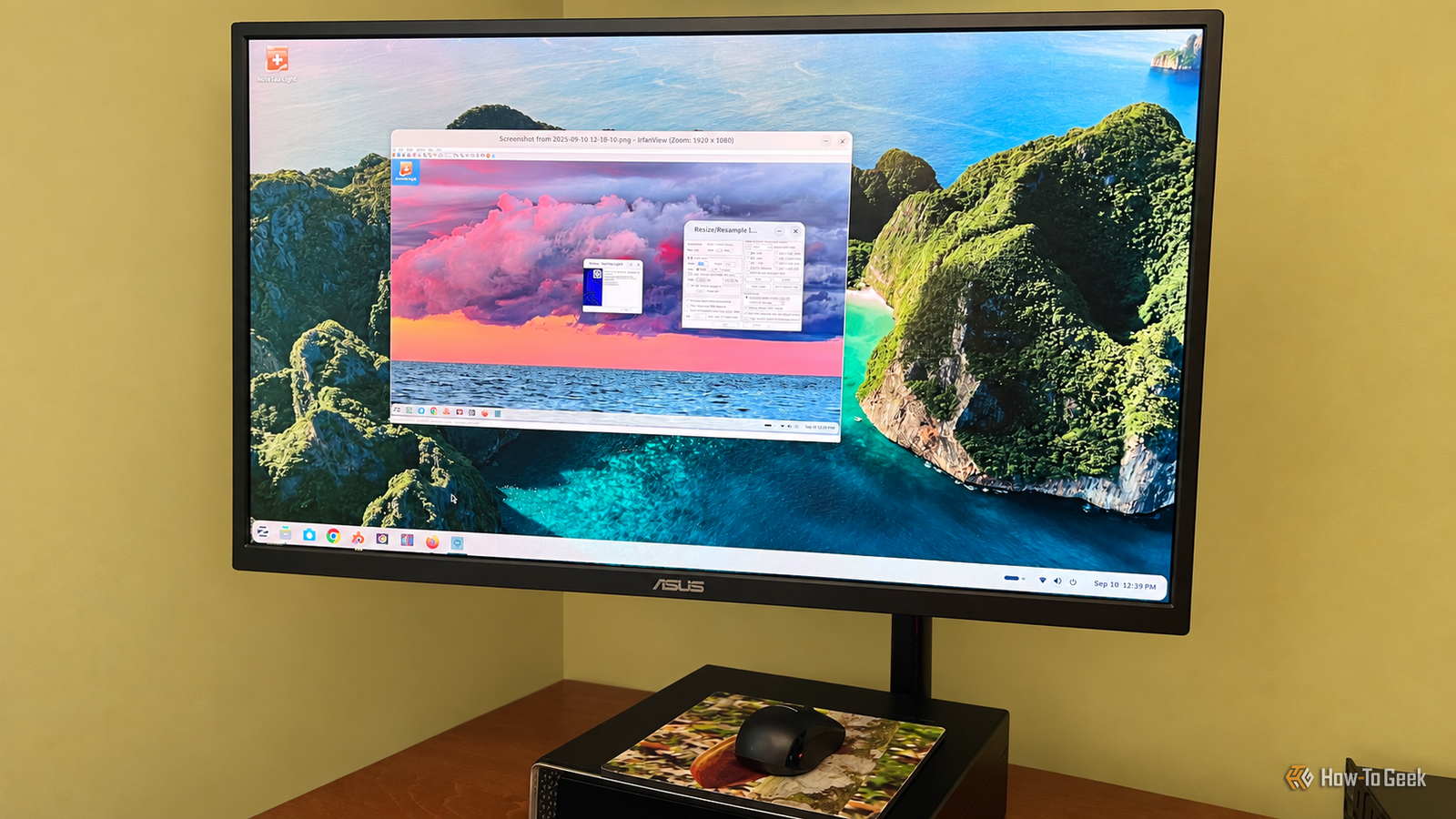
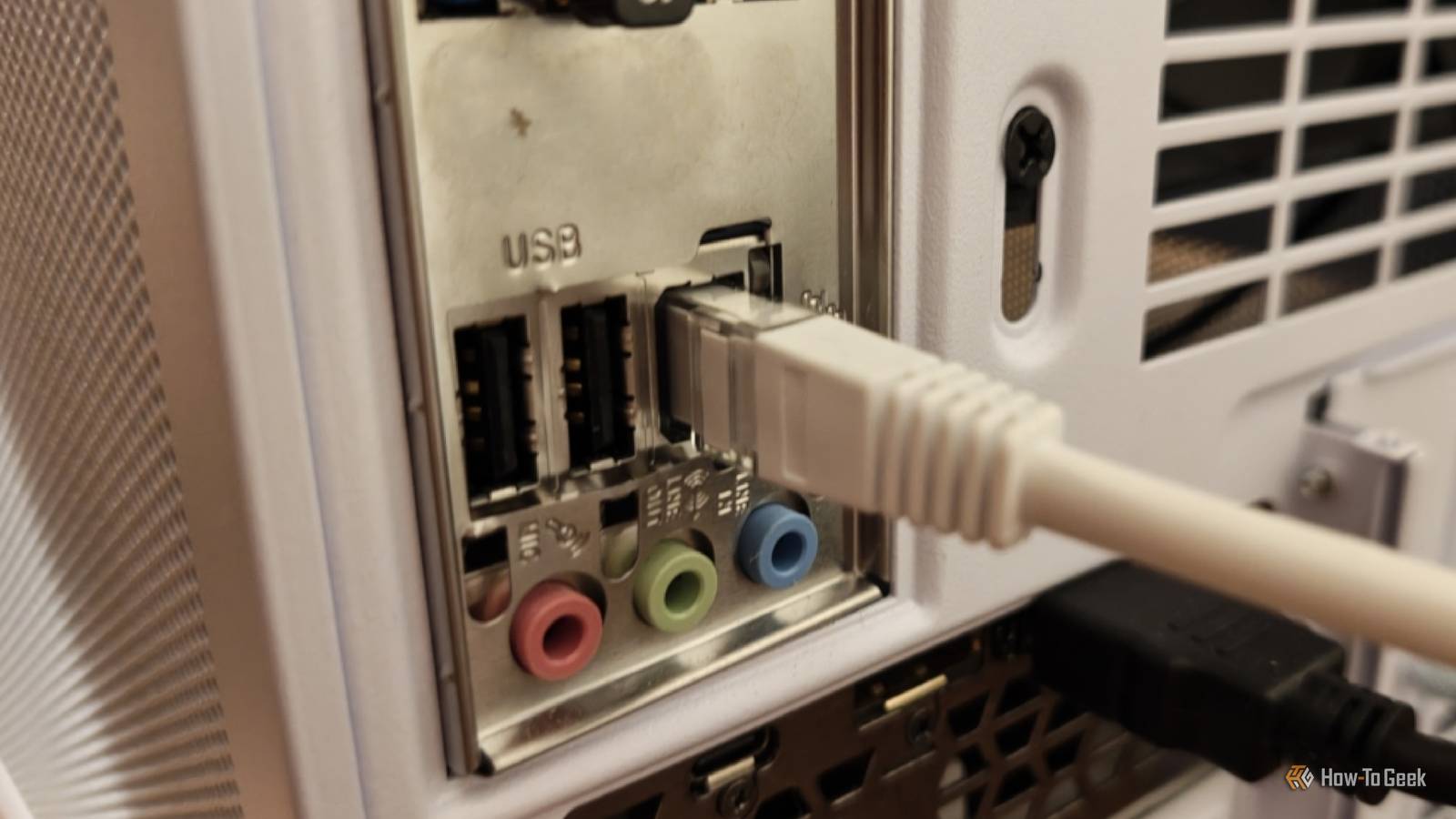
It all depends on the GPU, PCIe generation, and what you're doing with the card.By the way, many motherboards also share PCIe lanes between slots and M.2 drives, so you may be crippling your SSD without knowing.You plugged your monitor into the motherboard That HDMI port might be connected to the wrong GPU Ah, this one is a classic.
You finish the build, and the time comes to plug in the monitor and reap the fruits of your hard labor.Only if you plug your monitor into the wrong port, you'll wonder why nothing is quite as nice as you thought or hoped.The problem? The display outputs on your motherboard are connected to your CPU's integrated graphics.
If you have a desktop, you probably have a discrete GPU to plug your monitor into instead, which is infinitely better.Depending on your processor and BIOS settings, you might not get any display at all, which will undoubtedly prompt you to investigate ...but it is possible to have the entire setup work and ignore your GPU entirely.
You never checked the BIOS Installing compatible hardware doesn't mean you're making the most of your PC This isn't exactly hardware, but dealing with the BIOS is often something we do when the build is ready, and then never again (or not for a long time).If you neglect this step, you'll be leaving a lot of performance on the table.I know that getting the PC to boot is exciting, and you probably can't wait to install all your stuff.
But before you do, hop into the BIOS and make sure your RAM isn't sitting at its JEDEC speeds by enabling an XMP/EXPO profile.Then, enable Resizable BAR.Overclocking? If you want and you feel sure.
You don't have to, though, and for most people, the difference in day-to-day workloads will be marginal.You forgot to test whether the CPU was throttling The build isn't finished until everything is stable Another hardware-adjacent mistake I see quite often.If you make any mistakes when installing your cooler, your CPU may be throttling, and the consequences may show up soon enough.
The idea is that you should beat them to it and fix the issue first.Modern CPUs are great at protecting themselves from excess heat, which means a bad mount, weak contact, forgotten protective film (such an easy mistake to make), or badly configured fan/pump can take a whole to produce symptoms.But they can also lead to an immediate crash, unfortunately.
If you've just finished a build, watch your CPU temperatures and clock speeds under a sustained load.If anything feels amiss, go back in and see if your entire cooling setup is fine.Your first boot isn't the end of the build Before you download Steam and start installing all those games (which is what I typically do), make sure your PC is 100% ready for them.
PC building grows more intuitive by the year, but one moment of forgetfulness can come back and bite you later.Related My PC took 30 minutes to boot until I fixed this one SSD problem SSD problems can make your PC entirely unusable Posts 11 By Monica J.White
Read More