Day in and day out, there's one thing keeping your Android phone ticking: the battery.You may already know that your charging habits determine the battery's long-term health, but this is not some mysterious metric.It's a thing you can actually find and track.
Battery health is very important It's the key indicator for long-term usability Smartphone batteries die in two different ways.There are typical charge cycles happening every day, but in the grand scheme of things, a battery can only withstand so many of those cycles before it dies completely.That's when a battery can't hold a charge at all.
Battery health is the metric that tells you where you are on that big picture scale.Professional athletes are often asked about their health after an injury in terms of percentage, and the same logic applies to batteries.There's not an exact, specific scale, but here's a good general guide: 100-90%: Excellent — holding max capacity, discharging as slowly as possible.
90-80%: Normal — typical wear, operating near max capacity.80-70%: Fair — still usable, but noticeably doesn't last as long as usual.70-60%: Worn — discharges quickly, should be replaced soon.
Below 60%: Poor — replacement needed in order to keep using the device.Measuring the battery health takes a combination of hardware sensors and software algorithms.The device tracks how many mAh pass from a 0% state to a 100% state to determine the battery's current max capacity.
Then, it can compare that to the battery's original "Design Capacity." On a more basic level, the device keeps a count of charge cycles — most lose around 20% capacity near 1,000 full cycles.Not all Android phones display the battery health in a precise percentage.Some use simple language like "normal" and the other words mentioned in the list above.
So let's go find out.Check battery health on a Samsung Galaxy phone Easy as it's always been Samsung was one of the first Android phone makers to include the ability to check battery health without a hacky diagnostic code.The feature is tucked away in an app that sounds completely unrelated to device diagnostics, but it's accessible from the phone's settings as well.
First, open the Settings on your Samsung phone and go to "Device Care." Scroll down and select "Diagnostics," then "Phone diagnostics" on the next screen.If you've never opened this screen before, you'll need to wait for some tests to run.It's not necessary to run the extra tests to see battery health.
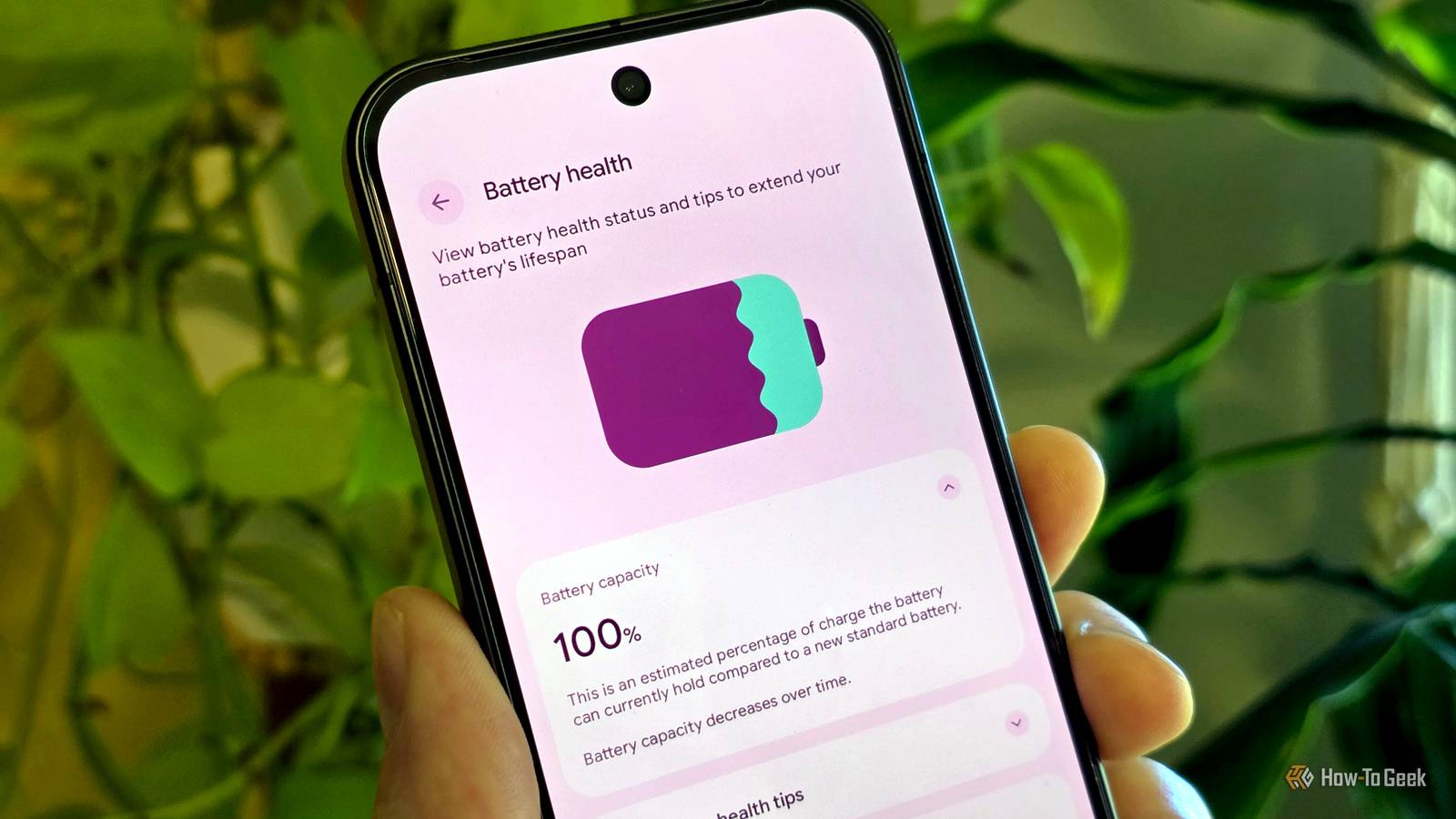
Once complete, tap "Battery status" and you'll see your battery health reading (mine is "Normal").Close Check battery health on a Google Pixel phone Finally built in Up until the release of Android 16 in 2025, Pixel phones didn't have an easy way to check battery health.Now, it's actually easier than Samsung (you don't need a strange "Members" app to do it) and provides more detailed information.
Open the Settings and go to the "Battery" section.Technically, you can see the reading right here — it's shown under the "Battery health" header.For a bit more info, tap "Battery health" to read the full details.
Here you can see a precise percentage for the battery capacity.There's also a shortcut to adjust the charging optimization.Close For those who don't use a Samsung or Google phone, try searching for "battery health" or "battery diagnostics" in the Settings app.
Practice safe battery usage Now that you know how to find your Android phone's battery health, let's talk about ways to maintain it.The main thing to know is that batteries don't like being completely empty or fully charged all the time.Keeping the battery away from extremes as much as possible, in the 80-20% range, is best for long-term health.
Speaking of extremes, temperature plays a role as well.Avoid leaving your phone in the sun or a hot parked car.Don't let your phone stay hot from extended gaming sessions or navigating during long road trips.
On the other hand, cold temperatures can actually be good for a battery as long as it doesn't lead to condensation inside the device.I'm just glad that it's finally easy to check battery health on most Android phones (and the iPhone) nowadays.Samsung Galaxy and Pixel phones have plenty of other diagnostic tools at your disposal, too.
Related Stop trusting your phone's battery percentages—this is what's really draining it Every day is the same story: your phone’s battery starts at 100%—hopefully—and by the afternoon, apps and services have chipped it down by half.That’s the simple part, but deciphering what’s actually using the battery is not as straightforward as you would think.The problem is that whether you use an Android phone or an iPhone, battery usage stats are a bit nebulous.
We think about battery life in percentages, and that’s what you’ll find in the Settings app.However, those numbers are not exactly what they seem.Posts By Joe Fedewa
Read More