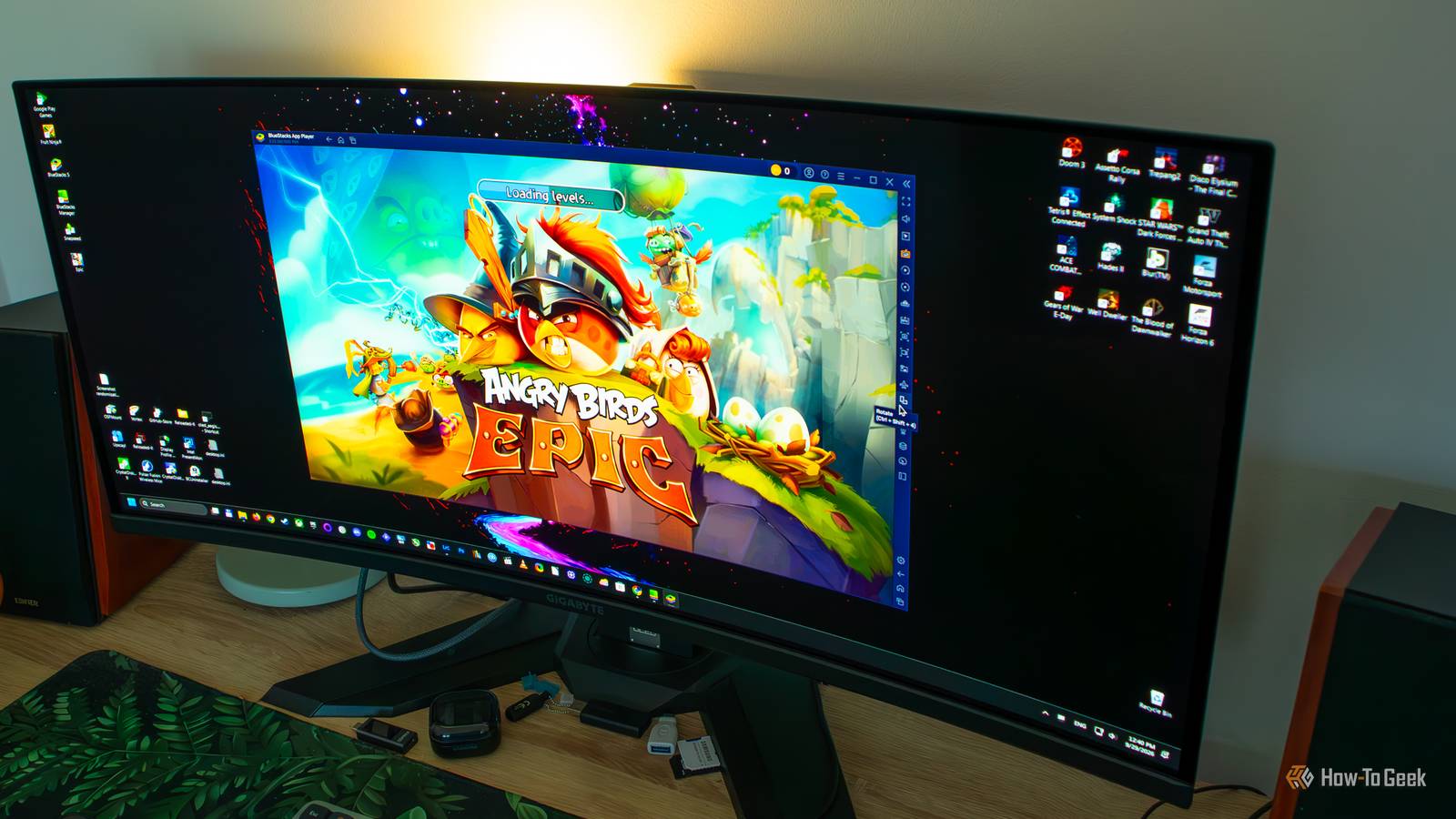
Even though Microsoft ended support for the Windows Subsystem for Android, which let Windows 11 users run Android apps natively, you can still use Android apps and games on your Windows machine.Your options include emulators such as BlueStacks, the Google Play Games Windows app, which lets you play Android games on your PC, and tools such as scrcpy, which lets you display and control your Android phone or tablet from your Windows PC.Aside from playing Android games not available on Windows, being able to run Android apps on your PC allows you to use apps that don't have PC counterparts or whose web versions are limited, test shady apps in an isolated environment before you install them on your phone, and more.
Playing Android games on your PC You can play many titles with a keyboard and mouse Close Naturally, playing Android games that aren't available on Windows is the main reason most people reach for BlueStacks and Google Play Games.Both let you install and play your favorite Android games on your PC in just a few simple steps, with many games working great out of the box.The benefits of enjoying Android games on your PC go beyond being able to use a keyboard and mouse, which many PC gamers consider the ultimate control scheme, though not all of us.
You also don't have to worry about your phone's battery dying or the device overheating, and in many cases, you'll get higher resolutions and frame rates, all on a screen that dwarfs your phone's.Using Android apps that never got a proper desktop version And the ones whose desktop versions just aren't as good A surprising number of apps work and feel better in their Android form than in their Windows or browser versions, while others aren't available on Windows in the first place.For example, you can install and run the Android version of Instagram on your Windows machine, which makes for an arguably better experience than using the Instagram website, since the app is notoriously optimized for smartphones.
The Instagram app from the Microsoft Store isn't much better, as it's nothing more than a website wrapper.Another prime candidate is Snapseed, a hugely popular Android photo editor with no Windows version.Close Similarly, if there's an app on your Android phone you want to experience on a larger screen, but you don't like its browser version, you can run it on your PC with BlueStacks in just a few minutes.
That said, a number of apps might misbehave when launched via an emulator, some of their features might be limited or not available, and they might simply not play nice with a keyboard and mouse.You can mitigate the last issue if you own a laptop with a touchscreen, but if you don't, be aware that some apps might not be very usable.Testing sketchy apps before they touch your phone It's generally safer to run them on your PC before installing them on your phone Say you want to install a newly popular app or game on your phone, perhaps because some of your friends are using it, but since it's new on the Play Store and looks kind of shady, you aren't sure whether it should reside there.
Thanks to BlueStacks, you can download and install the app on your Windows PC first and test it in an isolated environment to get a better idea of whether it's legit.You can, for instance, check its permissions and how many ads it serves, or try to spot strange behavior, like the app asking you for sensitive data.Another advantage of running apps on your PC instead of your phone or tablet is that you can sign in to BlueStacks with a throwaway Google account, so the app never gets anywhere near your main account or the data on your phone.
Running two accounts in the same app, side by side You won't have to sign in and out all the time Close BlueStacks sports a feature called Multi-instance Manager, allowing you to run multiple copies of the emulator at the same time.Since each instance is a separate Android environment (you can look at each one as a separate phone), you can log in to each instance with a different Google account.After you've logged in, you can now download and install the same app in each BlueStacks instance, sign in with a different account in each one, and use them at the same time.
This can be very handy if you want to use, for example, a social media or a chat app with a personal and a work account at the same time without having to switch between them constantly, grind resources on multiple accounts in a game, or run two instances of an app that doesn't support multiple accounts.Keep in mind that each BlueStacks instance uses your PC's resources, so running two instances of a demanding game, for example, might slow down your PC.Related Samsung's Secure Folder is basically a second phone hiding inside your Galaxy How I separate my work and personal life on one phone.
Posts By Joe Fedewa Keeping old Android apps and games alive You can run many of the games and apps no longer available on the Play Store with an emulator The early days of Android gaming, when big-name publishers tried to conquer mobile platforms, had a lot of cool titles.EA, for instance, released , , and multiple excellent-looking titles.We also had and a number of other Android spin-offs of AAA PC and console games that sported phenomenal visuals and were so much fun to play.
You can still play some of those games, along with other, mobile-first cult classics such as , which aren't available on the Play Store anymore and haven't been for many years.The only catch is that you have to find the installation files yourself, but if you track them down, you can install them in just a few seconds with BlueStacks.The same goes for Android apps that have been pulled from the Play Store.
Be extra careful, though, because many of the websites hosting Android APKs are shady, so try sticking to reputable repositories such as APKMirror.Just note that some of the games won't run at all, or will run with severe visual glitches.I tried playing and didn't have a good time because the visuals were all messed up, even when I ran it in a separate Android Nougat 32-bit instance, which was a massive bummer.
On the flip side, has been running flawlessly, so I guess I'll spend a few afternoons reliving the 2010s by playing one of the best Android games ever.Running Android apps and games on your Windows PC is sometimes a better choice Whether you want to play your favorite Android games on a big screen, test suspicious apps, or run multiple instances of the same app with different accounts simultaneously, using an Android emulator on your PC can be a better option than running those apps and games natively on your Android phone or tablet.
Read More