Linux can be a complicated operating system to use, and even something as light as Mint isn't as easy as people make it sound.There's a lot more to it, and when things go wrong, it's frustrating because Windows has so much built-in help, and new people end up thinking they broke their computers.Before you install an entirely new OS and lose everything, there might be a way to get around the problem.
Add How-To Geek on Google Add as Preferred Source Follow on Google Discover Your boot is a chain, and it can break GRUB lets you step in before things go wrong I never gave Linux booting a second thought because I had assumed it was a lot like Windows.You hit the power button, wait a bit, and the login screen shows up.A lot happens during those few seconds, and you really should know the general order because every boot failure is really just one of those steps going wrong.
First, the firmware comes up and runs its own checks.On a modern UEFI box, it is looking for a small partition called the EFI System Partition and loads the bootloader from it.The bootloader's job is to reserve some memory, give the kernel a rough map of what lives where, and move on.
Then, the kernel gets its own basics going, like memory management and handling signals from your hardware.The kernel starts up before it can actually see your real filesystem, and Linux uses a tiny temporary filesystem called the initramfs, which gets loaded into RAM.It carries just enough tools to load your storage drivers, unlock the disk if it's encrypted, and find your root partition.
Once it's found, the system switches over to the real filesystem and starts systemd (or whatever init your distro uses) as the very first process, and this is generally called PID 1.That is boring to most people, but if one link in the chain snaps, everything goes wrong.A bad kernel update can leave the storage driver out of the initramfs, so the boot just sits there waiting for a disk that never shows up.
Even a graphics driver clashing with the open-source Nouveau driver can leave you staring at a blank screen with no prompt at all.That's where GRUB comes in.It sits right between the firmware and the kernel, which makes it a good spot to step in before the broken stuff ever runs.
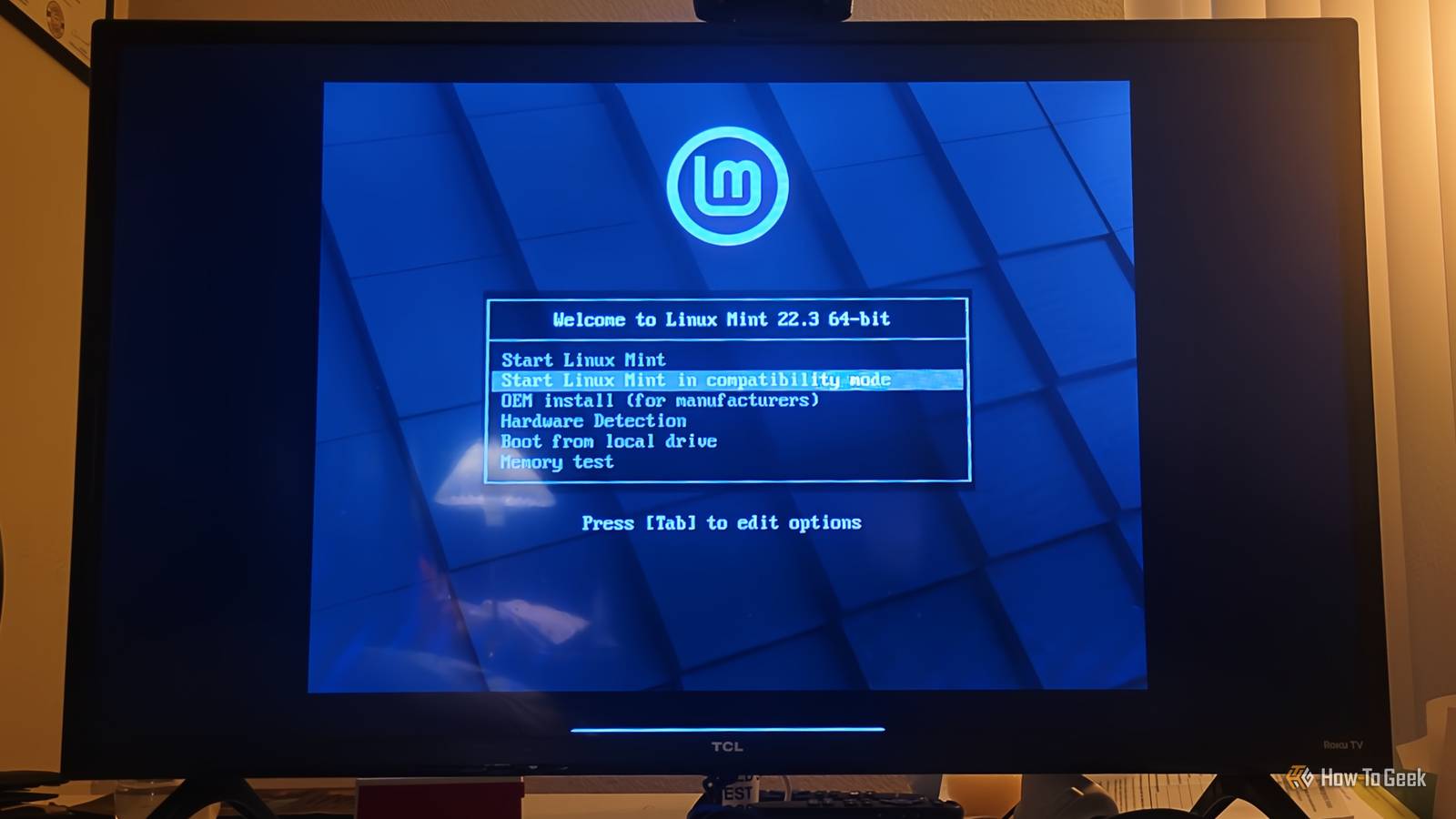
A lot of distros hide the menu with a zero-second timeout, but holding Shift or tapping Esc right after the firmware finishes can work; that all depends on your hardware.Once the menu is up, highlight the entry you want and press E.You'll see the kernel command line, usually a line starting with "linux" that includes things like root=, ro, quiet, and splash.
Change that line before you boot, and you can turn off a bad driver, skip a broken service, or send the whole boot somewhere else, all without touching a USB drive.Kernel parameters will get you past a broken boot Your root shell starts read-only Close Getting into the GRUB editor is where most local recovery starts.Power on, bring up the menu, press E on the entry you want, and scroll to the end of the line that starts with "linux." Anything you type there takes effect the moment you press Ctrl+X or F10 to boot.
Don't worry too much because nothing gets saved, so if you mess up, a normal reboot puts everything back the way it was.What you add depends on where things are breaking.Adding systemd.unit=rescue.target boots you into single-user mode.
Your local filesystems get mounted, and basic logging runs, but networking and the graphical desktop are skipped, and you land at a root prompt.If the problem is your filesystem table and rescue mode stalls too, try systemd.unit=emergency.target instead.Emergency mode is more stripped down.
It doesn't mount your secondary filesystems at all and leaves root read-only, giving you just enough to start poking around.If systemd itself is the problem, or you can't get past authentication, add init=/bin/sh or init=/bin/bash.That tells the kernel to skip systemd completely and run a shell directly as PID 1.
This is just a bare root shell, so you won't need passwords or anything.I'd say there are a few other flags you could try.Adding rd.fstab=0 tells the system to ignore a corrupt fstab, and nomodeset keeps a misbehaving graphics driver from killing your video output.
One thing that catches a lot of people off guard in these minimal shells is that the root filesystem is mounted read-only on purpose.That lets the kernel check it cleanly without anything writing to it at the same time.In an init=/bin/sh shell, nothing ever remounts it for you, so you can read files but can't save changes.
The fix is the command mount -o remount,rw /, and after that you have full write access.From there, the repairs are usually pretty ordinary.You can fix a typo or a wrong UUID in /etc/fstab, reset a forgotten password by editing /etc/shadow, remove a graphics module that's causing trouble, or roll back a package update that went sideways.
When you're done, keep in mind that you've still just got a bare shell with no process manager running, so the normal reboot command won't work.Run sync first to push anything still sitting in memory out to the disk, then use reboot -f or echo b > /proc/sysrq-trigger to force a restart.Skipping the sync is how you lose the fix you just made.
Your GRUB menu can be a security hole Some problems need a live USB to fix Physical security matters so much on Linux machines, because if someone can sit down at the keyboard, reboot, and edit the GRUB entry, they have root.There's no password prompt standing between them and the files on the disk.If this worries you, the main way to lock it down is a GRUB password.
You generate a hashed password with grub-mkpasswd-pbkdf2 and add it to /etc/grub.d/40_custom.After that, anyone who wants to edit a boot entry or open the GRUB console has to enter it.If you add the --unrestricted flag to your normal boot entries, everyday booting still works with no prompt, and only the editing is locked.
GRUB editing just can't save you every time.If the LUKS header on the disk is corrupted or overwritten, the initramfs has nothing to unlock and can't open the drive at all, and without an external backup of that header you're in serious trouble.If /boot or the EFI System Partition is damaged, GRUB can't load its own files, and you'll end up at a "grub rescue>" prompt or a firmware error before you ever see a menu to edit.
And if a half-finished update left the initramfs empty or missing your storage controller's driver, the kernel simply can't talk to your disk.In any of those cases, it's time for a live USB.Boot from it, find your storage devices, and mount your root and EFI partitions.
Then bind-mount /dev, /proc, and /sys into the mounted system and chroot into it.From inside the chroot, you can run dracut or update-initramfs, reinstall GRUB, or restore whatever piece went missing.This won't fix everything This won't fix a dead disk.
If your LUKS header is gone or your boot partition is wrecked, the GRUB editor won't help, and you'll need a live USB and some patience.The commands are also easy to mistype under pressure, so I'd write them down before you need them.Still, most boot failures I've seen were small ones, like a bad fstab line or a driver acting up.
Read More