If your desktop or laptop keeps lighting up in the middle of the night without you touching it, the cause is almost always traceable.It's a common complaint, and one that tends to get written off as a glitch or a haunted machine, when in reality Windows almost never wakes itself up without a specific trigger behind it.Somewhere in the system, a scheduled task, a network signal, or a connected device has been given explicit permission to interrupt sleep mode, and that permission was granted either by an app during installation or by a default setting nobody thought to review.
The good news, though, is that Windows keeps a record of these events, so tracking down the source doesn't require guesswork.Here are three common culprits and how to track down which one applies to you.Scheduled tasks and wake timers And how to read what actually woke your machine Close One of the most common reasons a Windows PC wakes up overnight has nothing to do with a stray mouse click or a curious pet.
It comes down to scheduled tasks and wake timers that are explicitly allowed to bring the system out of sleep.Windows Update is a frequent offender, since it often needs the machine awake to check for and install patches during designated maintenance windows.Beyond that, Task Scheduler lets you configure any task with a setting called "wake the computer to run this task," and third-party software installers often enable it without asking.
Backup utilities, antivirus definition updates, and even some manufacturer bloatware can all schedule themselves this way.The most reliable way to identify the source is to open an elevated Command Prompt and run the command powercfg /lastwake.This reports exactly what triggered the most recent wake event, whether that's a specific scheduled task, a Wake Timer, or a piece of hardware.
Pairing it with powercfg /waketimers shows any timers currently armed and ready to fire, which is useful when the wake happens hours after you last touched the keyboard.If the output points to a task by name, opening Task Scheduler and unchecking its wake permission under the task's Conditions tab usually resolves it permanently.Network devices can send a wake signal from across the room Wake-on-LAN features are more common than people realize A second frequent cause is network-triggered wake, often called Wake-on-LAN or "wake on magic packet." Many network adapters ship with this feature enabled by default, allowing another device on the same network, such as a router, NAS, or even a phone running a remote-access app, to send a signal that rouses the PC from sleep.
This is intentional in office and home-server setups where someone wants to access a machine remotely without leaving it fully powered on, but it becomes a nuisance when routine network traffic or a misconfigured device triggers it accidentally, so your Windows setup is probably better off without it.To check this setting, open Device Manager, find the network adapter under Network Adapters, open its Properties, and review the Power Management tab, where an option lets that device wake the computer.The Advanced tab often has a separate toggle specifically for Wake on Magic Packet, which can be disabled independently.
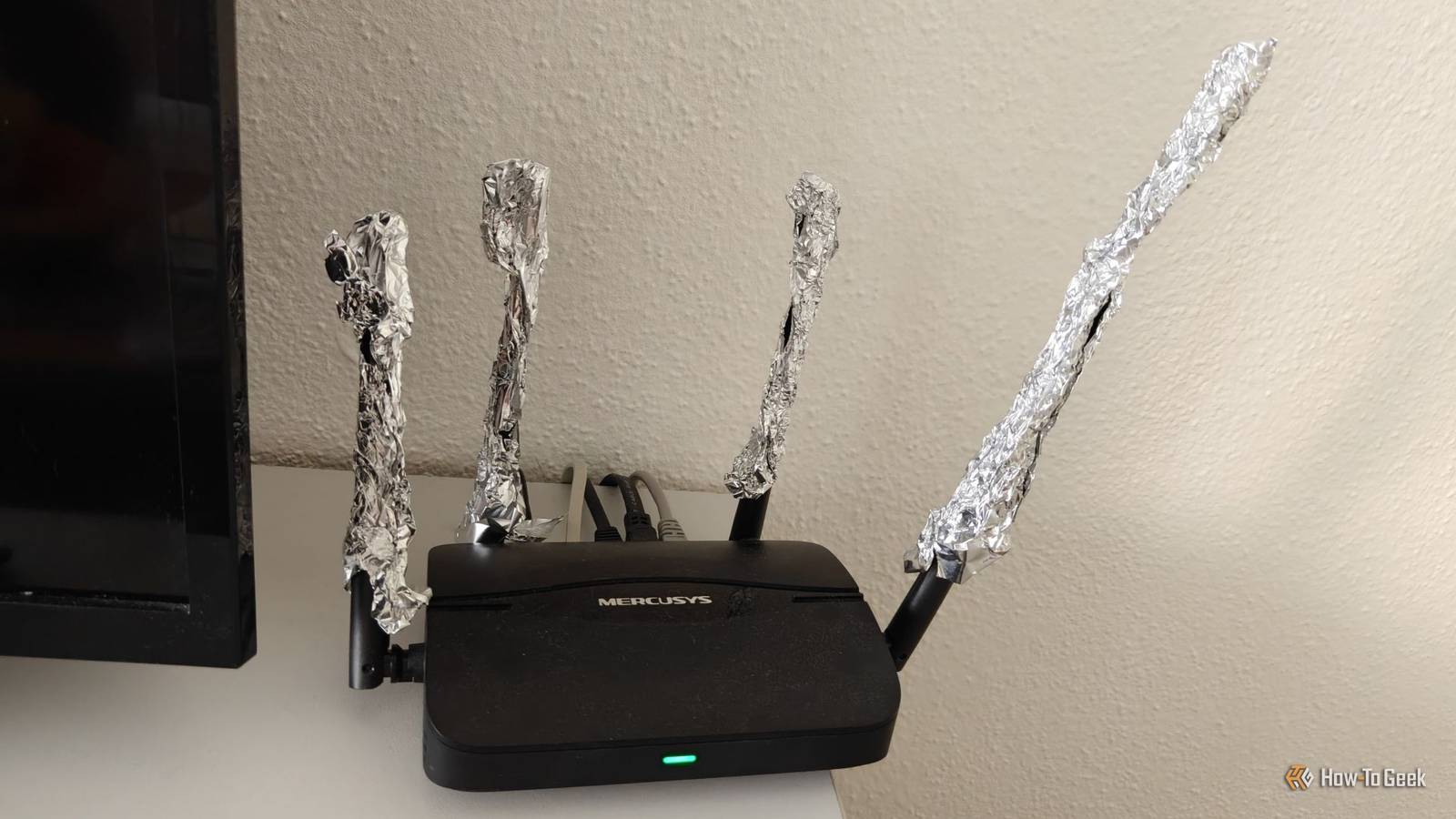
It's also worth checking router or mesh-system apps, since some are configured to periodically ping connected devices for status updates, and a small subset of consumer routers have been known to send wake packets during those checks.Anyone running file-sync software, media servers, or remote-desktop tools should pay close attention, since those applications are most likely to have requested this wake permission during setup.USB peripherals are still allowed to wake your computer A wireless mouse or dongle could be the trigger The third common source is far more mundane: a connected USB or Bluetooth peripheral with permission to wake the system.
Wireless mouse and keyboard receivers are notorious for this, since even minor electrical interference or a slight bump to the desk can register as input and pull the PC out of sleep.Docking stations, external hard drives, and even certain USB hubs can carry the same wake permission depending on how their drivers were installed.You check this the same way as network adapters: in Device Manager, open each USB or Human Interface Device entry and review its Power Management tab for the option that allows the device to wake the computer.
Running powercfg /devicequery wake_armed from an elevated Command Prompt lists every device currently permitted to do this, which is far faster than checking each one manually.Disabling the setting for peripherals that don't need it, particularly wireless mouse receivers sitting near other electronics, resolves the majority of these cases without affecting normal use of the device during the day.Three checks that solve most mystery wake-ups Between scheduled tasks, network wake signals, and USB permissions, most unexplained wake-ups trace back to one of these three sources.
Running powercfg /lastwake first will usually point directly at the culprit.
Read More