Samsung Galaxy Watches offer a wide array of options that put them a rung above other Wear OS devices.The only bad thing about this is that you might be missing some of the best features that aren’t enabled by default.This is especially true when it comes to notifications.
Personally, notifications are the main reason why I wear a smartwatch.I don’t want to pull out my phone every time an alert comes in, but I also don’t want to fiddle around too much with my watch to read or take action on notifications.All it takes is four toggles to get things working perfectly.
Turn on the screen when notifications arrive Skip straight to the good stuff Clearly, smartwatches are different than smartphones.You probably don’t want your phone screen to light up with each new notification—it’s likely in your pocket anyway.However, a watch is on your wrist all day, just waiting to be looked at.
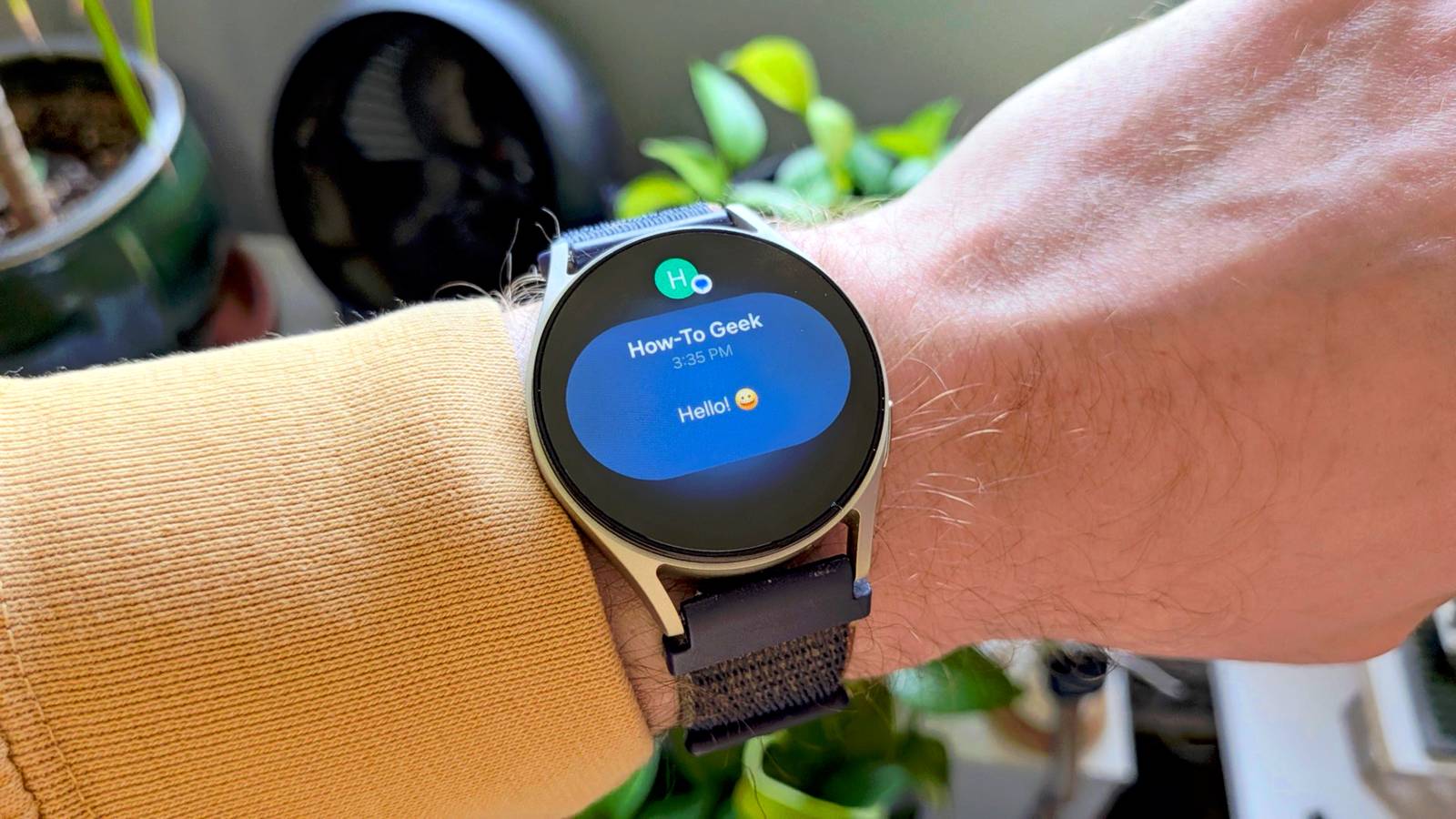
By default, a Galaxy Watch essentially treats notifications like your phone does.It vibrates or makes an alert sound, but you have to wake the screen to actually see what just came in.Do yourself a favor and enable “Turn on screen when notifications received” (Settings > Notifications > Advanced settings).
That way, when you feel a notification arrive, it’ll be on the screen when you lift your wrist to check it.Mute notifications on phone More flexible notification alerts Since my Galaxy Watch is my portal to notifications, I tend to keep my phone on silent.The downside to this is that my phone is also on silent when I’m not wearing my watch.
Now, I could manually switch my phone to vibrate when I leave my watch at home, or I could let the watch automate this for me.The “Mute notifications on phone” toggle does exactly what it says: mutes notifications on your phone when you’re wearing your watch.However, the opposite is even more important.
When you’re not wearing your watch, your phone goes back to its previous alerting mode.It could be vibrating or audio, whichever you prefer.This is the only option in this article that must be enabled from the Galaxy Wearable app on your phone.
It can be found at Watch settings > Notifications.Related Here's why using the Always-on Display on a Galaxy Watch actually saves battery Galaxy Watches have a battery trick everyone gets backwards.Posts 17 By Joe Fedewa Get notifications for new phone apps Never miss a notification For as long as I can remember, the Galaxy Watch has made it to automatically receive notifications from newly installed apps.
I don’t understand why.If the apps that were already on my phone when I connected the watch have notifications enabled by default, why shouldn’t that apply to new apps, too? There have been multiple occasions when I’ve gone hours missing key notifications because I downloaded a new app and didn’t enable “Auto turn on watch notifications for new phone apps.” You can avoid this by going to Settings > Notifications > Advanced settings.Navigate notifications without touching the screen Use your fingers, but not like that Even the biggest Galaxy Watch has a relatively small display.
That’s great for wearability, but not always the best for UI interaction.Thankfully, Samsung has been adding and refining gestures in One UI for a few years now.You can take action on notifications without touching the screen—it’s very cool.
My favorite gesture is the “Double pinch”—touching your pointer finger and thumb together twice.It’s useful in a variety of places.On the watch face, it cycles through your notifications.
While viewing a notification, the gesture scrolls down and can open the voice-to-text prompt if there’s a message box.So, pair this with “Turn on the screen when notifications arrive,” and you can immediately jump into a voice reply when you receive a text message.Head over to Settings > Buttons and gestures > Double pinch.
Select “Watch face” and make sure “Next notification” is selected.As long as Samsung’s Now Bar isn’t present, you’ll be able to cycle through notifications from the watch face.Take advantage of extra options One of the reasons why I tend to prefer the Galaxy Watch over the Pixel Watch is all the options Samsung gives you.
Google’s approach is very minimal and streamlined, which looks nice in design, but feels unfinished in functionality.If you have a Galaxy Watch, be sure to dive into the Settings from time to time.Samsung Galaxy Watch 8 Brand Samsung Operating System Wear OS CPU Exynos W1000 (5 Core , 3nm) RAM 2GB Storage 32GB Dimensions 43.7 x 46.0 x 8.6t Now thinner and more comfortable, the Galaxy Watch 8 adds new health-tracking features like sleep apnea detection and antioxidant readings.
$350 at Samsung $350 at Amazon Expand Collapse Samsung Galaxy Watch 7 Heart Rate Monitor Yes Operating System One UI 6 Watch, Wear OS 5 Onboard GPS Yes Display Size 1.3/1.5 inches Case Material Aluminum Display Super AMOLED, Sapphire crystal The Samsung Galaxy Watch 7 is Samsung's entry-level smartwatch for 2024.It resembles the Galaxy Watch 6 but features an enhanced Exynos W1000 chipset, promising significantly improved battery life and performance.$300 at Samsung Buy on Amazon Expand Collapse
Read More