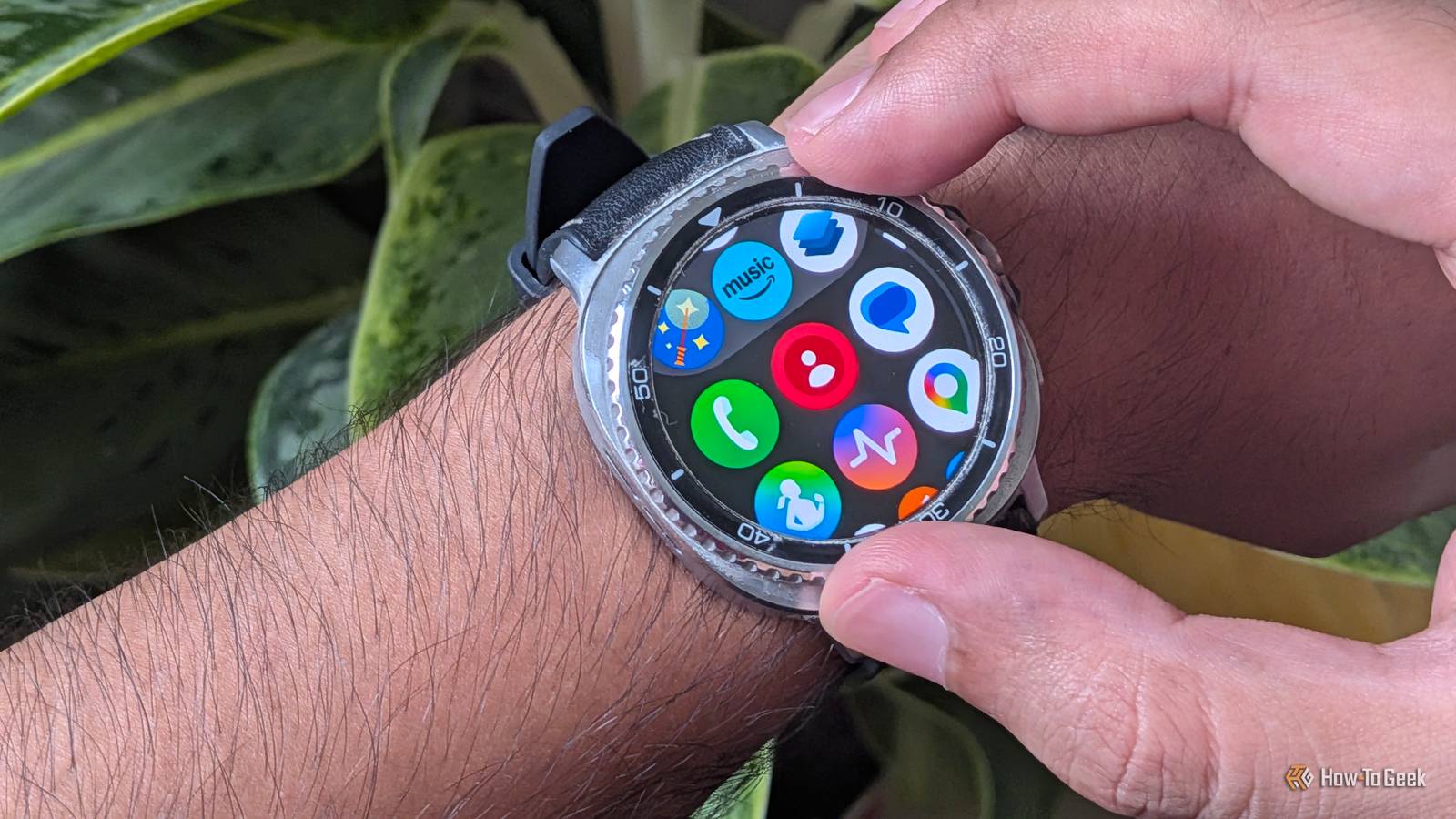
A watch has always been more than just a timekeeping accessory.It's also a style statement, and many conceive of it as a status symbol.But with smartwatches becoming increasingly common, simply wearing one doesn't make you stand out anymore.
That's where I like to get a little creative with my Galaxy Watch Ultra.Add How-To Geek on Google Add as Preferred Source Follow on Google Discover Whether it's setting up a cute GIF as my watch face, making it behave differently when I'm driving, or giving it the charm of a traditional analog watch with ticking sounds and hourly chimes, there are plenty of tricks that make using the Galaxy Watch more interesting.I also love showing off its live camera viewfinder, especially when I'm trying to take a group picture in the office.
Here are my top five features I'd love to show off whenever someone asks about my Galaxy Watch.Animated GIFs on my watch face Make your Galaxy Watch more playful I've always enjoyed personalizing my watch face to make it more attractive and draw people's attention.While there are plenty of watch faces to choose from, did you know you can even use your favorite GIFs? I particularly like this feature because a moving GIF, especially a cute one, is always something to show off when my watch wakes up during conversations with others.
To set your favorite GIFs as watch faces, open the Galaxy Wearable app on your phone, go to Watch Faces, and select Photos.From there, you can add a GIF as your watch face background, just like a regular picture.Even better, you can create an album with multiple GIFs, so tapping the watch face brings up a different one each time.
It's a small customization, but it's a fun way to make your Galaxy Watch a little more personal and show-off-worthy.Launching apps with a simple wrist gesture Try the hidden Knock Knock gesture Close The Galaxy Watch has several gesture controls, but one that caught my attention is the rather unusual Knock Knock gesture.As the name suggests, you can simply make a knocking motion with your wrist to trigger an action on your Galaxy Watch.
You can assign it to open an app of your choice, whether it's Calculator, Reminders, or something else you frequently use.I find this gesture handy for reminders.Whenever something pops into my head that I don't want to forget in the course of a day, I simply knock to open Reminders and quickly jot it down instead of navigating through the app menu.
To enable this gesture, head to Settings on your watch, open Buttons and gestures, scroll down to Gestures, and turn on Knock Knock.You can choose what action the gesture should trigger.It's a quirky shortcut that makes interacting with the Galaxy Watch more fun and gives me something to show off during conversations.
Viewing my phone camera from my wrist Capture group photos without touching your phone What's a better way to show off your Galaxy ecosystem in a group photo scenario during a family trip or vacation? One of the more surprising things you can do with your Galaxy Watch is use it as a remote viewfinder for your Galaxy phone's camera.The Camera Controller app lets you see the live camera preview on your wrist, switch between the front and rear cameras, and capture photos without having to touch your phone.I find it useful when taking group pictures — instead of setting a timer and rushing everyone to join before the shutter goes off, I can place my phone at a suitable angle, check the camera preview on my watch, and direct the group shot myself.
To try this, simply open the Camera Controller app on your Galaxy Watch while it's connected to your Galaxy phone.Note: Samsung's Camera Controller app works only with compatible Samsung Galaxy smartphones.Making my Galaxy Watch adapt to my day Use Modes and Routines settings creatively Close I like how Samsung lets you automate certain Galaxy Watch settings based on what I'm doing and where I am.
While you might already be familiar with the usual modes like Sleep, Driving, and Theater, there are more ways to create custom ones to suit your needs.You can do this by swiping down from the top of your watch and tapping the "Modes" icon.For instance, I've created a custom Android Auto routine that automatically turns off the Always On Display and Raise wrist to wake when my phone connects to my car.
I've also configured it to switch to a custom watch face, making my watch less distracting while driving.You can get more creative with these routines by setting up location-based watch faces — a different setting when you're at the gym, office, and so on.It's a fun way to make your Galaxy Watch adapt to different situations throughout the day without manually changing everything.
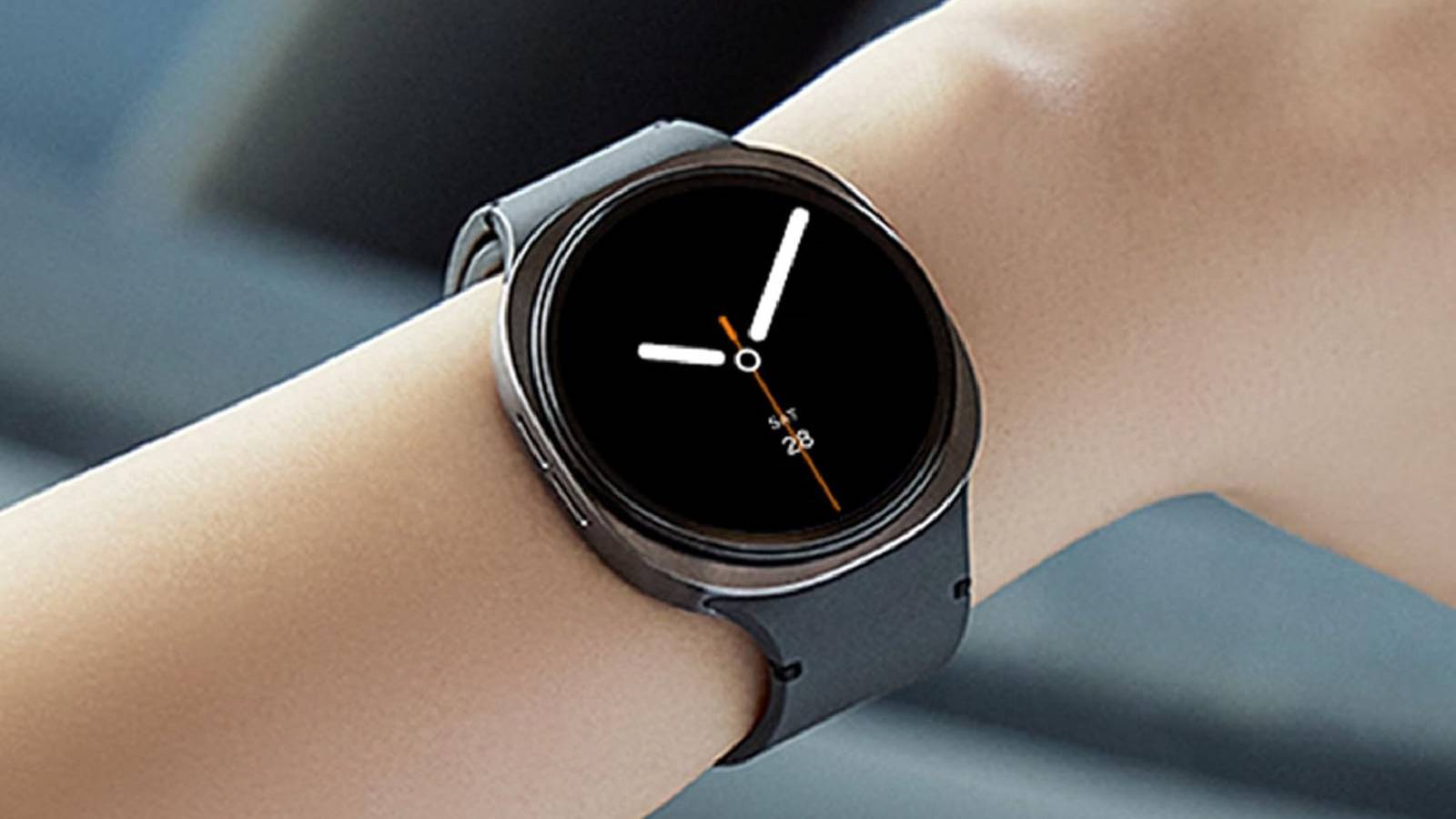
Bringing back the charm of an analog watch An analog watch face worth showing off Close On certain occasions, I'd like to bring back analog watch faces that give my watch the charm of a traditional look.I particularly like pairing an analog watch face with ticking sounds and hourly chimes.It's a small touch, but hearing the subtle ticking sound in a quiet room makes the watch feel like a classic timepiece.
To enable these options, choose a classic-looking dial on your Galaxy Watch, then go to Settings -> Sounds and vibration -> System sounds.Here, enable Ticking and Hourly chime to complete the experience.It's an unusual combination for a smartwatch, but that's precisely what makes it fun to show off.
Related 4 more useful Samsung Galaxy Watch features that aren’t enabled by default Samsung doesn’t enable all the best stuff for you.Posts 7 By Joe Fedewa Making your Galaxy Watch stand out More than just a way to show off, these little things make me enjoy my Galaxy Watch Ultra beyond its usual features.I'd suggest you take these as a starting point and customize the experience to your needs, eventually turning them into fun little things to show off.
Read More