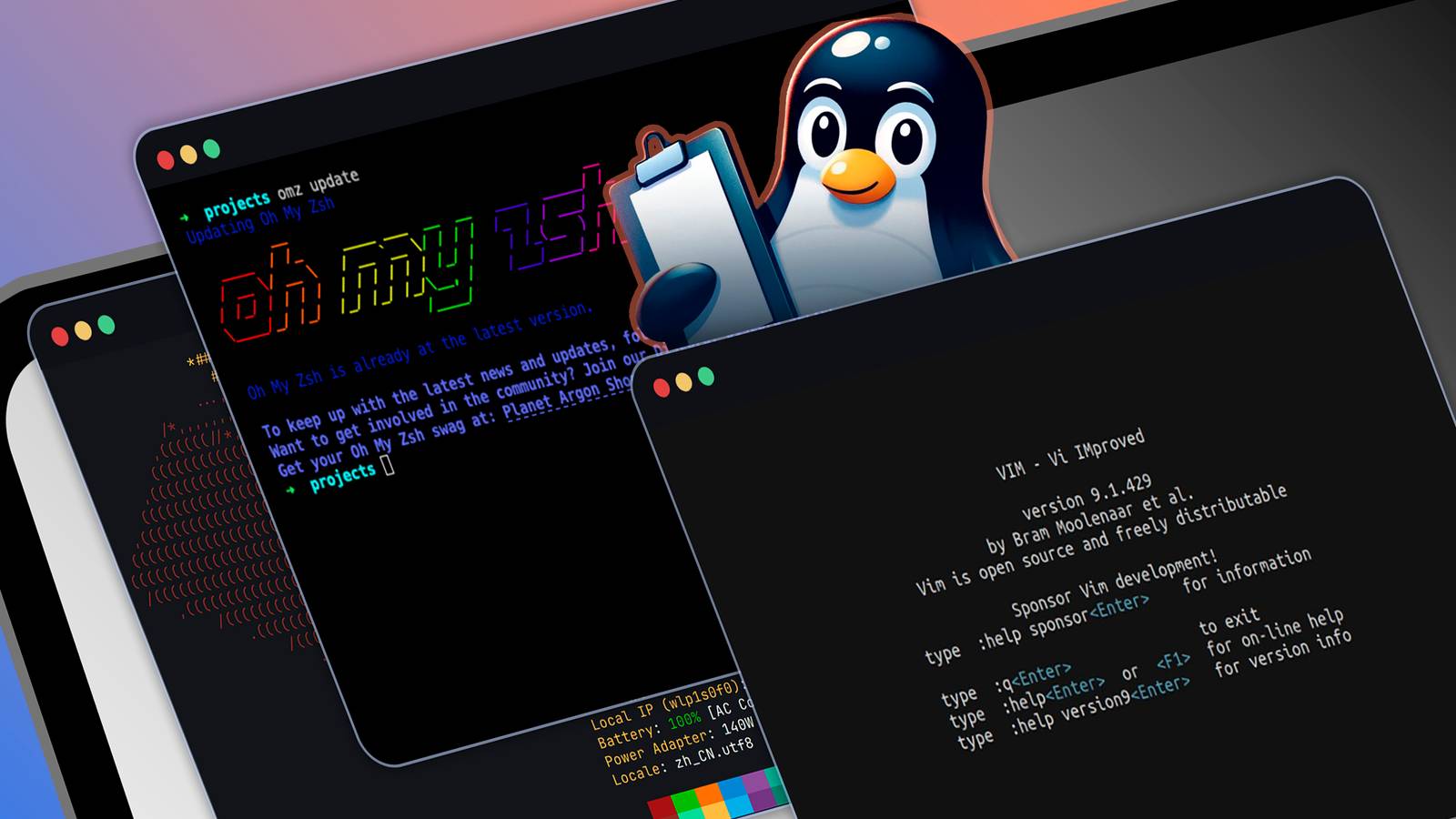
Have you ever felt like you’re not getting the most out of your Linux terminal? Well, you’re not alone.Over the years, I've found several Linux tools that have transformed my workflow and improved my command-line productivity.Let's take a look at my list of Linux power-ups.
tmux Unleash the terminal tmux is a terminal multiplexer, similar to GNU Screen, which lets you start a session and open several windows within it.Each window takes up the full screen and can be divided into rectangular sections.For example, you can have one session for fixing bugs, another for writing code, and a third for monitoring system logs.
With tmux, you can detach and reattach sessions, which is very useful when you need to step away from your computer or switch between different devices.Additionally, tmux sessions are persistent, meaning that programs will continue running even if you remove yourself from the session.It also offers a wide range of key bindings for a seamless experience, along with customizable options and appearances for individual terminals.
You can enhance tmux by using Oh my tmux! and various themes.To install tmux on Ubuntu and Debian-based distros, run the following command: sudo apt install tmux To get it on CentOS/Fedora, run this: sudo yum install tmux For Arch Linux: sudo pacman -S tmux To start a tmux session, type tmux in your console.This opens a new session, creates a window, and starts a shell in that window.
tldr It speaks for itself Want to access simplified manual pages for your favorite commands with concise and easy-to-understand explanations? Try tldr (Too Long; Didn't Read).While the traditional Linux man pages can be a valuable resource, they can also be overwhelming and difficult to navigate, especially for less experienced users.tldr solves this problem by providing simplified, community-driven man-pages for various Linux commands and utilities.
For example, let's consider that you're trying to remember the exact syntax for a command you haven't used in a while.Instead of going through a lengthy man page, you can simply type tldr and get a concise explanation of the command's purpose, options, and basic usage.This saves you valuable time and allows you to focus on getting things done.
You can install tldr on Ubuntu or other Debian-based distros easily.sudo apt install tldr To get it on CentOS or Fedora Linux, run: sudo dnf install tldr For Arch Linux: sudo pacman -S tldr Vim My favorite text editor If you haven't explored Vim yet, you're missing out on a highly effective text editor.Vim (Vi IMproved) is a highly customizable text editor that's been popular among Linux users for a long time.
At first, it might seem difficult, but as you learn how to use it, you’ll find it’s a very effective tool for editing code, configuration files, and other text documents.For instance, let's say you want to edit a large configuration file on a remote server.With Vim, you can connect to the server, open the file, and make edits efficiently, even with a slow internet connection.
Its modal editing allows you to move around the file, copy, paste, and manipulate text without ever needing to take your fingers off the keyboard.If Vim is not pre-installed on your system, you can install it from your distro's repositories.To install Vim on Ubuntu, run: sudo apt install vim You can install Vim on CentOS or Fedora: sudo dnf install vim For Arch Linux: sudo pacman -S vim Fastfetch Show off your system Do you want to view system information with lightning speed and accuracy? Look no further than Fastfetch.
With Fastfetch, you can display detailed information about your system, including CPU, memory, disk usage, kernel version, uptime, and even CPU architecture.It is one of the widely used alternatives to Neofetch.Viewing system information with Fastfetch can be useful for troubleshooting, system administration, or just keeping track of what’s on your machine.
Instead of having to run multiple commands or navigate through complex system information tools, you can simply type fastfetch in the terminal and get a clean, concise, and visually appealing display of all the key details.Fastfetch isn't included in the default software repositories for Debian or Ubuntu.To get it on Ubuntu or Debian-based distros, you first need to add its PPA repository: sudo add-apt-repository ppa:zhangsongcui3371/fastfetch Now, install Fastfetch with: sudo apt update && sudo apt install fastfetch You can get Fastfetch on Fedora or CentOS by running: sudo dnf install fastfetch To install Fastfetch on Arch Linux, run: sudo pacman -S fastfetch Quiz 8 Questions · Test Your KnowledgeThe origins of LinuxTrivia challengeFrom a Finnish dorm room to the world's servers — how well do you know the story behind Linux?HistoryPioneersOpen SourceUnixMilestonesBegin 01 / 8PioneersWho created the Linux kernel?ARichard StallmanBDennis RitchieCLinus TorvaldsDAndrew TanenbaumCorrect! Linus Torvalds created the Linux kernel in 1991 while studying at the University of Helsinki in Finland.
He initially developed it as a personal project and famously announced it on a Usenet newsgroup.Not quite.The Linux kernel was created by Linus Torvalds, a Finnish student, in 1991.Richard Stallman founded the GNU Project, Dennis Ritchie co-created Unix and C, and Andrew Tanenbaum created the educational OS Minix.Continue 02 / 8HistoryIn what year did Linus Torvalds first announce the Linux kernel to the public?A1989B1991C1993D1995Correct! On August 25, 1991, Torvalds posted his now-famous message to the comp.os.minix Usenet newsgroup, describing Linux as 'just a hobby' and saying it 'won't be big and professional like GNU.' History proved him delightfully wrong.Not quite.
Torvalds made his famous announcement in 1991, posting to the comp.os.minix Usenet group.He described the project modestly as a hobby, little knowing it would eventually power billions of devices worldwide.Continue 03 / 8UnixWhich operating system directly inspired Linus Torvalds to create Linux?ABSD UnixBMS-DOSCMinixDSolarisCorrect! Torvalds was using Minix, a small Unix-like OS created by Andrew Tanenbaum for educational purposes, and wanted to build something more capable and freely usable.His frustration with Minix's limitations drove him to write his own kernel.Not quite.
The direct inspiration was Minix, an educational Unix-like system created by Andrew Tanenbaum.Torvalds used Minix on his PC but found it too limited for his needs, which motivated him to develop his own kernel from scratch.Continue 04 / 8Open SourceUnder which license was the Linux kernel released, making it freely available to modify and distribute?AMIT LicenseBApache LicenseCBSD LicenseDGNU General Public License (GPL)Correct! In 1992, Torvalds re-licensed the Linux kernel under the GNU General Public License (GPL), a move that proved transformative.The GPL ensures that anyone who distributes Linux or a modified version must also make the source code available.Not quite.
The Linux kernel is licensed under the GNU General Public License (GPL), which Torvalds adopted in 1992.This license was crucial to Linux's growth, as it guaranteed that the kernel and its derivatives would always remain open and freely modifiable.Continue 05 / 8HistoryWhat was the version number of the very first publicly released Linux kernel?A0.0.1B0.01C1.0D0.10Correct! The first publicly released version of the Linux kernel was 0.01, uploaded by Torvalds in September 1991.It was a rough early build not really intended for wide use, but it marked the true beginning of the Linux project.Not quite.
The first public release was version 0.01, uploaded in September 1991.It was a bare-bones kernel that could barely run any software, but it invited collaboration from developers around the world who helped shape what Linux would become.Continue 06 / 8PioneersWhich organization, founded by Richard Stallman, provided many of the essential tools and utilities that combined with the Linux kernel to form a complete operating system?AThe Open GroupBThe Free Software Foundation and the GNU ProjectCThe Apache Software FoundationDBell LabsCorrect! Richard Stallman's GNU Project had been developing free software tools since 1983, including compilers, editors, and shells.When the Linux kernel arrived, it filled the missing piece, and the combination became what many call GNU/Linux.Not quite.
The GNU Project, launched by Richard Stallman and backed by the Free Software Foundation, had built a nearly complete free OS by the time Linux appeared.The kernel was the missing link, and together they formed a fully functional free operating system.Continue 07 / 8MilestonesWhich was the first major Linux distribution aimed at making Linux accessible to everyday users?AFedoraBDebianCSlackwareDUbuntuCorrect! Slackware, created by Patrick Volkerding, was released in 1993 and is considered one of the earliest and most influential Linux distributions.It helped bring Linux out of purely academic and developer circles and toward a broader audience.Not quite.
Slackware, released in 1993 by Patrick Volkerding, was one of the first Linux distributions designed to make Linux more accessible.Debian also launched that same year, while Ubuntu didn't arrive until 2004, and Fedora followed in 2003.Continue 08 / 8HistoryWhat university was Linus Torvalds attending when he began developing the Linux kernel?AMITBUppsala UniversityCUniversity of HelsinkiDAalto UniversityCorrect! Torvalds was a computer science student at the University of Helsinki in Finland when he began work on the Linux kernel in 1991.He was running Minix on his new 386 PC and wanted a more powerful, free alternative.Not quite.
Torvalds was studying at the University of Helsinki in Finland when he started the Linux project.He had recently bought an Intel 386-based PC and was experimenting with Minix before deciding to write his own operating system kernel.See My Score Challenge CompleteYour Score/ 8Thanks for playing!Try Again fzf Search the smarter way fzf, short for Fuzzy Finder, is another useful command-line tool that enables you to quickly find and navigate through files, directories, command history, and more.It's much faster and easier to use than traditional commands like find or grep, which can be slow and difficult with large file systems or complicated searches.
fzf lets you locate what you need with just a few keystrokes.It uses fuzzy matching, meaning you don't have to remember the exact name—just type a word, and fzf will present you with a list of relevant options.You can search for a file by its name and contents, and open the selected file in your preferred text editor.
You can also list installed packages and search for a specific one using fzf.For example, to search for all the packages related to LibreOffice, run this command: dpkg --get-selections | fzf --query 'libreoffice' You can install fzf on Debian-based distributions or Ubuntu using this: sudo apt install fzf For RHEL/CentOS/Fedora, use: sudo dnf install fzf For Arch Linux: sudo pacman -S fzf bat Read between the lines bat is a modern alternative to the traditional cat command.With bat, you can quickly view and understand the contents of text files, especially those with complex formatting or syntax.
The built-in syntax highlighting feature makes it much easier to quickly scan and identify the different components of a file, such as code, comments, and configuration settings.Here is what a Python file looks like when opened with bat in the terminal: With cat, it would appear as a plain block of text, making it difficult to distinguish between different sections and elements.By switching to bat, you get syntax highlighting, allowing you to quickly grasp the structure and scope of the content.
To install bat on Debian-based distros like Ubuntu, run: sudo apt install bat To get it on Fedora or CentOS, use: sudo dnf install bat For Arch Linux: sudo pacman -S bat On Ubuntu and Debian, you need to use the batcat command instead of bat because of a conflict with a package named bacula-console-qt.However, if you still intend on using bat, there is a workaround you can try.Simply create a symbolic link to batcat with the following commands.
mkdir -p ~/.local/bin Next, run this: ln -s /usr/bin/batcat ~/.local/bin/bat Make sure you don't have the bacula-console-qt package installed before doing this.If you use that package often, you'll have to continue using batcat.Oh My Zsh The ultimate terminal upgrade What if your command line could be more informative and customizable? That's exactly what Oh My Zsh offers.
Oh My Zsh is an open-source Zsh configuration framework that provides a wide range of themes, plugins, and features to enhance your command-line experience.With Oh My Zsh, you can configure your prompt to show information such as Git branch, current directory, or system load.For instance, you can install plugins for syntax highlighting in your prompt, auto-completion for frequently used commands, and integration with version control systems like Git.
To use Oh My Zsh, you need to have Zsh installed on your Linux system.Once Zsh is set and installed, you can get Oh My Zsh on Ubuntu, Fedora, and Arch Linux, using the curl command: sh -c "$(curl -fsSL https://raw.githubusercontent.com/ohmyzsh/ohmyzsh/master/tools/install.sh)" You can also use the wget command: sh -c "$(wget https://raw.githubusercontent.com/ohmyzsh/ohmyzsh/master/tools/install.sh -O -)" htop Keep up with resource usage without going insane Want to monitor your system's resource usage in a more efficient and visually appealing way? Try htop.You can use htop to view detailed information about your system's CPU, memory, and disk usage.
Unlike the classic top command, htop provides a visual representation of resource allocation that makes it easier to identify bottlenecks and diagnose performance issues.With htop, you can quickly see which processes are consuming the most CPU, memory, or other resources, and then take appropriate actions to optimize or terminate them.You can install htop on Ubuntu or Debian-based distributions using this command: sudo apt install htop To install htop on Fedora/CentOS, run: sudo dnf install htop You can get htop on Arch Linux using this: sudo pacman -S htop zoxide Navigate folders faster If you spend a lot of time navigating directories in the command line, then zoxide is for you.
zoxide is a fast and efficient alternative to the built-in cd command.It uses a ranking algorithm to keep track of the directories you visit most frequently, allowing you to quickly navigate to them using a simple command.You also do not need to remember and type out long file paths, rather you can simply type z followed by a few letters of the directory you want to access, and zoxide will automatically take you there.
To install zoxide on Ubuntu or Debian, you can run this: sudo apt install zoxide To install zoxide on Fedora/CentOS, use this: sudo dnf install zoxide For Arch Linux: sudo pacman -S zoxide After installation, you need to add the following command to the end of your config file (usually "~/.bashrc"): eval "$(zoxide init bash)" When you install zoxide, start using it normally like the cd command for the first time.It will create a small database on your computer for every folder you visit.It keeps track of how often you visit each folder and the last time you accessed it.
This helps zoxide find and open folders faster for you.Related 4 Linux terminal tricks that make boring jobs weirdly satisfying Turn those boring chores into small enjoyable moments.Posts 2 By Zunaid Ali Incorporate these tools into your Linux workflow! That's all! These Linux tools have improved my command-line productivity, and I'm optimistic that they'll do the same for you.
Give them a try and explore how they can change your command-line experience!
Read More