Spring is right around the corner, which means it’s time for some digital housekeeping.If you rely on Home Assistant to run your smart home, keeping your server running smoothly with a bit of maintenance can boost both performance and usability.Here are some things you might want to attend to.
Fix your messy dashboard Dashboard management is one Home Assistant task I’ve been putting off ever since I installed it.I interact with my smart home mostly via Apple Home, which is already well organized, so it’s been easy to ignore the cards and controls that piled up.Home Assistant has since switched to a new dashboard style, and I haven’t started organizing that either.
If this sounds relatable, consider making a new dashboard under Settings > Dashboards and adding only the controls you want to see.You can then use the three dots icon in the list to set it as your default dashboard, so that it’s what shows up when you first open Home Assistant in a browser or mobile app.For a greater selection, install the Home Assistant Community Store and download third-party dashboards from there.
Looking for inspiration? Check out the Dashboards & Frontend board on the Home Assistant Community forums.Group things by category If you have a lot of automations, scenes, scripts, and blueprints installed, it can be hard to find what you’re looking for in one big, long list.One way to combat this is to group items by category so that they appear alongside one another.
You can also expand and collapse groups at will if you go this route.To do this, head to Settings > Automations & scenes and then use the tabs at the top of the screen to filter by content.To add an item to a category, click on the “three dots” icon next to it and select “Edit category.” In the window that appears, use the drop-down to “Add category” or select from one that already exists.
I recently did this with some automations that I only ever use when we have guests, so I can quickly enable or disable them without having to hunt through the list.Remove add-ons and integrations you don’t use Getting Home Assistant running smoothly can involve a lot of trial and error.Part of this means installing integrations and add-ons that don’t pan out, then immediately forgetting all about them as you become distracted by the next thing.
That’s why it’s a good idea to periodically remove software you’re not using.In addition to making the interface cleaner and easier to navigate, some integrations might be unnecessarily consuming resources and slowing your server down.Some may be running exactly as they’re meant to, but they sit on your dashboard and provide no real utility.
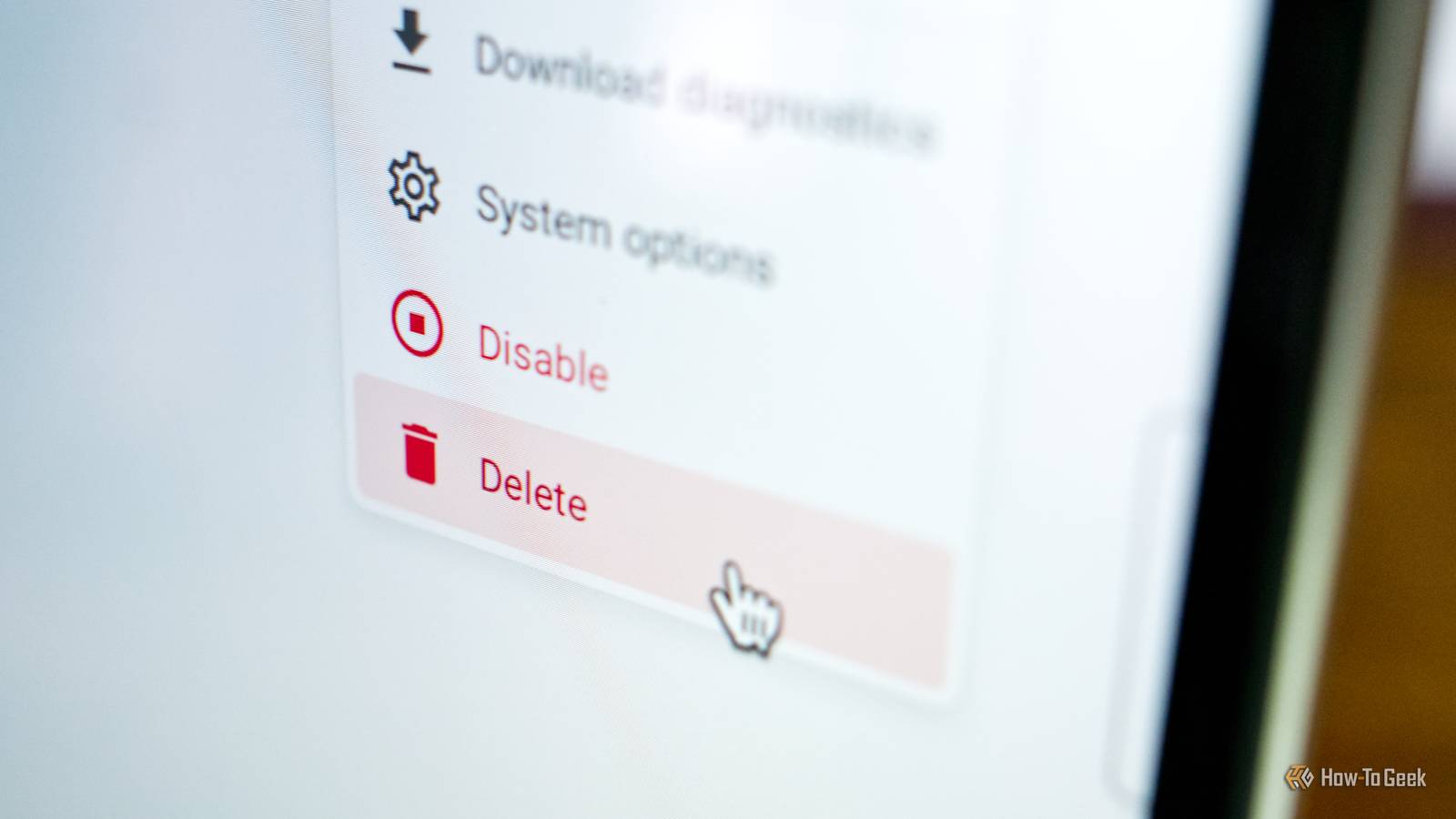
Head to Settings > Devices & services, then scroll through the list of integrations you have installed.Scroll through and use the “three dots” icon to “Delete” any that you decide you no longer need.Do the same for add-ons under Settings > Add-ons using the “Uninstall” option.
Clean up unwanted entities Every device, service, sensor, button, and anything that requires a unique identifier becomes an entity.Some entities are sensor readings, others are plugs with states, and some are internet services that provide information you can use in your automations.Not all are useful, especially leftovers, and you can do something about this.
Head to Settings > Devices & services, then click on the “Entities” tab.Here you will see a long list of available entities, nested under the device or services responsible for them.For example, I have some weather services plugged into Home Assistant that provide way too much information.
I can essentially remove things I don’t need or want to see by clicking on the entity in this list, then clicking the “cog” settings button and toggling “Enabled” to off.This is a great way to clean things up without removing them entirely.Make the sidebar more usable One of the best improvements I ever made to Home Assistant was customizing the sidebar with things I actually want to see.
This goes beyond removing things, since I added custom shortcuts to frequently-used items, including the Zigbee Home Automation integration (for adding new devices) and File Editor add-on (for editing the configuration.yaml file), plus quick access to Integrations, Automations, and Devices.Learn how to do this by reading our quick guide to editing your Home Assistant sidebar.Make sure your backups are in order If you’ve survived thus far without Home Assistant backups, it’s time to get serious.
Think about how much effort it would take to add all of your devices, design your custom automations, or perfect the layout of your home and dashboards.Subscribe to our newsletter for Home Assistant tips Get even more Home Assistant maintenance tips, deeper how-tos, and curated best practices by subscribing to the newsletter.Ideal for anyone who wants clear, actionable guidance to keep their Home Assistant setup organized and reliable.
Subscribe By subscribing, you agree to receive newsletter and marketing emails, and accept our Terms of Use and Privacy Policy.You can unsubscribe anytime.Head to Settings > System > Backup to enable backups.
Make sure your backups are stored somewhere other than your server, like the optional Home Assistant Cloud service or in your own cloud storage.Install updates and action repairs Home Assistant doesn’t install updates unless you action them.You can do this under Settings > System > Updates, though you will also see a timely notification in the root Settings menu whenever an update is available.
Before you update, make sure you have an up-to-date backup (there’s an option to turn on automatic backups before an update in your backup settings).In addition to Core updates (the main Home Assistant release), you’ll find Home Assistant Operating System updates (the underlying infrastructure), as well as integration, add-ons, and firmware updates in the same place.Click on an update, then click “Update” to action it or “Skip” to sit this one out.
You’ll find any skipped updates available under the “three dots” icon at the top of the Updates menu.You’ll also find a list of outstanding repairs that are required under the System menu, which is usually just a case of restarting your server.Now that things are tidier, it’s time to start messing them up again.
Why not start by adding more integrations and blueprints or installing the Home Assistant Community Store to get access to even more downloads.
Read More