My Samsung Galaxy Z Fold 6 had started running out of battery way earlier than I expected, and I couldn’t figure out why.I hadn’t suddenly started using it more.I was still doing my usual stuff: replying to WhatsApp messages, checking Instagram, looking up recipes, and opening Google Maps when I was heading somewhere.
At first, I blamed the usual suspects and started closing apps I wasn’t using.That didn’t really help.Then my husband told me to check my Android permissions.
And honestly, I was a little surprised by what I found.Here’s what I found when I actually checked.Location We all forget to check this one The first permission I checked was location, mostly because I’d never bothered to look at how many apps had access to it.
Google Maps obviously needs it when I’m navigating; otherwise, I’d have no idea where I was going.But I started wondering why so many apps needed to know where I was, too.Zara doesn’t need to keep tabs on me while I’m at the grocery store.
Uber Eats doesn’t need my location when I’m scrolling through the menu from my sofa.Yet I’d given some apps more access than they actually needed.And if those apps are checking my location in the background, they’re basically doing extra work.
On my Fold 6, I reviewed location permissions and changed the unnecessary “All the time” access to “Allow only while using the app.” That way, those apps can still use my location when I actually need them, without getting permission to check it when I’m not using them.Physical Activity I didn’t even know apps could track this I first thought the physical activity permission would be limited to fitness apps.You know, the ones I downloaded to count my steps, track workouts, or pretend I’m suddenly going to become a morning runner.
But when I opened Permission Manager, I found Google Maps sitting there too.Why did Maps need to know about my physical activity? I had to look this one up because I honestly had no idea why Maps needed it.Android can use your phone’s sensors to figure out whether you’re walking, running, driving, and so on.
Maps can use this information to understand how you’re moving around, which can help it provide more relevant navigation features.I went through the list and asked myself which apps genuinely needed this access.If I’m not using an app for fitness or activity tracking, I don’t see much reason to leave the permission switched on.
So I turned it off for the apps that didn’t need it and left it enabled for the ones I actually use.Nearby devices My earbuds made me check this My earbuds made me realize why this permission exists in the first place.I connect them to my Fold 6 almost every day, so I’m perfectly fine giving the right apps access to nearby devices.
I found it enabled for apps like Google Home, which made sense because I use it to connect to nearby devices.But if some app I barely use has the same permission, I’m going to wonder what it actually needs it for.I turned off Nearby devices for apps that had no obvious reason to use it.
It’s not going to magically add hours to my battery life, but every little bit helps.Related I forced my Galaxy phone to stop checking location networks and added hours to my battery life Stop your battery from silently depleting.Posts 4 By Cory Gunther Camera and microphone These two were easier to ignore Close This was the part I almost ignored because I use my camera and microphone so often.
I take photos, send voice messages, make WhatsApp calls, and occasionally ask Gemini something when I’m too lazy to type.But I saw that many apps had access to my microphone.That made me stop and think.
The same goes for the camera.If I’m using a photo-editing app, sure, it makes sense.But if I haven’t opened an app in weeks, I don’t see why it should still have camera access or use my microphone when I’m not using it.
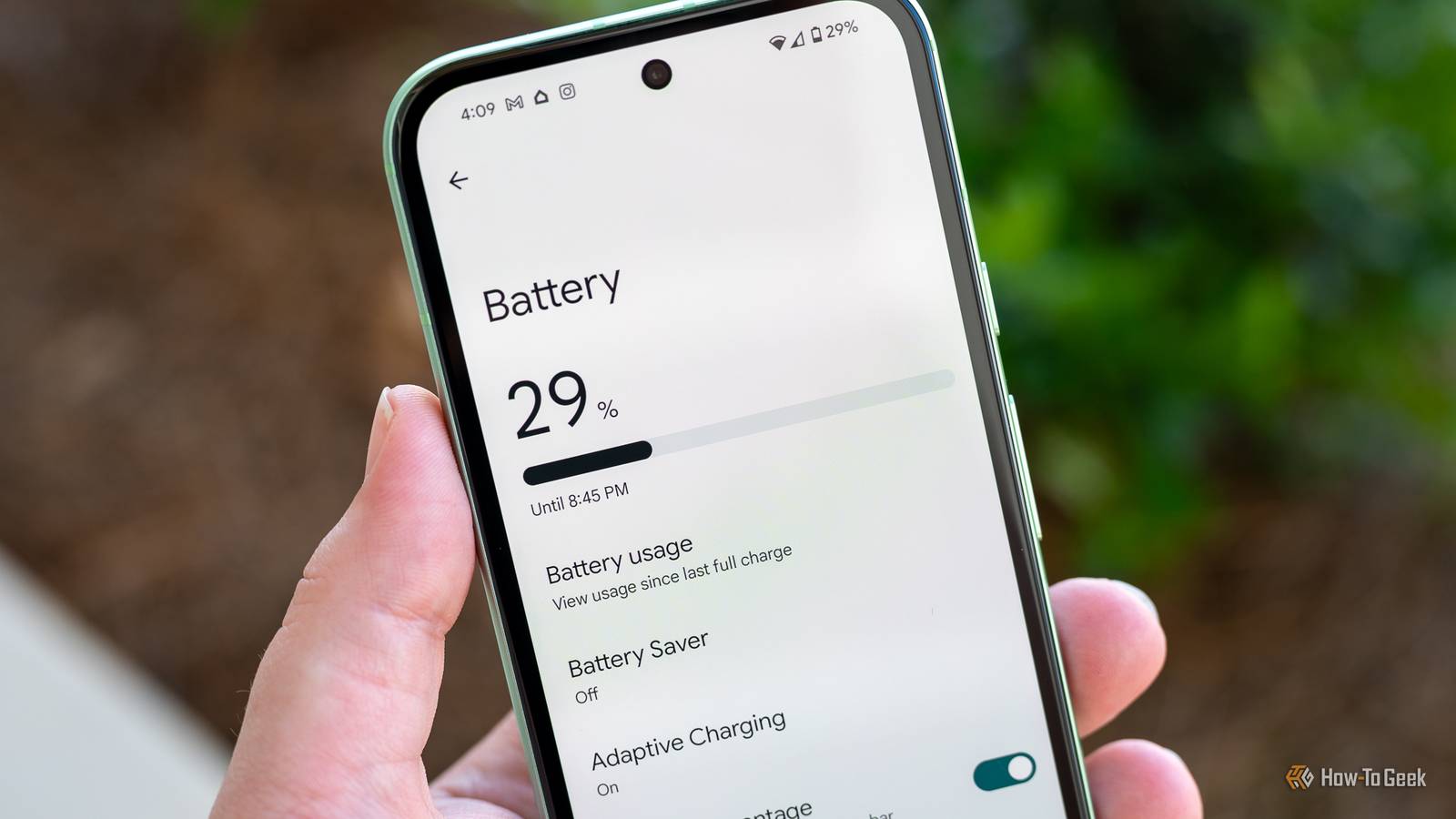
I turned off both permissions for occasional apps.It’s one more bit of background activity I can cut out when I’m trying to stretch my battery through the day.A few percent of battery never felt so useful I was at 29% battery the other day, and I noticed it sitting at 31% later on.
I’m not going to pretend those two percent came entirely from changing permissions, but it made me realize how many little things add up when I’m trying to save battery.Permissions are only part of it.I also keep an eye on apps that are constantly running in the background, lower my screen brightness when I don’t need it cranked up, and turn off a few features when I’m not using them.
The battery saver is another easy option when I know I’ll be away from my charger for a while.Take a quick look at your Permission Manager the next time your battery drops.You might find a few permissions worth switching off.
Related 4 reasons some Android features are still off-limits to you Features locked, for now.Posts 1 By Sanya Shah
Read More