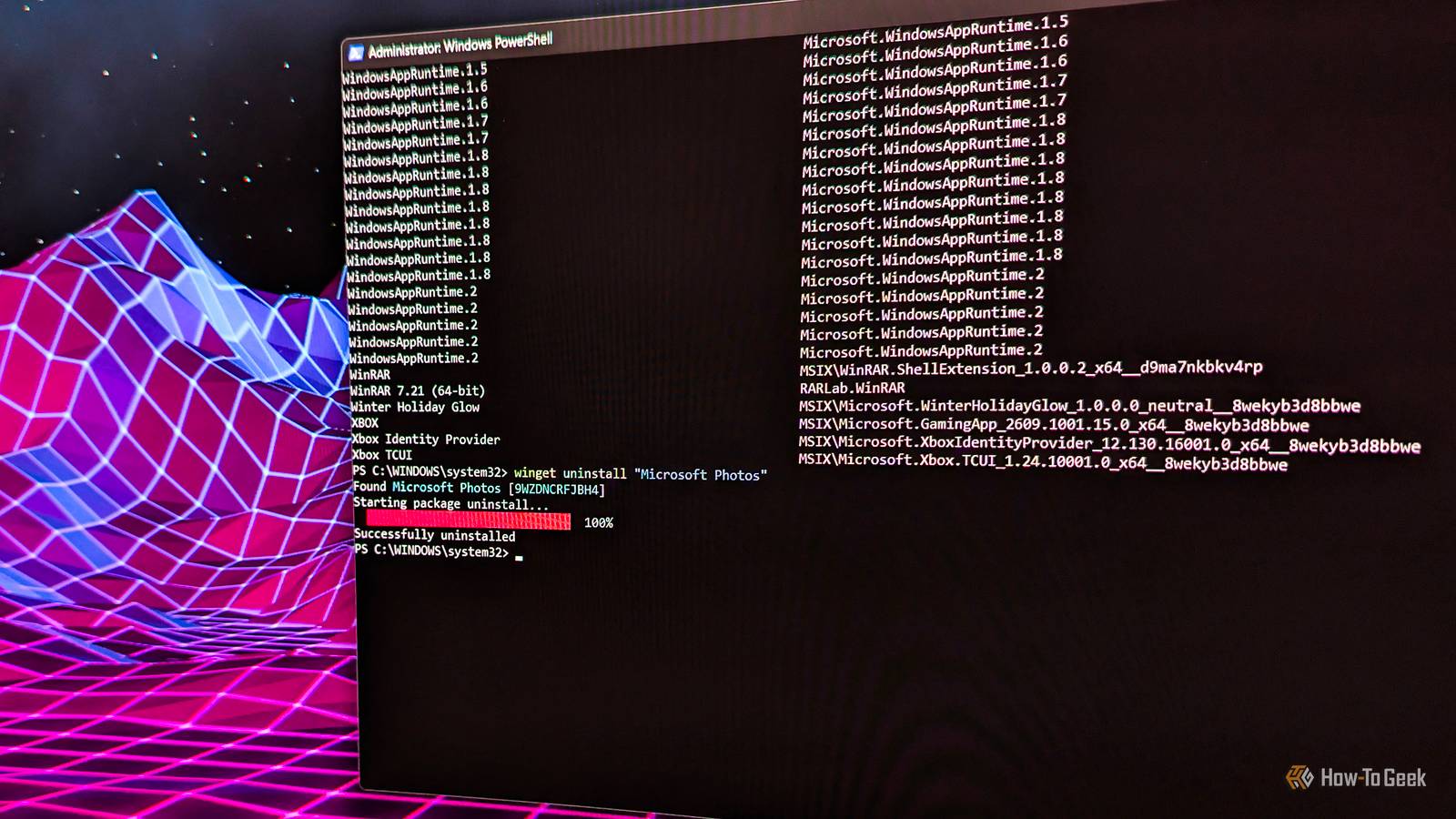
While you can deal with Windows bloatware in a variety of ways, one of the fastest, most straightforward methods to uninstall preinstalled apps you don't need is WinGet, a Windows package manager you can use from the command line.All it takes is typing or pasting a few commands, and your PC will be bloat-free in no time.I can uninstall most apps on my Windows PC with WinGet Including Windows bloatware Close I'm mostly using WinGet to update the apps installed on my PC because it's so much faster than doing it manually by downloading and running an installer.
But WinGet is also an efficient way to uninstall apps you don't need, including Windows bloatware.The first thing you should do is open PowerShell as administrator and type winget list to get a list of every app installed on your PC.You can now find the ones you don't need and type winget uninstall followed by the app's ID (listed in the second column of the apps list).
You can simply copy an app's ID with Ctrl + C and paste it with Ctrl + V, but you can't copy and paste by right-clicking in the command line.Alternatively, you can delete an app by name, but you have to put it in quotes.Simply pasting its name won't work, as you can see below.
Let me show you how you can do this with an example.The first thing I did was open PowerShell as an administrator and then typed winget list to get a list of every app installed on my PC.Among those, I found one I didn't need: Microsoft Clipchamp, which I installed a while ago for an article I was writing, and completely forgot about it afterward.
Since I don't need it, I'll use it in this example.After I copied Clipchamp's ID, I ran the command like so: winget uninstall MSIX\Clipchamp.Clipchamp_4.5.10920.0_x64__yxz26nhyzhsrt WinGet uninstalled the app in just a few seconds.Remember, you don't have to use the ID — you can uninstall an app by name too, as long as you wrap it in quotes.
Here's how this works in practice using the Lossless Scaling app as an example.Instead of pasting the app's ID, I pasted its name in quotes, like so: winget uninstall "Lossless Scaling" And it worked without a hitch.This is easy to do for the apps you know you don't need, but I don't recommend deleting apps left and right without any consideration.
Some apps are dependencies needed for other apps to work, while others you might need in the future.That said, Windows will prevent WinGet from deleting certain critical Windows apps, but it won't prevent it from uninstalling third-party apps, so in case your PC needs a third-party app you just uninstalled, you'll have a bad time.In other words, tread carefully.
You can find out all about a certain app by typing winget show followed by an app's ID.For instance, I wanted to find out more about Vortex, which is a video game mod-managing app developed by Nexus Mods, so I typed: winget show NexusMods.Vortex And WinGet listed a bunch of details about the app.In case I didn't know about the app or what it did on my PC, these details would fill me in, and I'd know whether to remove the app or keep it.
However, if you aren't sure about the app even after you see its details, I recommend not touching it because if you don't know what it does, chances are it's something important.You cannot remove every built-in Windows app with WinGet Some of them are out of WinGet's reach While you can delete most of the bloatware that comes with Windows using WinGet, you can't remove every app you don't need.For instance, Microsoft Edge is out of WinGet's reach because Windows treats it not just as an app, but as a core system component.
When I tried to uninstall Edge from my PC with WinGet, I got a notification saying the uninstallation failed with exit code 93.Even after I tried to use a command that force-uninstalls the app, I was met with the same notification.While some third-party methods can remove Microsoft Edge, I don't recommend them unless you know what you're doing, because removing Edge from your Windows PC can cause issues with other programs and features, including the Start Menu, Windows Search, File Explorer, and others.
Now, Edge isn't the only app you cannot delete with WinGet.If you encounter other bloatware you want to get rid of but can't with WinGet, you'll have to use the Remove-AppxPackage command instead, which I covered in another post.This command likely won't work with Edge, but it should be effective with most other built-in Windows apps WinGet can't uninstall.
Last but not least, Windows will reinstall certain built-in apps in a future update even if you remove them with WinGet or the Remove-AppxPackage command.To banish them from your PC for good, you'll have to deprovision them, which is a process I also covered in the past, so make sure to read about it.WinGet isn't only for uninstalling apps Here's what else you can do with this handy tool WinGet is so much more than a command-line-based uninstaller.
As I've already shown you, you can use it to list all the apps installed on your PC by typing winget list.Now that you have the list of apps, you can pick any app from it and update it by typing winget upgrade followed by the ID of the app you want to update.For example, I noticed that Vortex, the mod manager app from Nexus Mods, had gotten an update, so I typed: winget upgrade NexusMods.Vortex And it went swimmingly.
If you don't want to deal with updating apps one by one, just type: winget upgrade --all And WinGet will try to update every single app that has an update.This process can take a while, and some updates may fail for various reasons, so don't worry if an app doesn't update or if WinGet takes its time.You can also use WinGet to install apps, search for specific apps, add extra app repositories from which you can install apps with WinGet (useful if it can't fetch updates for certain apps), and more.
For the full list of commands and explanations for what each command does, you can either type winget or winget --help.WinGet is one of the most overlooked yet most useful Windows features While WinGet isn't a Windows feature Microsoft talks about or promotes much, it's one of the most useful features out there.Sure, it is command-line-based, but it's simple to use, with short, straightforward commands, and it works well even for regular Windows users.
If you haven't used it before, I highly recommend it even if you aren't familiar with command-line tools.Related 10 basic Windows commands for beginners Unlock the secrets of the terminal with these 10 basic Windows commands.Posts 2 By Richard Dezso
Read More