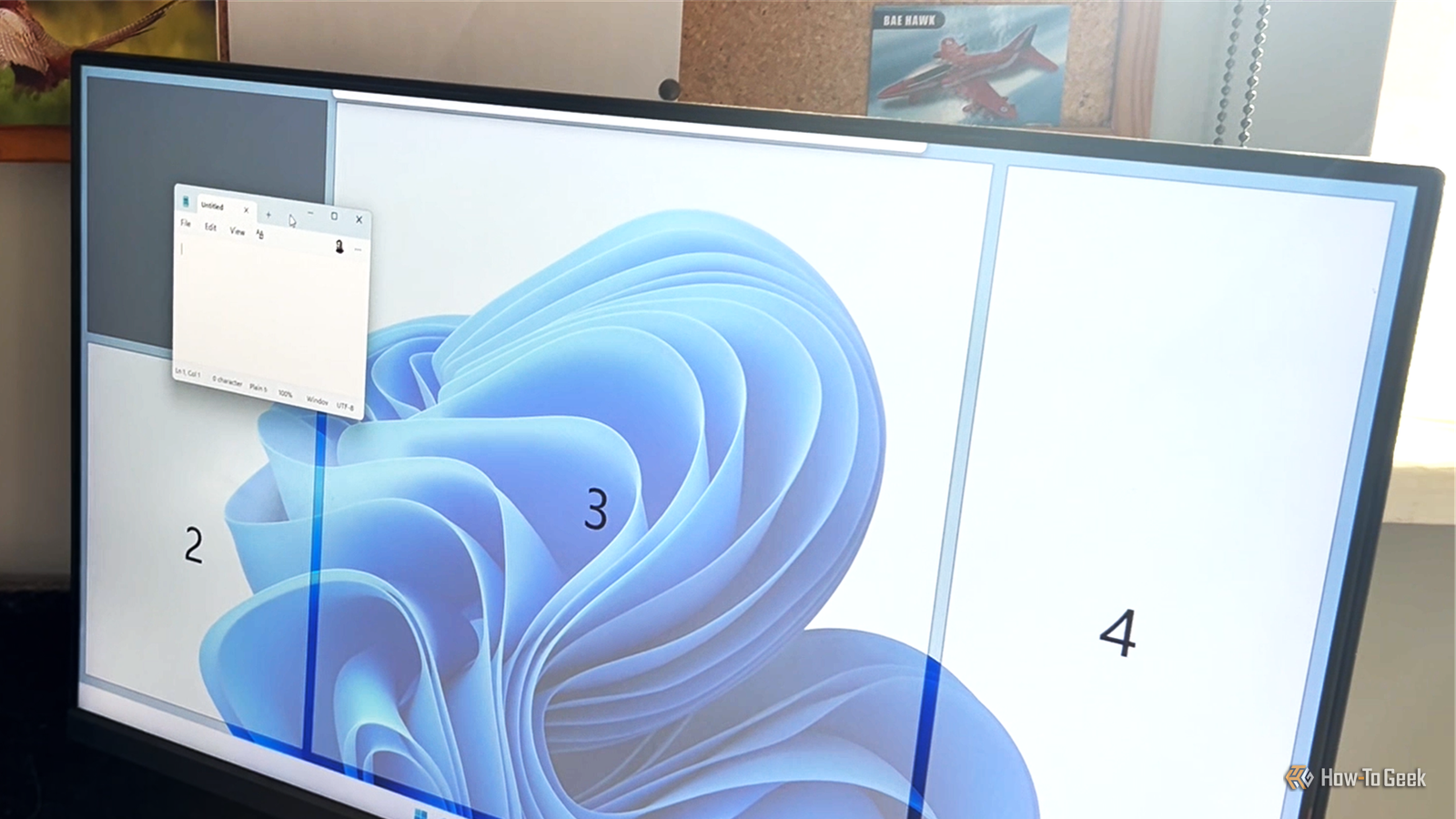
I've spent years working in Windows, and one of the little things that always annoyed me was having to resize and reposition windows whenever I wanted to fit several on screen at once.Windows' built-in Snap feature helps with this, but I often want a layout that's more specific to my workflow.That's where PowerToys FancyZones comes in.
Don't be misled by the name, though: PowerToys isn't only for power users, and FancyZones isn't as fancy as it sounds.It's quick to set up, and once you have, you can easily create a window layout that suits the way you work.Don't confuse FancyZones with Workspaces, another PowerToys utility.
FancyZones arranges the windows you already have open into reusable zones, while Workspaces remembers which apps you want to open and where their windows should appear.Get FancyZones ready in a few clicks It takes less than a minute to turn it on Close PowerToys is Microsoft's collection of Windows utilities, and you can install it from the Microsoft Store.Once it's installed: Right-click the PowerToys icon in your system tray.
Click Settings.Find FancyZones in the Utilities sidebar, and make sure the toggle is on.In my version of PowerToys (v0.101.2632.0), FancyZones appears in the Quick access section, where I can click it to open the FancyZones window.
The PowerToys interface can vary slightly between versions, however, so if you don't see it there, go to Windowing & Layouts > FancyZones and click Open layout editor.Now you're ready to choose how you want your windows arranged.Choose a template or create your own Make Windows work on your terms Close If you have more than one monitor, the first thing you'll see in the FancyZones Editor is the option to select which one you want to modify.
In other words, you can configure different layouts for different screens.So select the screen you want to configure first.Beneath that, you'll see several templates ready to use.
It's worth checking these out, as you might find one that's already close to what you need.If none of the templates fit the way you work, click Create new layout.Give your layout a name, then choose between Grid and Canvas before clicking Create: Grid is the more structured option.
It starts with three vertical zones, but you can split these horizontally to create the arrangement you want.Drag the handles between zones to change their sizes, or drag across adjacent zones to merge them.This makes it easy to build a layout with, say, one large area alongside two smaller ones.
Canvas gives you more freedom.It starts with a single zone that you can move and resize, and you can click the + button to add more.You can position the zones wherever you like, including overlapping them, which is useful if you have a more unusual arrangement in mind.
For more precise control over your layout, press Ctrl+Tab to move keyboard focus from the Editor's tip dialog to the zones.You can then press Tab to move between zones and resizers, and use the Arrow keys to adjust the selected zone more precisely.When you're happy with your layout, click Save, then select the layout in the Editor to make it active.
If you have more than one screen, repeat the process for any other screens you want to configure.You can create additional layouts later, too, so you don't have to settle on one arrangement or delete an existing one to try something different.FancyZones doesn't take over Windows Snap by default Keep using Snap when you don't need a custom layout Creating a FancyZones layout doesn't replace Windows' built-in Snap feature.
By default, you can carry on dragging a window to the edge or corner of your screen to use Snap as you normally would.To use your FancyZones layout, hold Shift while you click and drag a window.Your zones will appear on screen, and you can drop the window into whichever one you want.
If you'd rather not hold Shift, you can change this in PowerToys Settings > Windowing & Layouts > FancyZones.Turn off Hold Shift key to activate zones while dragging a window, and FancyZones will activate without the modifier key.There are a few settings worth knowing about But you don't to change any of them FancyZones has plenty of other settings you can tweak, but most people can leave them at their defaults.
If you want to explore them, you'll find options for things like activating zones with a different mouse button, showing zones across multiple monitors, and allowing zones to span monitors.You can also control what happens to windows when you change your layout or screen resolution, including whether windows stay in their assigned zones and whether newly opened windows return to their last known zone.I haven't changed most of these settings on my PC, simply because I haven't needed to.
I'd recommend trying FancyZones with its default configuration first, then coming back here if you need to make any tweaks.Windows doesn't have to work exactly as it does out of the box FancyZones isn't the only place where it's worth looking beyond the defaults.Windows has plenty of settings and features you can change or turn off when they don't suit you—from OneDrive cloud syncing and Copilot to Widgets and the Start Menu.
PowerToys adds another layer of customization: it gives you a few extra options without making you rethink how you use Windows every day.
Read More