While ads everywhere on your phone can feel annoying, they may start to feel embarrassing as well at a certain point.To implement advertising-related tracking at the OS level and serve targeted ads, every Android phone with Google Play Services carries a Google Advertising ID (GAID).It acts somewhat like a cookie by providing an identifier that can be used to serve targeted and personalized ads.
As a result, one late-night search or niche impulse click can potentially influence system-wide ads served to you.To clean your slate, you'll need to reset your Advertising ID, review Google Ad Center, and review ads and tracking inside apps like Instagram.I'll take you through each of these methods.
Reset or delete your Google Advertising ID Start from scratch or wipe your cross-app tracking footprint entirely Close Pretty much every Android phone carries a Google Advertising ID — a unique string of letters and numbers separated by dashes — to serve personalized ads on your smartphone.Google lets you delete or reset this unique ID at any time.To do so, you'll need to head to Settings, followed by Google, and enter the Ads menu from the All Services tab.
In the Ads menu, you can view your phone's current Ad ID and options to reset or delete it.I would suggest opting to delete your current Advertising ID, which prevents advertisers from accessing it and ultimately changes the type of ads shown to you.Alternatively, resetting your Ad ID works like clearing your browser cookies and disconnects your past online activity from that ID.
Note that while both options help tweak the personalized ads shown on your device, they don't necessarily mean all ads will vanish or that embarrassment won't appear again.If you continue visiting the same kind of websites or searching for similar topics, your Ad ID will quickly learn and pick up those habits, and those "embarrassing" ads might come back again.Related 8 Settings You Should Change to Make Your Google Account More Private Reclaim your privacy.
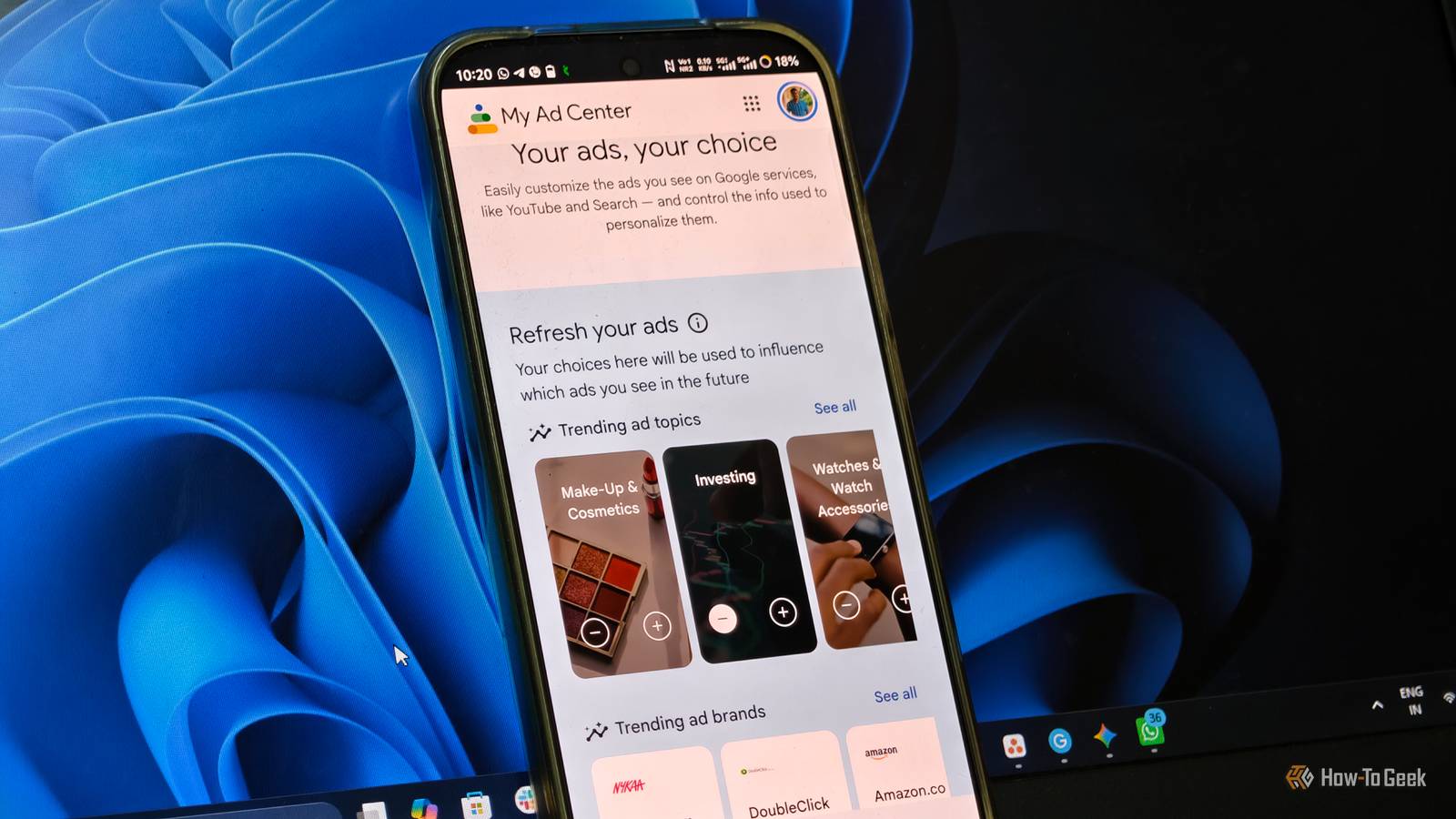
Posts 3 By Shan Abdul Block sensitive topics in Google My Ad Center Purge awkward Ad categories directly from your Google account If you're looking for an account-level fix, Google has a dedicated My Ad Center that serves as your dashboard for controlling personalized ads.This dashboard lets you turn on/off ad personalization, rediscover ads you've seen recently, and customize them.To access this dashboard view, you'll need to visit myadcenter.google.com and tap the Customize Ads tab.
Here, you can include or exclude ads by Topic, Brands and Sensitivity.Under the Sensitive tab, you can also limit your ads around sensitive topics like Dating, Gambling, Pregnancy, and more.I've turned off my ad personalization completely by disabling the Personalized Ads toggle at the top of My Ad Center.
This stops Google from using information and activity saved on my Google account to personalize ads, and I get to see random ads instead.Reset your ad preferences inside Instagram and Meta Stop social media trackers from using your off-platform activity Close While resetting your Android Advertising ID can help to an extent, social media apps under Meta have their own ad-personalization systems and controls.Even if the OS-level tracker is completely deleted, Meta can still use your in-app engagements to profile you and serve personalized ads.
Meta has a dedicated Ad Preferences tab under Account Center on Instagram and Facebook.You don't have to audit every single setting, but there are plenty of controls available.Two particular options — managing ad categories and hiding irrelevant advertisers--were particularly effective for me.
Under Managing Info, you'll find the Categories used to reach you, which basically contains categories based on your interaction with the social app.I removed all the categories listed there.Further, when you come to the Customize section, you'll also find a list of advertisers under Advertisers you saw ads from tab.
Skim through the list, select the irrelevant advertiser, and tap Hide Ads.These two tweaks have certainly helped me remove those embarrassing ads and cleanse my ad profile.There are plenty of options under Ad Preferences, all of which have explanations that you can review before tweaking your ad experience across Meta platforms.
Block ad trackers at the network level Use Android’s Private DNS to cut off ad servers before they load If you want to reduce those embarrassing ads at the network level and block them before they even reach your phone, DNS filtering is the best option.By just connecting your Android phone's DNS to reputable private DNS providers like AdGuard, you're enabling advanced privacy safeguards.This doesn't require commands or router configuration.
You can simply enable this by going to your Android phone's Settings, searching for "Private DNS," and opening the corresponding setting.By default, Private DNS will be set to Auto; just switch to a Private DNS provider and enter dns.adguard-dns.com in the hostname field.Then tap Save.
This setting instantly adds DNS-level filtering to your Android phone by blocking many known ad and tracking domains.It encrypts DNS queries, adds a security layer by preventing ISPs from tracking you, protects you on public Wi-Fi, and filters ads.Related You pay these 4 hidden costs every time you use Gmail Gmail might not charge a monthly fee, but you are still paying for it with your privacy and data Posts 2 By Vishwamoorthy Ramakrishnan A cleaner ad feed takes maintenance, not magic Many modern ad networks rely on persistent behavioral signals, so your digital ad profile can keep evolving the moment you search for a new product or site.
If you prefer personalized ads to generic ones but don't want embarrassing ads, try resetting the Advertising ID every few months.Alternatively, deleting your Ad ID completely reduces personalization, but it won't reduce the number of ads you see.Regularly review ad-personalization settings across the apps you use to avoid embarrassing or irrelevant ads.
Read More