Microsoft has bloated Windows with so many features, yet I probably don't use half of them.On the one hand, they are of no use.On the other hand, these features take up my PC resources and, even worse, can be a threat to my privacy.
Windows' OneDrive Folder Backup is one such feature I recently uncovered.Add How-To Geek on Google Add as Preferred Source Follow on Google Discover Like many other settings, Windows decided to keep this on when you first set up your operating system.Unfortunately, it's one of those services that slows down your Windows PC.
So, it's worth tweaking to make your machine usable again.Your Desktop, Documents, and Pictures probably aren't where you think Windows switches on OneDrive Folder Backup during setup Having a Folder Backup doesn't seem too bad at first.It moves your Desktop, Documents, and Pictures folders inside the OneDrive folder.
From there, OneDrive keeps the folders in sync with your cloud storage.So, if you save something in them, those get uploaded.That's not even the worst part.
Windows 11 version 25H2 no longer asks for permission.That's because it turns on OneDrive folder backup automatically during setup.This happens when you sign in with your Microsoft account.
You can check for yourself.Right-click your Documents folder, select Properties.If Folder Backup is on, you'll see the OneDrive path in Location under the General tab.
Otherwise, you can find it in the Location tab.That's how I knew which folders were synced with OneDrive and had backup turned on.Why Microsoft wants your folders in its cloud It's sold as protection, but the free storage fills up fast Microsoft claims that these folders are protected and stay synced across all your devices.
That means even if you lose your device somehow, your important files are backed up in the cloud.From that perspective, this looks like a crucial feature.Now, the issue is the amount of storage you're getting.
On the free plan, you only get 5GB of space.And if you're storing photos and videos, that space fills up quickly.In my case, my Documents folder occupied over 800MB of space, while the Pictures and Desktop folders occupied about 30MB combined.
It came as a surprise to me that the Documents folder was this large.Close If you want more, you'll have to pay for a Microsoft 365 Basic or Personal subscription, which will give you 100GB and 1TB of storage, respectively.If you think about it, it's a cheeky way for Microsoft to nudge you to upgrade your plan.
That might be the reason they decided to keep this setting on by default.How to turn off Folder Backup without losing a single file A wrong click in the confirmation dialog sends your files to the cloud instead Close Fortunately, turning this off is pretty straightforward.Before you start, look for cloud-only files in these folders.
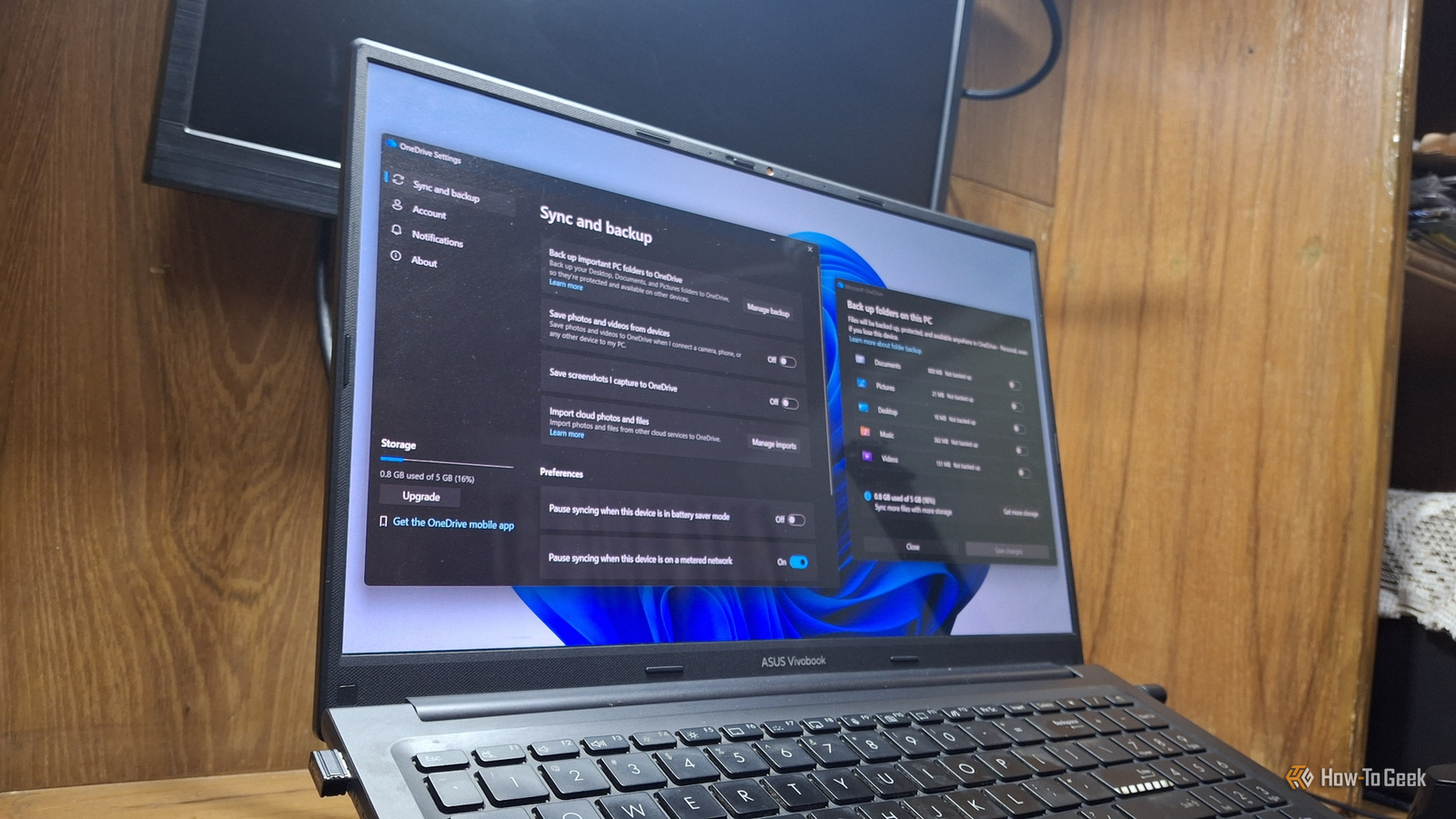
Microsoft notes that OneDrive can't move them back until you right-click them and choose Always keep on this device.Click the OneDrive cloud icon in the system tray.Click the Help & Settings gear icon, and select Settings.
Open the Sync and backup tab and click Manage backup.Turn off the toggle next to Documents, Pictures, or Desktop.When OneDrive asks, choose to stop the backup and pick where to keep your files.
Select Only on my PC and click Continue.Repeat the same steps for the other folders.Don't rush through the last dialog.
During the process, I found that Only in OneDrive is selected by default, and Microsoft confirms that this option removes the files from your computer.Well, this only stops Folder Backup.OneDrive is still installed on your PC.
If you want to go further, you can unlink OneDrive and stop it from loading at startup as well.Microsoft once admitted the sync slows your PC down Then that advice quietly disappeared from its own performance guide Here's where things get interesting.Back in 2025, Microsoft's own list of tips to speed up a slow PC included pausing OneDrive.
Neowin and TechRadar reported that the Microsoft Support account on X shared a performance tip article, which admitted that OneDrive sync can slow down your device.You can't find that tip anymore.The current version of Microsoft's performance guide lists 12 solutions, and none of them mention OneDrive.
I couldn't find any explanation from Microsoft for dropping it.Either way, deleting a tip doesn't make the sync any lighter on your hardware.The privacy cost is higher than "your files are in the cloud" Folder Backup is what puts your local photos in front of OneDrive's face scanning In July 2026, a new OneDrive Photos app appeared on Windows 11 PCs through a OneDrive update.
It puts OneDrive's People feature front and center.This new feature groups your photos by the faces in them.According to Microsoft's face grouping support page, it collects, uses, and stores facial scans and biometric information from your photos for grouping.
Microsoft defended itself by claiming face grouping runs in the cloud, and only on photos stored in your OneDrive.Photos stored locally on your PC are untouched, as the company told Windows Latest in August 2026.That sounds reassuring, until you remember what Folder Backup does.
On the plus side, Microsoft says it doesn't use your facial data to train its AI model overall.It also deletes face grouping data within 30 days after you turn the feature off.Your files should stay where you put them I'm not saying OneDrive Folder Backup is useless.
Neither will it make your Windows PC dramatically faster than before.However, if it's something you're not using, like me, then there's no point in having this setting turned on.Combine this with some other Windows services worth disabling, and you might actually notice some performance boost.
Read More