Back in the 1990s, Adobe created the PDF format to simplify sharing documents across different computers and operating systems without losing their original formatting.Add How-To Geek on Google Add as Preferred Source Follow on Google Discover This did make things easier at the time, and PDF slowly became the go-to format for sharing documents, even though editing them has never been particularly intuitive.Probably because that’s not what they’re made for.
A PDF file isn’t structured in the same way as a document in a word processor like Microsoft Word.It’s layout-focused, unable to decode the elements in terms of headings or characters.So it’s true that the PDF format itself is outdated and doesn’t do much to accommodate the need for editing large chunks of text.
But modern editors can work around these limitations now.Simple tasks like merging documents or annotating shouldn’t be complicated.It seems like some of the friction we’re experiencing today is because we kept an outdated workflow, not necessarily because of a technical necessity.
And Firefox’s PDF editor proves that things can be simplified.Premium-level features with no toggle tax Edit PDFs right in your browser, no signups or extra downloads Close Two things make Firefox’s in-browser editing particularly appealing: minimal friction and no payment.While Adobe offers some free tools across its desktop, mobile, and web apps, accessing many web and mobile features requires a sign-up and login.
With Firefox, you don’t need anything else besides the browser itself to access PDF editing tools like digital signatures or PDF splitting.It’s true that the toolbox itself isn’t as generous as Acrobat’s, but it is comprehensive enough to cover the day-to-day needs of students, office workers, or casual users who need to merge or sign a file from time to time.What surprised me even more, aside from eliminating the hassle of app-switching, is that Firefox actually makes some tasks easier or more efficient.
Merging, splitting, and organizing feel more modern The amount of time I lost when I last used “Organize Pages” in Acrobat to split documents is a bit embarrassing.Acrobat lets you pick page ranges, or select scattered pages by hand through an archaic click-and-hold Ctrl or Command mechanism.If you want to select things visually and don’t know the exact page numbers, all you have to do is forget to hold the key once, and you lose all the progress.
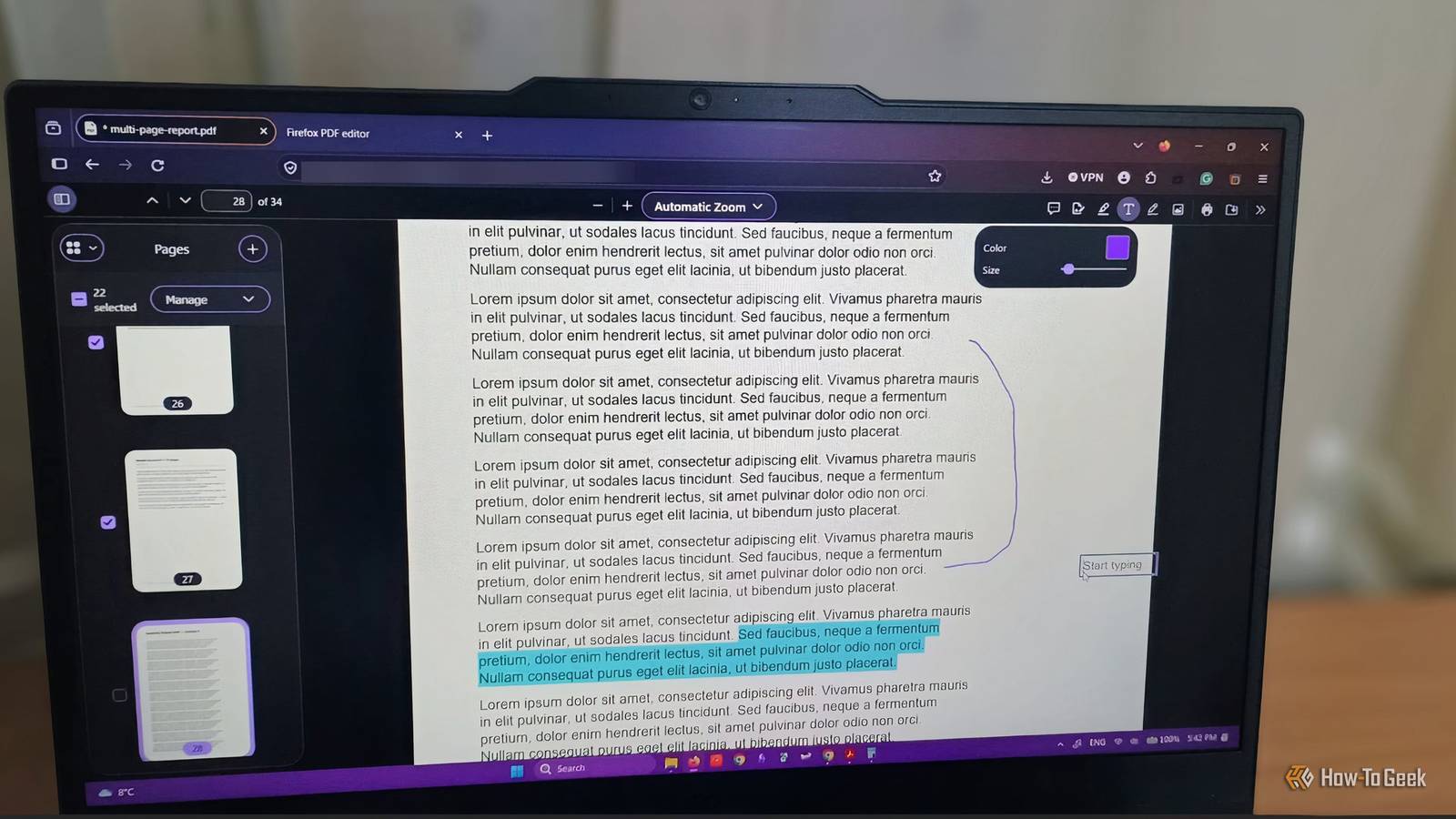
Firefox’s “Manage pages” is simple and doesn’t seem to add much, but each page has its own checkbox, so you can select exactly what you need without worrying about one wrong click ruining your workflow.It's a small UX detail, but it makes a big difference.When it comes to merging PDFs, it will feel very similar in both apps.
Firefox is a little more beginner-friendly and intuitive.All you have to do is open one PDF and then hit the + button to add another.Then you can select which parts will merge and how.
Acrobat requires more steps, and you have to select all the documents you want to combine when you start, from a separate menu.It’s more flexible if you want to combine different file formats and offers more options, but Firefox feels more straightforward for everyday tasks.Adding images to PDFs is free, and accessibility isn’t an afterthought Image insertion is as minimalist as splitting and merging, without sacrificing usability.
All you have to do is click the Image icon, select “Add image", and browse for your files.Then and there, you can enter the alt text right as you add the image and make your document more accessible for people who use screen readers.You can write the description yourself, or enable Firefox’s AI tool and have it generate it automatically.
Just double-check if you go for the latter because it’s still an experimental feature and will not work for all images.Once you add it, you can resize and reposition it directly on the page.The overall process is intuitive, and you get pretty much all the image-related features you would expect from a professional PDF editor.
While Acrobat offers these options as well, they’re only available for paid plans, starting with Acrobat Standard at $15 per month.Day-to-day PDF essentials are covered too Even if you don’t manage stacks of paperwork, you will inevitably have to deal with PDFs from time to time.Firefox’s PDF editor handles everyday editing tasks surprisingly well.
And did I mention already that you don’t have to sign up or switch between apps? You can fill and sign forms in-browser and save the files locally.You get full and intuitive support for adding forms, adding text over documents, and creating and storing your digital signatures.It also comes with a highlighting tool, freehand drawing, as well as a comment box tool that you can use for researching, reading, collaborating, or fact-checking a document.
These features are also included in Acrobat’s free tier, but I would argue that Firefox makes things easier for the average user.Everything is more streamlined, and you’re not constantly getting upgrade prompts.Related Why PDFs are so hard to edit—and the one free app that actually works This is how you can tweak text, images, pages, and forms without paid tools.
Posts 17 By Faisal Rasool So, do you actually need Adobe Acrobat? Firefox covers most of the everyday PDF editing tasks for free, which makes you wonder why something as simple as adding images or merging documents sits behind signups, downloads, or subscriptions.That’s not to say Adobe Acrobat is completely useless, but that’s if you’re a pro who actually needs all the support for more complex document workflows.Firefox’s tool is supposed to make daily tasks easier, while features like OCR or secure redaction make more sense in dedicated software that’s to be used by professionals who regularly handle complex or sensitive documents.
If you don’t want to pay but need more features, consider free alternatives like PdfCraft.And if you handle PDFs on mobile beyond just reading them, you’ll get more from Adobe Acrobat for now, because Firefox only offers these editing features on desktop.
Read More