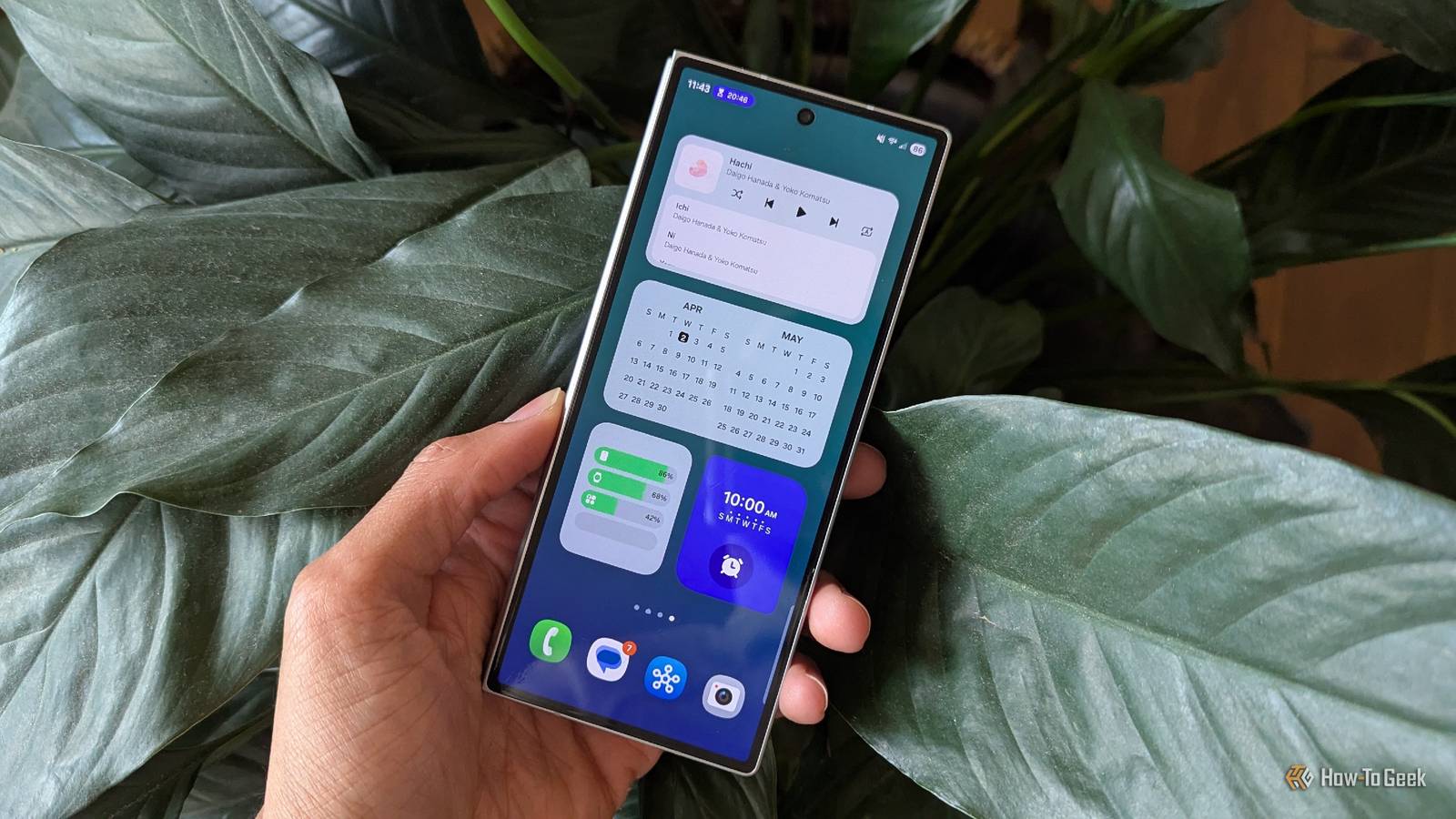
Your Samsung Galaxy phone is great for many things, but one of the best parts about it is how you can personalize and set it up for your convenient use.You may not even realize it, but one simple way to set up your phone for daily use is with its buttons.Add How-To Geek on Google Add as Preferred Source Follow on Google Discover If you find yourself opening the same apps or reaching for the same settings throughout the day, it helps to have a shortcut.
Here are five ways to set these up using your Galaxy’s built-in settings and Samsung’s Good Lock apps.Give the side button another job Choose what every press does Close Double-pressing the side button can do more than open your camera.You can assign it a couple of things: open the flashlight, an app, or a supported action inside an app.
Go to Settings -> Advanced features -> Side button -> Double press, and enable this feature.Choose between Torch, Magnifier, Voice Recorder, Samsung Notes, Samsung Capture, and more.I'm using the Samsung Galaxy S26+ here, but if your menu first shows "Open app" or "Open function," select that to reach the final action list.
For an app shortcut, choose the app you want instead.A gear icon beside an option opens additional settings, such as a specific camera mode or recording action.You can test your selection with a double press.
You can configure "Long press" separately on the same side-button page.Choose between Digital Assistant, Bixby, and the Power off menu.Add a second shutter button to your camera Capture your pictures with ease Close Taking a photo one-handed can be awkward when your thumb can’t comfortably reach the shutter button.
Samsung’s Camera app lets you add a second shutter button and move it to a position that suits how you’re holding the phone.Open Camera, tap Quick Control (the four-dot icon), then tap the Settings gear.Go to Shooting methods and turn on the "Floating Shutter" button.
Return to the camera’s Photo mode and drag the extra shutter button to somewhere you can comfortably reach.Tap it to take a picture, just as you would with the main shutter button you usually use.This can be useful for selfies or when you’re holding your phone at an awkward angle (or when you're trying to squeeze everybody in for a cramped group picture).
Try moving the button closer to your thumb so you can take the shot without losing your grip.Turn your back taps into shortcuts Give double and triple taps different jobs Close Samsung’s RegiStar app lets you trigger shortcuts by tapping the back of your phone.For example, you can tap twice to open an app and three times to take a screenshot, with a different action assigned to each gesture.
RegiStar is part of Good Lock, Samsung’s customization app.Good Lock offers separate add-ons called modules for changing different parts of your Galaxy, including the lock screen, navigation bar, and button shortcuts.You only need to install the modules for the features you want to customize.
To set up back taps, install Good Lock from the Galaxy Store.Open it, find RegiStar, and download it.Once installed, open RegiStar from within Good Lock to configure your shortcuts.
Select the "Back-Tap" action and toggle it on.Tap "Double Tap," choose "Open app," and select the app you want to launch.With your phone unlocked and the screen on, tap the back of the phone twice to test the shortcut.
To set up another action, return to the "Back-Tap" action and select "Triple Tap." Choose the screenshot action or any other option you want from the list.Now, tapping the back three times will trigger that action.You can also set the sensitivity of your tap.
I recommend starting with one gesture before setting up both as you ease into it.If double taps keep triggering accidentally during everyday use, you can stick to a triple-tap shortcut.Add a button to the navigation bar Make your navigation a cakewalk Close If you prefer something different from the traditional three-button navigation bar, NavStar, another official Good Lock module, can add another useful button alongside Home, Back, and Recents.
First, go to Settings -> Display -> Navigation bar and select "Buttons." Change the navigation setting as you want here (you have two layouts to choose from).Then install and open "NavStar" through Good Lock.In NavStar, enable button customization and tap New configuration.
Open Button layout -> Add button and choose what you want.Tap Done, save the configuration, and select it to apply the layout.This is a nice option to explore if a visible control feels convenient for you.
Use Samsung’s Assistant menu Keep a floating set of buttons handy Close Assistant menu is a built-in accessibility feature that gathers several controls behind one floating icon.It’s worth looking at if you find physical button combinations awkward.Open Settings -> Accessibility -> Interaction and dexterity -> Assistant menu and turn it on.
Tap the floating icon to access controls like Screenshots, Volume, and the Power off menu.Back in the Assistant menu’s settings, edit the included controls using "Select Assistant menu items" or "Customize menu items," depending on your software version.Remove the items you don’t need to keep the menu easy to manage.
Move the icon to a comfortable position and adjust its transparency.This gives you another way to capture the screen without pressing the Side and Volume Down buttons together.Start with only what you need You don't need to turn on every option at once.
Pick a task you repeat frequently, assign one shortcut, and get used to it before adding more.If a gesture or combination keeps getting in the way, change its assignment, move its handle, or turn it off.Samsung Galaxy S26+ SoC Snapdragon 8 Elite Gen 5 Display 6.7-inch Dynamic AMOLED 2X The Samsung Galaxy S26+ strikes a sweet spot between the compact Galaxy S26 and the feature-packed Galaxy S26 Ultra.
It pairs a large, vibrant AMOLED display with flagship performance, excellent cameras, and long battery life.RAM 12 GB Storage 256 or 512 GB Battery 4,900 mAh Operating System Android Colors Violet, Sky Blue, Black, White, Silver Shadow, Pink Gold Weight 190g $1100 at Samsung Expand Collapse
Read More