Excel is one of those tools I can reach for whenever I need to organize something, which is exactly why I ended up using it as a task manager.But there's a point where a growing list of things to do stops being a spreadsheet problem and starts being a workload problem.So I turned to Super Productivity, and it has become my go-to when I need to get a handle on everything I have to do.
Excel is a surprisingly good task manager I built a mini-app without really trying A couple of weeks ago, I wrote about the Excel-based task manager I built for myself.It was an Excel table with a task name and checkbox, plus formulas that count my total, pending, and completed tasks.Conditional formatting crosses completed tasks out, and a data bar shows my overall progress.
Add another task to the table and the dashboard updates automatically.For someone who already uses Excel every day, it's a perfectly capable task manager.Excel is flexible enough to handle everything from a quick list to a much more complex system involving multiple views, formulas, automation, and even VBA.
The problem is that Excel is so flexible.There's always another column I could add, another formula I could write, or another view I could build to make my task manager do more.At some point, I realized I was spending time maintaining the thing I had built to help me manage my time.
Two weeks later, I still have that spreadsheet, but I no longer use it to manage my current workload.I've moved that job to Super Productivity instead.Super Productivity gives my tasks somewhere to go It understands the bigger picture Close Super Productivity starts from a completely different premise.
Instead of giving me a blank grid and asking me to design a task manager, it gives each task a place in a wider system.I'm always skeptical of moving away from my familiar Excel environment to do something I've been doing in Excel for years.But in Super Productivity, everything works in a way that feels familiar.
Tasks, deadlines, estimates, projects, and completed work are all where I expect them to be, so I didn't feel like I was learning an entirely new way of managing my workload.My Personal Finances project contains a "Prepare monthly expenses" task, with subtasks for downloading my bank statements and categorizing my transactions.I can schedule the task, give it an estimate, add a tag, or make it recurring.
That's all possible in Excel, but in Super Productivity, these relationships are already part of the way the app works.I don't have to create the columns and formulas that make them meaningful.I also like that Super Productivity is free and open source, with no ads or tracking, and that my data is stored locally.
If I want to sync it, I can use options including Dropbox, WebDAV, Nextcloud, or a local file.For a personal task manager, that's a lot of functionality without handing my task list over to a big software company.Super Productivity manages the work around my tasks This is where it leaves my spreadsheet behind Close My Excel tracker is very good at answering one question: How many things have I finished? Super Productivity is much more focused on what it will take to finish them.
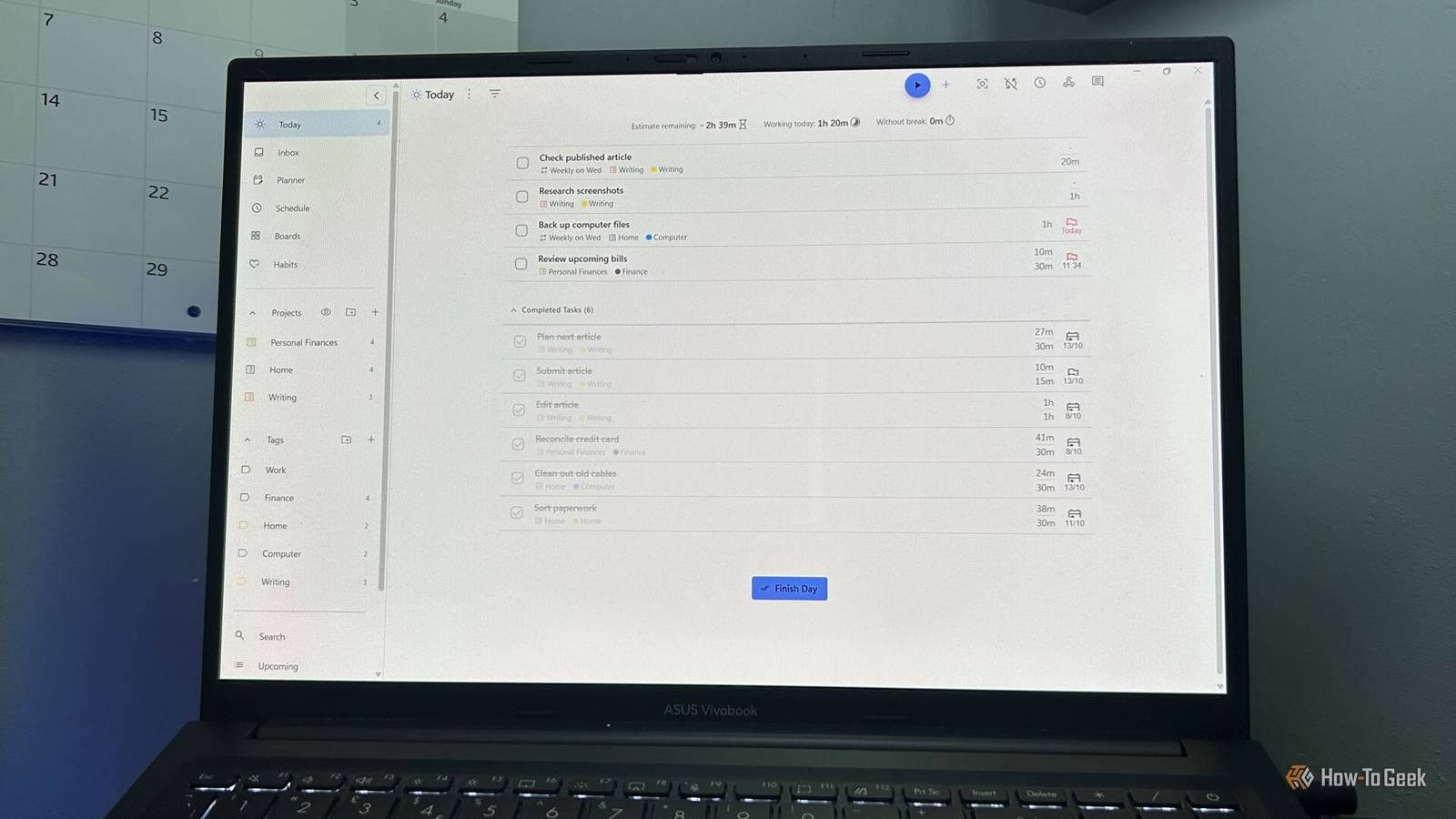
I could add estimated time and time tracking to my Excel system, but I'd be designing another part of the task manager rather than getting on with the work.When I create a task in Super Productivity, I can give it an estimated duration.Once I start working, it tracks the actual time I spend on it.
Its summary also shows how much estimated work remains, how long I've been working today, and how long I've been working without a break.That changes the way I think about a busy day.Five unfinished tasks in Excel don't tell me much if I don't know whether they represent 30 minutes or seven hours of work.
It even notices when I've stopped working.I took a break to make a coffee, and after detecting that I'd been idle, Super Productivity popped up a message asking what I'd been doing.I could tell it I was working on a task, taking a break, doing a bit of both, or choose not to track the time.
It also offered to reset the break reminder timer.That's a small feature, but it captures the difference between my spreadsheet and a dedicated task manager particularly well.My Excel tracker knows whether a task is complete.
Super Productivity pays attention to the work happening around it.When I actually sit down to work, I can start a focus session using Flowtime, Pomodoro, or Countdown.I tried a countdown, and the rest of the interface essentially disappeared while I worked, leaving me with the task and a timer.
I could pause the session, switch tasks, or complete the task when I needed to.And if I give something a deadline, Super Productivity can remind me when that deadline arrives with a Windows notification and an in-app reminder.Super Productivity makes planning my workload much easier I can see the work before I start it Excel gives me plenty of ways to look at my tasks, from sorting and filtering my table to creating another area with a date selector that pulls out the tasks I want to see on a particular day.
I've already built versions of this kind of view in Excel, and they work.But every new way I want to look at my workload meant building or maintaining another part of the spreadsheet.Super Productivity's Planner and Schedule views turn that planning into something I can do directly with my tasks.
When I want to see what I've got coming up, Planner lays my tasks out by day, while Schedule gives me a calendar-style view of the same workload.And I can change the schedule simply by moving the tasks themselves.Because the task itself is connected to all its other information, I don't need a separate reporting area to make sense of what I've planned.
In Excel, I'm creating a way to see my tasks.In Super Productivity, planning is already part of what the task manager does.Excel is still Excel, but this is where my workload goes I still use Excel for plenty of things, including quick lists and data that I want to sort, filter, calculate, or analyze.
What I've stopped doing is using that particular spreadsheet as my task manager.When my workload starts piling up, I've stopped trying to solve it with another spreadsheet.Instead, I open Super Productivity.
Read More